

Share this tool:
 |
Description:
LightPDF is an AI-powered PDF toolkit built for people who need more than a basic PDF viewer but do not want to jump between separate tools for editing, conversion, OCR, summarization, translation, and document Q&A. Its clearest value is consolidation: upload a document, edit or convert it, extract text, chat with it, summarize it, or use the AI Agent to execute common PDF tasks through natural-language instructions.
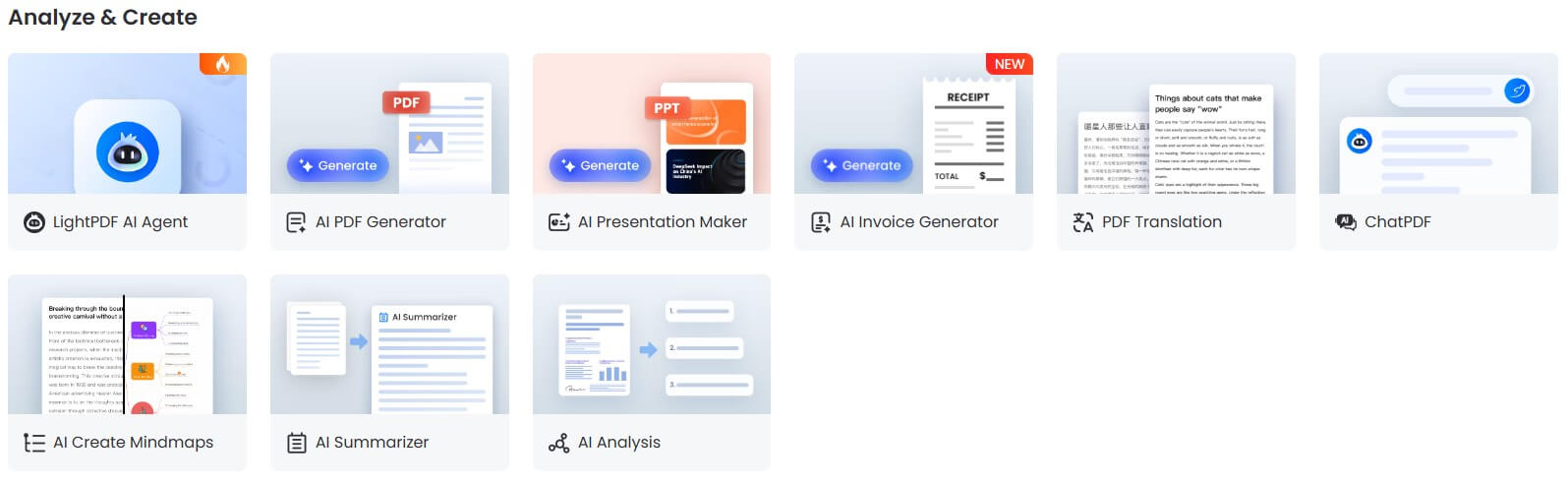
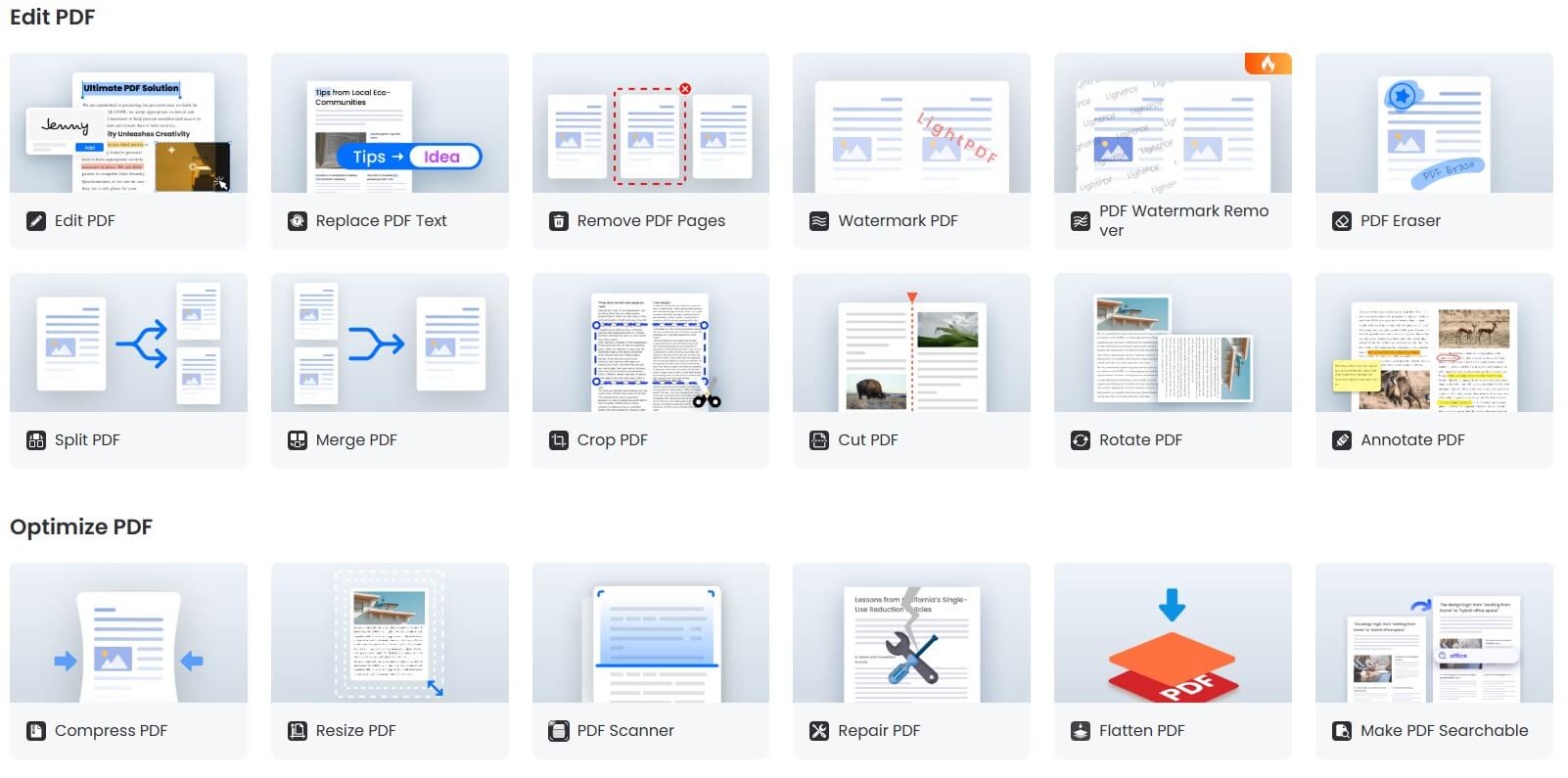
LightPDF is best understood as a PDF productivity platform with two layers. The first layer is the standard PDF toolbox: edit text, annotate, convert files, merge, split, compress, protect, unlock, OCR, and manage pages. The second layer is the AI layer: chat with documents, summarize PDFs, extract information, translate files, generate PDFs from prompts, and use an AI Agent to perform file operations.
That mix is what makes LightPDF more interesting than a plain online converter. It is not only trying to help you change file formats. It is trying to turn PDFs into workable documents, either by making them editable or by helping you understand them faster.
LightPDF is strongest when the job is practical and document-heavy. Think scanned forms, reports, contracts, research papers, invoices, manuals, course materials, product documents, and business files that need to be read, cleaned up, converted, or summarized.
The AI Agent is the most distinctive piece. LightPDF describes it as a chat-based way to handle PDF tasks such as splitting pages, converting to Word, merging multiple files, extracting text, adding watermarks, compressing files, adding password protection, and restricting printing. That is different from a read-only PDF chatbot because the assistant is positioned around executing document actions, not just answering questions about content.
This matters for everyday users. Many PDF tools are powerful but menu-heavy. LightPDF’s advantage is that routine actions can happen through a more guided workflow, especially for people who do not want to hunt through toolbars.
Lets users ask for document operations such as merge, split, compress, convert, watermark, extract text, and protect files through a command-style interface.
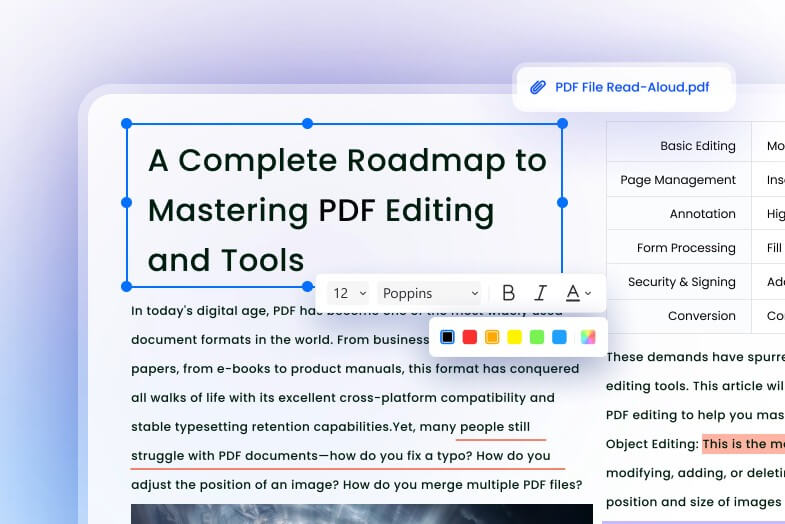
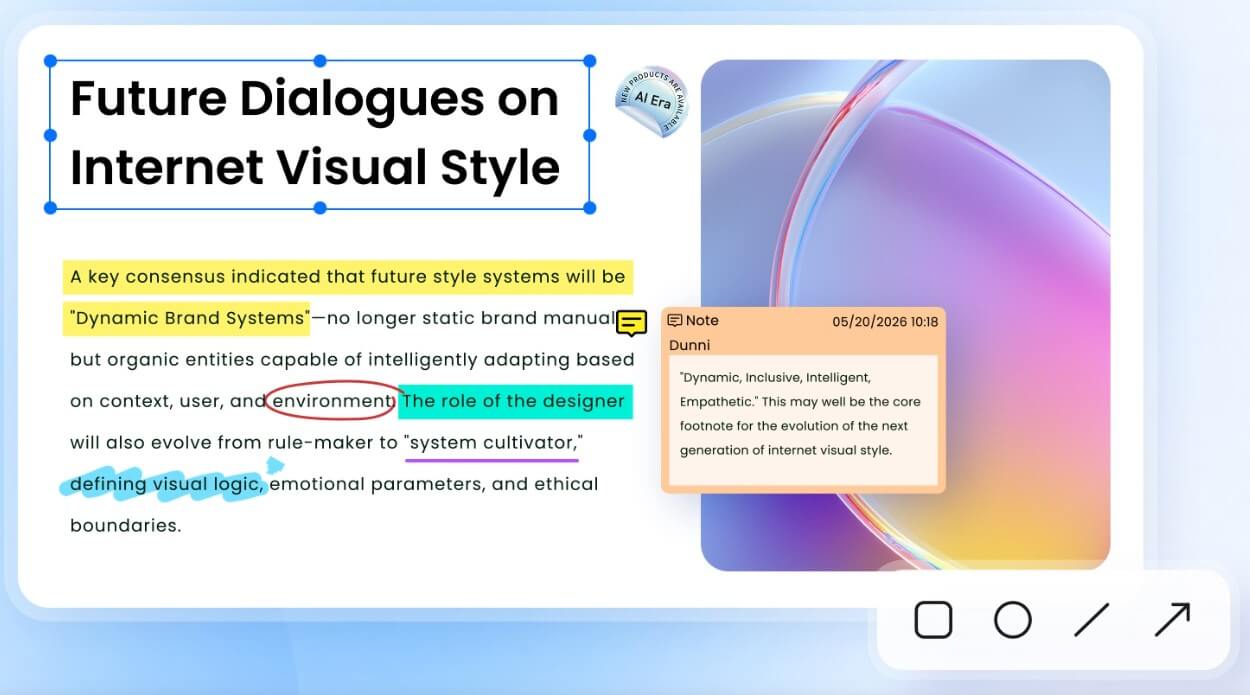
Supports browser-based editing for adding, deleting, changing, and highlighting text, with the editor designed for quick changes without installing software.
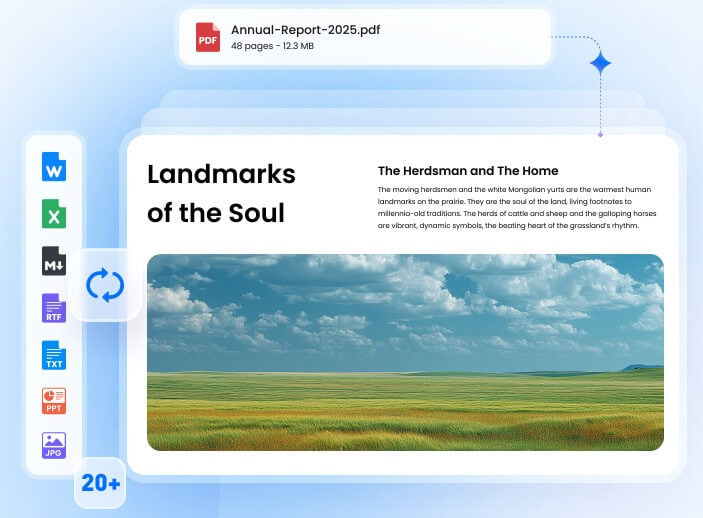
Converts scanned PDFs and images into editable formats including Word, Excel, PPT, PDF, and TXT.
Lets users ask questions about PDFs and other document types, with cited references to help locate where answers came from.
Supports uploading more than one document for chat-based analysis, which is useful for research and comparison work.
Works through web, desktop, mobile, Chrome/Edge extension, and Google Workspace add-on options.
The basic workflow is simple: choose a tool, upload a file, process it, then download or continue editing. For PDF editing, LightPDF describes a three-step flow: upload the PDF, edit the content, then download the edited file. The editor supports text changes, deletion, replacement, highlighting, and style matching for new text, which is useful for quick corrections and light document updates.
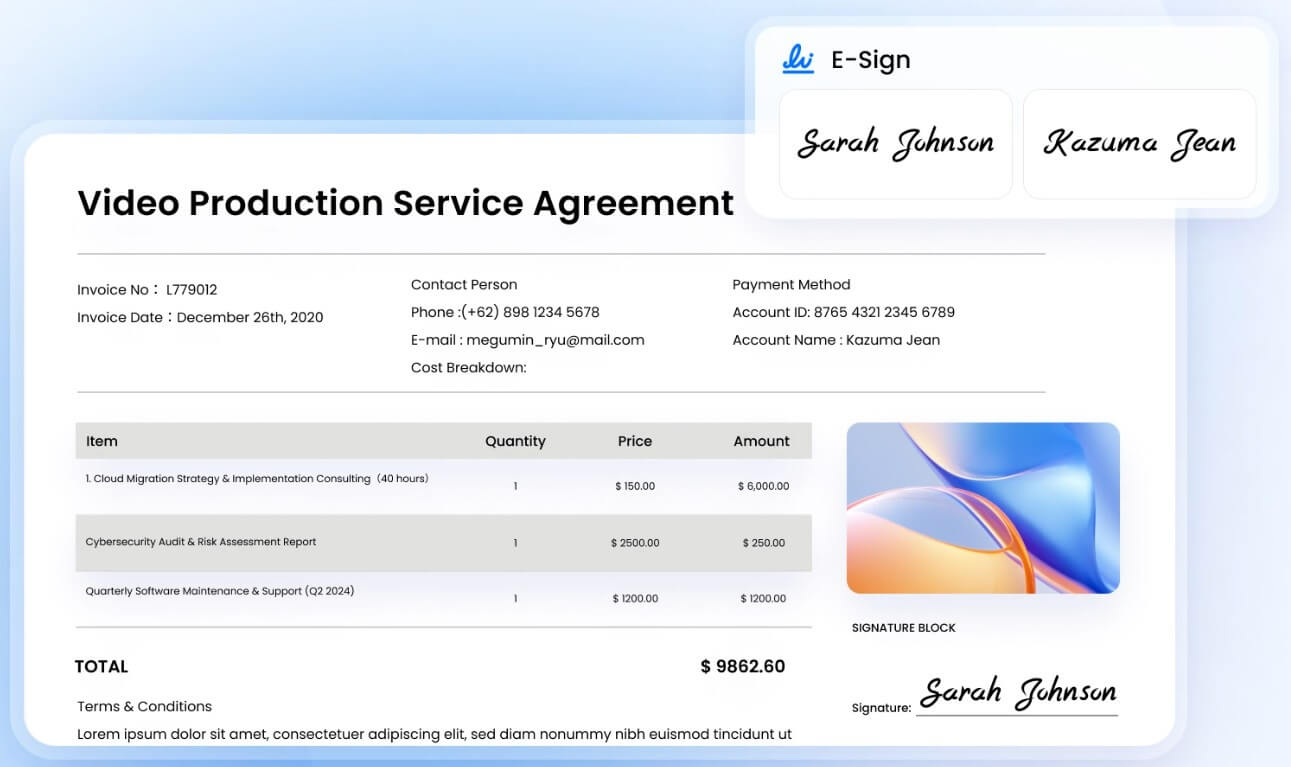
The AI workflow is more flexible. For document chat, you upload a file and ask a question. LightPDF says the chatbot can return answers in paragraphs, lists, or text tables, and it can show references and navigation points for each answer. For the AI Agent, the workflow is more task-driven: ask it to process the document, then let it produce a modified file.
That makes LightPDF approachable for non-technical users. The product is not asking you to learn a complex PDF editor first. It gives you both manual tools and AI-guided shortcuts. The trade-off is that the experience can feel broad. There are many tools, and users may need a little time to know when to use the editor, OCR, document chat, or AI Agent.
OCR is one of the more important parts of LightPDF because many PDF problems start with scans. A scanned document may look readable, but the text cannot be copied, searched, or edited until OCR runs. LightPDF’s OCR tool is built to extract text from scanned PDFs and images, then convert that content into editable document formats.
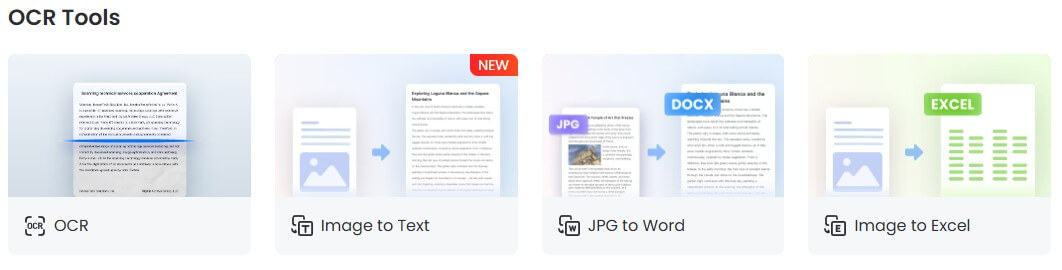
This is useful for students, admin teams, legal workflows, HR files, finance documents, and anyone handling paper-to-digital archives. The practical caveat is that OCR quality always depends on scan clarity. Crooked pages, handwriting, low-resolution images, stamps, tables, and unusual layouts can still require manual cleanup.
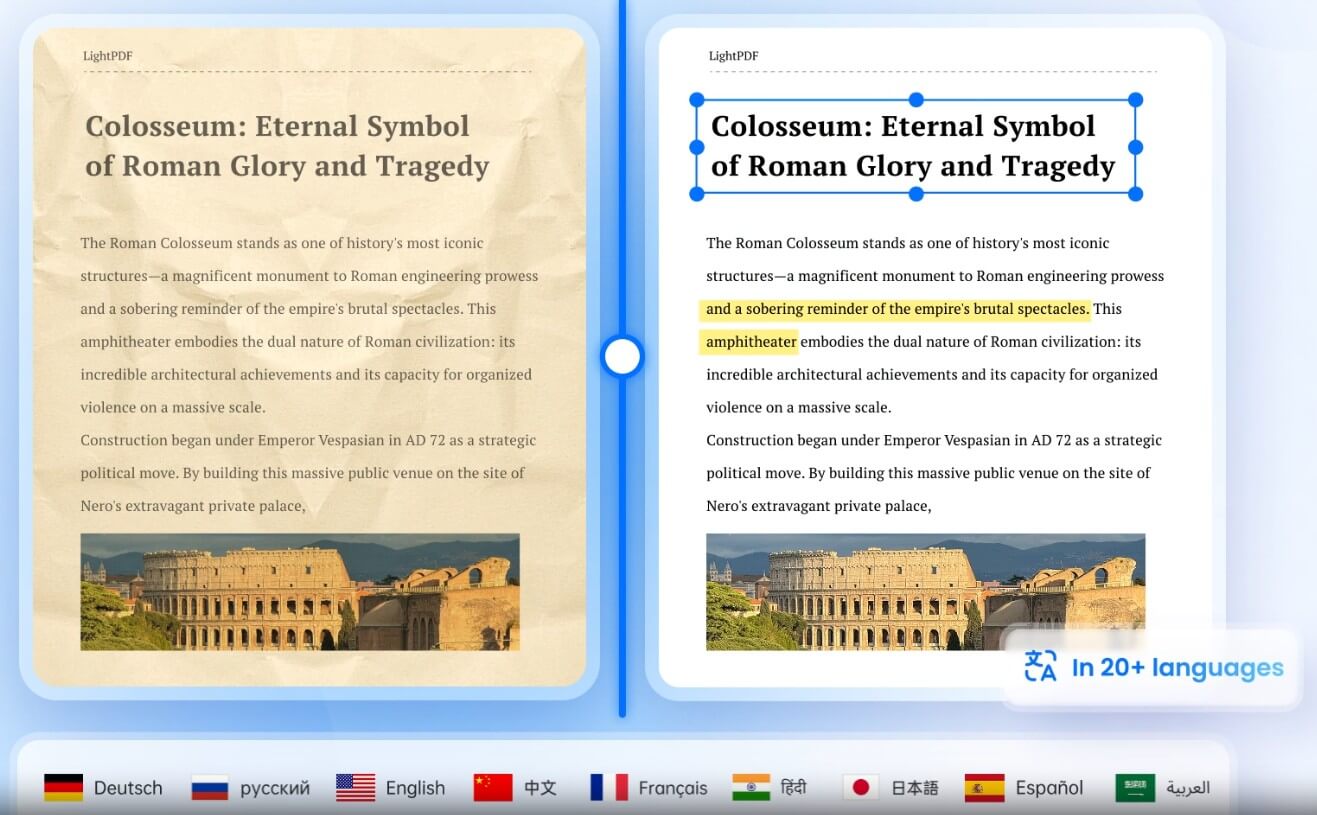
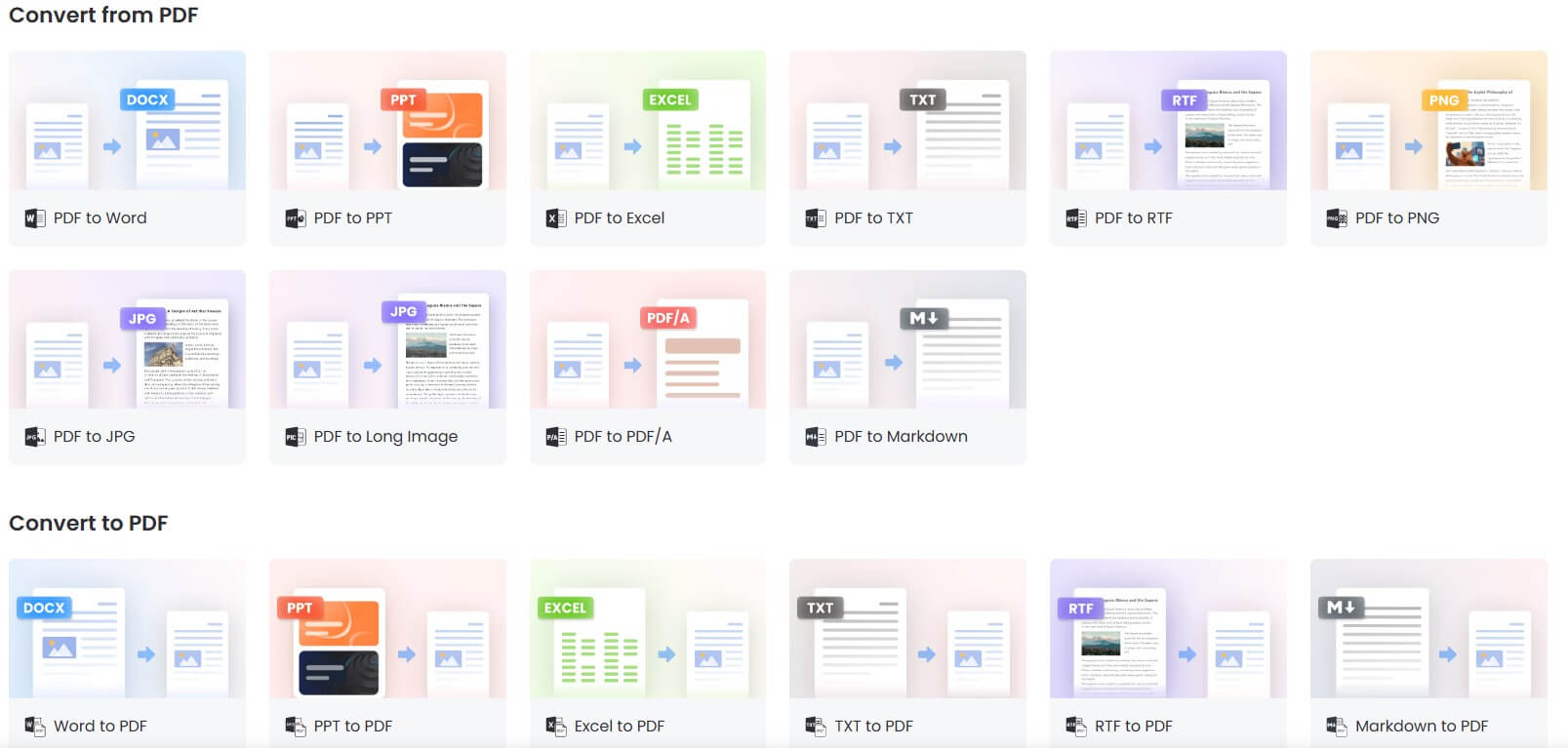
The conversion layer also matters. LightPDF supports PDF conversion workflows across Word, Excel, PowerPoint, images, TXT, Markdown, PDF/A, and other formats listed in its tools and document chat pages. That makes it more useful as a daily PDF utility than a single-purpose summarizer.
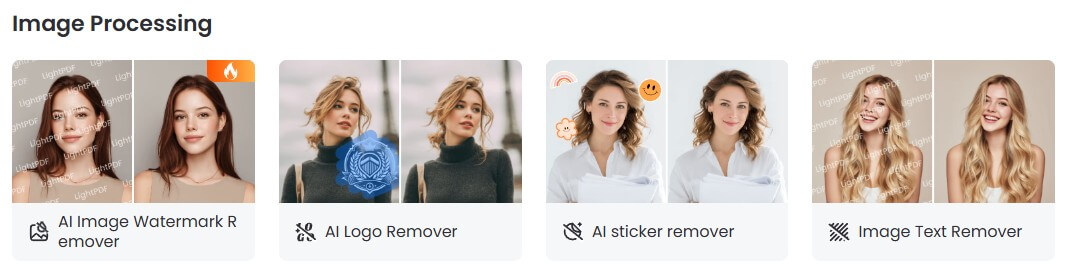
LightPDF’s document chat is useful when the main problem is understanding content rather than changing the file. You can ask questions, extract information, create summaries, generate tables from document data, and get outlines or conclusions from uploaded materials. It supports searchable and scanned PDFs, plus Word, Excel, PPT, and ePub files.
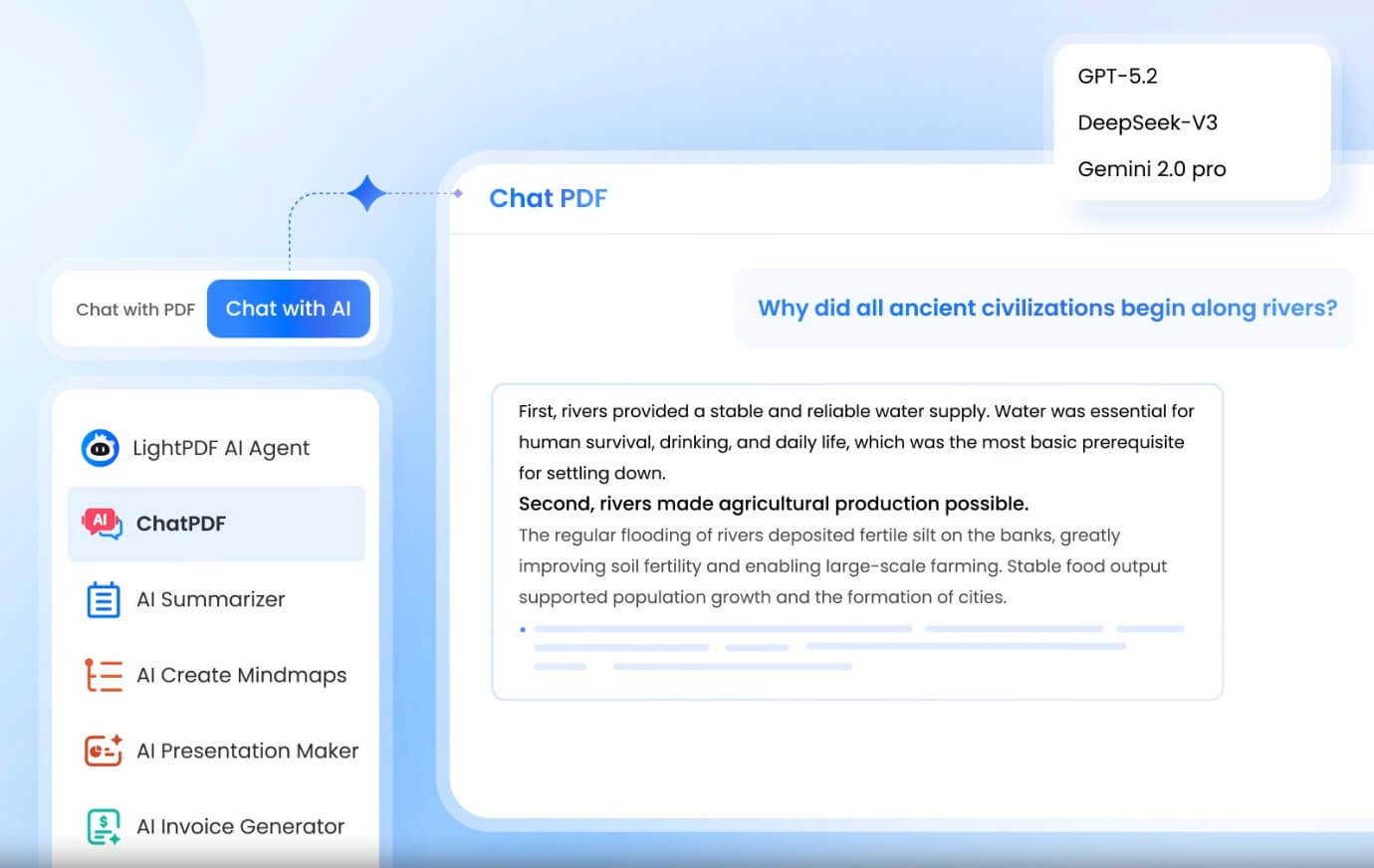
The best part is source referencing. LightPDF says its answers include cited sources, so users can click references or footnotes to locate where the answer came from. That is important because AI summaries can sound confident even when they miss context. References give the user a faster way to check the answer against the original file.
Still, users should treat document chat as a reading assistant, not a final authority. For contracts, policies, financial reports, academic papers, or medical documents, the answer should be verified in the source text.
LightPDF is a strong fit for students summarizing readings, researchers comparing documents, office workers converting and editing PDFs, admins processing scanned paperwork, small teams handling contracts or forms, and business users who need to extract information from reports.
It also fits people who need one tool for many small PDF jobs. Editing a typo, compressing a file, extracting pages, running OCR, translating a document, and asking questions about a report can all sit inside the same general workspace.
It is less ideal for users who need advanced design-level PDF production, deep layout control, complex prepress workflows, or highly specialized legal review. LightPDF is more of a broad PDF productivity toolkit than a professional publishing environment.
LightPDF’s pages make several security claims worth noting. The AI Agent page says files are not retained permanently, documents are stored temporarily during processing, and files are automatically deleted within 24 hours. The online editor page also says files are encrypted on cloud servers and deleted afterward. For document chat, LightPDF says uploaded files are stored in encrypted cloud storage and can be deleted by the user.
That is reassuring for ordinary document work, but sensitive users should still be careful. Cloud-based PDF processing is not the same as local-only editing. For confidential legal, medical, financial, or client documents, teams should review internal policy before uploading files.
LightPDF’s biggest strength, its breadth, is also its first limitation. It tries to cover editing, conversion, OCR, AI chat, AI generation, translation, compression, signatures, watermarks, and more. That makes it convenient, but some specialized tools may still feel deeper in one narrow area.
The second trade-off is AI reliability. Summaries, extractions, and answers can save time, but they still need review. This is especially true with scanned documents, tables, forms, and files where small wording differences matter.
The third limitation is editing depth. LightPDF is useful for quick PDF edits, annotations, and document corrections, but users expecting desktop-grade layout control may still prefer a heavier PDF editor.
LightPDF is best for users who handle PDFs often and want one practical workspace for editing, converting, OCR, summarizing, translating, and asking questions about documents. Its strongest advantage is the combination of traditional PDF utilities with AI document chat and an AI Agent that can execute common file tasks.
The main caveat is that AI output and OCR still need human review, especially for sensitive or high-stakes documents.
TAGS: Productivity
Related Tools:

Integrates AI into spreadsheets
Assists users in solving mathematical problems

Matches candidates with relevant opportunities
Transforms video content into concise summaries and articles

Merges documents, spreadsheets, and apps to help teams collaborate

Email tool that summarizes long threads and offers smart reply