

Share this tool:
 |
Description:
Coda AI is the AI layer inside Coda, the collaborative workspace that combines documents, tables, apps, automations, and integrations. Its best use is not just writing a paragraph or summarizing notes. The stronger reason to use it is that AI works inside the same place where your team already tracks projects, stores decisions, manages meetings, builds workflows, and connects tools.
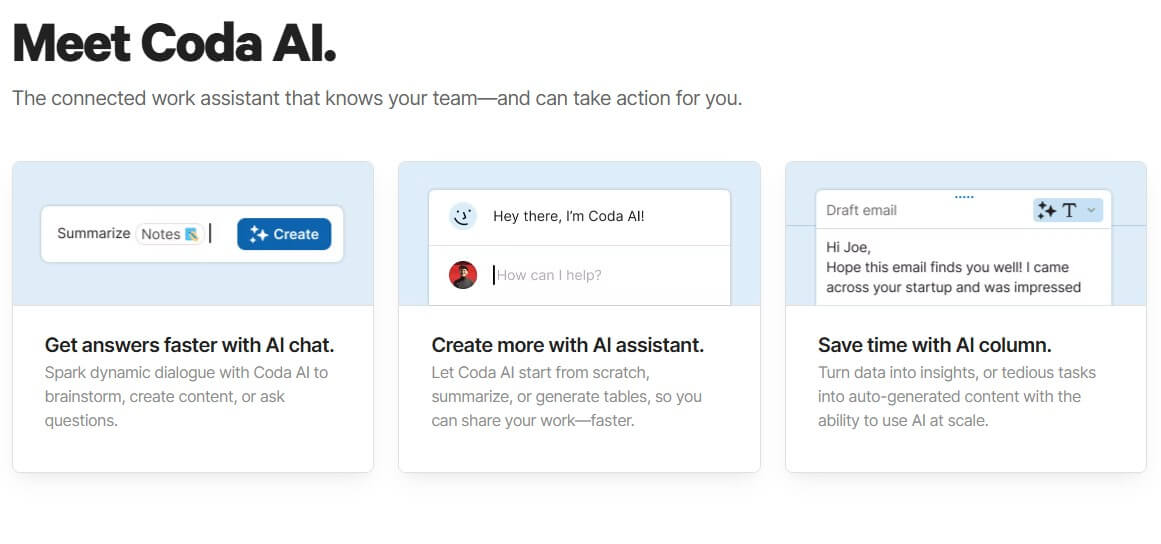
Coda describes Coda AI as a connected work assistant that can chat, create content, generate tables, summarize information, and help turn repetitive work into scalable task assistance. That sounds broad, but the key point is where it lives. Coda AI is not a separate AI writing app. It sits inside Coda docs, pages, tables, and workflows.
That gives it a different shape from a normal chatbot. You can ask questions about a doc, summarize a page, generate a table, pull insights from rows, edit text, or build AI into a column so it runs across many records. Coda’s help documentation says Coda AI can reference pages, tables, and rows inside a doc, so the assistant can use existing work as context instead of starting from a blank prompt.
That is the main advantage. Coda AI becomes more useful when the doc already contains real business context: roadmap items, customer feedback, hiring notes, meeting transcripts, project updates, CRM rows, or decision logs.
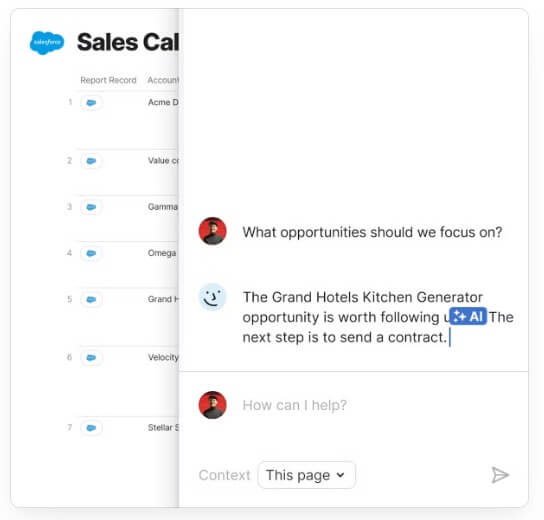
Coda AI is strongest when the work already lives in structured docs and tables. If your team uses Coda as a product roadmap, team hub, project tracker, meeting system, CRM, hiring hub, or operating dashboard, AI can help summarize, categorize, draft, review, and act on that information.
This matters because many AI tools create a copy-paste loop. You leave your workspace, open a chat tool, paste context, ask for help, then move the output back. Coda’s 4.0 announcement makes this point directly: writing help works better when the assistant is inside the everyday writing surface and can use referenced pages or tables as context.
The practical result is a tool that feels less like “ask AI a question” and more like “add intelligence to the workspace.”
| Feature | What it does | Why it matters |
|---|---|---|
| AI Chat | Answers questions, brainstorms, and summarizes context from a doc | Useful for quick insights without leaving the page |
| AI Assistant | Creates text, tables, outlines, briefs, and edits | Helps teams move faster from raw notes to usable content |
| AI Column | Runs AI across table rows to summarize, tag, score, or generate content | Makes AI useful at scale, not only one prompt at a time |
| AI Block | Summarizes, extracts action items, and highlights themes as data changes | Good for living summaries inside docs |
| AI Reviewer | Leaves comments and feedback across a page | Useful for review cycles, tone checks, and document cleanup |
| Coda MCP | Lets external AI tools read and write to Coda docs in beta | Extends Coda into broader AI-agent workflows |
Coda’s help center lists AI chat, AI assistant, AI column, AI block, and AI reviewer as the main Coda AI feature set.
AI Chat is the simplest entry point. It appears in the doc side panel and can answer questions, brainstorm, identify key themes, list pros and cons, or help find information. Coda says users can choose the context for AI Chat, including no context, the current page, the current doc, or selected text and tables.
That context control matters. A generic AI answer may sound fluent but miss the team’s real situation. A Coda AI answer can be grounded in the doc you are already working inside.
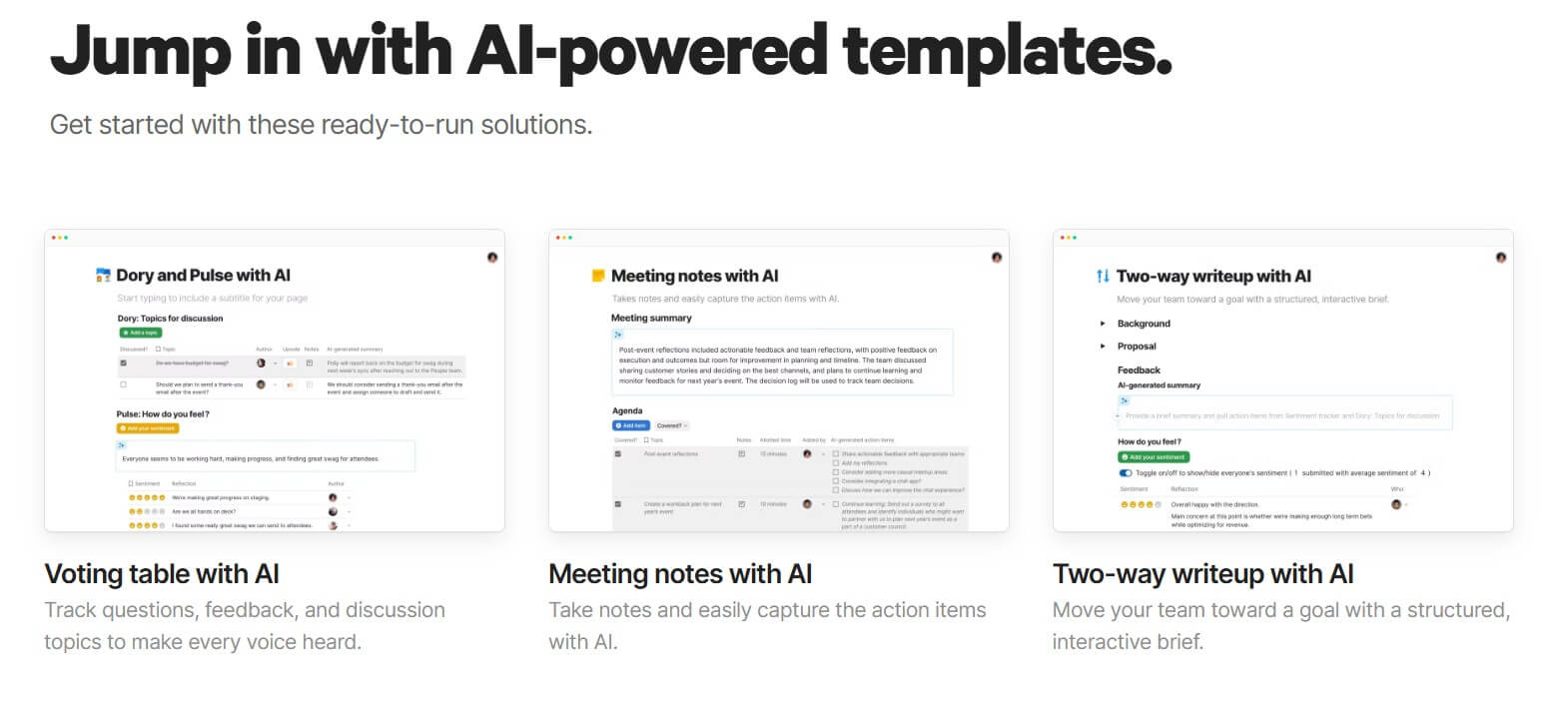
The AI Assistant is more creation-focused. It can generate formatted text, headers, checklists, bullet points, paragraphs, outlines, and tables. Coda’s docs show that users can create text from the slash menu, refine the result, keep it, or continue iterating through AI chat. For everyday work, this is useful in meeting notes, project briefs, decision docs, FAQs, onboarding pages, internal updates, and product specs. It is not the most specialized long-form writing tool, but it is convenient because it works where the work is already happening.
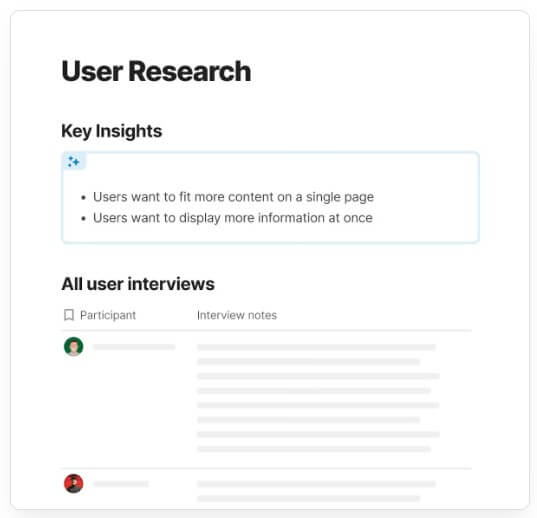
The AI column is probably the most important part of Coda AI for serious team workflows. Instead of asking AI to handle one piece of text, you can add AI to a table column and run it across rows. Coda says AI columns can summarize, find action items, find key insights, or use a custom prompt, while referencing data within each row.
That changes the use case. A product team can classify customer feedback. A sales team can generate follow-up drafts from account notes. A recruiting team can summarize candidate feedback. A support team can tag themes from tickets. A manager can turn meeting rows into action items.
Coda’s June 2026 help update says AI columns were upgraded with newer models for better accuracy, speed, and consistency. That makes sense as a priority because table-scale AI depends on reliability. If an AI column produces inconsistent tags or weak summaries across hundreds of rows, teams will stop trusting it.
Coda’s broader platform is what makes the AI layer more interesting. The main Coda site describes the product as an all-in-one collaborative workspace that combines docs, spreadsheets, applications, and AI. It also highlights use cases such as writeups, hubs, trackers, and internal applications.
Coda also supports automations with triggers, actions, and filters, which can streamline repetitive workflows in docs. When AI columns, buttons, tables, and automations are combined, Coda starts to feel more like a lightweight business app builder than a document editor.
The newer Coda MCP layer pushes this further. Coda’s help center describes MCP as a beta connection layer that lets AI tools like Cursor and Claude read and write to Coda docs through plain-language prompts. It can create and update docs, pages, tables, rows, columns, views, charts, formulas, buttons, and comment threads. That is promising, but it is also more technical. Most users will start with built-in AI features. Power users and technical teams may care more about MCP because it lets Coda participate in agent-style workflows.
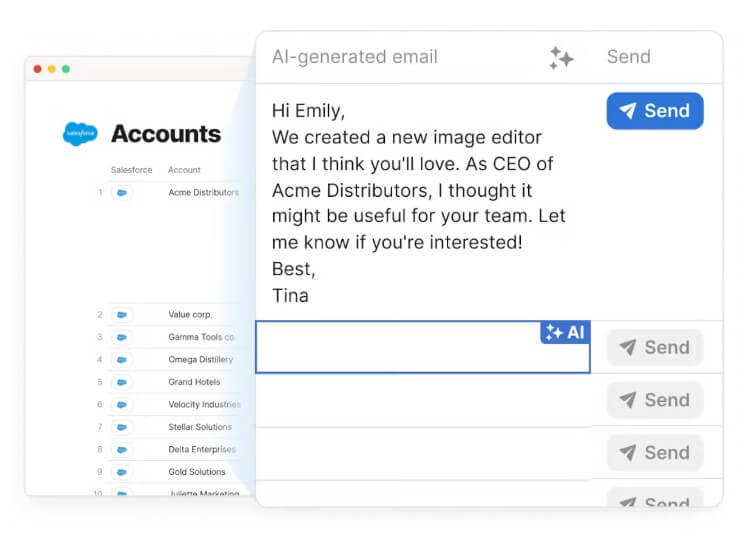
Coda AI is a strong fit for product teams that manage roadmaps, customer feedback, decision docs, specs, and meeting notes in one place.
It is also useful for operations teams that need trackers, process docs, recurring reports, and internal dashboards with AI summaries or categorization.
Sales and customer success teams can use it for account hubs, mutual action plans, CRM-style tables, meeting summaries, and personalized follow-ups.
HR and recruiting teams can use it for hiring pipelines, interview notes, onboarding docs, and employee feedback summaries.
It is less ideal for users who only want a standalone chatbot or a dedicated writing app. Coda AI works best when the surrounding Coda doc has structure.
Coda AI’s biggest limitation is that it inherits Coda’s learning curve. Coda is more flexible than a normal doc, but that flexibility can feel complex. Tables, formulas, buttons, views, Packs, and automations take time to understand.
The second trade-off is setup quality. AI is more useful when the doc is clean, the tables are structured, and the right context is available. A messy workspace will produce weaker AI results.
Coda MCP is also still in beta, so teams should treat it as promising rather than fully settled. Coda notes that MCP behavior and available tools may change.
Coda AI is best for teams that already use, or want to build, structured workspaces with docs, tables, trackers, automations, and connected tools. Its strongest feature is not generic writing help. It is the ability to apply AI inside living team systems, especially through AI columns, doc-aware chat, AI blocks, and workflow automation. It is a strong fit for product, operations, sales, customer success, HR, and cross-functional teams that want AI close to their real work. The main caveat is that Coda AI rewards structured setup. If your docs and tables are organized, it can save time and surface useful insights. If your workspace is messy, the AI layer will feel much less impressive.
TAGS: Productivity
Related Tools:

Helps teams document access internal information

Automates task prioritization and management
Records, transcribes, and summarizes video meetings
Automates candidate sourcing and evaluation
Summarizes online content

Email tool that summarizes long threads and offers smart reply