

Share this tool:
 |
Description:
PDF Parser is an AI-powered document extraction tool built for one practical job: taking information trapped inside PDFs or images and turning it into structured data you can use in spreadsheets, databases, or software workflows. Its strongest appeal is not that it reads documents. Many tools do that. The value is that you define the fields you want, upload files, and get JSON or CSV output without building templates, rules, or a custom OCR pipeline.
Define the exact data points you want, including field names and data types, instead of accepting a generic text dump.
Export structured JSON for APIs and databases, or CSV for spreadsheets and analysis tools.
The documentation lists PDF, JPG, PNG, WebP, TIFF, BMP, and GIF as supported inputs.
Multiple documents can be uploaded and processed in parallel, which matters for repetitive document work.
PDF Parser is not limited to manual exports; the product page and FAQ mention API access for integrating extraction into existing workflows.
The tool is positioned around AI layout understanding rather than traditional parser templates or fixed rules.
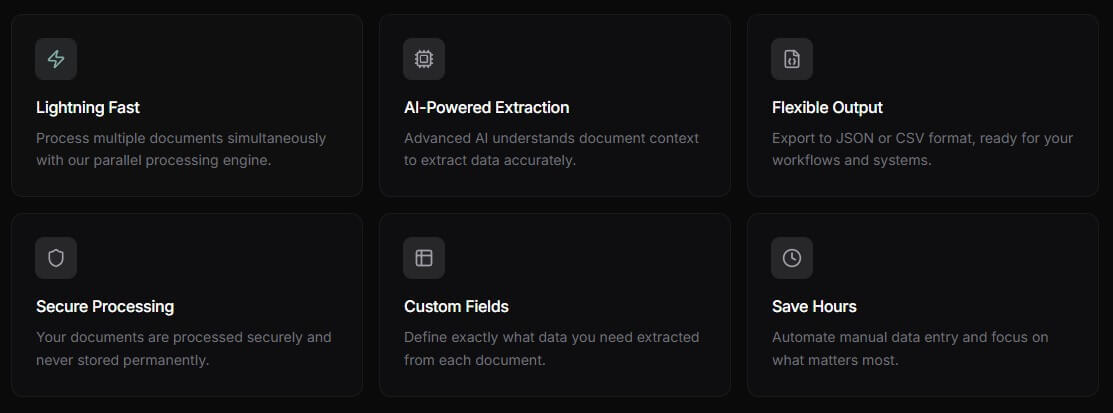
PDF Parser is strongest when the document format varies, but the target output is consistent.
A traditional parser usually works best when every document follows the same template. You define a zone, set a rule, and hope the next file looks similar enough. PDF Parser takes a different route. The user defines the data fields, and the AI attempts to find those fields across the document, even when layout or wording changes. The docs describe this as “no templates, no configuration, no coding required,” which is the most important part of the product positioning.
That is useful for teams that receive messy document sets. Accounts payable teams may deal with invoices from dozens of vendors. Recruiters may receive resumes in creative, one-column, two-column, or exported LinkedIn formats. Legal teams may need dates, clauses, renewal terms, and parties from contracts that do not share the same structure. PDF Parser’s legal use case page specifically frames the product around extracting parties, key dates, financial terms, obligations, and risk clauses from contracts.
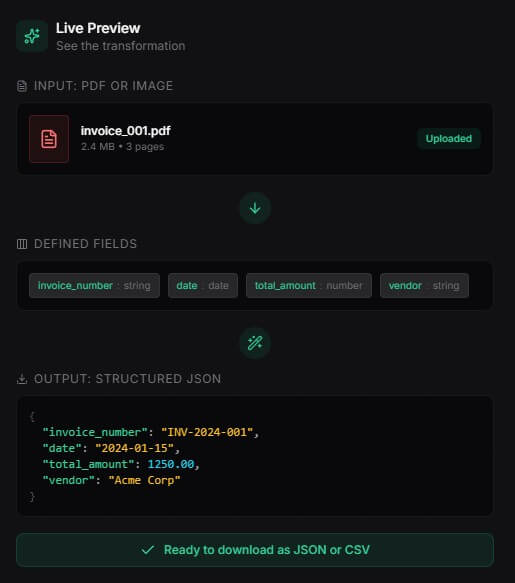
The main thing to know is this: PDF Parser is not just pulling text. It is trying to return named, typed, structured fields. That is the difference between “here is the text from this PDF” and “here is the invoice number, vendor, date, total amount, and line items in JSON.”
PDF Parser’s workflow is clean because it asks users to think in terms of output first.
Instead of starting with a PDF and manually selecting areas on a page, you start by deciding what you need from the document. For an invoice, that might be invoice number, vendor, due date, total, tax, and line items. For a resume, it might be name, email, work experience, education, and skills. For a contract, it might be parties, effective date, termination date, renewal clause, notice period, and payment terms.
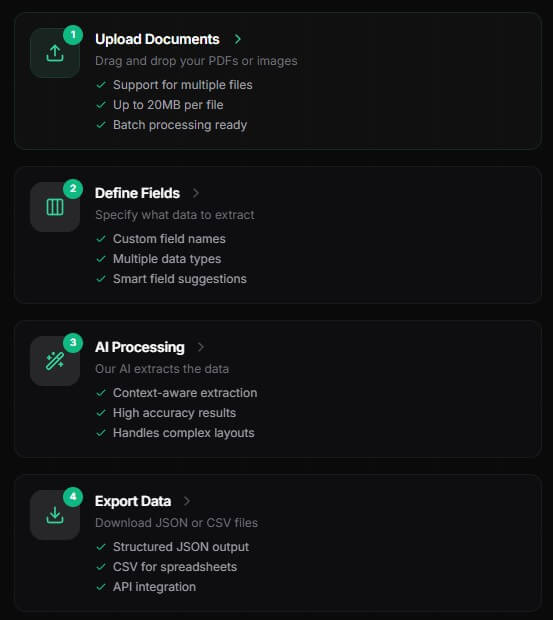
That output-first approach is practical. It keeps the user focused on the business result rather than the mechanics of document parsing. The docs show examples for invoice-to-JSON, bank statement-to-CSV, and resume-to-JSON workflows, which gives a good sense of how the product expects users to work.
The learning curve should be low for non-technical users. The official FAQ says the web interface lets users upload files, define fields, and download results without technical skills, while developers can use a REST API with documentation and examples.
The trade-off is that simplicity may also limit deep control. If you want to build a complex validation pipeline, tune model behavior, run advanced exception handling, or enforce internal compliance rules, PDF Parser may be only one part of the stack. For light and medium document automation, that simplicity is the point. For enterprise-scale document operations, teams may need more surrounding process.
PDF Parser’s extraction quality will depend heavily on document quality, field design, and review workflow.
The official FAQ says PDF Parser uses GPT-4-class vision models for context-aware extraction and notes that clean, machine-generated PDFs produce the best output. It also says results depend on document quality. That caveat matters. Scanned documents, blurry images, rotated pages, handwritten notes, unusual tables, or low-contrast files can still create errors, even when the parser is AI-based.
The most useful control is field definition. You are not asking the system to “extract everything.” You tell it what to capture. That can reduce noise and make the output easier to validate. The product supports field names, data types such as string, number, date, and boolean, plus field descriptions.
This is where users can get better results by being specific. A vague field like “amount” may be less reliable than “invoice_total_amount_including_tax.” A broad field like “date” may be less useful than “invoice_issue_date” or “contract_renewal_notice_deadline.” Good schema design matters. PDF Parser reduces setup work, but it does not remove the need to think carefully about the data you want.
For tables, the tool appears most useful when you define the table structure you expect. The docs show invoice line items as an array and bank transactions as CSV-style rows. That is the right pattern for real use: define line items, transactions, job history, obligations, or statement rows as repeatable data, not as one large block of text.
PDF Parser’s output options are one of its clearest strengths. JSON is useful when the extracted data needs to move into a database, backend system, CRM, HRIS, finance workflow, or custom application. CSV is better when the next step is Excel, Google Sheets, reconciliation, review, or manual cleanup. The official docs list structured JSON as the default output and CSV export as another option.
This makes PDF Parser a good bridge tool. Non-technical teams can use CSV. Technical teams can use JSON and API access. That split matters because document extraction often starts as a manual spreadsheet process before it becomes a product or operations pipeline.
The product page also mentions webhook notifications and JSON Schema validation in its platform feature set. Those are useful for more serious workflows because extraction alone is not enough. Teams often need to know when a file finishes processing, validate that the result matches the required schema, and send errors to a human review queue.
A good PDF Parser workflow might look like this:
| Workflow stage | What PDF Parser handles | What the user or system should still check |
|---|---|---|
| Upload | PDF or image intake | File quality, file size, document type |
| Field setup | Named fields and data types | Clear schema design |
| Extraction | AI-based document reading | Accuracy review for important fields |
| Export | JSON or CSV output | Downstream formatting and validation |
| Automation | API and workflow integration | Error handling, approvals, compliance checks |
The main point: PDF Parser can remove a lot of manual copying. It should not be treated as a replacement for all review, especially when the data has financial, legal, medical, or hiring impact.
| Use case | Why PDF Parser fits |
|---|---|
| Invoice extraction | It can pull vendor names, invoice numbers, dates, totals, and line items into structured data. The docs use invoice-to-JSON as a core example. |
| Bank statement parsing | The docs show bank statement-to-CSV extraction, and the financial services page mentions transaction tables across multiple pages. |
| Contract review prep | It can extract parties, key dates, payment terms, obligations, and renewal-related fields from legal documents. |
| Resume and HR document parsing | PDF Parser’s HR page describes extracting contact information, work history, education, skills, certifications, and employee document data. |
| Financial report extraction | The financial services page describes extracting revenue, balance sheet figures, cash flow components, KPIs, ratios, and footnote highlights. |
| Repetitive back-office document work | Batch uploads, JSON/CSV export, and API access make it useful for recurring operational extraction. |
The strongest fit is any workflow where people are copying the same kind of data from many documents into spreadsheets or systems. The weaker fit is one-off reading or summarization. For that, a general AI assistant may be enough.
- Start with a small field set. Do not ask for every possible value on the first run. Begin with the fields that drive the workflow, then add more after you see how the extraction behaves.
- Use specific field names. “Total amount due” is better than “amount.” “Contract termination date” is better than “date.” The field name should tell the model what role the value plays.
- Separate similar dates. Many documents contain issue dates, due dates, service dates, signing dates, renewal dates, and expiration dates. Treat them as separate fields.
- Use arrays for repeated data. Line items, transactions, work history, clauses, and obligations should usually be structured as lists rather than squeezed into one text field.
- Review high-risk fields. Totals, dates, account numbers, clauses, medical details, and candidate data should still be checked before downstream use.
- Test with messy examples early. Do not only upload your cleanest PDF. Use a scanned file, a vendor with unusual formatting, a multi-page table, and a document with missing fields. That will show whether the tool fits the real workflow.
The 20 MB per-file limit is a real boundary. It will cover many normal business documents, but large scanned packets, image-heavy reports, or long document bundles may need compression or splitting before upload.
Accuracy still depends on document quality. PDF Parser is AI-powered, but blurry scans, bad photos, handwritten fields, complex tables, unusual column structures, or poor contrast can still affect output. The official FAQ says clean, machine-generated PDFs produce the best output.
There is limited visible detail about deep review workflows. The public pages explain upload, field definition, extraction, JSON/CSV output, batch processing, and API access, but they do not show a full enterprise-grade review queue, approval system, role management setup, or audit workflow in the public documentation I found. For many teams, that will be fine. For regulated operations, it may matter.
The tool is also not a full document management system. It extracts data, but it is not meant to replace a contract lifecycle platform, ATS, ERP, claims system, or finance system. It works best as the extraction layer that feeds those systems.
Finally, users should not confuse structured extraction with guaranteed interpretation. If PDF Parser extracts a renewal clause or financial metric, that does not mean a lawyer, accountant, analyst, or HR reviewer is no longer needed. The tool can reduce manual entry. It should not remove judgment from high-stakes decisions.
PDF Parser is best for teams that need a faster, cleaner way to convert PDFs and images into structured data without building templates or custom OCR workflows. Its strongest use cases are invoices, bank statements, resumes, contracts, HR records, financial reports, and other repetitive documents where consistent fields matter more than visual editing.
The main caveat is accuracy and governance: extraction quality depends on document quality and field design, and sensitive workflows still need human review, privacy checks, and downstream validation.
TAGS: Research Productivity
Related Tools:
Email assistant that automatically generates replies

Automates literature review process

Automates web tasks

Streamlines project coordination and automates invoicing

Transforms ideas into professional designs

Enhances note-taking by integrating AI models