

Share this tool:
 |
Description:
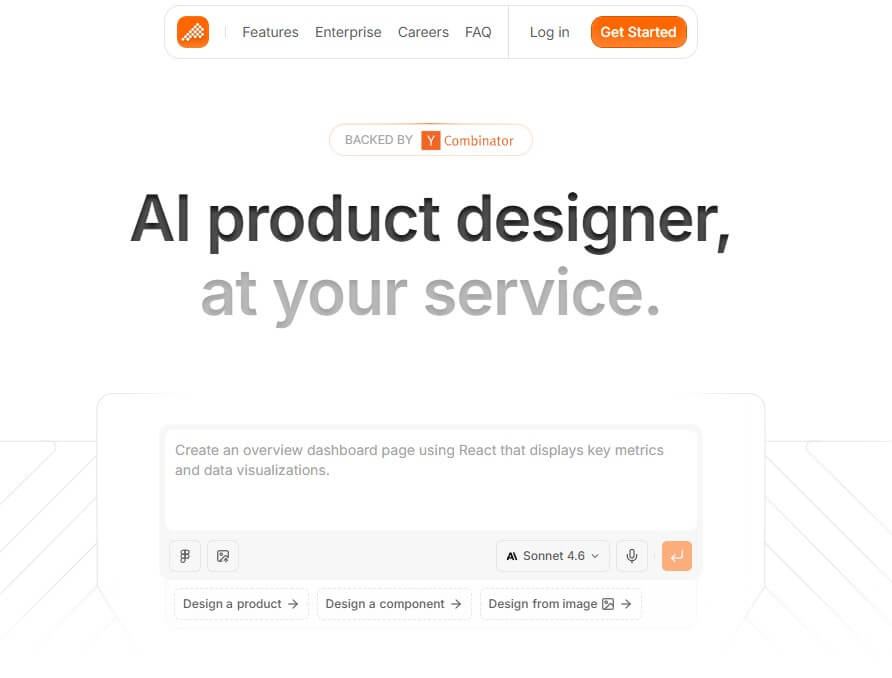
Polymet is built for people who need product UI faster than a normal design-and-development cycle allows. You describe what you want, upload visual references, import Figma frames, refine the result in a canvas, create prototypes, collaborate with teammates, and export code when the design is ready. It is not only a mockup generator. The more interesting use case is moving from product idea to interface, prototype, and frontend starting point in one workspace.
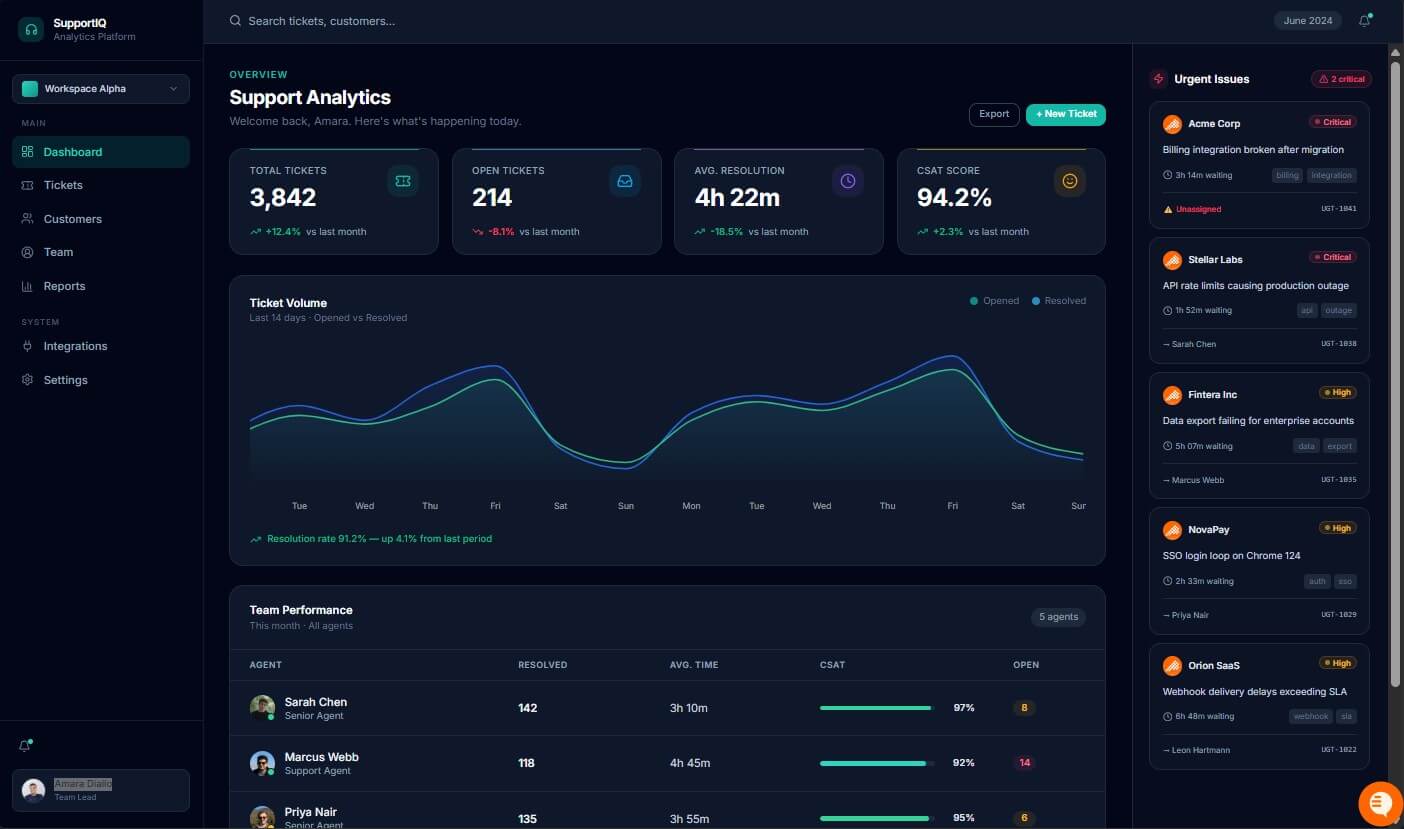
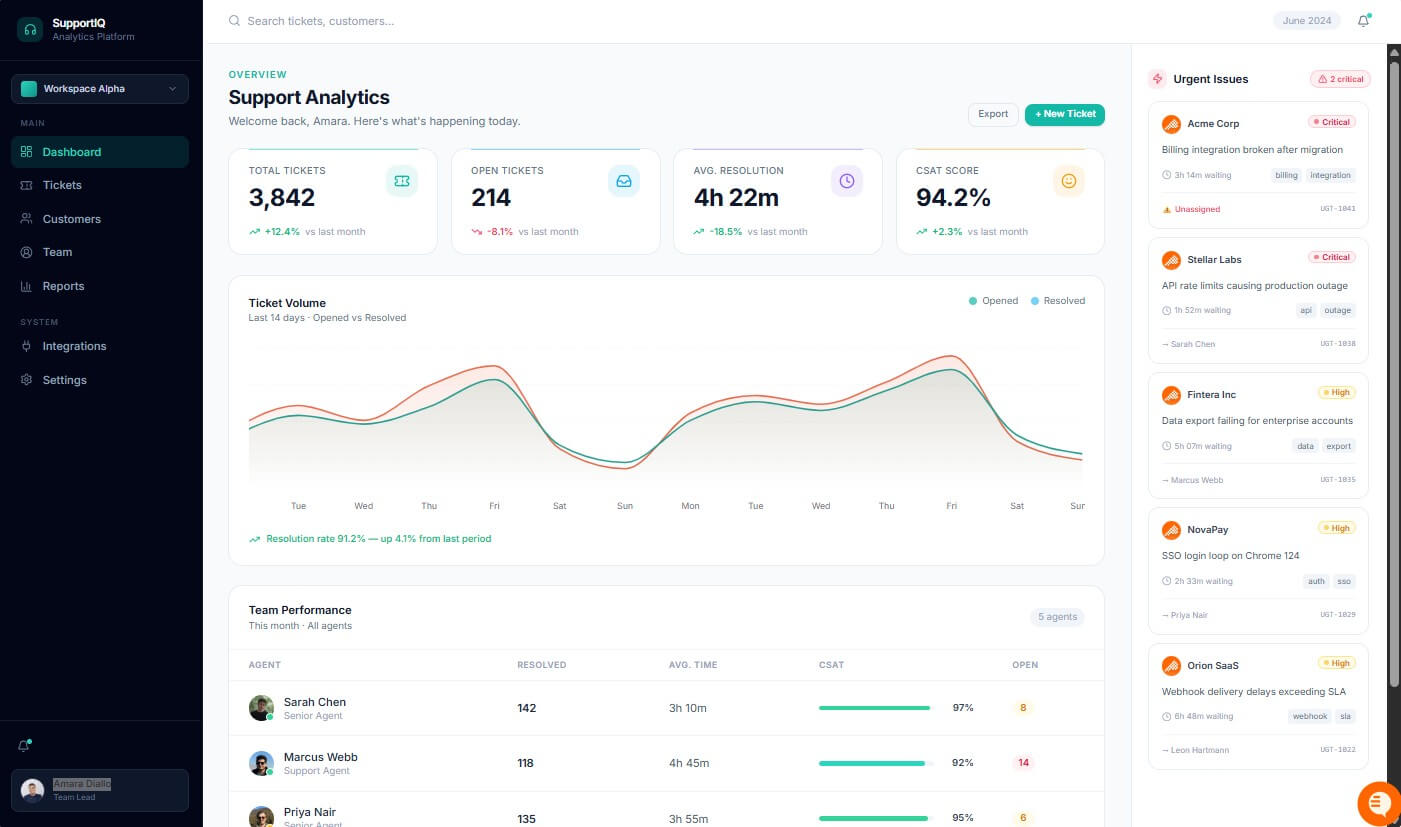
Create a clean SaaS analytics dashboard for a customer support platform. Include a sidebar, top summary cards, a ticket volume chart, a team performance table, and a right-side panel for urgent customer issues. Use a calm B2B style with lots of spacing.
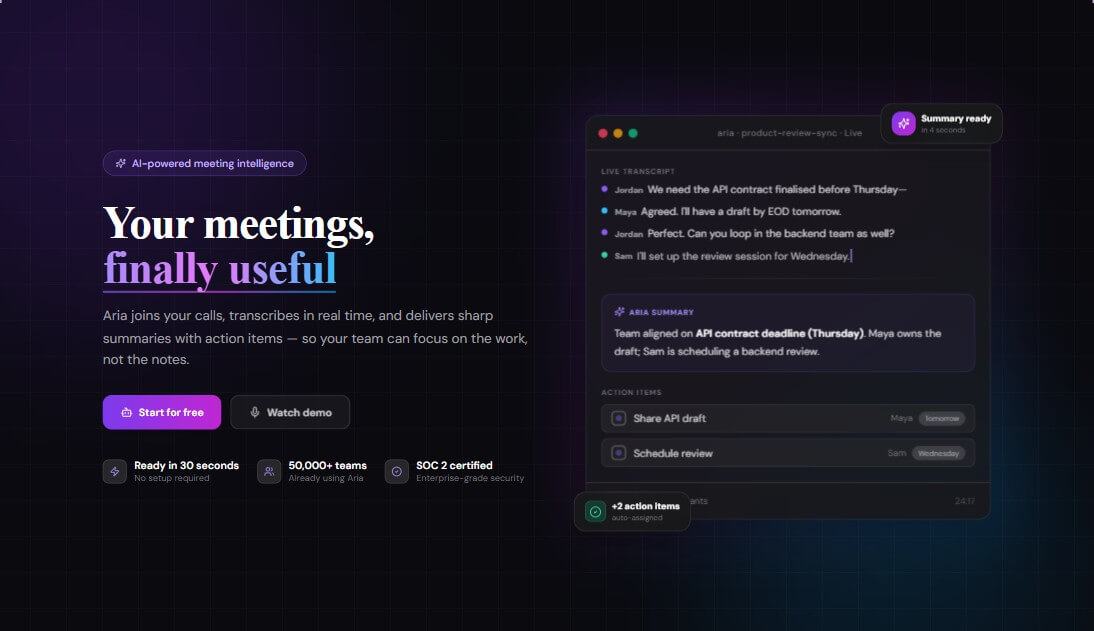
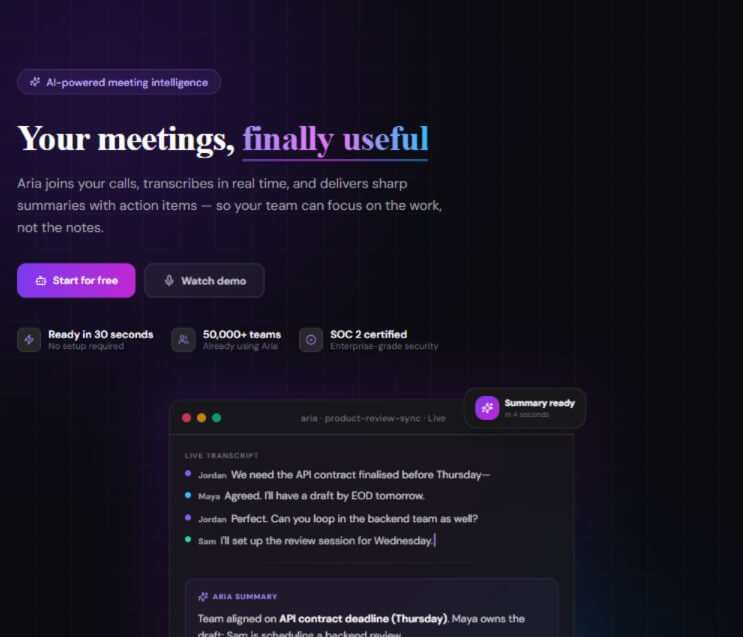
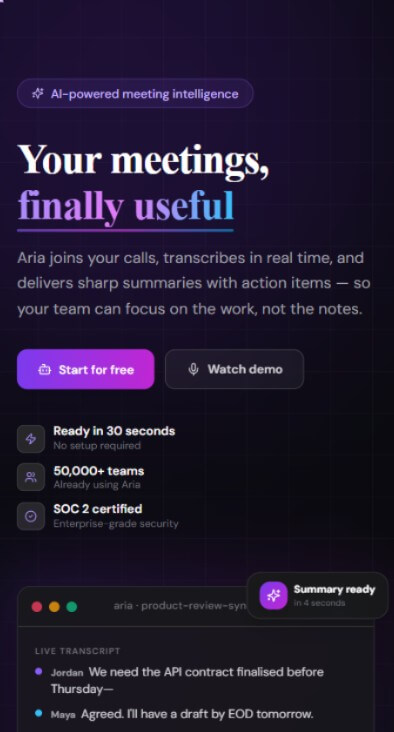
Design a landing page hero for an AI meeting assistant. Put the headline and CTA on the left, a product UI mockup on the right, and include three short trust signals below the CTA. No full page yet, just the hero section.
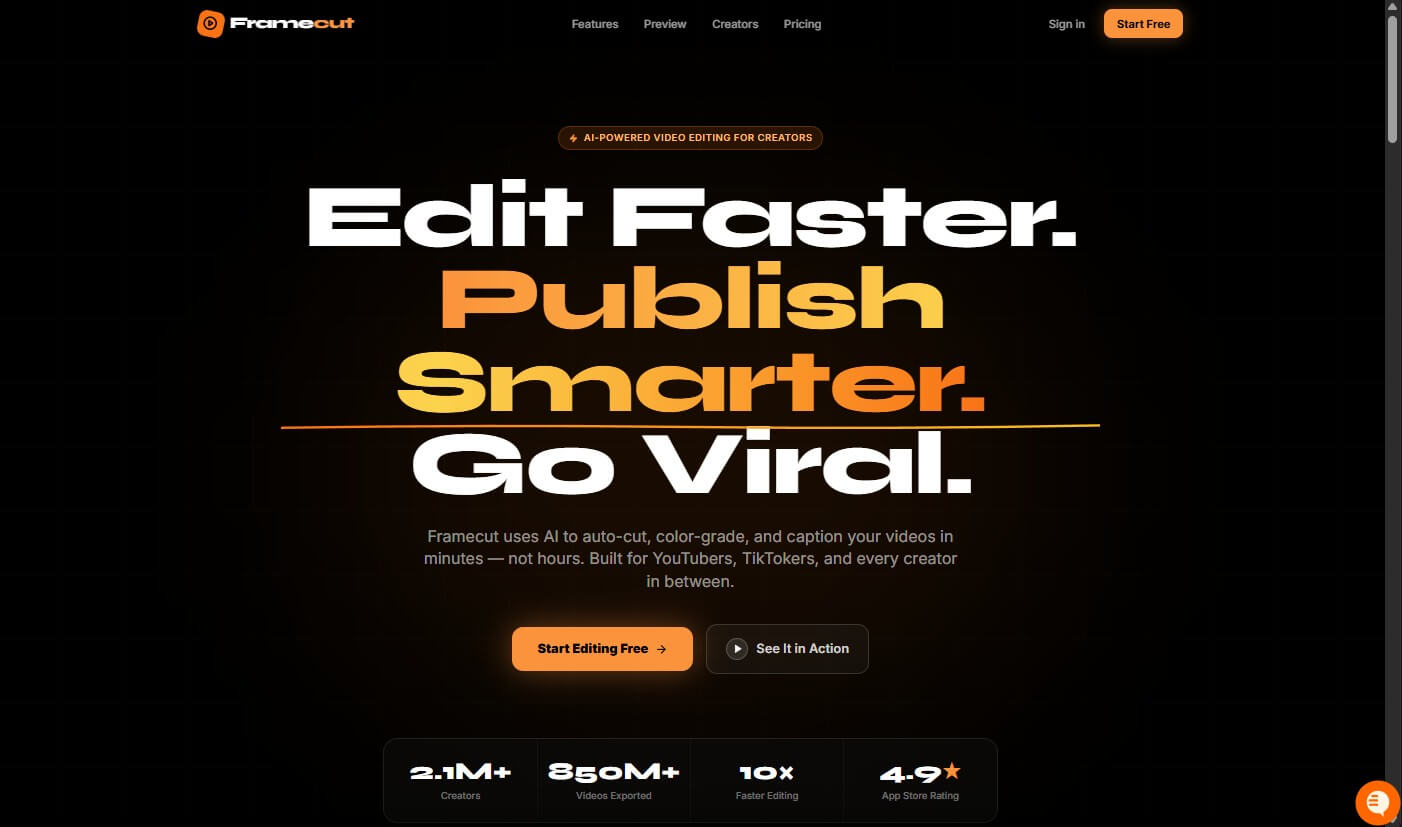
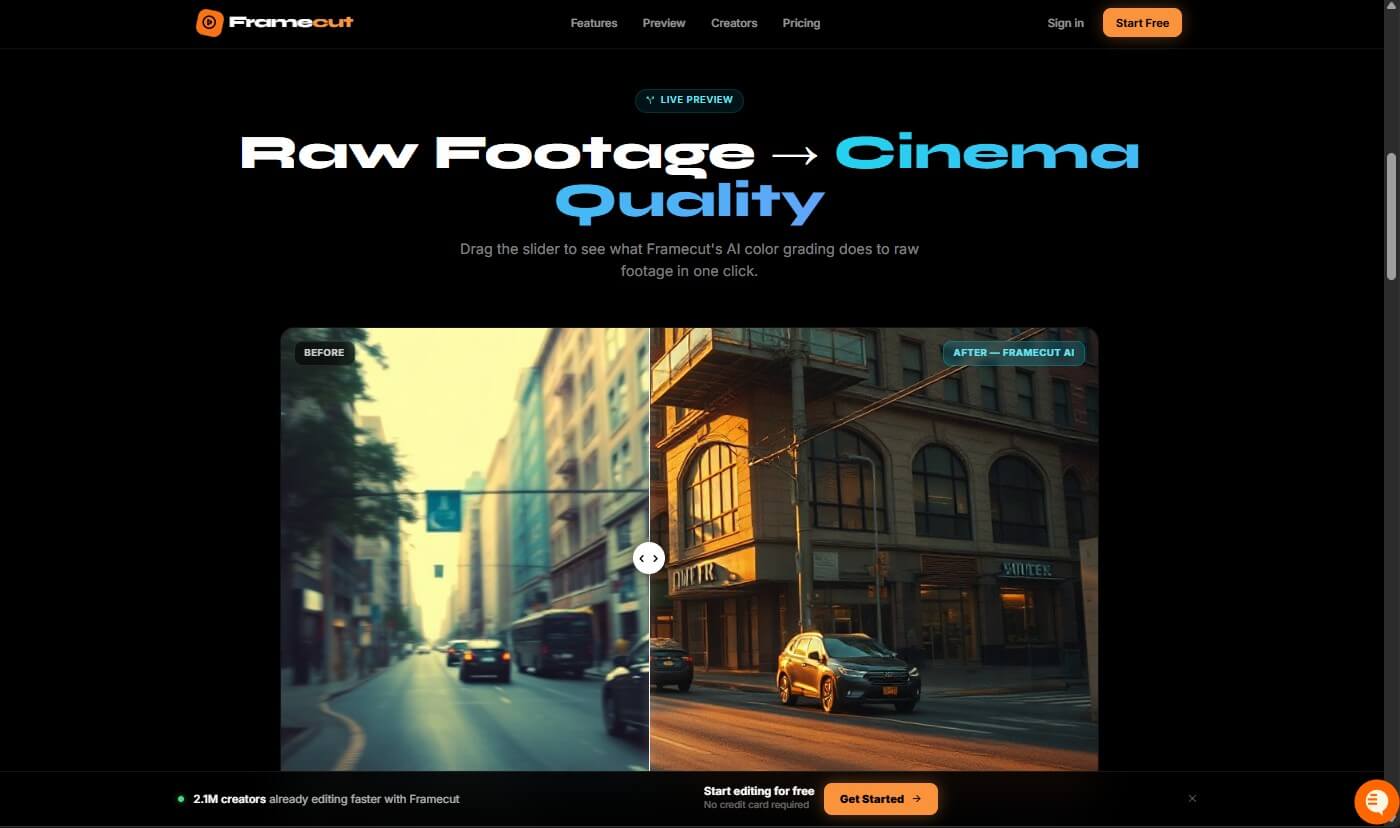
Design a landing page for a video editing tool made for creators. Use a bold visual style, large headline, before-and-after media preview, creator testimonials, feature blocks, and a sticky CTA button.
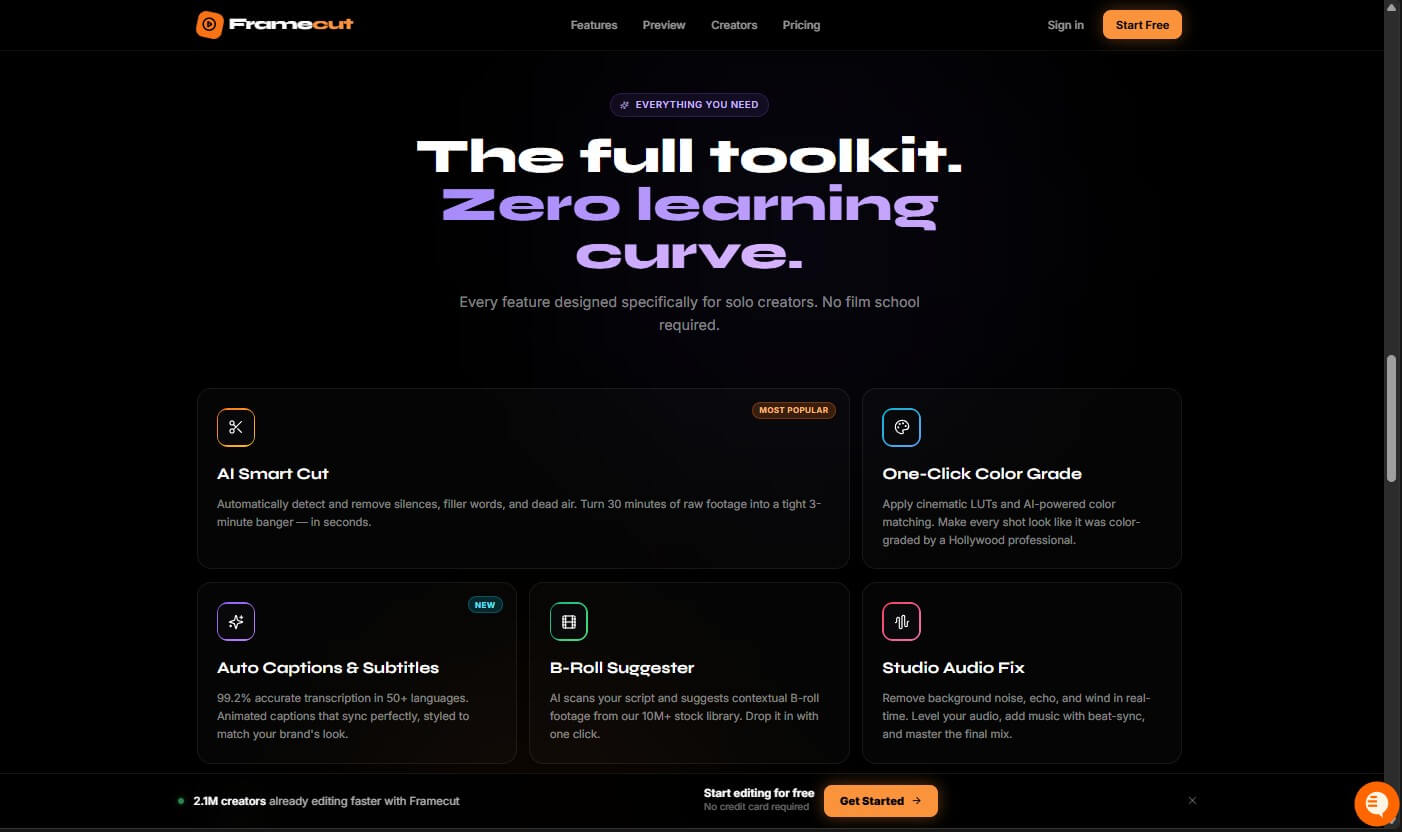
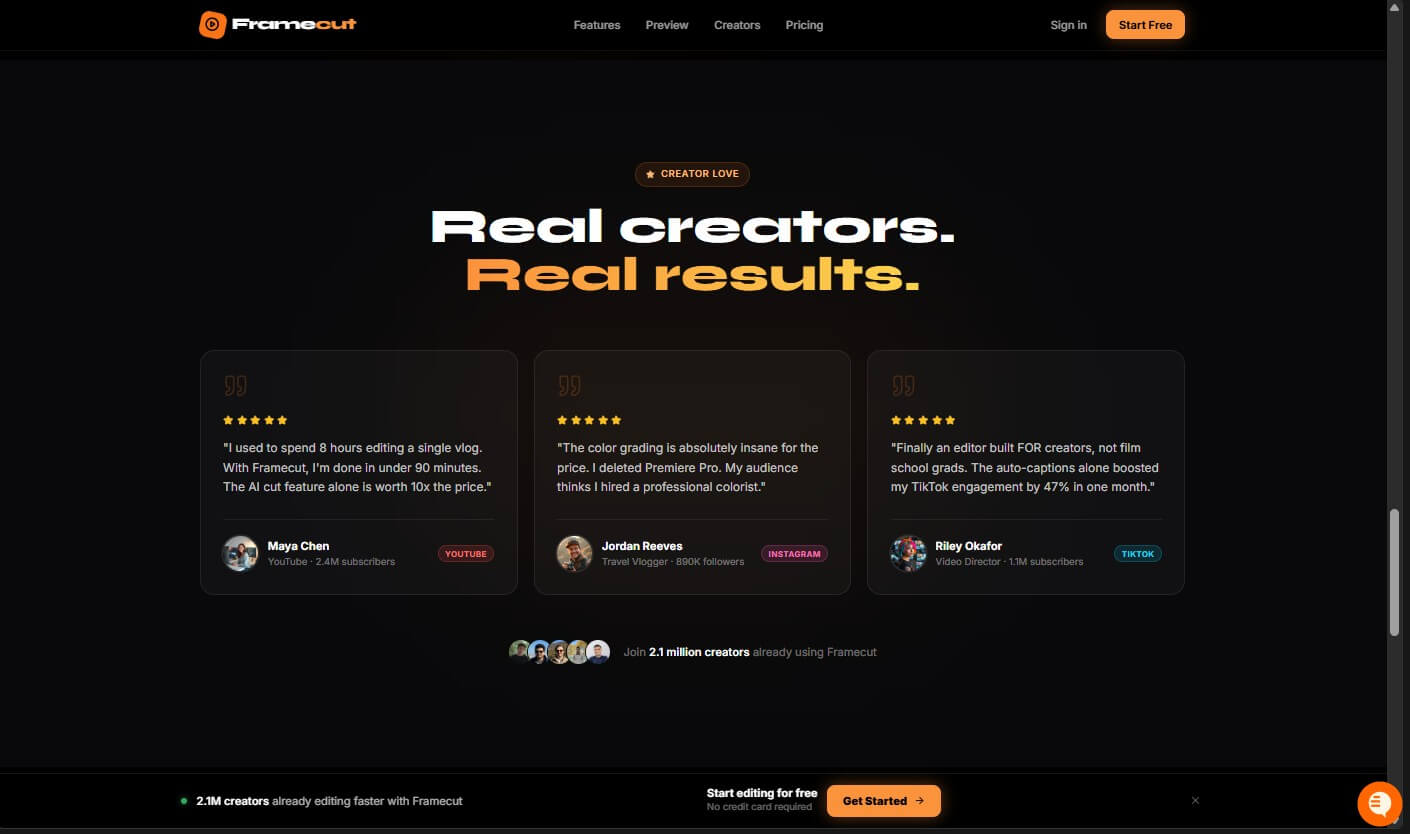
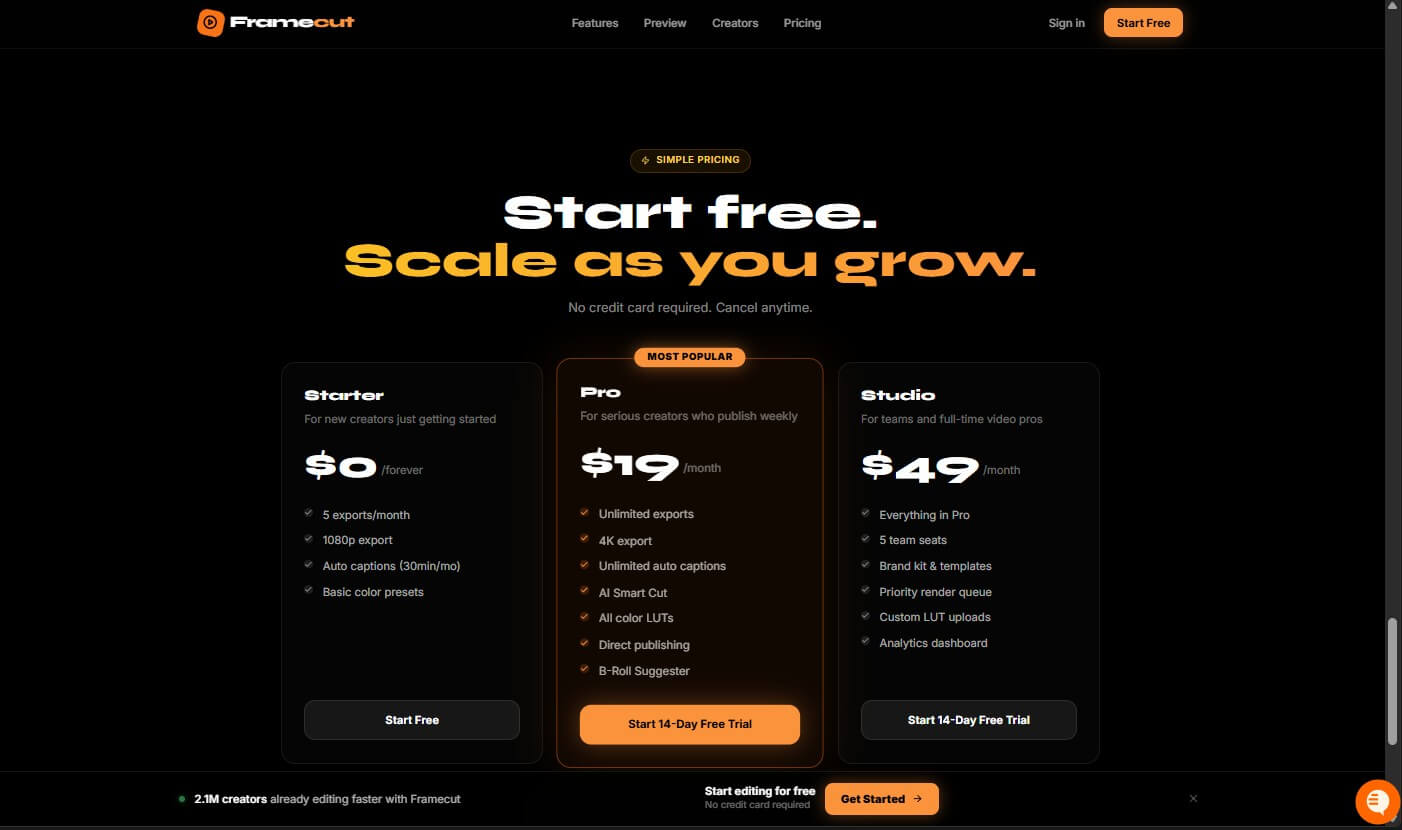
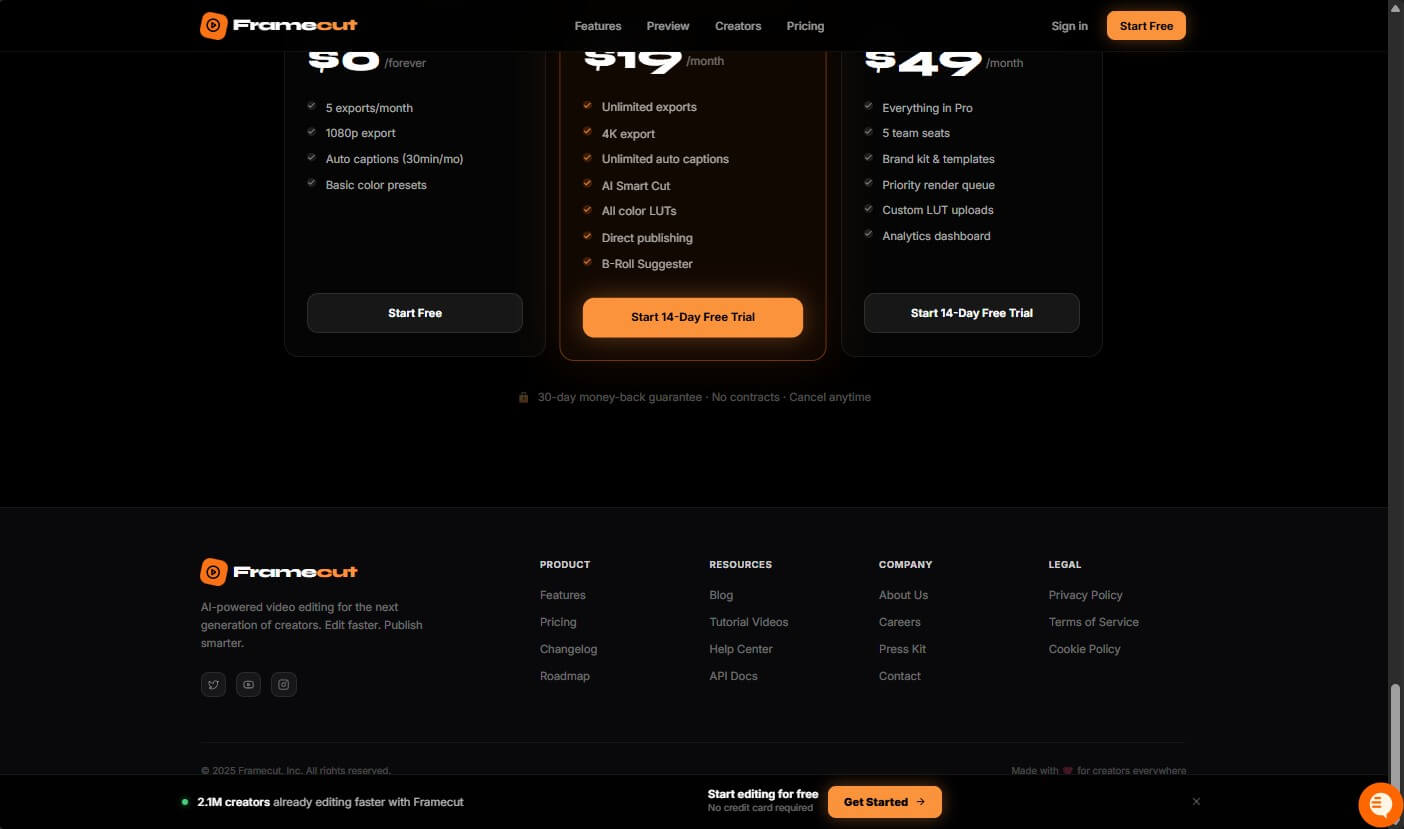
These prompts work because Polymet’s own prompting guidance recommends clear scope, product context, focused requests, early style direction, and step-by-step building instead of asking for a large product all at once.
Polymet sits between a design tool, an AI prototyping assistant, and a frontend code generator. You can start with plain English, images, screenshots, sketches, voice inputs, or Figma frames. Once the project is created, the workspace opens into an Infinite Canvas with a chat area and an assets panel for components, pages, and prototypes.
That makes Polymet different from a standard chatbot. The output is not just advice or a static answer. The output becomes editable product UI. You can create pages and components, generate variations, select parts of a design for more targeted changes, edit code, and run prototypes.
The best way to think about it: Polymet helps teams compress early product design. It gives founders, product managers, agencies, and developers a faster way to explore UI ideas before handing work to a designer, developer, or stakeholder.
| Feature | What it does | Why it matters |
|---|---|---|
| Prompt-to-UI generation | Creates components, pages, and prototypes from natural language | Good for moving from idea to first design quickly |
| Image and screenshot input | Uses sketches or screenshots as design references | Helpful when words alone are not enough |
| Canvas and Focus mode | Lets users view the full project or refine details | Supports both broad ideation and precise edits |
| Figma import and export | Brings Figma frames into Polymet and exports designs back | Useful for teams already using Figma |
| Code export | Lets users download generated code and run it locally | Makes the output more useful than a static mockup |
| Team collaboration | Supports shared projects and different user roles | Better for review cycles and agency workflows |
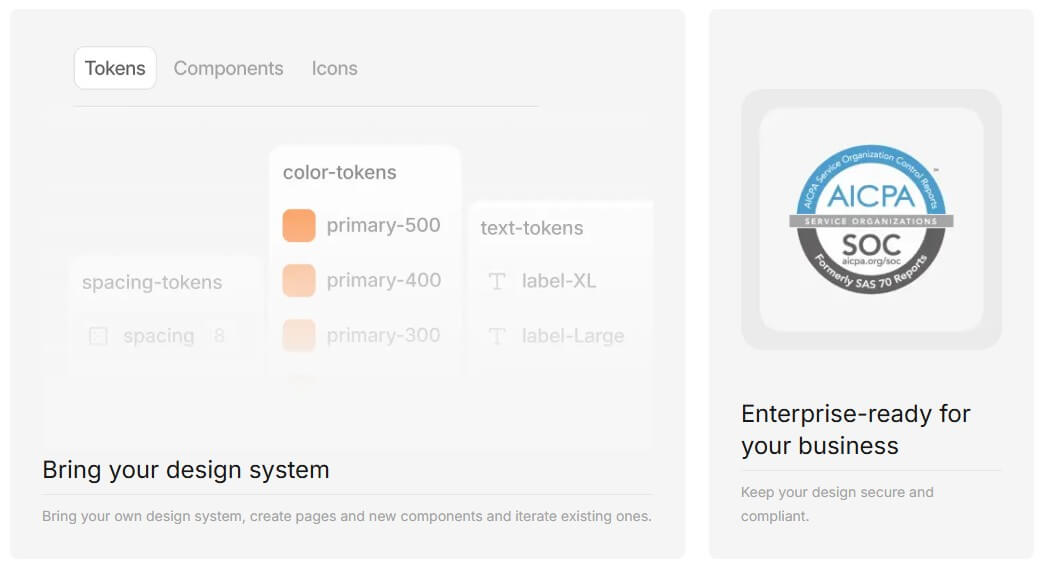
Polymet’s workflow is strongest when you treat it like a design partner rather than a magic one-shot generator. Start with one screen or component, define the visual direction early, then expand into related pages and flows. The documentation specifically warns against covering too many pages or components in one prompt and recommends breaking complex tasks into smaller steps.
The Canvas view is useful for seeing the whole product structure. Focus mode is better for specific changes. This matters because AI design tools often fail when users ask for vague revisions like “make it better.” Polymet gives you better odds when you select an area and ask for a clear change: tighter card spacing, more visible hierarchy, stronger empty state, improved mobile layout, or a different CTA treatment.
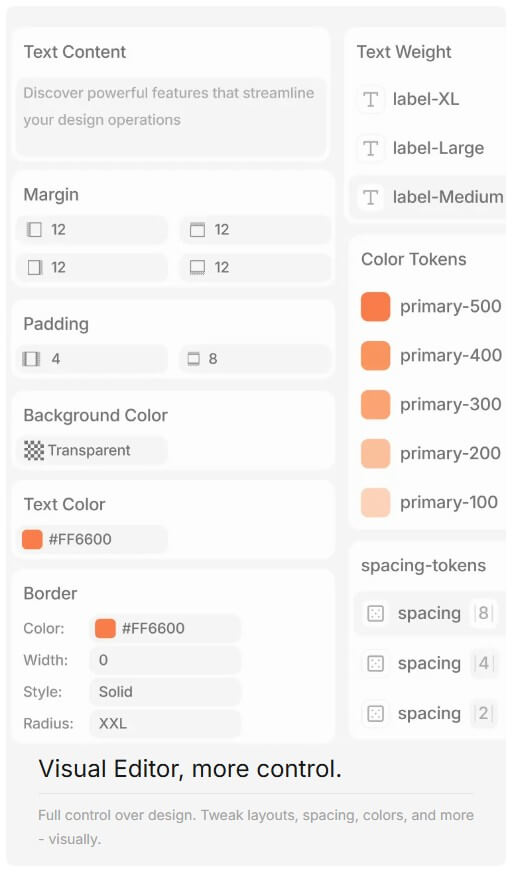
The visual editor and code editor also matter. Polymet’s homepage says users can tweak layouts, spacing, colors, and more visually, while the code editor gives more direct control when visual edits are not enough.
The Figma connection is one of Polymet’s more practical features. Users can import up to eight selected Figma frames, add prompt details during import, generate from those frames, then keep refining in Polymet. Finished designs can also be exported back to Figma through the Polymet plugin flow.
For development handoff, Polymet supports code export as a downloadable project. Its docs explain that users can export a zip, install dependencies with npm i, then run the local app with npm run dev.
That does not mean the exported code should skip developer review. It means the code can be a starting point, especially for prototypes, internal tools, SaaS screens, landing pages, and early product demos.
Polymet is strongest for web app interfaces, dashboards, landing pages, onboarding flows, product pages, admin panels, and MVP prototypes. Its own comparison guide positions it as a strong fit for early-stage startups and design or development agencies because it combines design generation, component management, collaboration, and production-ready code in one flow.
It is also useful for non-designers who need to communicate product ideas. A founder can describe a workflow. A product manager can turn a spec into screens. A developer can get a cleaner UI direction before coding from scratch. An agency can produce multiple directions for client review faster than starting each one manually.
- Use screenshots when you care about layout style. Polymet’s prompting guide says uploaded images help it replicate style and layout, but you get more control when you combine the image with descriptive text.
- Define style early. Colors, spacing, typography, border radius, and button behavior are easier to guide at the beginning than to fix across a full project later.
- Ask for variations before committing. Polymet can generate multiple options for the same section or flow, which is useful when you are still exploring direction.
- Keep edits narrow. Instead of asking it to redesign the whole app, ask it to improve one screen, one component, or one state.
Polymet still depends on prompt quality. Vague prompts can produce generic layouts. Overloaded prompts can confuse scope. The tool works best when the user gives product context, design constraints, and clear limits.
Mobile may also need closer review. Polymet’s own comparison guide notes that while the platform is strong for web interfaces, mobile design capabilities could expand further.
The code export is useful, but teams should still inspect structure, responsiveness, dependencies, accessibility, and maintainability before shipping. AI-generated frontend code can speed up the first version, but it should not replace engineering review.
Security-sensitive teams should also review data handling before connecting proprietary assets. Polymet has a security page describing controls for customer-submitted data and project assets, but enterprise teams still need their own review process.
Polymet is best for turning product ideas into polished UI concepts, interactive prototypes, and frontend code starting points faster than a traditional blank-canvas workflow. It is especially useful for founders, product managers, agencies, and developers who need web app screens, landing pages, dashboards, and prototype flows without waiting on a full design cycle. The main caveat is that Polymet rewards clear direction. Strong prompts, good reference images, clean Figma inputs, and careful review make a big difference. Used that way, it is not just a UI generator. It is a practical product design accelerator.
TAGS: Productivity
Related Tools:

AI-driven scriptwriting software
Simplifies and accelerates API integrations
Automates and customizes business operations

AI writing assistant that helps refine stories

AI search engine for research

Analayzes key information from documents