

Share this tool:
 |
Description:
Martin is an AI personal assistant designed to handle the kinds of small tasks that usually live across your calendar, inbox, reminders, messages, notes, and Slack. Its pitch is not just “chat with AI.” It is closer to “delegate work to an AI assistant that can reach you, remember context, and act inside the tools you already use.”
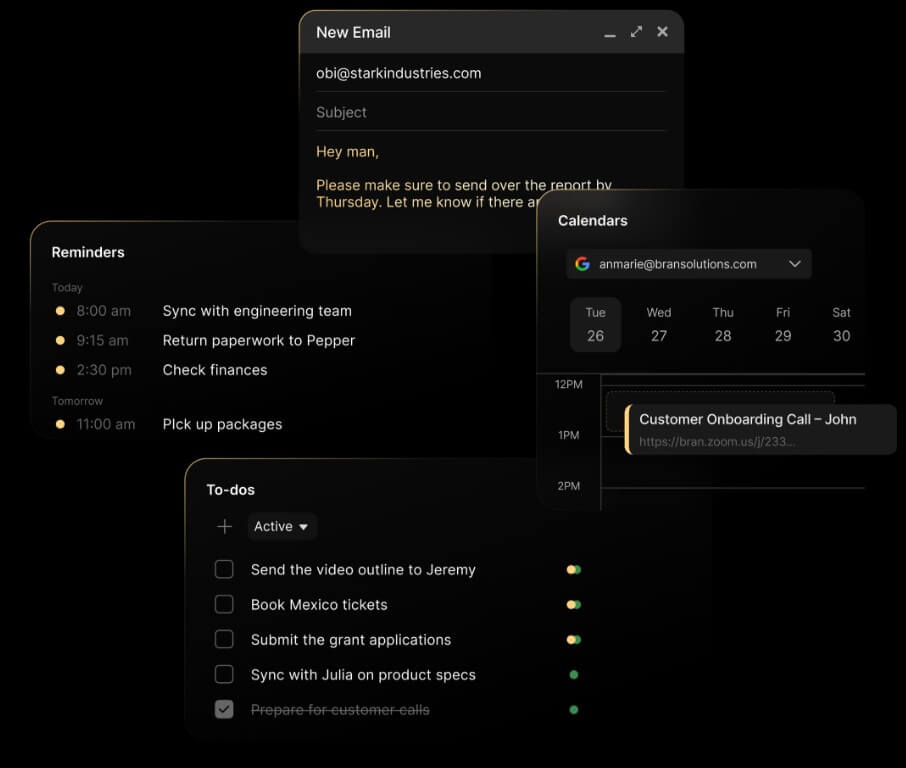
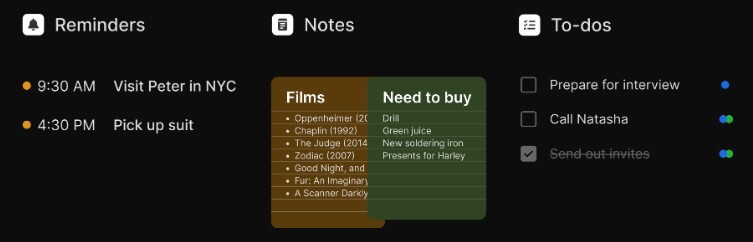
Martin is a personal productivity assistant with a strong communication layer. You can use it from the web, iOS app, phone, SMS, WhatsApp, email, and Slack, which makes it feel less like a single app and more like an assistant that follows you across channels. Its docs say Martin can manage calendar events, check emails and draft replies, text or call others on your behalf, send reminders, track to-dos, take notes, search information sources, and read or send Slack messages.
That matters because many AI tools still require you to visit one place, type a request, copy the result, then move it somewhere else. Martin is trying to reduce that handoff. You can ask it to remind you later, draft an email, schedule a meeting, check a Slack channel, or create a calendar event from a message.
The best way to understand Martin is as a task assistant, not a general chatbot. It can answer questions, but its stronger value is taking small work items off your plate.
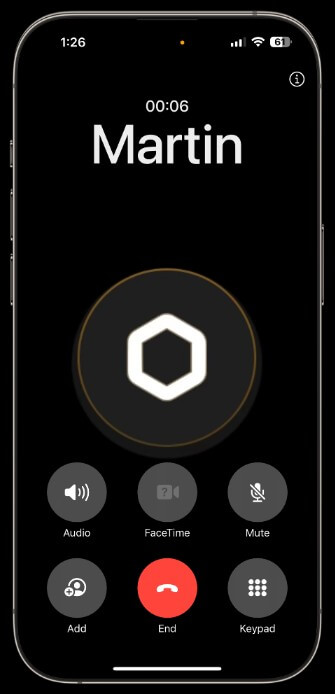
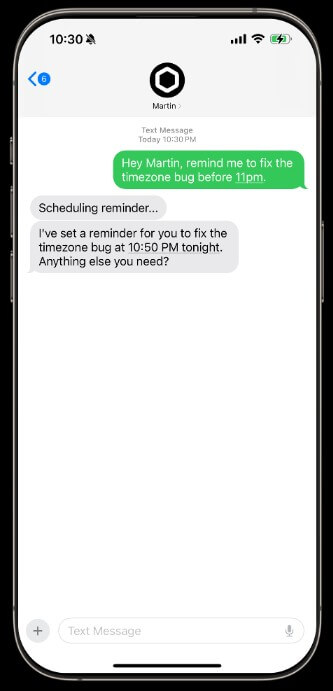
Martin is strongest for people whose workday is fragmented. If your day moves between Gmail, Outlook, Google Calendar, Apple Calendar, Slack, texts, calls, reminders, and small follow-ups, Martin’s cross-channel design makes sense.
It is especially useful for tasks that are simple but annoying:
| Workflow | How Martin Helps |
|---|---|
| Calendar management | Reads, creates, and updates calendar events |
| Inbox support | Checks email, drafts replies, and helps respond |
| Reminders | Sends reminders through app notifications, SMS, calls, email, or Slack |
| Slack coordination | Reads, sends, replies, reacts, and pins messages |
| To-dos and notes | Tracks tasks and captures notes from conversations |
| Scheduling | Can help coordinate meeting times through email threads |
Martin becomes more interesting when these tasks connect. For example, you might ask it to read an email, schedule the meeting mentioned in it, add the Zoom link, then remind you before the call. That is more useful than a standalone reminder app or inbox summarizer.
Martin is reachable through voice, SMS, WhatsApp, email, Slack, phone, web, and iOS, which makes it more flexible than assistants tied to one interface.
Martin can connect to Google Calendar, Apple Calendar, and Outlook Calendar, then create, update, and reschedule events. Its calendar docs say users can connect multiple calendars and ask Martin to add events, reschedule meetings, or block time.
Martin can connect to Gmail and Outlook, then read, draft, and reply to emails. The docs include examples such as checking for new emails, drafting replies, reading emails aloud, forwarding messages, and sending links from calendar context.
Martin can connect to Slack workspaces and read, send, and reply to Slack messages from your account. It can also react to messages and pin messages, according to the Slack integration docs.
Martin supports reminders through several channels, including app notifications, SMS, phone call, email, and Slack. That is useful because not every reminder belongs in the same place.
Martin’s web dashboard brings to-dos, reminders, inbox, calendar, dispatched phone calls, and chat into one place. The company’s dashboard announcement says Martin confirms important actions, such as sending emails or texts, before execution.
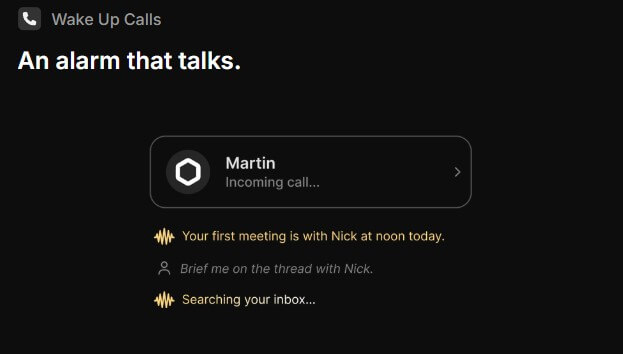
Martin’s workflow starts with connections. You give it your contact information, then connect tools such as calendar, inbox, and Slack. After that, you can delegate tasks through the channel that feels most convenient at the moment. The docs describe this setup as account creation, contact-channel setup, then tool integration.
This design is practical, but it also means Martin is not a “use once and forget it” tool. It needs permissions, context, and trust. A user who only wants a chatbot answer may not need Martin. A user who wants an assistant to act across inbox, calendar, reminders, and Slack will get more value.
The web dashboard helps because it gives the assistant a visible control center. Earlier versions of this category often felt too invisible: you asked the AI to do something and hoped it worked. Martin’s dashboard approach is better for reviewing tasks, checking reminders, seeing inbox and calendar context, and confirming important actions before they happen.
Scheduling is one of Martin’s strongest practical use cases. Its “Cc to Schedule” workflow lets users add Martin to an email thread and ask it to find a time. Martin checks the calendar, proposes times, reacts to replies, finds a new slot if needed, and adds the final event once confirmed.
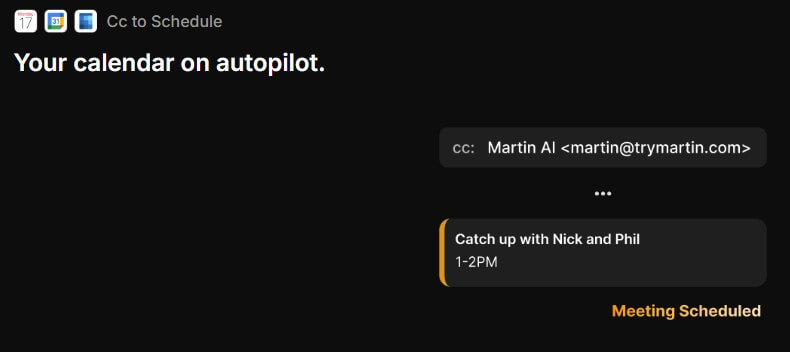
That is the kind of task where an assistant makes more sense than a chatbot. The value is not the written response. It is the coordination: checking availability, replying in context, and creating the event after agreement.
Email support works in a similar way. Martin can read, draft, reply, and forward messages, but the important question is how much control users keep. The dashboard announcement says Martin confirms important actions in a widget before executing them, and users can edit the content directly. That human-in-the-loop design matters for trust.
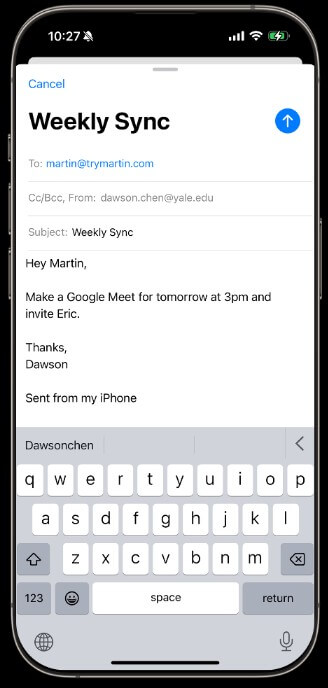
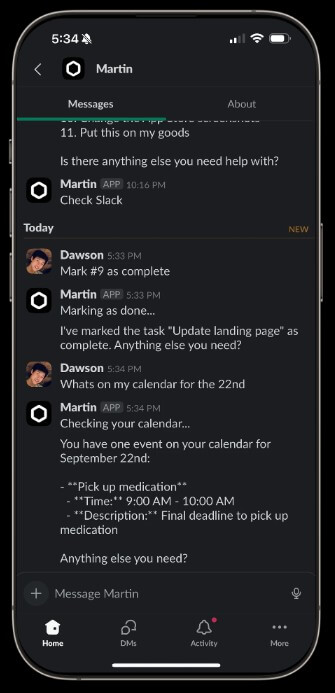
Martin is best for busy professionals who struggle with small administrative tasks: scheduling, reminders, follow-ups, inbox review, Slack messages, and personal organization.
It is also useful for founders, consultants, students, managers, and ADHD-prone users who benefit from external memory. Reminders by call, SMS, Slack, and email may sound excessive until you consider how many people ignore one notification channel but respond to another.
It is less useful for people who already have a rigid productivity system and do not want an AI assistant reading or acting across personal tools. It is also not the best fit if your main need is deep research, document drafting, or project management at team scale.
The main trade-off is trust. Martin can operate close to sensitive areas: inbox, calendar, Slack, phone, text, and reminders. That means users should start with low-risk tasks, review permissions carefully, and make sure confirmation settings match their comfort level.
The second limitation is reliability. AI assistants that act across tools can be more useful than chatbots, but they also have more ways to fail: wrong contact, misunderstood time, incomplete context, missed notification, or an action that needs human judgment. Public App Store reviews show both enthusiasm for Martin’s concept and complaints about incomplete features or support friction, so expectations should stay grounded.
Another trade-off is setup. Martin becomes more useful as it knows your calendar, inbox, contacts, preferences, and routines. That is also the work. Users who do not want to configure integrations may not see the full benefit.
Martin is a strong personal AI assistant for people who want help managing communication-heavy daily work. Its best features are multi-channel access, calendar and inbox control, Slack integration, reminders, scheduling help, and a dashboard that keeps tasks visible. It is best for users who want to delegate small administrative tasks rather than just chat with AI. The main caveat is that Martin needs trust, setup, and careful review because it works close to real messages, meetings, and daily commitments.
TAGS: Productivity
Related Tools:

Helps teams document access internal information

Automates the creation of detailed, easy-to-follow digital guides

AI-powered academic writing tool

AI assistant that delivers real-time insights and transcription
Customer support tool that streamlines team collaboration

Records, transcribes, and summarizes video meetings