
Share this tool:
 |
Description:
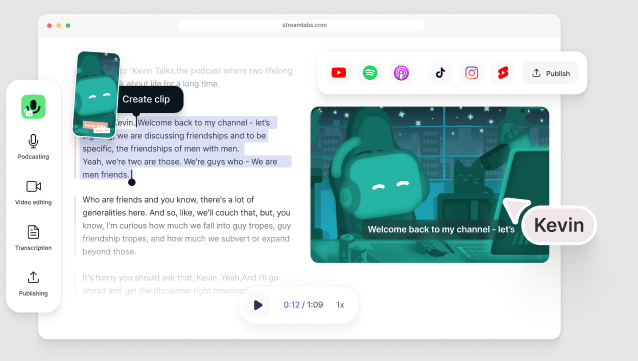
Streamlabs Podcast Editor is a web-based editor for spoken content. It helps you edit podcasts, interviews, streams, lessons, and long videos by editing the transcript. Instead of cutting every section by hand on a timeline, you work with text. You can remove filler words, cut pauses, create clips, add subtitles, translate content, and export files for different uses.
Streamlabs Podcast Editor is not a full video editor in the same way as Premiere Pro or DaVinci Resolve. It is a focused tool for talking content.
The main idea is simple. You upload or record a video. Streamlabs turns the speech into text. You edit that text, and the video changes with it.
That makes it useful for creators who record long talks and need to cut them down. It works best when the spoken words matter more than complex visual edits.
The tool fits these content types well:
| Content Type | Why It Fits |
|---|---|
| Podcasts | You can clean up long talks and export video, audio, or text. |
| Interviews | You can find strong quotes and remove weak parts fast. |
| Livestreams | You can turn long streams into clips. |
| Webinars | You can make subtitles, transcripts, and shorter lessons. |
| Course videos | You can remove mistakes and make the lesson easier to follow. |
| Social clips | You can cut short parts from a longer recording. |
Streamlabs says the editor can turn long podcasts into short clips for social platforms and does not require editing experience. That is the right way to view it. It is made for speed and cleanup, not for deep film editing.
The workflow has four main steps.
First, you add a file. Streamlabs says users can upload a file from their device or add a link from YouTube, Google Drive, or Dropbox. You can also record through Talk Studio, which fits the wider Streamlabs tool set.
Second, Streamlabs creates a transcript. This transcript becomes the main place where you edit. If you delete words in the transcript, you cut that part from the media.
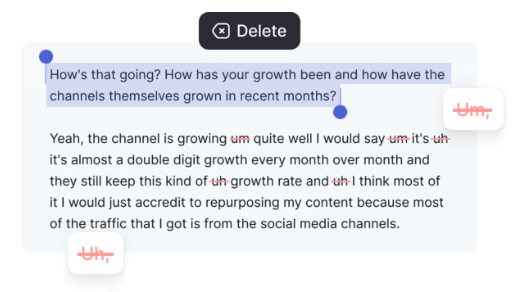
Third, you clean and shape the content. You can remove filler words like “um” and “uh,” cut pauses, search for words, add subtitles, add text, use templates, add images, and create clips.
Fourth, you export. Streamlabs says users can export video, audio, subtitles, or text. You can also invite others to view or edit a project through a shared link.
That workflow is the main strength. It lowers the amount of timeline work. It also helps creators find useful parts of a long recording without listening to the whole file again.
Edit the media by changing the transcript, which works well for spoken content.
Streamlabs can transcribe audio and video files in more than 30 languages.
Quick Actions can remove filler words and pauses, which helps clean up rough speech.
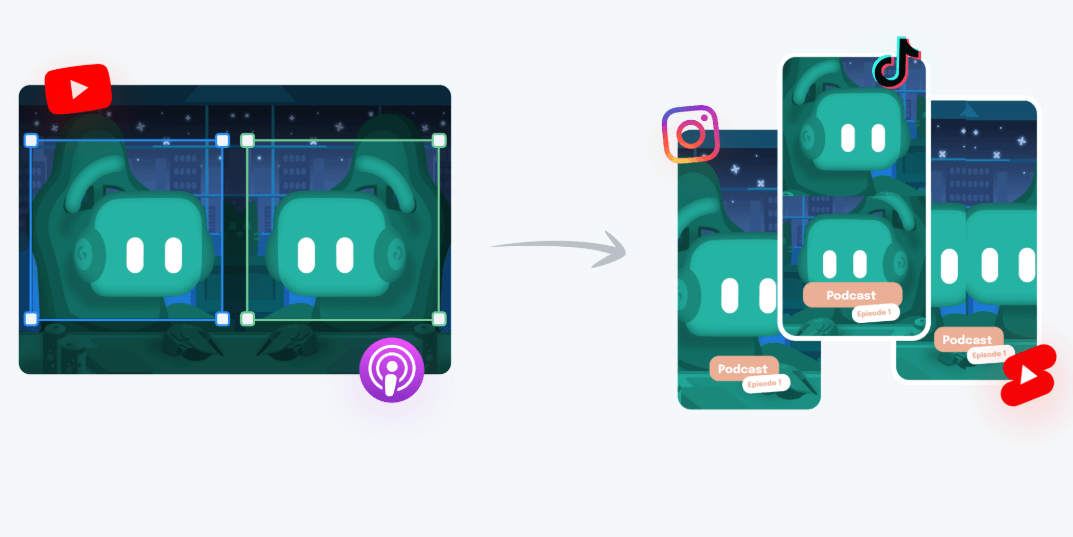
You can highlight text and create shorter clips from a longer video.
Streamlabs can add subtitles and lets users change fonts, colors, and style.
Streamlabs says Podcast Editor supports translation into more than 30 languages.
Streamlabs Podcast Editor is best at turning long spoken content into cleaner assets.
For a podcaster, that may mean a full video episode, an audio file, subtitles, and a transcript.
For a streamer, that may mean cutting one strong moment from a long stream.
For a teacher, that may mean trimming a lesson, adding captions, and exporting a text version.
For a brand or small team, that may mean turning one interview into clips, quote sections, and short posts.
The strongest use case is not “edit any video.” The strongest use case is “edit talking videos faster.”
That matters because spoken content has a different problem from visual content. You often know what you want to remove by what someone said. Text-based editing solves that problem in a clean way.
The editing control is strong for speech cleanup.
If the transcript is accurate, the workflow feels fast. You can search for a phrase, cut it, and move on. You can remove filler words and pauses without hunting through waveforms.
The tool also gives you enough visual control for creator work. You can add text, images, shapes, emojis, progress bars, video, audio, subtitles, and templates. That is enough for podcast clips, social posts, lessons, and simple branded videos.
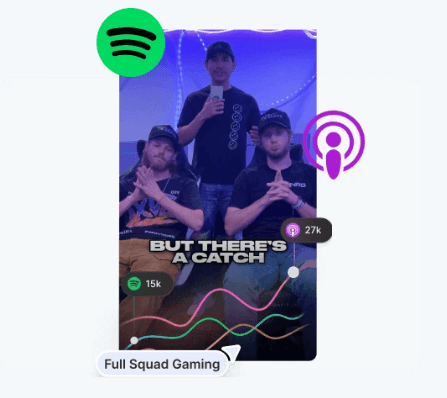
It is not the right tool for complex edits. You should not expect deep color work, complex sound mixing, advanced motion graphics, or film-level timeline control. That is not a flaw in the product. It is a boundary. Streamlabs Podcast Editor gives you a fast path from raw spoken content to clean, shareable content.
The official plans page lists Podcast Editor Pro at $12 per month. It includes 40 hours per month, videos up to 2 hours long, 250GB of storage, subtitle export in .srt, .vtt, and .txt formats, translation, and no watermark.
| Plan Area | What Matters |
|---|---|
| Free use | Good for testing the workflow and checking transcript quality. |
| Pro use | Better for regular creators who need more hours, no watermark, subtitles, and translation. |
| Streamlabs users | Stronger value if you already use other Streamlabs tools. |
| Heavy editors | Compare with deeper tools before you commit. |
The value depends on how much spoken content you publish. If you make one short clip once in a while, the free version may be enough to test. If you publish podcasts, stream highlights, interviews, or lessons each week, the paid plan makes more sense.
- Podcast editing: Good for cutting long conversations, removing filler words, and exporting video, audio, subtitles, or text.
- Interview cleanup: Useful for finding strong quotes, removing weak sections, and creating tighter edits from long conversations.
- Livestream repurposing: Helps turn long streams into shorter clips for social platforms.
- Webinars and lessons: Works well for trimming educational content, adding subtitles, and exporting transcript-based assets.
- Social video production: Strong for creating short clips from longer recordings and preparing them for multiple platforms.
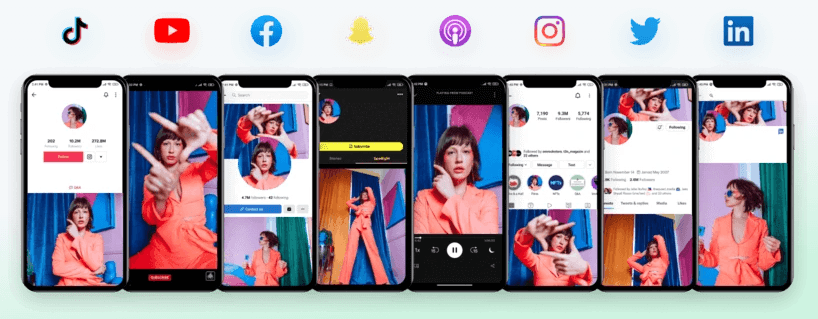
- It is strongest for spoken content, not all video types. If the video depends on complex visuals, motion graphics, color work, or cinematic timing, a traditional editor will still be better.
- Transcript accuracy matters. The text-based workflow is only fast when the transcript is reliable. Names, accents, noisy audio, overlapping speech, and technical terms may still need correction.
- It is built for cleanup and repurposing more than deep creative editing. The tool can add useful visual elements, but it is not meant for advanced compositing, detailed sound design, or film-level timeline work.
- The uploaded article text switches into unrelated Ghost Cut content midway. This conversion uses the Streamlabs portion only and avoids the unrelated section.
Streamlabs Podcast Editor is best for creators who work with spoken content and want to edit faster by editing text.
Its strongest advantages are transcript-based editing, automatic transcription, filler word removal, clip creation, subtitles, translation, and flexible exports for video, audio, subtitle, and text workflows.
The main caveat is scope. It is not a full professional editor, and it is not meant to handle every type of video. It is a focused tool for podcasts, interviews, streams, lessons, webinars, and long spoken recordings that need to become cleaner, shorter, and easier to share.
TAGS: Podcast Video Editing
Related Tools:

Transforms long videos into short, branded clips
Offers voiceover generations and video editing
Simplifies video and podcast editing

Leverages advanced SEO tools and insights

Creates customizable face swap videos

Generates and translates subtitles for videos