

Share this tool:
 |
Description:
- Introduction
- Strong Features and Capabilities
- What Video Candy Actually Is
- Where Video Candy Is Strongest
- Main Workflow Layers
- Workflow and Ease of Use
- Editing Quality and Control
- Recording Tools
- File Conversion and Cleanup
- Privacy and File Handling
- Best Use Cases
- Practical Tips
- Limitations and Trade-Offs
- Final Takeaway
Video Candy is not really an AI video generator in the modern prompt-to-video sense. It is better understood as a lightweight online video toolkit for people who need to edit, compress, crop, resize, record, convert, merge, or clean up videos without opening a heavy desktop editor. Its biggest strength is convenience: the platform puts many small video jobs in one browser-based workspace, which makes it useful for creators, students, marketers, teachers, and casual users who need fast video fixes more than advanced cinematic control.
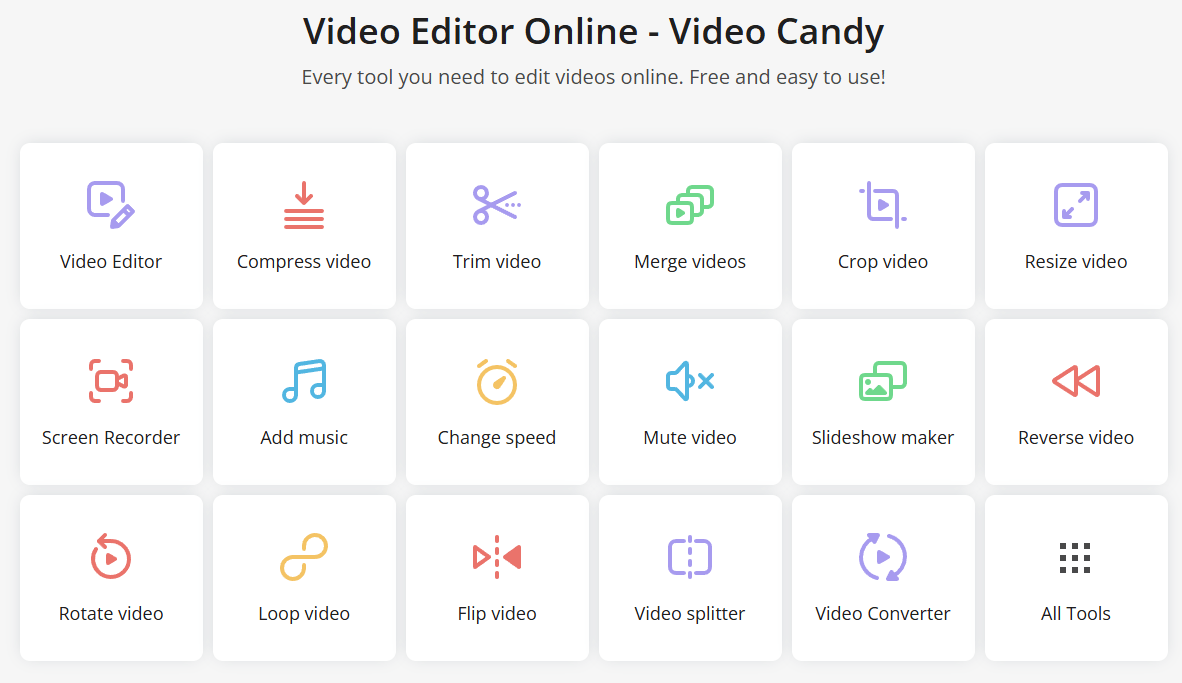
Video Candy groups together editing, compression, trimming, merging, cropping, resizing, screen recording, audio tools, converters, looping, reversing, splitting, and format-specific utilities in one browser platform.
The main editor supports practical adjustments such as trimming, transitions, cropping, fit size, aspect ratio, speed changes, rotation, flipping, and background audio.
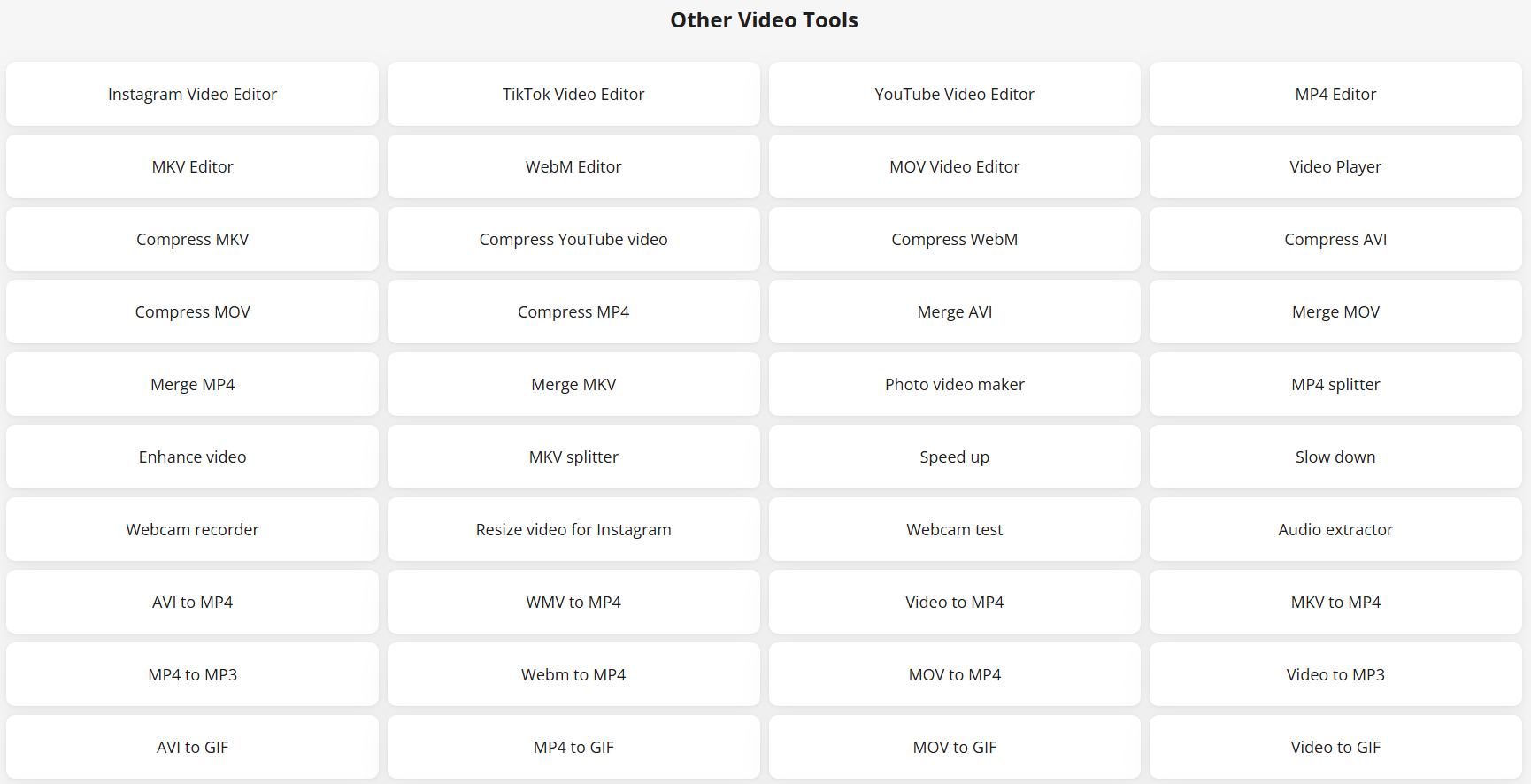
The platform supports common video formats including MP4, MOV, AVI, MKV, and HEVC, and its converter tools cover workflows like MKV to MP4, MOV to MP4, WebM to MP4, video to GIF, and video to MP3.
Video Candy includes a screen recorder that can capture screen activity, recording area, webcam, microphone, and audio from the browser.
The editor lets users set common ratios such as 16:9, 9:16, 1:1, 4:3, and 3:4, which makes it useful for repurposing clips across YouTube, Instagram, TikTok-style vertical video, and square social formats.
Uploaded and generated files are stored temporarily, with Video Candy stating that files are removed from its servers within two hours after processing.
The clearest way to think about Video Candy is as a collection of practical browser tools rather than one big production suite. It is not trying to be a full non-linear editor like Premiere Pro, Final Cut Pro, DaVinci Resolve, or a deep AI video studio. It is built around the smaller tasks that come up constantly when working with video.
That matters because most people do not always need a full editor. Sometimes the job is simply to trim the dead air from the start of a clip, crop a recording for vertical format, compress a file before uploading it, remove the audio, add background music, convert MOV to MP4, or record a short screen walkthrough. Video Candy is strongest in those moments.
The product is also organized around tools instead of models, timelines, or prompt workflows. The homepage and tools page show options such as Video Editor, Compress video, Trim video, Merge videos, Video brightener, Increase volume, Blur video, Add text, Crop video, Resize video, MP3 cutter, Screen Recorder, Add music, Change speed, Mute video, Slideshow maker, Reverse video, Rotate video, Loop video, Flip video, Stop motion, Video splitter, Video Converter, and Audio Converter.
That structure makes it approachable. You do not have to learn a complex interface before doing one task. You choose the tool, upload the file, adjust the setting, process it, and download the result.
Video Candy is strongest when the edit is clear, practical, and limited in scope.
The best use case is not “make a complete branded campaign from scratch.” It is more like: “I have a clip and need it cleaned up quickly.” That might mean trimming a lecture recording, making a screen capture smaller, resizing a video for a social post, converting a format for easier sharing, or merging several short clips into one.
The browser-based setup is also important. Video Candy’s own materials position the product around drag-and-drop use and importing from Dropbox or Google Drive, which makes it easier to work across devices without installing software.
This is especially useful for people who do occasional video work but do not want a full editing stack. A teacher recording a tutorial, a freelancer preparing a client update, a social media manager adjusting a clip, or a student compressing a project video can all get value from the platform without learning professional editing software.
| Workflow Layer | What It Is Best For | Why It Matters |
|---|---|---|
| Main video editor | Combining, trimming, cropping, adding music, setting ratios, adjusting speed | Best for quick, general editing jobs |
| Utility tools | Compressing, splitting, muting, rotating, reversing, looping, converting | Best for one-task fixes without opening a full editor |
| Recording tools | Screen recording, webcam recording, microphone and audio capture | Useful for tutorials, walkthroughs, demos, and quick messages |
| Conversion tools | Video and audio format changes | Helps when a file will not upload, play, or work in another app |
| Social formatting | Resizing and aspect ratio changes | Helpful for repurposing content across platforms |
The most useful part is the way these layers connect. You can start with a recording or uploaded clip, then move into editing, compression, resizing, or conversion. Video Candy’s own blog notes that screen recordings can be trimmed, cropped, compressed, and shared using the same video editing service, which is exactly the type of practical chain where the platform makes sense.
Video Candy’s workflow is intentionally simple. The platform is designed around selecting a tool first, then uploading or importing a file, applying changes, and processing the output. That makes it easier for beginners than opening a traditional editor with panels, tracks, nested menus, color pages, keyframes, and export presets.
The main editor gives users enough control for everyday work. You can add multiple files, trim segments manually or by timing, add a fade-to-black transition, crop manually or with width and height values, select fit options, preview the result, choose platform-friendly ratios, adjust speed, rotate, flip, mute original audio, and add background music or voice-over.
The trade-off is that this simplicity also defines the ceiling. Video Candy is not where you go for detailed color grading, multi-track audio mixing, advanced motion graphics, deep keyframe animation, precise multicam editing, collaborative review workflows, or AI-generated storyboarding. It is built for practical operations, not full production control.
That is not a flaw if the user understands the category. A lightweight browser editor should feel fast and direct. Video Candy does that better than trying to become a complicated all-in-one studio.
Video Candy gives you the controls that matter most for basic video cleanup.
The trim tool is useful for removing weak starts, dead air, awkward endings, or unneeded sections. The crop and resize tools are practical for social repurposing. The fit-size options are useful when you need to prevent a clip from looking wrong in a new format. The ratio options matter because most casual video problems now come from platform mismatch: a horizontal clip needs to become vertical, a square post needs cleaner framing, or a tutorial needs to fit a presentation format.
Speed control is another practical feature. Video Candy’s editor lets users slow down video to 0.25x or speed it up to 5x, and the same scene settings area can mute the original video.
The output quality will depend heavily on the source file, the operation being performed, and whether the video needs re-encoding. This is especially true for compression. Compression is useful, but every compression workflow involves a balance between file size and quality. Video Candy’s own editing tips recommend adjusting compression settings carefully to reduce file size while maintaining the desired quality.
For casual and semi-professional use, the control level is enough. For brand films, cinematic edits, ads with layered design, or content that needs frame-perfect polish, users will eventually want a deeper editor.
The screen recorder is one of Video Candy’s more useful non-editing features. It can capture screen activity online, select a recording area, and include webcam, microphone, and audio.
That makes it practical for tutorials, product walkthroughs, class explanations, bug reports, onboarding videos, and quick internal updates. The value is not that it replaces a dedicated recording platform for teams. The value is that recording and post-processing can live close together.
A typical workflow might look like this:
- Record a product walkthrough.
- Trim the beginning and ending.
- Crop out browser clutter.
- Resize for the intended platform.
- Compress the file.
- Download or share the finished version.
That is exactly the kind of small production loop where Video Candy feels useful.
The conversion side is one of the biggest reasons to keep Video Candy bookmarked. Format problems are common: a file may be too large, the wrong format, difficult to upload, incompatible with a tool, or awkward to send.
Video Candy’s tools page includes video and audio conversion utilities, and its blog lists conversion options such as MKV to MP4, MOV to MP4, WebM to MP4, Video to GIF, Video to MP3, MP3 to WAV, WAV to MP3, M4A to MP3, OGG to MP3, and MP3 to MP4.
This is not glamorous, but it is useful. Many video tools focus on creation, templates, or effects. Video Candy is more practical: it solves common file problems that interrupt real workflows.
That also makes it useful alongside other tools. Even if someone edits in another app, Video Candy can still be used for one-off compression, resizing, screen recording, or conversion.
Because Video Candy is browser-based, users should think carefully about what they upload. The platform states that uploaded and output files are kept on its servers for up to two hours, are not backed up, are not shared with third-party websites or persons, and are permanently deleted after that window.
Its security page also says file transfers are protected with HTTPS using TLS/SSL standards, and that files are protected with 256-bit AES encryption during transfer and storage.
That is reassuring for ordinary content, but it does not remove the need for judgment. Sensitive legal footage, confidential business recordings, unreleased media, private customer data, or regulated content should always be handled according to your organization’s policies. A two-hour deletion window is helpful, but it is still a cloud-processing workflow.
- Quick social media resizing: Video Candy is useful when you need to adapt one clip into a vertical, square, or horizontal format without rebuilding the edit from scratch.
- Screen tutorials and walkthroughs: The screen recorder plus editing tools make it practical for software demos, class materials, internal process recordings, and quick training videos.
- Compressing large clips: When a video is too large to send, upload, or store comfortably, the compressor gives users a fast way to reduce file size.
- Format conversion: The video and audio converters are useful when a file needs to become MP4, GIF, MP3, WAV, or another more compatible format.
- Basic creator edits: Trimming, merging, adding music, changing speed, rotating, flipping, and cropping cover many of the everyday edits creators need before publishing.
- Student, teacher, and office workflows: Video Candy fits people who need a working video quickly, not a complex production environment.
- Start with the most specific tool instead of opening the full editor every time. If you only need compression, conversion, trimming, or resizing, the dedicated tool will usually be faster.
- Use MP4 or MOV when possible. Video Candy supports multiple major formats, but common formats generally create fewer compatibility problems across other platforms.
- Set the aspect ratio before doing detailed edits. If the clip is going to Instagram, YouTube, a presentation, or a vertical short, make the format decision early so you do not crop important content later.
- Be careful with compression. Check the final video after processing, especially if the content includes small text, screen recordings, subtitles, or detailed UI.
- Use screen recording for simple demos, not full production webinars. It is great for fast explainers and walkthroughs, but dedicated webinar or enterprise recording tools may be better for long sessions, team review, or advanced recording management.
- Avoid uploading highly sensitive material unless the browser-processing workflow fits your privacy requirements.
- Not a generative AI video tool: It does not appear to offer prompt-to-video creation, AI avatars, AI script generation, cinematic AI shot control, text-based editing commands, or model-based visual generation in the way modern AI video platforms do. Its value is utility, not AI creativity.
- Editing depth is limited: The platform covers basic and intermediate operations well, but it is not a substitute for a professional timeline editor. If you need layered motion graphics, detailed audio mixing, complex transitions, advanced masking, deep color correction, or collaborative production review, Video Candy will feel too limited.
- Workflow fragmentation can happen: Having many single-purpose tools is convenient, but it can also mean moving between tools for different stages of a project. That is fine for short tasks. It becomes less ideal for large edits where you want everything managed in one persistent project timeline.
- Output quality depends on the source file and operation: Cropping, resizing, compressing, and converting can all introduce quality loss if handled aggressively. This is not unique to Video Candy, but users should still check final files before publishing.
- Browser-based processing can slow down large jobs: Large files, slow connections, or long videos can make the workflow feel less instant than a local editor.
Video Candy is best for fast, practical video work in the browser. It is especially useful for trimming, cropping, resizing, compressing, converting, recording, merging, and cleaning up clips without installing a full editor. The strongest users are creators, teachers, students, marketers, freelancers, and everyday office users who need quick video fixes more than cinematic control.
The main caveat is category fit. Video Candy is not a prompt-based AI video generator and not a professional editing suite. It is a convenient online video toolkit, and judged on that basis, it does its job well.
TAGS: Video Editing
Related Tools:

Transforming audio and video recordings into polished, shareable content

Moz Pro

Embeds invisible watermarks into videos for authenticity

Transforms long videos into engaging clips

Enhances website optimization trough detailed audits

Online AI video editing platform