

Share this tool:
 |
Description:
Microsoft Copilot is best treated as an assistant, chat, and productivity tool rather than a simple chatbot. Its main strength is that it connects AI chat with Microsoft’s wider ecosystem, including document creation, file-based work, search, agents, notebooks, and app workflows across Word, Excel, PowerPoint, Outlook, Teams, and more.
The biggest reason to care about Copilot is practical workflow value. It is most useful for people who already live inside Microsoft tools and want AI help with writing, summarizing, organizing, creating, and work-related research without constantly switching platforms.
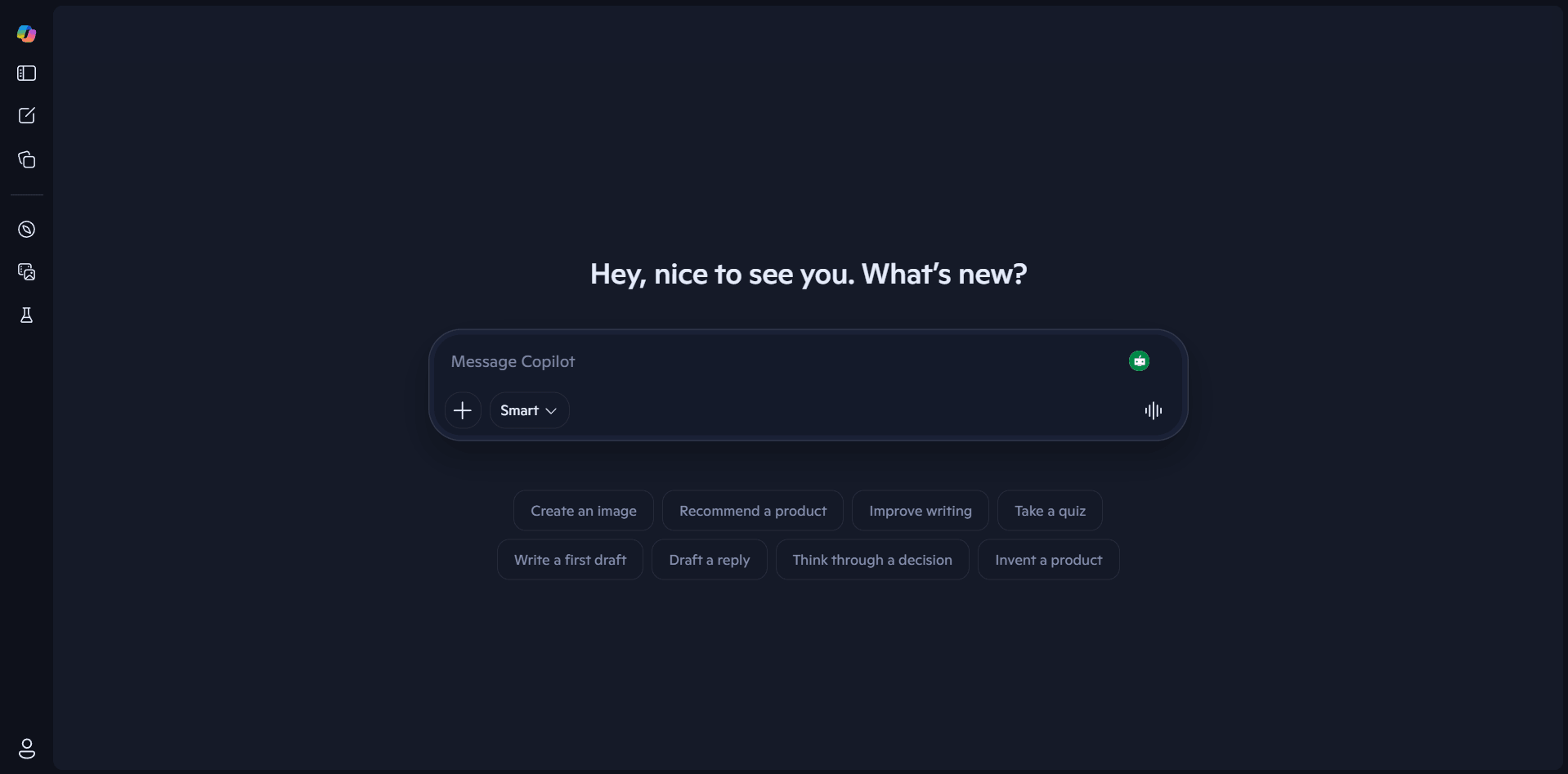
This is the clearest reason to use Copilot. Microsoft positions Microsoft 365 Copilot as AI built into familiar work apps, including Word, Excel, PowerPoint, Outlook, Teams, Loop, and more. That matters because the value is not just chat, but what it can do inside existing workflows.
Microsoft describes Copilot Chat as an AI-powered chat experience that uses the latest large language models and current web information, and can also work with uploaded files to turn them into usable information and insights.
The Microsoft 365 Copilot app is positioned as a place where users can chat, create and edit content, upload or create files, and collaborate on AI-generated work. This makes it more useful than a casual assistant for documents, notes, and everyday work tasks.
Microsoft highlights agents as part of the Microsoft 365 Copilot experience. It also says users can set up agents that help them be more productive and add custom agents and apps, which is important for people who want more than one-off prompting.
Microsoft 365 Copilot Pages turns responses into editable, shareable content. That is a practical feature for people who want to turn AI output into something they can refine and use with others instead of leaving it trapped in chat.
Microsoft also offers image generation through Copilot and Bing Image Creator. For individual users, Microsoft explicitly promotes image creation as part of the Copilot experience.
Microsoft’s official download page says the Microsoft 365 Copilot app is available on Windows, Mac, iOS, Android, and the web, which makes it easier to keep the same workflow across devices.
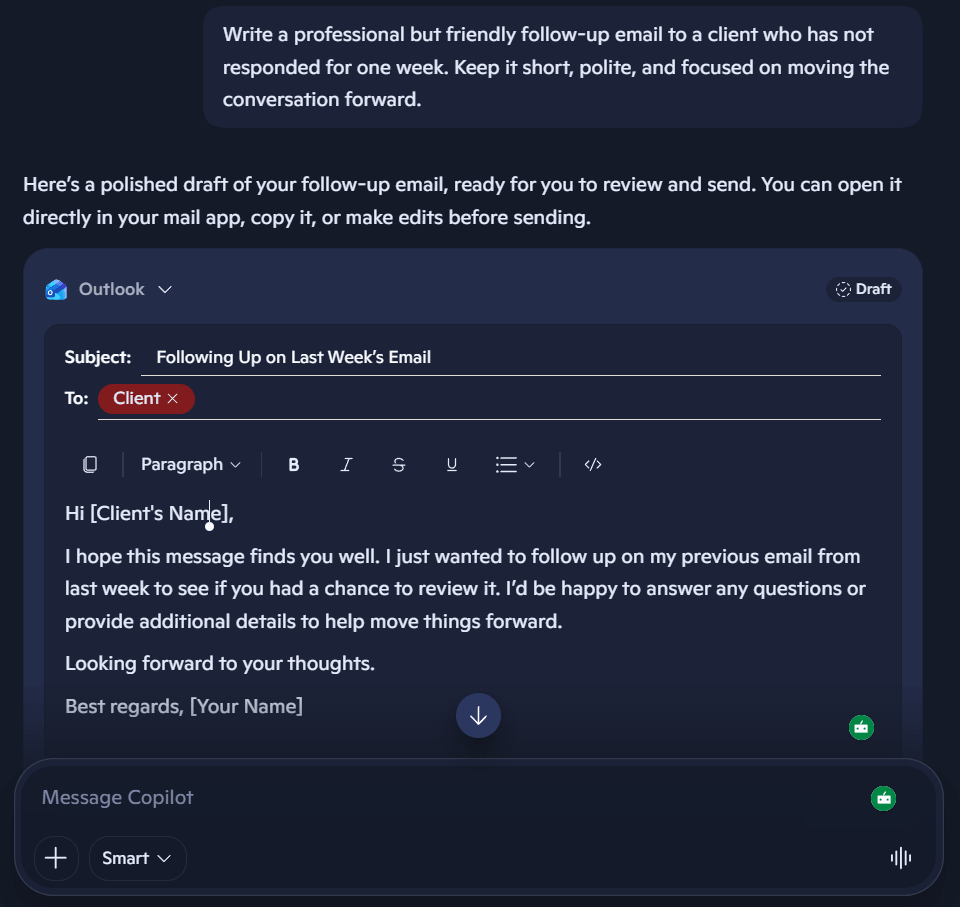
Prompt: Write a professional but friendly follow-up email to a client who has not responded for one week. Keep it short, polite, and focused on moving the conversation forward.
Why this is a good first test: Copilot is heavily positioned around productivity and work communication, so this is one of the most natural real-world uses.
Before using this prompt: Paste the meeting notes, transcript, or rough notes you want summarized first.
Prompt: Turn these meeting notes into a clean summary with key decisions, action items, deadlines, and questions that still need answers.
Why it matters: This tests whether Copilot can quickly organize messy information into something useful for work.
Before using this prompt: Upload or paste the report you want summarized first.
Prompt: Summarize this report in simple language and give me the top 5 takeaways, the biggest risks, and the most important next steps.
Why this is useful: Copilot is especially relevant for people working with documents, files, and internal work material.
Prompt: Create a PowerPoint outline for a 10-slide presentation about improving customer retention for a small business. Keep it practical and business-focused.
Why it belongs here: Microsoft positions Copilot directly inside PowerPoint and other Microsoft 365 apps, so presentation support is one of its most practical workflows.
Before using this prompt: Upload the spreadsheet or paste the relevant data first.
Prompt: Analyze this sales data and tell me the top trends, biggest drops, strongest product categories, and anything unusual that needs attention.
Why this is a useful test: Copilot’s Microsoft 365 positioning makes data interpretation one of the biggest workflows people actually care about.
Prompt: Research this topic and give me a short briefing with the most important facts, recent developments, and a simple explanation of why it matters.
Why it matters: Microsoft says Copilot Chat uses current web information, so this is a strong way to test its usefulness beyond static writing help.
Before using this prompt: Specify the two tools, services, or options you want compared.
Prompt: Compare these two software tools based on pricing, main features, best use cases, and which type of user each one fits best.
Why this works well: Copilot is often most useful when it helps reduce decision-making time.
Before using this prompt: Paste the project goal, task list, or project description you want broken down.
Prompt: Break this large project into smaller action steps with priorities, suggested deadlines, and a simple order for getting started.
Why this is practical: Productivity support is one of Copilot’s clearest use cases, especially for people already working inside Microsoft’s app ecosystem.
Before using this prompt: Paste your goals, deadlines, or task list for the week first.
Prompt: Help me plan my week based on these goals. Organize the work into daily priorities and flag what should be done first.
Why it matters: This tests whether Copilot can act as a real work assistant rather than just a text generator.
Prompt: Create a clean promotional image for a modern productivity app dashboard. Make it look polished, minimal, professional, and suitable for a website hero section.
Why this is a useful test: Microsoft promotes image generation as part of Copilot for individuals, so this is a practical way to test one of its broader creative capabilities.
- Writing emails, drafts, and business content: one of the clearest everyday workflows for Microsoft-heavy users.
- Summarizing meetings, reports, and internal documents: strong fit when the work already lives inside Microsoft files and apps.
- Creating presentation outlines and work content: especially practical for PowerPoint, Word, and broader Microsoft 365 tasks.
- Analyzing information inside Microsoft 365 workflows: useful when you want AI help connected to familiar documents and data.
- Organizing projects, tasks, and planning: one of the more practical day-to-day uses beyond drafting alone.
- Researching topics with current web information: useful when you want a quick work-oriented briefing.
- Generating simple visuals for content and presentations: helpful for lighter creative support inside the same workflow.
- Use Copilot where Microsoft already has an advantage: documents, presentations, spreadsheets, email, and work planning.
- Ask for a specific output format such as bullets, tables, summaries, action lists, or slide outlines.
- Paste the real content when possible instead of describing it vaguely.
- For file-heavy work, use the Microsoft 365 Copilot environment rather than treating it like a generic chatbot. This is an inference based on Microsoft’s product positioning around files, apps, and workflows.
- Use it for draft-first work, then refine with your own judgment before finalizing important outputs.
Microsoft Copilot is strongest when it is connected to Microsoft’s own ecosystem. That also means some of its value is harder to fully appreciate if you do not already use Microsoft 365 heavily. Features and availability can also vary depending on whether you are using the consumer Copilot experience, Microsoft 365 Copilot, Copilot Chat, or business-focused plans. Another trade-off is pricing and access complexity. Microsoft has separate pricing paths for individuals, Microsoft 365 subscriptions, Microsoft 365 Copilot for business, and Copilot Studio, so users need to check which layer actually includes the features they want.
Microsoft Copilot is most compelling for people who already work inside Microsoft tools and want AI help built into that environment. Its biggest strength is not that it can chat, but that it can support writing, summarizing, organizing, research, image generation, and workflow assistance across Microsoft’s wider ecosystem.
TAGS: AI Chat/Assistant
Related Tools:

Enables users to run advanced AI models locally

Analyze information, generate code, and complete complex tasks

Helps users write, research, code, analyze files, and solve problems

Integrates Google search with ChatGPT

Enhances emotional well-being through interactive AI chatbot

Enhances ChatGPT user interaction and functionalities