
Share this tool:
 |
Description:
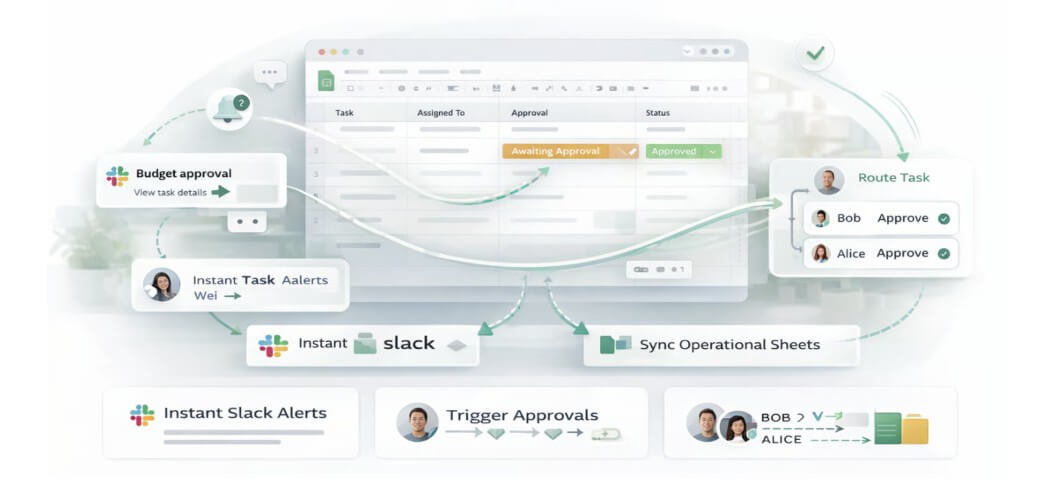
Logic Sheet is a Google Sheets add-on for automating spreadsheet-based work. It is not mainly a chatbot or a prompt-first AI tool. Its real value is practical automation: trigger a workflow when a sheet changes, a form response arrives, a webhook is received, or a schedule runs, then let Logic Sheet send messages, update cells, clean data, call APIs, or push records into other tools.
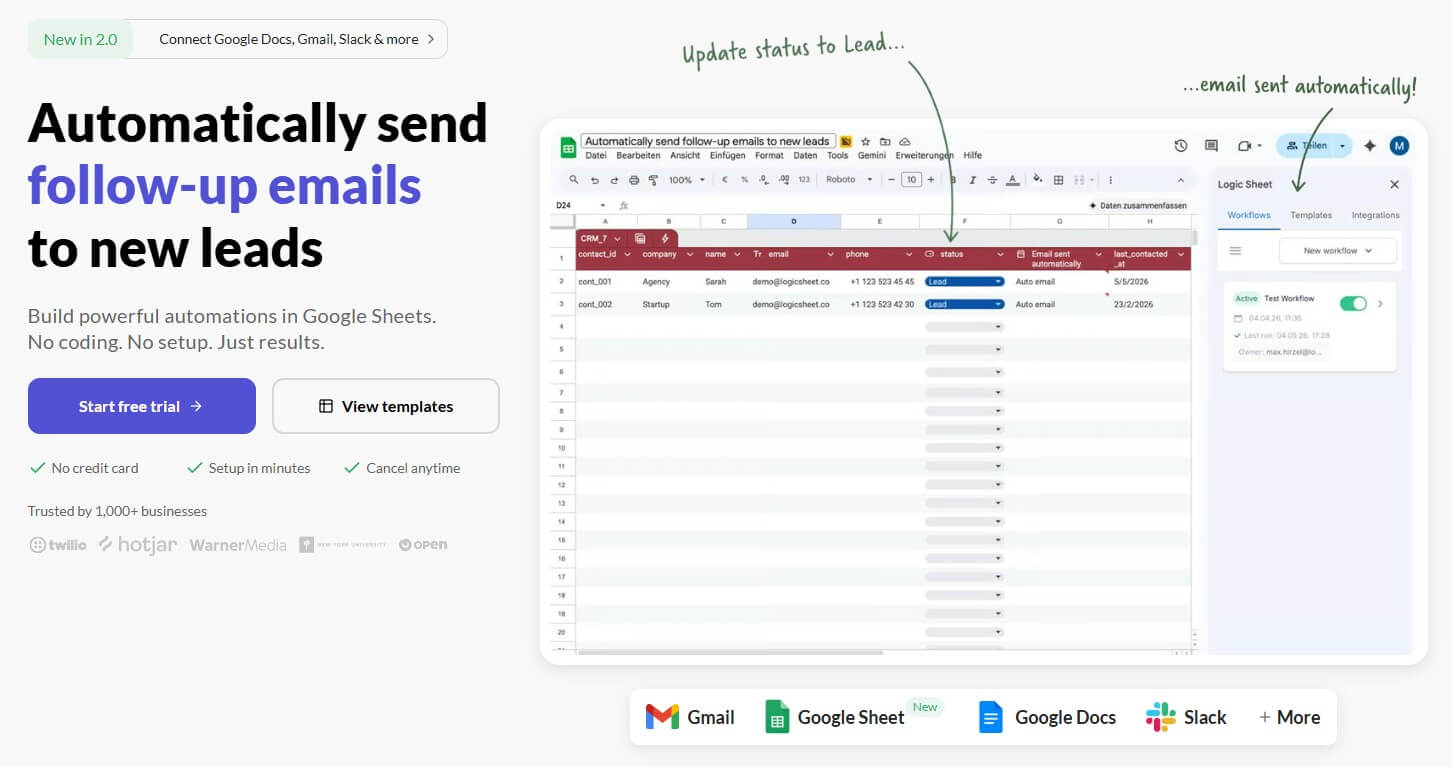
Logic Sheet sits inside Google Sheets as an add-on. After installation, you open it from the Google Sheets add-ons menu and work from a sidebar, which keeps the workflow close to the spreadsheet instead of sending users to a separate automation dashboard. The setup also requires broad Google account permissions, including spreadsheet access, external service connections, email sending, background execution, and Apps Script project permissions. That is expected for this kind of automation tool, but it is still something teams should review before installing it across important files.
The core automation model is simple: choose a trigger, add optional conditions, then define one or more actions. Logic Sheet’s own help center frames a complete workflow around those three parts, and all automations for a single document can be managed from the add-on sidebar.
That makes it useful for people who already run work through spreadsheets: operations teams, marketers, finance users, founders, analysts, and small teams using Google Sheets as a lightweight database.
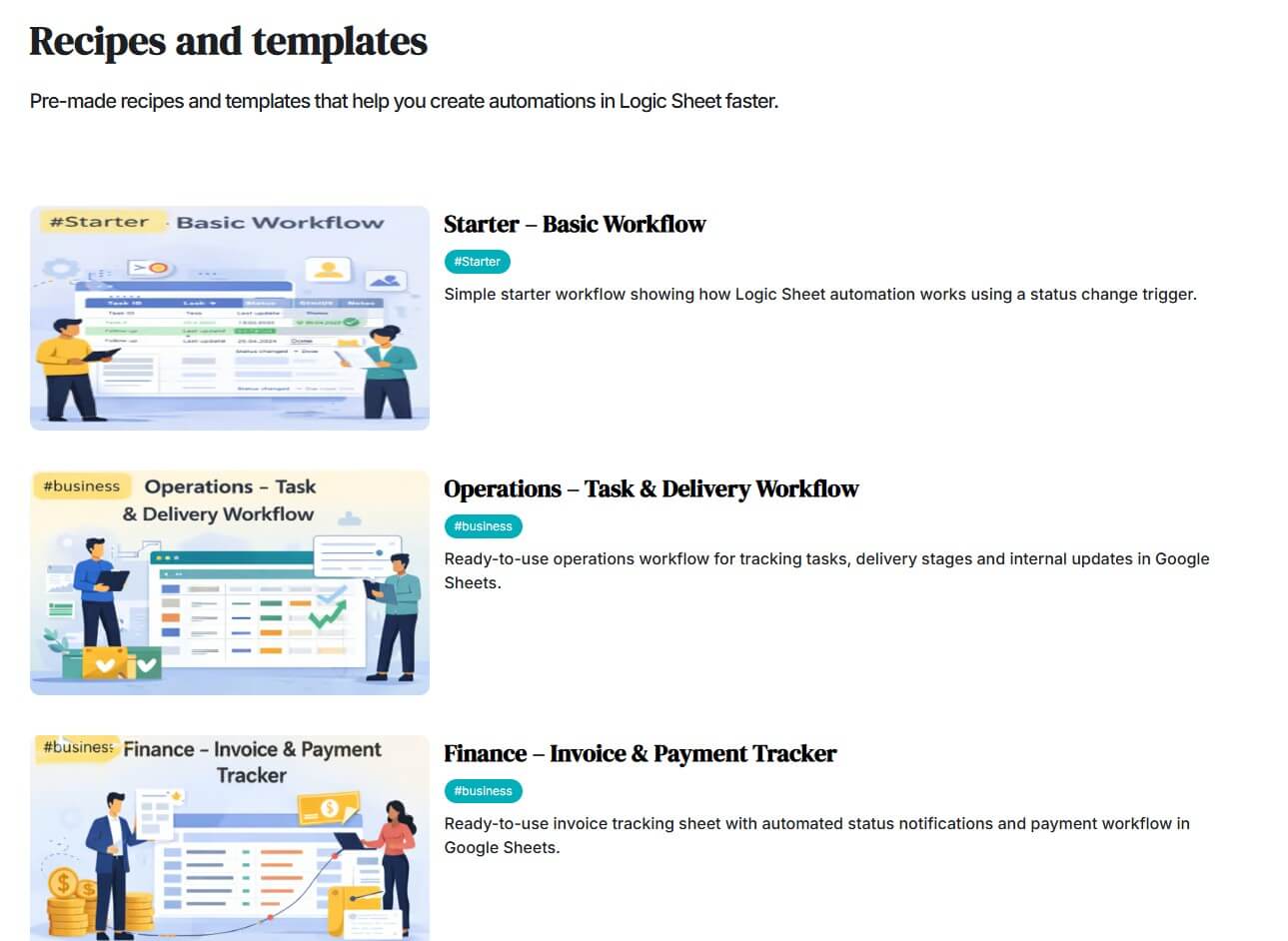
Logic Sheet is strongest when a spreadsheet is already the control center for a process. If new leads arrive through a Google Form, a status column changes, a report needs to be sent each week, or a row needs to trigger an API call, Logic Sheet gives non-technical users a way to automate that without writing Apps Script.
The most useful part is not one flashy AI feature. It is the ability to turn a spreadsheet into an active workflow system. Logic Sheet supports time-driven triggers, edit-based triggers, Google Form response triggers, webhook triggers, and new-row triggers. Those triggers cover many practical sheet workflows, from lead alerts to recurring reports and form intake processes.
| Feature | What it means in practice |
|---|---|
| Trigger-based automation | Run workflows on a schedule, after edits, after form submissions, from webhooks, or when a new row appears. |
| Conditional logic | Only run automations when rules are met, such as a value being greater than a threshold or a cell not being empty. |
| Action sequences | Send emails, Slack messages, update cells, add rows, refresh formulas, remove duplicates, remove rows, or send HTTP requests. |
| Merge tags | Insert live spreadsheet values into emails, conditions, URLs, and other automation fields. |
| API tools | Pull data from APIs or enrich rows by sending sheet data to external endpoints using GET and POST requests. |
| Data utilities | Clean, format, unpivot, round, deduplicate, convert timestamps, and run statistical analysis tasks directly inside Sheets. |
Logic Sheet has an AI connection, but it should not be overframed as a full AI agent platform based only on the official product experience. The public Formula Helper is presented as an AI tool for generating Google Sheets formulas using GPT-4 and ChatGPT. That is useful for users who know what they want a formula to do but do not know the exact syntax.
Still, the stronger review angle is automation, not prompting. Logic Sheet’s main app is closer to Zapier-for-Google-Sheets than to a conversational spreadsheet copilot. You do not use it mainly by asking broad natural-language questions. You use it by building rules: when this happens, check this condition, then run these actions. That distinction matters. Users expecting a chat-style spreadsheet assistant may find the workflow more structured than expected. Users who want repeatable, rule-based automations will likely find that structure helpful.
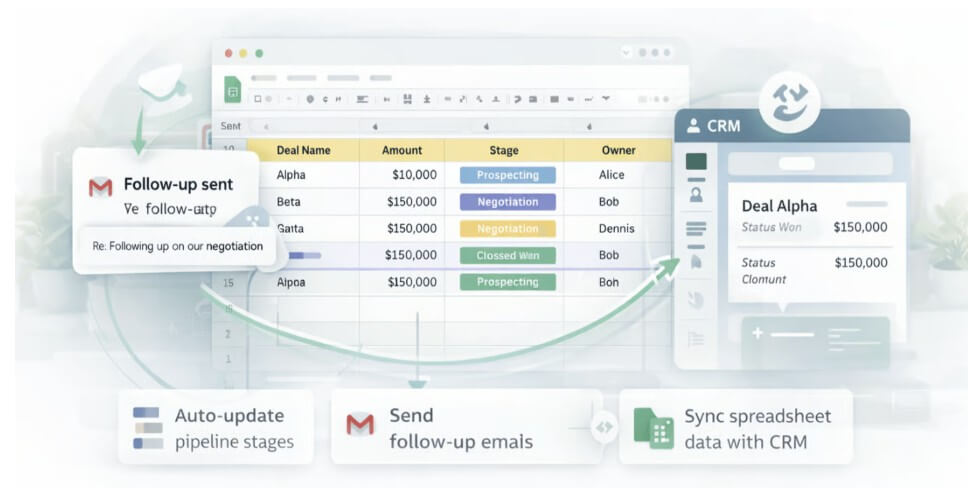
Logic Sheet’s workflow is approachable because it uses familiar automation building blocks. The trigger tells the workflow when to start. Conditions decide whether it should continue. Actions decide what happens next. Multiple actions can run sequentially, which means one trigger can update a sheet, send a Slack message, and make an API request in the same workflow.
The learning curve comes from details. Merge tags are powerful, but users need to understand how to reference cell values, form values, edited values, and sheet ranges. Some tags only work with certain trigger types, so a tag that works for an edit trigger may not work in a time-driven automation.
There are also platform limits. The trigger documentation notes that only one automation can be created for each of certain trigger types in a spreadsheet, with conditional actions suggested as a workaround. That is not a dealbreaker, but it means users should plan workflows carefully instead of creating many overlapping automations.
Logic Sheet is not only for notifications and integrations. It also includes spreadsheet utilities that can save time on cleanup and analysis.
The cleaning tools cover duplicate removal, case conversion, number rounding, punctuation removal, leading and trailing space cleanup, non-number removal, unpivoting, and Unix timestamp conversion. These are not glamorous features, but they solve common spreadsheet problems. A messy export from a form, CRM, website, or API often needs this kind of cleanup before it can be used.
The data analysis tools are more specialized. Logic Sheet supports tasks such as one-way ANOVA, two-way ANOVA without replication, correlation, covariance, and descriptive statistics. That will not replace a full statistical environment, but it is useful for spreadsheet users who need quick analysis without moving the data into another tool.
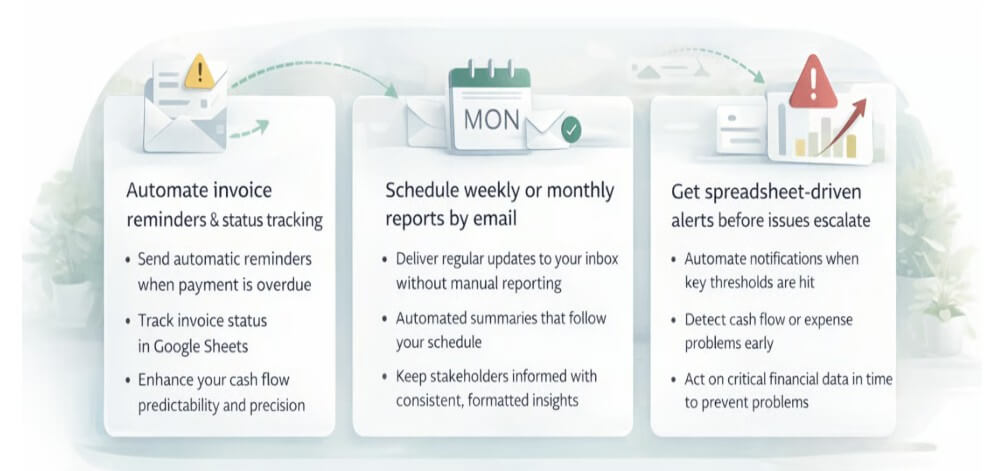
Logic Sheet is a strong fit for lead intake workflows, especially when Google Forms feeds a sheet and the team needs email or Slack alerts.
It works well for operational trackers where a status change should trigger an update, reminder, row cleanup, or notification.
It is useful for API-connected spreadsheets, such as pulling data from a service, enriching rows, or sending sheet values to another tool through HTTP requests.
It also fits lightweight reporting workflows, such as scheduled emails, recurring formula refreshes, and weekly team updates. The best users are teams that already trust Google Sheets as their working layer and want to automate around it without hiring a developer.
The first trade-off is permissions. Logic Sheet needs meaningful access to your Google environment to do its job, including spreadsheet access, external service connections, and email sending. For personal productivity, that may be fine. For company files, it deserves admin review.
The second limitation is complexity at scale. Logic Sheet is easier than Apps Script, but large workflows can still become hard to track if many conditions, merge tags, API calls, and action sequences are stacked into one spreadsheet.
The third trade-off is that it is centered on Google Sheets. That focus is the reason it feels practical, but it also means users looking for a broad multi-app automation platform may prefer a more general workflow builder.
Logic Sheet is best for users who live in Google Sheets and want repeatable automations without writing code. Its strongest value is trigger-based workflow automation, conditional logic, merge tags, spreadsheet actions, API requests, and useful data cleanup tools. It is a good fit for operations, lead management, reporting, and spreadsheet-driven team workflows. The main caveat is that users need to be comfortable granting the required Google permissions and should plan automations carefully as workflows become more complex.
TAGS: AI Automation Productivity
Related Tools:

Automates formula generation in spreadsheets

Automates and optimizes the job application process

Allows businesses to build, customize, and deploy AI agents

AI-driven scriptwriting software

Designed to enhance learning and productivity

Helps users explore biomedical and life sciences research