

Share this tool:
 |
Description:
DESCRIPT
Helps you edit, clean up, caption, repurpose, and publish spoken-word audio and video from one transcript-driven workflow.
Introduction
Descript is an all-in-one editor built around a simple idea: edit audio and video by editing text. You record or import media, Descript transcribes it, and then your transcript becomes the editing interface. Delete a sentence in the transcript, and that section disappears from the timeline. Fix a word in the text, and Descript can replace it with AI voice. Around that core workflow, Descript layers tools like Underlord, Studio Sound, Overdub, AI Actions, Rooms, captions, dubbing, clip generation, screen recording, and export tools. It is one of the clearest examples of a platform designed for spoken-word content first, especially for podcasts, interviews, tutorials, webinars, and talking-head videos.
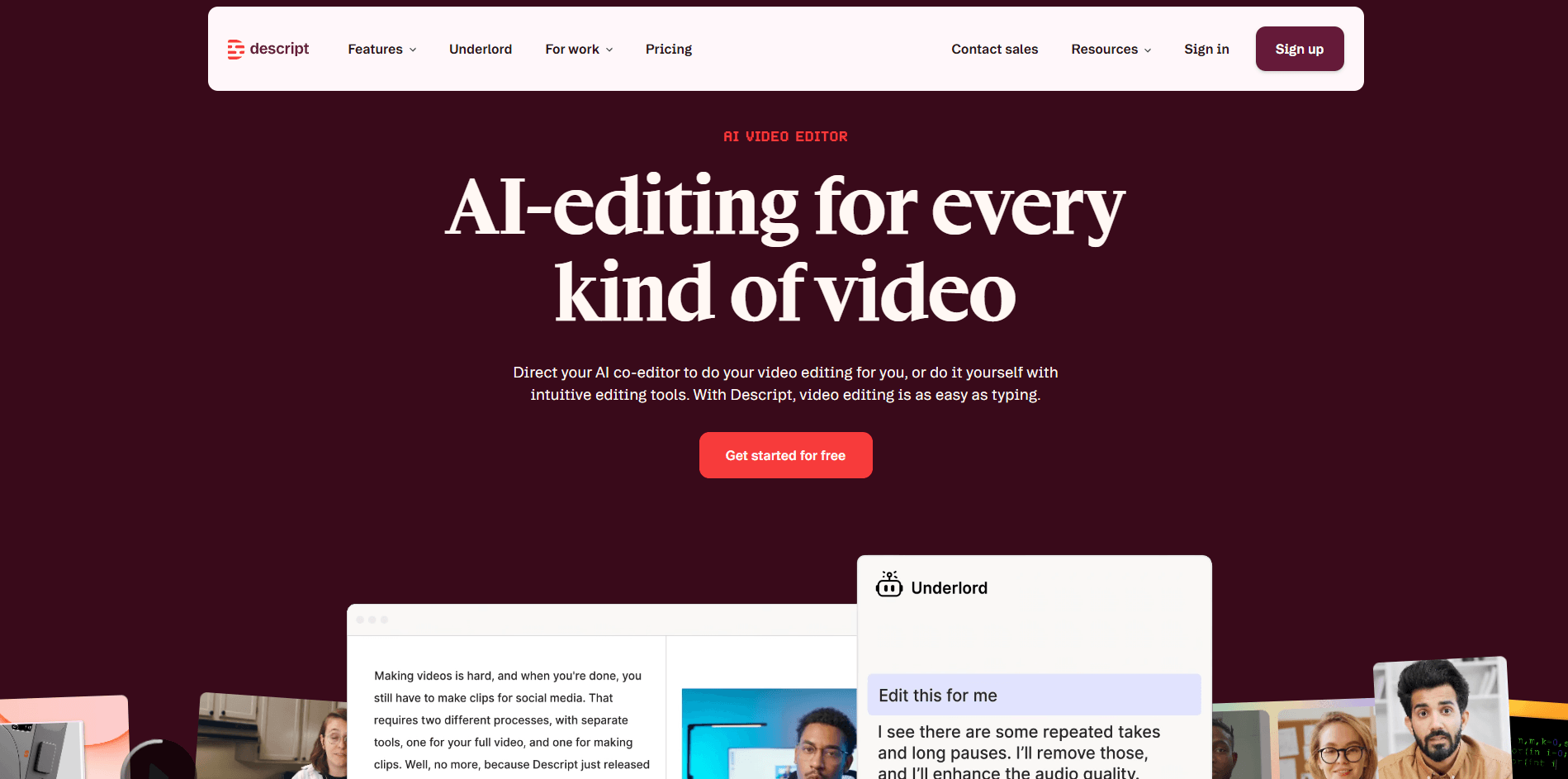
Descript’s homepage reflects its all-in-one positioning for transcript-based editing, recording, and repurposing workflows.
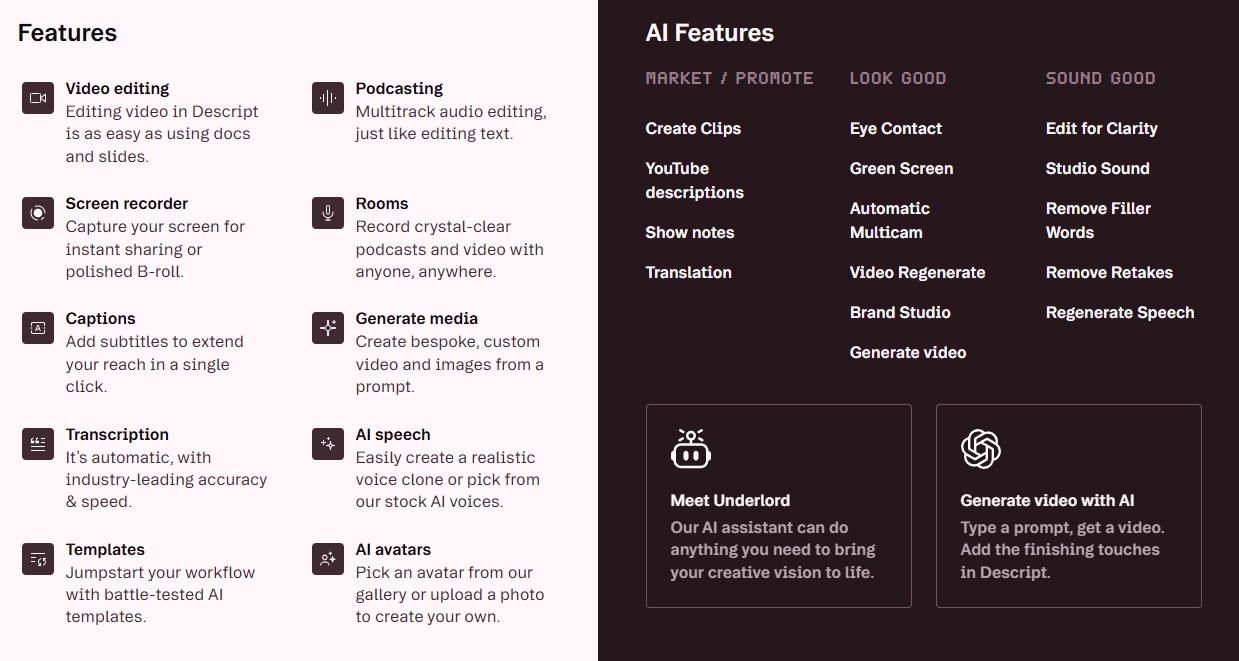
This features view highlights how Descript combines recording, editing, AI cleanup, and publishing tools inside one platform.
The Descript community ecosystem adds support, shared workflows, and practical learning resources for creators using the platform regularly.
Strong Features and Capabilities
Text-Based Editing
Lets you cut audio and video by editing the transcript instead of working only in a traditional timeline.
AI Cleanup Tools
Includes Remove Filler Words, Shorten Word Gaps, and related AI Actions for faster spoken-word cleanup.
Studio Sound
Cleans up voice recordings with noise reduction and voice enhancement directly inside the project workflow.
Overdub and AI Voices
Supports voice cloning and typed voice correction for short fixes, voiceovers, and updates.
Integrated Repurposing
Can generate captions, social clips, summaries, and chapters from the same transcript-based project.
Remote Recording and Screen Capture
Includes Rooms for remote recording and a built-in screen recorder for tutorial and interview workflows.
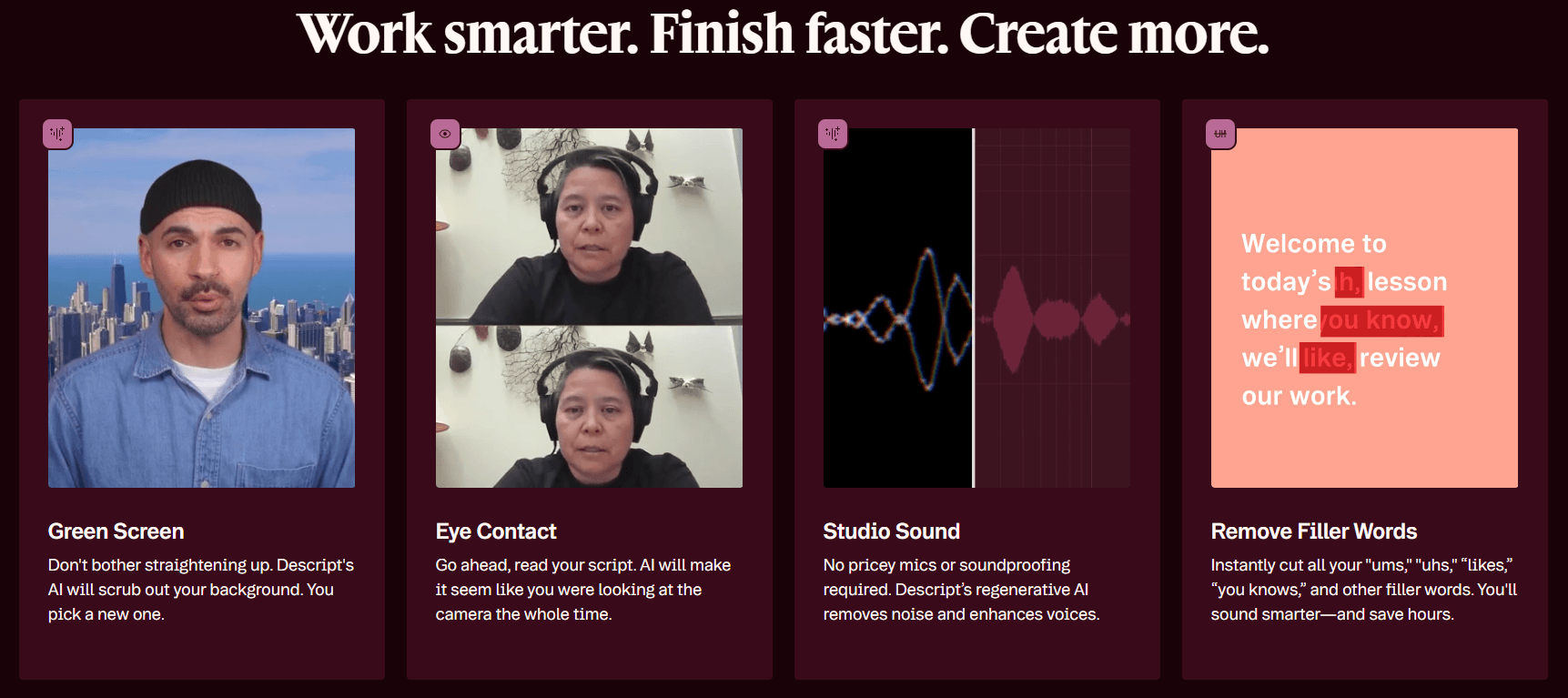
Descript’s editing toolset is built around practical creator tasks like trimming, transcript editing, captions, and content cleanup.
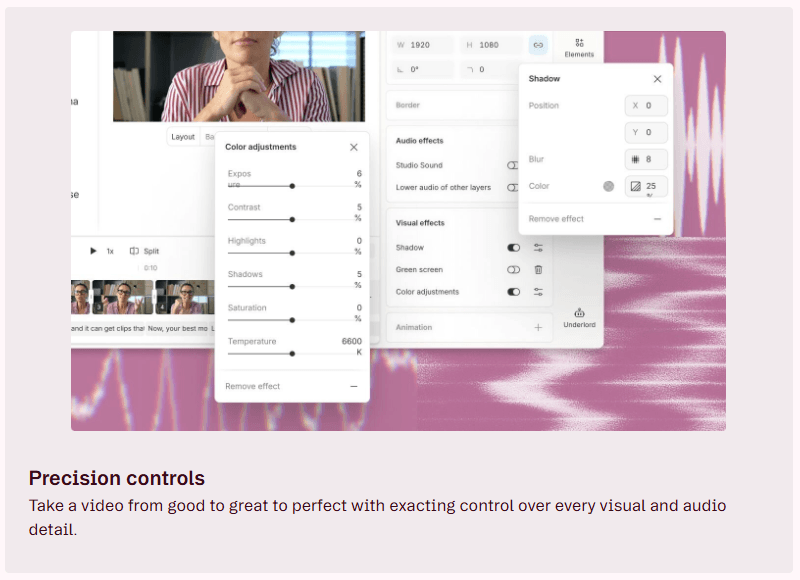
Precision controls help refine edits when you need more accuracy beyond simple transcript-based cuts.
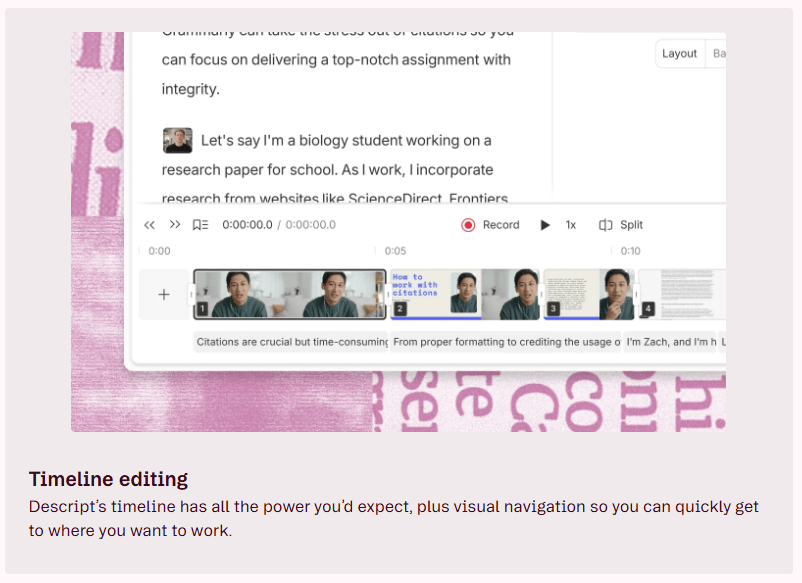
Timeline editing is still available when a project needs more direct control over pacing, cuts, and media arrangement.
Sample Prompts You Can Try First
Prompt 1 — Edit a Podcast by Editing the Transcript
Prompt: “I have a 90-minute podcast recording. Help me cut the unnecessary parts and tighten it down.”
This is Descript’s most important workflow because it shows the platform’s core idea immediately. Instead of hunting through a long waveform and manually trimming sections, you read the transcript like a document and remove the sections you do not want. That does not replace editorial judgment. You still decide what stays and what goes. But it dramatically reduces the mechanical part of editing long spoken recordings. For podcasters and interview-based creators, this is still the strongest reason to use Descript in the first place.
Prompt 2 — Remove Filler Words and Tighten Pacing
Prompt: “My recording has a lot of filler words. Remove the ‘ums’ and ‘ahs’ and tighten up the pauses.”
This is one of the clearest productivity wins in the whole platform. Descript’s help docs and AI credit guide both show Remove Filler Words and Shorten Word Gaps as dedicated tools, not improvised hacks. That matters, because it means these are meant to be repeatable everyday workflows, not edge features. In practice, this can make a rough spoken recording sound much more deliberate in under a minute. The main thing to remember is that transcription alignment still matters. Descript’s own troubleshooting docs warn that alignment issues can cause filler-word removal to clip the wrong audio, so previewing the result is still good practice on imperfect recordings.
Prompt 3 — Generate Captions Automatically
Prompt: “Generate burned-in captions for this video from the transcript.”
This is another natural Descript task because the platform already has the transcript. You are not asking a separate captioning tool to guess from scratch. Descript generates captions from the same transcript that powers the edit, which keeps the workflow tighter and usually keeps the timing cleaner as well. The help center also shows built-in caption styling and subtitle export options, which makes this useful for both on-screen social captions and standard subtitle delivery. For creators producing regular educational, talking-head, or interview content, this saves a lot of repetitive work across every project.
Prompt 4 — Turn a Long Recording Into Social Clips
Prompt: “Pull the best moments from this 45-minute interview as 15–30 second clips for Instagram and TikTok.”
Descript’s clip-generation workflow is one of the places where the platform moves beyond editing and into repurposing. Its AI credit guide explicitly lists Create clips as a tool, which confirms this is part of the intended core workflow. That makes sense, because spoken-word creators rarely stop at the full episode anymore. They also need shorts, quote clips, teaser moments, and social assets. Descript helps by surfacing candidate moments quickly, but this is still one of those features where human review matters. The AI can spot energy and quotability, but it does not always know which moments are strategically best for your audience or brand.
Prompt 5 — Clean Up Audio With Studio Sound
Prompt: “This recording has background noise and some muffled sections. Clean it up.”
Studio Sound is one of Descript’s most practical tools for voice-first creators. The platform markets it as part of the main editing workflow, and that positioning matches how most people will use it: not as a mastering suite, but as a fast voice cleanup layer for podcasts, interviews, voiceovers, webinars, and tutorials. In real use, it works best when the goal is making spoken audio clearer and more professional quickly. It is much less about fine-grained sound design. That distinction matters. For creator content, Studio Sound covers a large percentage of common cleanup problems. For highly technical audio work, a dedicated audio tool still gives you more control.
Prompt 6 — Translate and Dub a Video
Before using this prompt: Import the finished source video with clear spoken audio.
Prompt: “Take this English video and dub it into Spanish and German so it reaches a wider audience.”
Translation and dubbing are where Descript becomes more than just an editor. Its AI credit guide includes translation-related actions, and its language tools pages describe translated audio that can preserve the original speaker’s voice and tone through Overdub-based workflows. That makes it useful for creators who want to repurpose one source recording for multiple audiences without leaving the project. The practical value is speed and convenience, not perfect performance. The dubbed result is often good enough for tutorials, creator content, and educational material, but voice nuance still varies by language and should always be previewed before publishing.
Prompt 7 — Fix a Spoken Line With Overdub
Before using this prompt: Open a recording where you already have a usable voice profile or project audio for a short correction.
Prompt: “I mispronounced a company name in the middle of this recording. Fix just that phrase without re-recording anything.”
This is one of the most immediately useful AI features in Descript. The company’s own Overdub materials position it as voice cloning for typed audio correction, voice generation, and short spoken fixes, and that is where it is strongest. Overdub is most convincing when you use it surgically: fixing a name, replacing a number, correcting a sentence, or patching a missed line. It is much less convincing when you try to replace long stretches of natural speech. That is the right mental model for it. Think of it as an audio patch tool, not a full replacement for real delivery. Descript also says Overdub is available across all plans now, which makes it more relevant as a mainstream workflow than it used to be.
Prompt 8 — Record a Screen Tutorial and Auto-Caption It
Before using this prompt: Decide what software or workflow you want to demonstrate and prepare the screen you want to record.
Prompt: “I want to record a software walkthrough, capture my voice, and have automatic captions ready when I’m done.”
This is where Descript’s all-in-one pitch becomes very practical. The platform’s site and desktop app materials both highlight screen recording, transcription, and captions as built-in parts of the workflow. That means a tutorial creator can record, transcribe, trim, caption, and export without bouncing between separate screen-recording, captioning, and editing apps. That integrated path is a real time-saver. The limitation is that Descript is still lighter on advanced annotation and motion-heavy tutorial effects than some dedicated screen-recording platforms, so it is strongest when the workflow priority is speed and transcription integration, not advanced visual callouts.
Prompt 9 — Summarize a Webinar and Create Chapters
Before using this prompt: Import the full webinar recording so Descript can generate a transcript first.
Prompt: “Generate a summary and chapter markers for this 2-hour webinar so viewers know what to expect.”
This is one of those tasks that is boring enough to put off and repetitive enough to matter. Descript’s AI tools explicitly include Summarize, Draft show notes, Draft a YouTube description, and chapter-related transcript workflows. That means the platform is not just helping you edit the source media. It is also helping with the metadata, summaries, and repurposed text that usually come after. The main caution is that these outputs are often serviceable before they are excellent. They usually cover the content accurately, but they benefit from a quick human rewrite so they sound specific rather than generic.
Major Workflow and Tooling Notes
Workflow structure: Descript does not really revolve around model versions the way image and video generators often do. There is no big user-facing model lineup comparable to “Tool X model 1 versus model 2.” Instead, the platform is organized around workflow tools: Underlord for AI-assisted editing and writing tasks, Studio Sound for voice cleanup, Overdub for voice cloning and correction, Rooms for remote recording, transcription-driven editing, captions, social clips, and translation flows. That distinction matters because Descript is less about choosing the right generation model and more about choosing the right part of the workflow to automate.
Why that matters: Descript feels strongest with spoken content pipelines. It is built to move from recording to transcript to cleanup to captioning to repurposing in one connected system. The platform’s own tool pages consistently reinforce that all-in-one positioning across podcasting, video editing, screen recording, and collaboration.
Best Use Cases
Podcasts and interviews: Descript fits especially well for creators who need to cut long conversations quickly, remove filler, improve clarity, and publish faster.
Tutorials and courses: It works well for educators building software walkthroughs, lessons, webinars, and voice-led training content that benefit from captions, summaries, and chapter markers.
Marketing and repurposing: Teams can turn webinars, interviews, and long-form recordings into social clips, show notes, captions, and descriptions without juggling multiple tools.
Where it is weaker: It is a weaker fit when the main creative challenge is cinematic timing, color grading, motion graphics, or advanced visual storytelling rather than spoken-content editing.
Practical Tips
Use Rooms for remote conversations
Descript positions Rooms as its cleaner remote recording workflow, and it avoids a lot of the mess that comes from grabbing compressed call audio after the fact.
Run AI cleanup in batches
Remove filler words first, then shorten word gaps, then review the transcript and pacing. Descript’s AI credit documentation makes it clear these are discrete tools, which means you can treat them as a repeatable cleanup sequence.
Use Overdub for targeted corrections
That is where the quality payoff is strongest and the synthetic feel stays least noticeable.
Export captions on every video
Even when you are not burning them in, they are useful for accessibility, search, repurposing, and future editing workflows. Descript already generates them from the transcript, so it is a low-friction step.
Limitations Worth Knowing
Transcription dependency: Descript’s transcription is strong on clear recordings, but difficult audio can still create alignment issues, skipped words, or timing mismatches. That matters because many downstream tools depend on the transcript being correct.
AI voice and dubbing limits: Its dubbing and AI voice tools are practical, but they are still not substitutes for top-tier human voice performance when subtle emotion or language nuance matters.
Editing scope: Descript handles cuts, pacing, captions, repurposing, and voice-centric production very well, but it is not the place you go for high-end color work, advanced motion graphics, or elaborate visual effects.
Pricing structure: Pricing is tied not just to access but also to media hours and AI credits, so heavy users should calculate cost based on actual publishing volume, not just the headline monthly price.
Final Takeaway
Bottom line: Descript is one of the most practical tools for creators who work with recorded speech regularly and want to get from raw recording to finished publishable content faster.
Biggest advantage: Its strength is not one flashy AI trick. It is the way the whole workflow connects: transcript editing, cleanup, captions, clips, summaries, voice fixes, screen recording, and dubbing all sit inside the same project.
Best fit: That makes Descript especially strong for podcasts, interviews, tutorials, webinars, and educational content. If your work is driven more by spoken words than by cinematic visuals, Descript can replace a surprising number of separate tools. And if text-based editing clicks with the way you work, the time savings usually become obvious very quickly.
TAGS: Video Editing
Related Tools:

Enhances video quality and converts text to video

Enhances website SEO optimization

Creates customizable face swap videos

Simplifies video editing and creative content production

Transforms ideas or footage into polished, ready-to-use video ads
Transforms text or images into short videos