

Share this tool:
 |
Description:
- Introduction
- Strong Features and Capabilities
- What FineCam Actually Is
- The Core Workflow
- What FineCam Does Best
- Phone as Webcam: The Most Practical Upgrade
- Backgrounds, Portrait Mode, and Visual Polish
- Content Sharing and Presentation Workflows
- Multi-Scene and Multi-Camera Control
- Recording, Snapshots, and Content Capture
- Workflow and Ease of Use
- Best Use Cases
- Where FineCam Fits Compared With Other Tools
- Practical Tips
- Limitations and Trade-Offs
- Final Takeaway
FineShare FineCam is an AI virtual camera tool for people who want better video quality and more presentation control without building a complicated streaming setup. It lets users connect phones, webcams, DSLR-style cameras, action cameras, and built-in computer cameras, then improve the final camera feed with AI background removal, virtual backgrounds, multi-scene switching, camera adjustments, content sharing, overlays, recording, and virtual camera output for meeting or streaming apps.
FineCam can turn a phone or tablet into an HD webcam over Wi-Fi or USB, with access to phone-camera strengths such as autofocus, portrait mode, wide angle, HDR color, and flashlight support.
FineCam can remove, blur, or replace webcam backgrounds without a green screen, while also supporting chroma key when a green screen is available.
FineCam supports adding multiple camera devices and switching between different scenes for recording, meetings, or live streaming.
Users can share slides, webpages, YouTube videos, app windows, iPhone/iPad screens, photos, and videos inside the FineCam workflow.
FineCam includes controls for resolution, zoom, flip, rotate, camera shape, transparency, and pause/resume video states.
FineCam can capture snapshots, record videos, use segment recording, store clips in a media library, and export merged recordings.
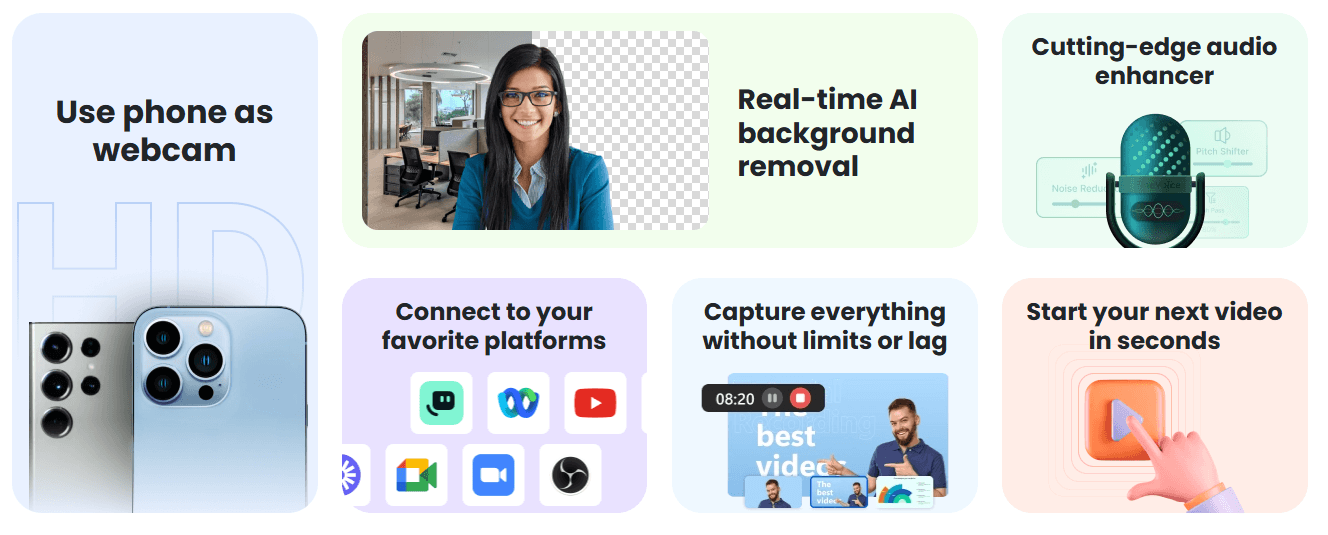
FineCam is best understood as a virtual camera studio, not just a webcam filter app.
At the simplest level, it can take a camera source and send the improved feed into apps like Zoom, Google Meet, Microsoft Teams, Skype, YouTube Live, Twitch, OBS, Streamlabs, Discord, and others. FineShare’s guide specifically explains that FineCam can be used as a virtual webcam for those kinds of video chat, streaming, and recording platforms.
The bigger value is that FineCam brings several webcam workflows into one place. You can use a phone as an HD webcam, connect multiple camera devices, remove or blur your background, use a green screen, share slides or webpages, capture application windows, add brand overlays, record videos, take snapshots, and switch between scenes. FineShare’s getting-started guide lists the main panels around camera connection, camera display, camera adjustments, output, effects, content sharing, scenes, microphone, and system settings.
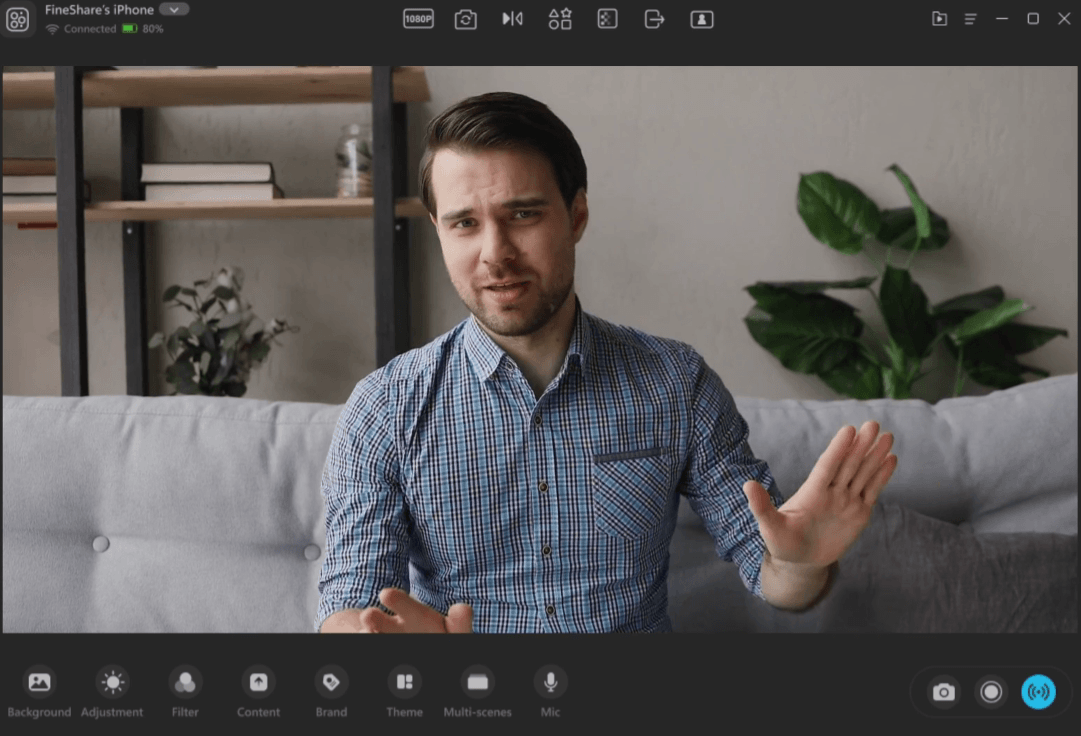
That makes FineCam useful for people who appear on camera often but do not need a full professional broadcast setup. It sits between a basic webcam app and a more advanced streaming tool like OBS.
The usual FineCam workflow is simple:
| Step | What happens | Why it matters |
|---|---|---|
| Connect a camera | Choose a phone, local webcam, external webcam, DSLR-style camera, action camera, or other source. | Gives users more flexibility than relying on a laptop webcam. |
| Adjust the shot | Change resolution, zoom, flip, rotate, camera shape, transparency, or lens options. | Helps frame the speaker properly before going live. |
| Improve the background | Remove, blur, replace, or chroma-key the background. | Makes calls and recordings cleaner without a physical studio. |
| Add content | Share slides, webpages, YouTube videos, application windows, photos, or iPhone/iPad screen content. | Turns the camera feed into a presentation workspace. |
| Use virtual camera output | Select FineCam as the camera source in meeting or streaming apps. | Sends the polished feed into the platforms users already use. |
| Record or capture | Save video clips, snapshots, or segmented recordings. | Useful for tutorials, lessons, demos, and reusable content. |
This is where FineCam’s positioning is clearest. It is not trying to generate video from scratch. It improves how you appear, present, teach, demonstrate, or record using real camera input.
FineCam’s strongest use case is upgrading everyday video presence.
A built-in laptop webcam is often flat, low-resolution, poorly framed, and weak in low light. FineCam addresses that in two ways. First, it lets users connect stronger camera sources, including smartphones. Second, it adds software controls for framing, background, scene layout, and presentation content.
The phone-as-webcam workflow is especially important. FineShare says FineCam can turn a phone or tablet into a high-definition wireless webcam using Wi-Fi or USB, with controls for zoom, orientation, flashlight, front or rear camera, and even dual-camera behavior depending on the device.
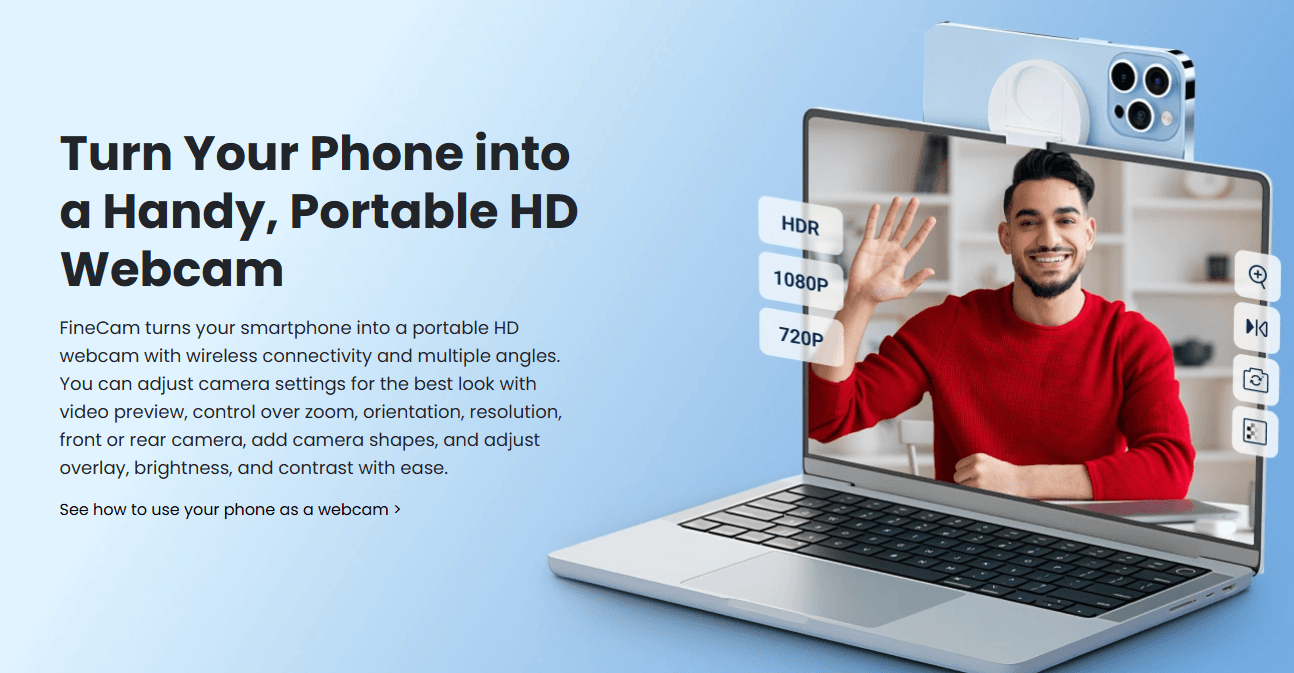
That matters because many people already own a phone camera that is better than their webcam. FineCam’s practical advantage is letting that hardware become part of a desktop meeting or recording workflow.
The second major strength is presentation control. FineCam can share iPhone/iPad screens, slides, webpages, YouTube videos, application windows, videos, and photos as part of the visual feed. FineShare’s product page describes these content-sharing options directly, including webpage capture, YouTube sharing, application window capture, and video/photo sharing. That makes FineCam especially useful for teachers, coaches, presenters, salespeople, trainers, and creators who want to show more than just their face.
The phone webcam feature is one of FineCam’s most useful capabilities because it solves a common problem without requiring new hardware.
Instead of buying another webcam, users can install FineCam on a phone and computer, then connect the phone over Wi-Fi or USB. FineShare’s setup page describes the process as installing the phone app, installing FineCam on Windows or macOS, and connecting the phone to the computer.
This is valuable for three reasons.
First, phone cameras are often sharper than built-in laptop webcams. FineShare specifically highlights 1080p Full HD, dual camera, HDR color, portrait mode, wide angle, autofocus, manual focus, optical image stabilization, Wi-Fi/USB connection, and flashlight controls on the phone webcam page.
Second, a phone can be placed anywhere. That helps with overhead shots, whiteboard views, product demos, desk setups, cooking videos, art tutorials, and teaching workflows. FineShare’s education page says FineCam can use a phone as a wireless document camera and capture notes, notebooks, whiteboards, documents, images, and small objects up to 4K.
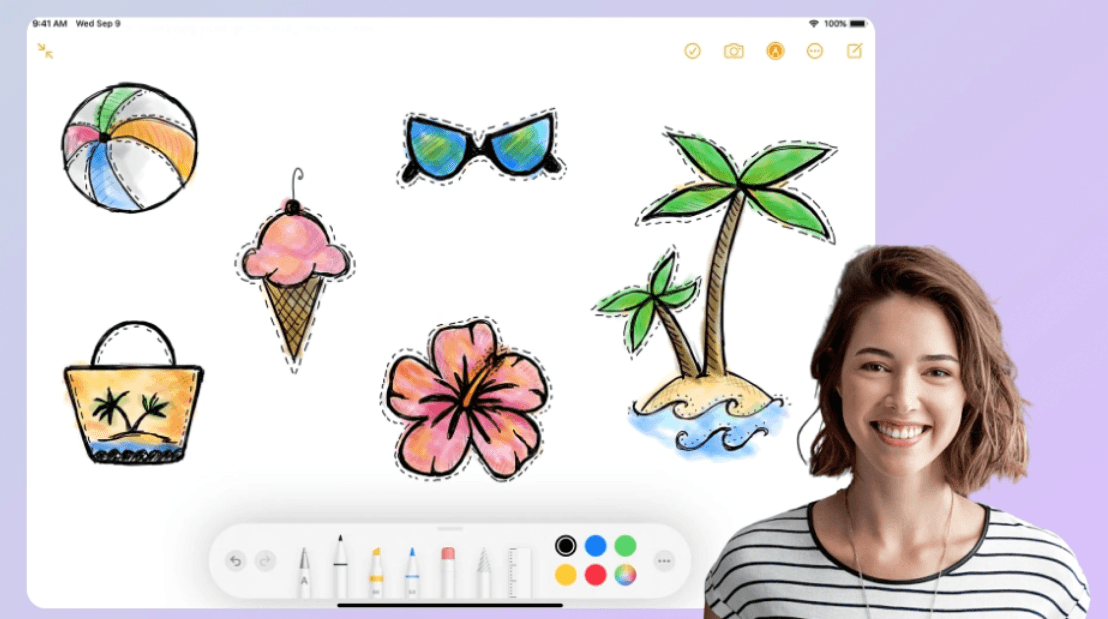
Third, multiple phones can become multiple angles. FineShare’s phone webcam page says users can connect multiple phones and switch between angles in real time. That is a strong workflow for educators, creators, and product demonstrators. It gives them a multi-camera setup without needing a traditional camera switcher.
FineCam’s background tools are one of the main reasons people will try it.
The tool can remove, blur, or replace a webcam background without a green screen. FineShare says FineCam uses AI face recognition and chroma key techniques to remove webcam backgrounds, and it lets users adjust blur intensity or use preset and custom backgrounds.
The quality of this kind of feature depends on lighting, camera quality, movement, hair detail, and clothing contrast. FineCam gives users some control over performance trade-offs. Its guide notes that higher-quality background removal can produce a better effect but requires better computer performance, while smoother quality can reduce GPU consumption and keep video smoother.
That is an important practical detail. AI background removal is convenient, but it is not magic. Users with clean lighting and a good camera will usually get better separation. Users on weaker machines may need to favor smoother performance over maximum cutout quality. FineCam also has smart portrait mode for a bokeh-style effect, which helps separate the speaker from the background. FineShare describes this as bringing a bokeh effect to video so the subject stands out.
FineCam is more useful when you treat it as a presentation layer, not only a camera enhancer.
The platform can show slides, webpages, YouTube videos, app windows, photos, videos, and iPhone/iPad screens. That matters because many users do not simply need to appear on camera. They need to teach, demo, explain, review, pitch, or record lessons.
For example, a teacher can place themselves over a slide deck or use a phone camera as a document camera. A salesperson can show a product page or app window while staying on screen. A trainer can record a tutorial with a webcam overlay. A creator can switch between face cam, screen content, and camera angles.
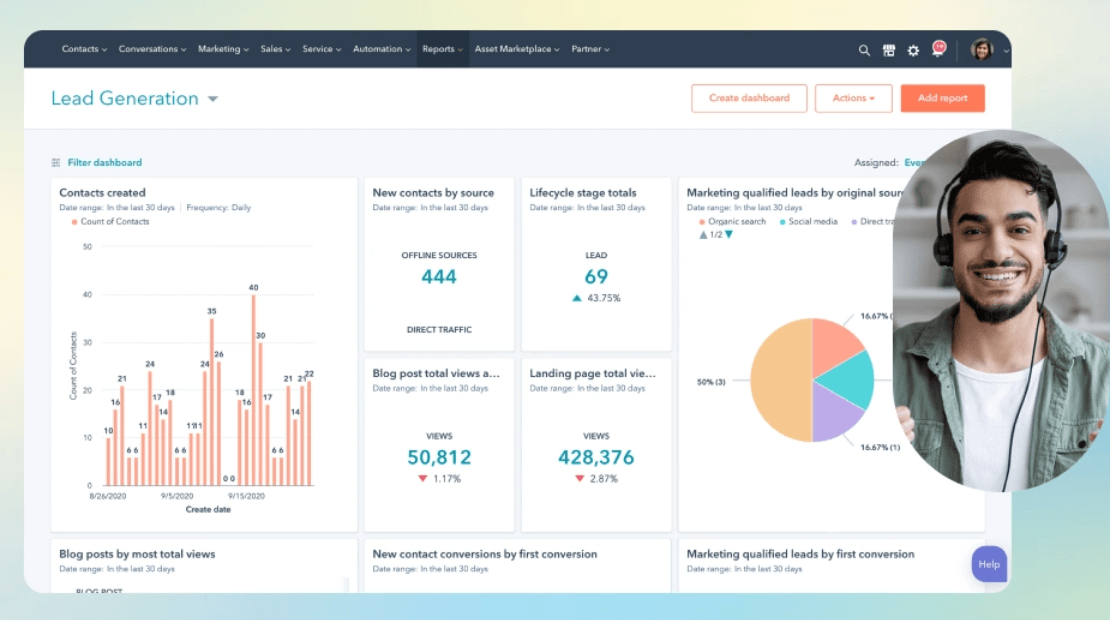
FineCam’s product page specifically lists content-sharing options for iPhone/iPad screen, slides, webpage, YouTube, application window, videos, and photos.
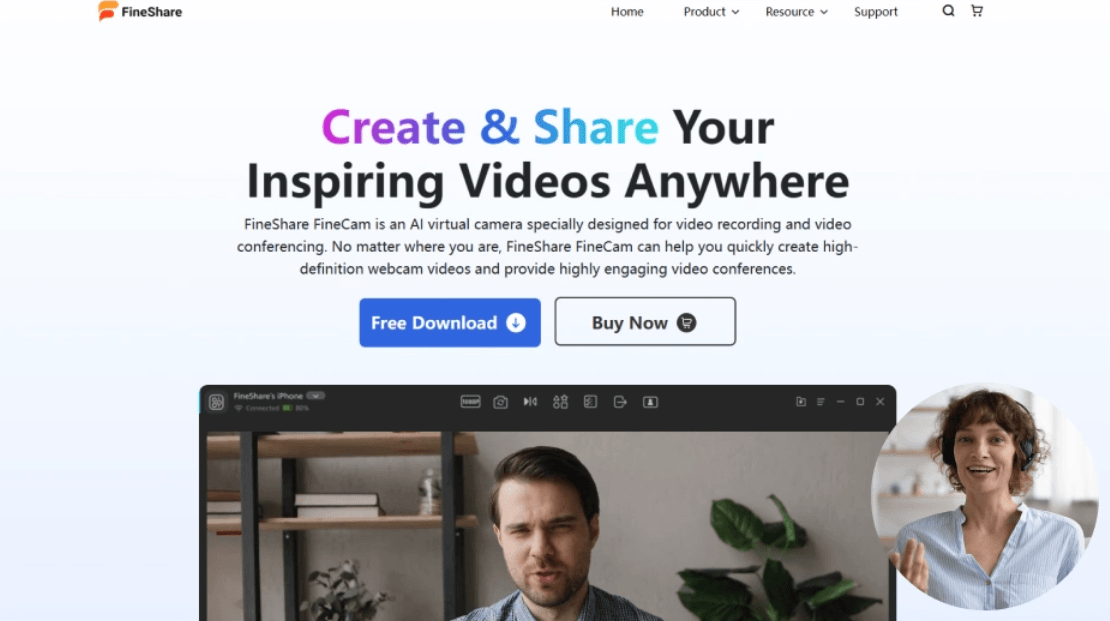
The desktop camera mode also helps with this. FineShare describes it as a way to position webcam footage anywhere on the screen, which helps users record both their screen and webcam more accurately.

This makes FineCam particularly useful for people who do not want to manage a complex OBS scene layout but still need more than a basic webcam feed.
FineCam’s multi-scene feature is important for users who want a more professional presentation style.
The user guide says FineCam allows users to add multiple camera devices and shoot videos from multiple angles and scenes. It also explains that users can add scenes, rearrange scene order, delete scenes, save scene settings, and switch between scenes during recording.
That turns FineCam into a lighter video switcher. A creator might set up one scene for face cam, one for a top-down desk view, one for a slide layout, and one for a product close-up. A teacher might use one scene for their face, one for the whiteboard, and one for a document camera. A streamer might use a normal camera scene, a pause screen, and a screen-share scene.
This is not as deep as a professional broadcast tool, but it is more approachable. The value is speed and simplicity.
FineCam is not limited to live video calls.
It can also record videos and take snapshots, which makes it useful for content production or backup. FineShare’s recording guide explains that FineCam includes record and snapshot buttons, segment recording, a media library for saved videos and photos, and export options that can merge recorded clips into one video file.
Segment recording is especially practical. It lets users record multiple clips and resume recording instead of trying to capture everything perfectly in one take. That is useful for lessons, tutorials, product demos, and short creator videos.
FineCam also supports recording settings such as record delay, video name, output format, resolution, storage location, and hardware acceleration options through GPU decoder and encoder settings. That gives FineCam enough recording control for everyday content, although users who need full editing, advanced audio mixing, color grading, and post-production timelines will still want a dedicated video editor.
FineCam’s workflow is easier than a full production setup because most of the work happens visually.
You choose a camera, adjust the shot, pick effects or backgrounds, add content if needed, then turn on the virtual camera. In the target app, you select FineShare FineCam as your camera source. FineShare’s virtual camera guide describes this general process for Windows and macOS, including selecting FineCam as the camera source in meeting or chat software.
The camera adjustment panel is also straightforward. FineShare’s guide explains resolution, zoom, flip, rotate, camera shape, transparency, pause video, resume video, desktop camera, and switch lens controls.
The main learning curve comes from deciding how much you want to build. A basic user may only use FineCam to improve their camera and blur the background. A teacher may build multiple scenes, use a phone as a document camera, share slides, and record lessons. A creator may use multiple camera sources, brand overlays, background replacements, and scene switching. FineCam scales from simple to fairly capable, but it still rewards setup.
- Online teaching: FineCam is a strong fit for teachers because it supports phone-as-document-camera workflows, virtual backgrounds, multiple scenes, lecture recording, and content sharing. FineShare’s education page specifically describes using a phone as a wireless document camera and recording lectures for students.
- Remote meetings: FineCam helps users look more polished in Zoom, Teams, Google Meet, and similar platforms by improving camera quality, backgrounds, framing, and content sharing.
- Product demos: The ability to switch between face cam, phone camera, app windows, webpages, and close-up views makes FineCam useful for sales demos, software walkthroughs, and product explainers.
- Content creation: FineCam works well for tutorials, reaction-style recordings, simple talking-head videos, course modules, and creator content where a polished webcam feed matters.
- Live streaming: FineCam can feed into streaming tools and platforms such as YouTube Live, Twitch, OBS, Streamlabs, and Discord, according to the virtual camera guide.
- Telemedicine and coaching: FineShare lists telemedicine among FineCam’s use cases, and the tool’s clearer camera framing, background cleanup, and content sharing can help in professional consultation workflows.
FineCam sits between a simple webcam utility and a full streaming studio.
Compared with basic webcam settings, FineCam is much stronger. It adds AI background tools, phone camera connection, content sharing, multi-scene setups, overlays, recording, and virtual camera output.
Compared with OBS, FineCam is simpler and more guided. OBS gives deeper control over scenes, plugins, audio routing, streaming setups, transitions, and advanced production workflows. FineCam is better for users who want a polished result without managing a complicated broadcasting system.
Compared with built-in Zoom or Teams background effects, FineCam gives broader control. It can improve the source feed before it reaches the meeting app, and it can combine camera, content, scenes, backgrounds, and overlays in one virtual camera layer. The right way to think about it: FineCam is not the most advanced production tool, but it is much more practical than relying on a default webcam and native meeting-app effects alone.
- Use a phone as your main camera when your laptop webcam looks soft or grainy. The phone workflow is one of FineCam’s clearest upgrades.
- Improve lighting before judging AI background removal. Better lighting usually means cleaner subject separation.
- Use Wi-Fi for flexibility and USB when stability matters more. FineCam supports phone connection over both Wi-Fi and USB.
- Create a few reusable scenes before important calls or lessons. A face cam, slide view, document camera, and pause screen can cover most presentation needs.
- Test virtual camera output before joining a meeting. FineShare’s guide notes that users need to select FineShare FineCam as the camera source inside the meeting or streaming app.
- Use segment recording for tutorials. It is easier to record several clean parts and export them together than to force a long perfect take.
FineCam’s main limitation is that it depends on your hardware. A better phone, better lighting, stronger computer, and stable connection will produce better results. FineShare’s system requirements page specifically notes that higher-quality video requires more processing power, and that virtual background without a green screen has higher system requirements.
The second limitation is AI background quality. Background removal can be very useful, but edge quality may vary around hair, hands, glasses, fast movement, dark rooms, or low-quality cameras. FineCam does provide quality and smoothness options, but the best result still depends on the scene.
The third limitation is that FineCam is not a complete post-production editor. It can record, take snapshots, manage clips, and export merged recordings, but it is not meant to replace a full editor for advanced cuts, color work, audio cleanup, captions, motion graphics, or complex post-production.
The fourth limitation is that some users may not need the full feature set. If all you need is a simple background blur in Zoom, FineCam may be more than necessary. It becomes more valuable when you use multiple features together: phone camera, background control, content sharing, scenes, overlays, and recording.
Finally, Mac and Windows behavior may not be identical in every situation. FineShare’s virtual camera guide distinguishes between FineCam and FineCam IO on macOS, with FineCam IO used for Apple apps like FaceTime and QuickTime on supported macOS versions.
FineShare FineCam is a practical AI virtual camera tool for anyone who spends a lot of time on video calls, lessons, demos, livestreams, or webcam-based recordings.
Its best feature is not one single effect. It is the way it combines phone-as-webcam, AI background removal, camera controls, content sharing, multi-scene switching, virtual camera output, and recording into one approachable workflow.
It is strongest for teachers, remote workers, presenters, creators, coaches, streamers, and product demonstrators who want a more polished video presence without building a full studio. The main caveat is that quality still depends on hardware, lighting, and computer performance. With a good phone camera, clean lighting, and a simple scene setup, FineCam can make everyday video look much more professional.
TAGS: Voice/Audio Modulation Video Editing
Related Tools:

Analyzes social media content and trends

AI-powered photo and video editing tool

Reveals keywords used by audiences

Online AI video editing platform

Offers webmasters insights

AI-driven video editing tool