

Share this tool:
 |
Description:
- Introduction
- What AutoCut Actually Is
- Where AutoCut Is Strongest
- Strong Features and Capabilities
- The Core Workflow: Clean the Timeline First
- Captions: One of AutoCut’s Most Important Features
- Podcast Editing and Multicam Control
- Repeat-Take Cleanup: Quietly Useful for Scripted Creators
- AutoViral, AutoResize, and Social Repurposing
- B-Roll, Zooms, Profanity, and Chapters
- Workflow and Ease of Use
- Who AutoCut Works Best For
- Practical Tips
- Limitations and Trade-Offs
- Final Takeaway
AutoCut is an AI video-editing plugin for creators and editors who already work in Adobe Premiere Pro or DaVinci Resolve and want to remove the most repetitive parts of spoken-video editing. It is not trying to replace a full editor. It is designed to sit inside the editing software you already use and automate tasks like silence removal, animated captions, podcast camera switching, zooms, B-roll placement, profanity masking, chapter creation, repeat-take cleanup, viral clip detection, and social resizing.
AutoCut is a plugin-based editing assistant. That distinction matters.
A lot of AI video tools ask you to upload footage to a separate web app, generate a result, then export it back into your editor. AutoCut works differently. It is built for Premiere Pro and DaVinci Resolve, so its value comes from automating timeline work without forcing editors to leave their normal post-production environment. The official download page lists compatibility with Windows and Mac, Premiere Pro 23, 24, 25, and 26, and DaVinci Resolve 18.6, 19, and 20.
The product is built around a group of focused tools rather than one broad “AI editor” button. The current feature set includes AutoCaptions, AutoCut Silences, AutoCut Podcast, AutoZoom, AutoViral, AutoB-Rolls, AutoCut Repeat, AutoProfanity Filter, AutoChapters, and AutoResize.
That makes AutoCut most useful for editors who already know what kind of video they are making. It does not decide your whole story. It speeds up the parts of the job that tend to be mechanical: cutting pauses, finding repeated takes, generating captions, switching podcast cameras, adding emphasis zooms, and adapting long videos for short-form platforms.
AutoCut is strongest for spoken-word content.
That includes YouTube talking-head videos, podcasts, interviews, tutorials, course lessons, webinars, commentary videos, vlogs, gaming videos, and short-form repurposing. These formats usually have the same editing pain points: dead air, filler pauses, repeated takes, static framing, subtitles, platform resizing, and lots of manual timeline cleanup.
The best reason to use AutoCut is not that it adds AI to editing. The best reason is that it targets specific parts of editing that do not need much creative judgment but still take time. Removing silence is not the same as shaping a story. Adding caption timing is not the same as deciding the argument of a video. AutoCut is useful because it handles those repeatable chores while leaving the editor in control of the final timeline.
It is less useful for cinematic narrative work, music videos, heavily designed motion graphics, complex documentary structure, or projects where every cut is a creative decision. AutoCut can still help with captions or chapters in those workflows, but its core advantage is much clearer in high-volume creator editing.
Detects pauses using decibel-based analysis and lets users adjust thresholds, padding, and track selection before applying cuts.
Generates animated word-by-word captions in 80+ languages, with custom fonts, colors, boxes, animations, emojis, presets, SRT import, editing, and translation support.
Automates multicam podcast editing by assigning speakers to audio and camera tracks, then controlling camera-switching rhythm.
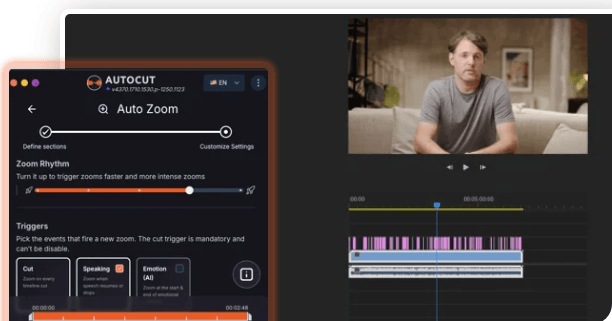
Adds timed zooms using triggers such as cuts, emotions, speech, or AI-highlight meaning, with styles like Jump Cut, Smooth, and Snap-in.
Finds promising short-form clips from long videos using transcription, emotion AI, or both, then scores clips for viral potential.
Detects moments for B-roll, suggests or inserts stock footage from Pexels and Storyblocks, and can generate AI visuals based on instructions.
AutoCut’s most practical workflow starts with timeline cleanup.
For talking-head videos, interviews, course recordings, and podcasts, silence removal is usually the first major time saver. AutoCut Silences lets users set a decibel threshold, define how much speech should be kept, choose padding around cuts, preview the edit, and then apply silence removal. That is useful because silence cutting is repetitive, but it still needs control. A tutorial may need tighter pacing. A thoughtful interview may need more breathing room. AutoCut gives users room to choose between a natural edit and a more dynamic one.
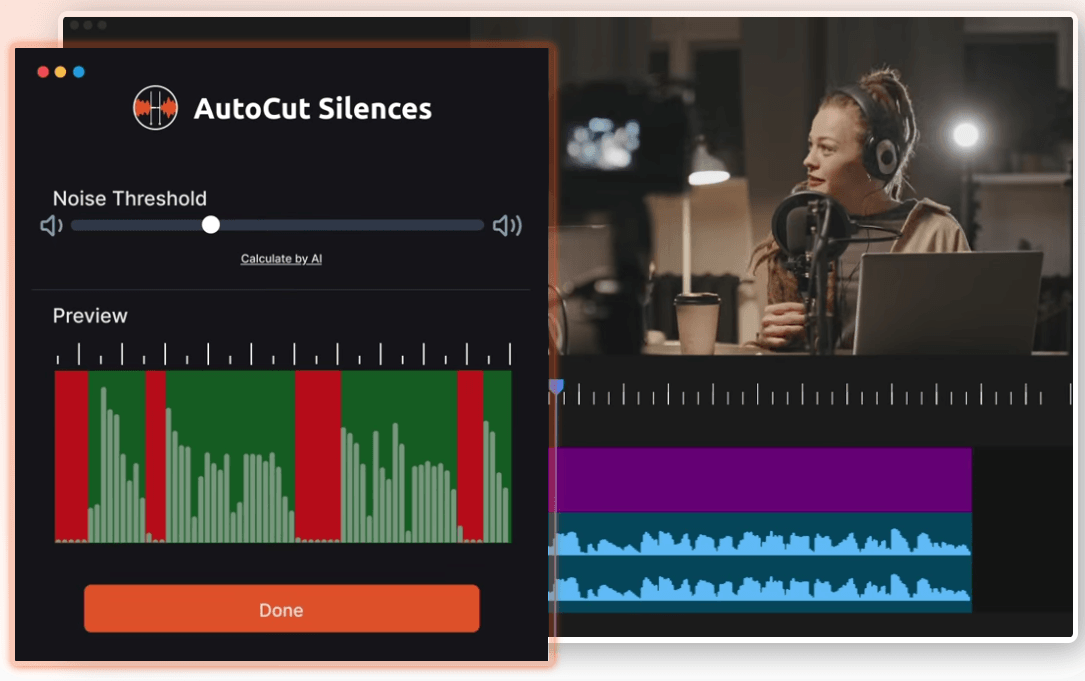
This is also where the tool’s category fit becomes obvious. If you edit scripted face-cam videos, product explainers, course lessons, or YouTube commentary, silence removal can save a lot of timeline work. If you edit a film scene with intentional pauses, AutoCut’s silence removal is less relevant. The feature is best when pacing cleanup is the goal, not emotional timing.
AutoCaptions may be the feature many creators use most often, and for good reason. Captions are now part of the visual style of short-form and YouTube content, not just an accessibility add-on.
AutoCut supports animated word-by-word captions, design controls, community presets, automatic emojis, caption editing, SRT import, and translation in over 80 languages. The official AutoCaptions page also says users can save caption styles as presets, which matters for creators who want a repeatable look across videos.
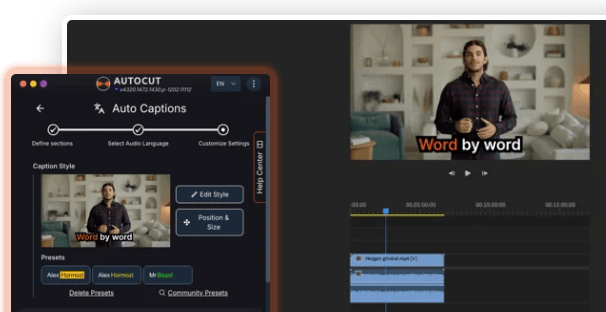
The practical value is speed plus consistency. Manually captioning social videos is tedious. Built-in subtitle tools can be useful, but they often need extra styling work. AutoCut’s pitch is that captions can be generated and styled directly inside Premiere Pro or DaVinci Resolve, without moving to a separate captioning platform.
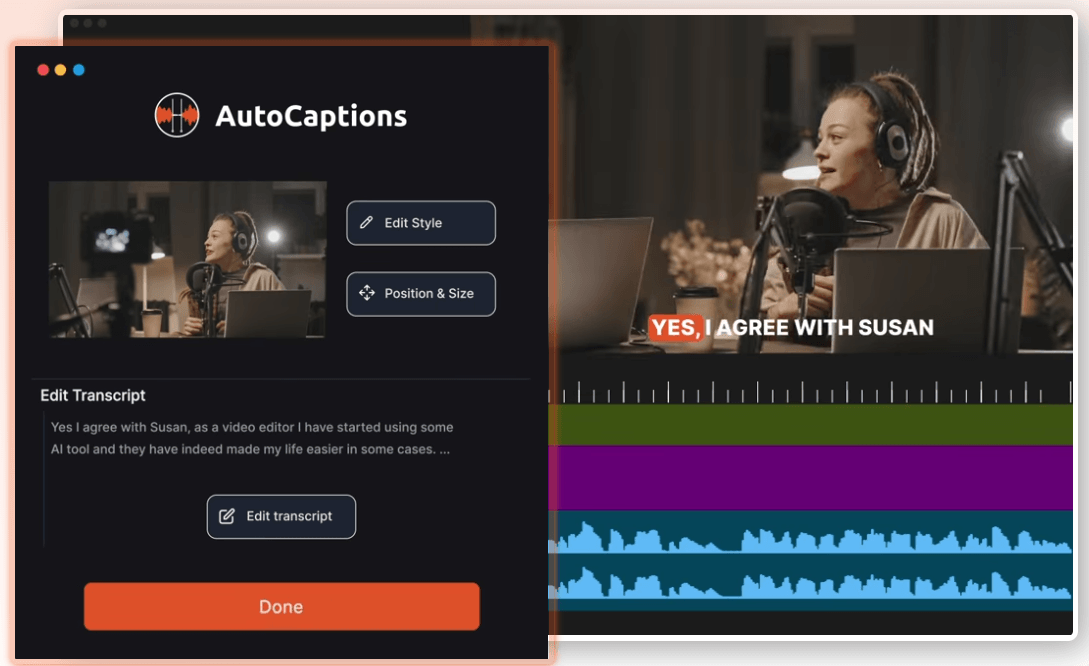
The limitation is still review. Auto-generated captions need proofreading, especially for names, technical terms, slang, regional accents, brand words, and fast speech. The fact that AutoCut supports many languages is useful, but it does not remove the need for a human check before publishing.
AutoCut Podcast is aimed at one of the most painful editing jobs: multicam podcast switching.
The workflow is practical. You identify podcast participants, assign each speaker to an audio track, connect speakers to camera tracks, and set parameters for how long each camera should stay on screen. AutoCut also supports cases where multiple speakers appear in a wide shot.
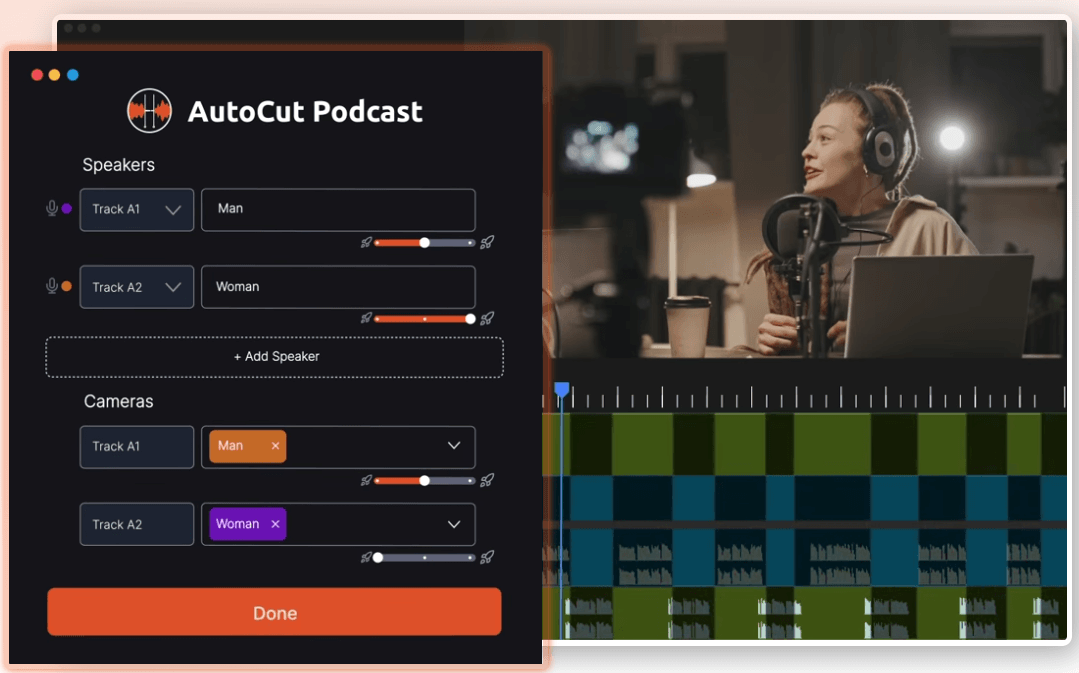
This is a strong fit for video podcasts, interview shows, panel conversations, and livestream repurposing. Instead of manually switching camera angles for every speaker turn, AutoCut can build a first pass based on who is talking and how dynamic you want the pacing to feel. That first pass should still be reviewed. Automated speaker switching can miss emotional reactions, awkward pauses, visual gestures, or moments where the best shot is not the active speaker. But as a starting point, it can take a long multicam edit from blank timeline work to a much more manageable review pass.
AutoCut Repeat is one of the more interesting tools because it solves a real creator problem: recording several versions of the same line and cleaning them up later.
The feature detects repetitive takes, lets users review the detection, and then removes the unwanted versions. AutoCut Repeat supports 80+ languages, and the current 2.0 update adds optional Reference Script support. That means users can give the system a script so it can align the transcript and identify the best take more accurately, even when the phrasing changes slightly.
This is useful for YouTube tutorials, voice-over recordings, product demos, scripted talking-head videos, and course content. It is less relevant for conversational content where repetition may be part of the discussion.
The main thing to know: repeat detection should not be treated as a final creative decision. It can surface and remove obvious duplicates, but the “best” take may depend on delivery, facial expression, pacing, or emphasis. Editors should review before committing.
AutoViral and AutoResize make AutoCut more useful for creators who publish across multiple platforms.
AutoViral analyzes long videos and helps find promising short-form clips for TikTok, Instagram Reels, and YouTube Shorts. It can use transcription, emotion AI, or both, then present a curated list with a viral potential score. AutoCut’s March 2026 update added more control through presets, custom prompts, adjustable clip duration, and a scoring system based on hook, trend, engagement, and emotions.
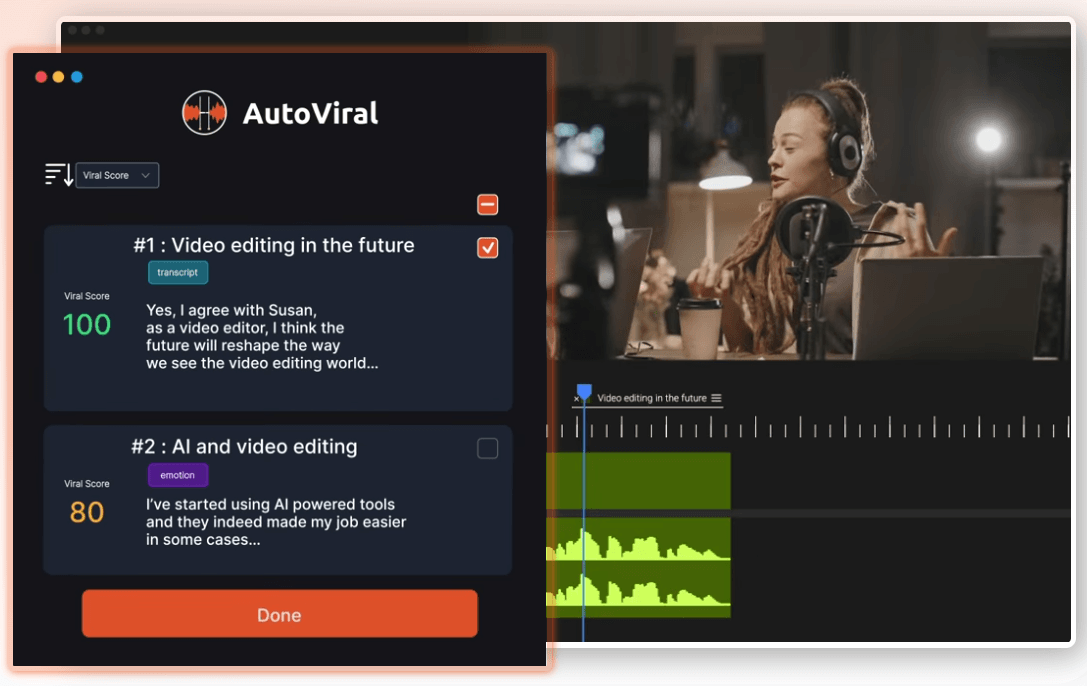
This is helpful, but it should be used with judgment. A viral score is not a strategy. It can help find energetic or emotionally strong moments, but creators still need to decide whether the clip fits the channel, audience, topic, and brand.
AutoResize handles the next step: adapting a video to social formats while keeping the subject centered. The feature page mentions AI subject tracking, platform optimization for TikTok, Instagram, YouTube Shorts, and similar formats, plus watermark placement. Together, these tools make AutoCut useful for long-to-short workflows. A podcast can become Shorts. A webinar can become clips. A tutorial can become vertical highlights. The workflow is not fully automatic strategy, but it reduces the boring part of repurposing.
AutoB-Rolls is designed to reduce the time editors spend searching for supporting visuals. Users choose audio language and prompt style, let AutoCut detect sections where B-roll could help, then insert stock footage from Pexels or Storyblocks or generate custom AI visuals.
This is useful for explainers, interviews, talking-head videos, and educational content that needs visual variety. The caveat is obvious: B-roll still needs taste. Stock clips can look generic if overused, and AI visuals may not always match the tone or accuracy of the topic.
AutoZoom is better for keeping static footage lively. It can react to cuts, speech, emotions, or AI-highlight meaning, then apply styles such as Jump Cut, Smooth, or Snap-in. This works well for commentary, tutorials, interviews, and social content where subtle zooms keep energy up without needing manual keyframes.
AutoProfanity Filter detects and masks swear words, lets users choose or upload censor sounds, and saves custom word libraries for future projects. This is useful for gaming, podcasts, livestream clips, and brand-safe content.
AutoChapters generates chapters for YouTube-style navigation. Users can set the audio language, choose an export format, define the number of chapters, guide the AI with custom instructions, review chapters, and export them.
AutoCut’s workflow is strongest when it becomes part of an editor’s normal sequence.
| Editing Stage | AutoCut Feature | Why It Helps |
|---|---|---|
| Rough cleanup | AutoCut Silences | Removes dead air before deeper editing |
| Take cleanup | AutoCut Repeat | Finds repeated lines and keeps the timeline lean |
| Multicam pass | AutoCut Podcast | Creates a speaker-based first cut |
| Engagement pass | AutoZoom and AutoB-Rolls | Adds visual movement and supporting footage |
| Publishing pass | AutoCaptions, AutoChapters, AutoResize | Prepares the video for platforms and viewers |
| Brand-safety pass | AutoProfanity Filter | Censors risky words before export |
| Repurposing pass | AutoViral | Finds short clips from longer videos |
That is the real value. AutoCut is not one feature. It is a stack of time-saving utilities for creator editing. The more often a team repeats the same kind of video, the more useful the plugin becomes.
AutoCut is a strong fit for:
- content creators who publish often
- YouTubers editing talking-head videos
- podcast editors working with multicam footage
- course creators and educators
- social media editors turning long videos into clips
- agencies handling interviews, testimonials, and creator content
- gaming creators who need captions and profanity masking
- teams already committed to Premiere Pro or DaVinci Resolve
It is a weaker fit for:
- editors who do not use Premiere Pro or DaVinci Resolve
- film editors who need detailed narrative control
- motion designers doing graphic-heavy work
- teams wanting a full cloud video platform
- users expecting AI to make all creative decisions
- projects where silence, pacing, and camera choice carry emotional weight
- Start with AutoCut Silences, but do not over-tighten everything. Some videos need breathing room, especially interviews and educational content.
- Use presets for captions once you find a style that fits your channel. This keeps videos consistent and reduces setup time.
- For AutoCut Podcast, check speaker assignments carefully before running the edit. Bad track setup will create bad camera switching.
- Use AutoCut Repeat with a script when the video is scripted. The Reference Script feature exists for exactly that kind of workflow.
- Treat AutoViral as a clip-discovery assistant, not a final publishing decision. The highest-scoring moment is not always the best clip for your audience.
- Review all B-roll before export. Stock footage and AI-generated visuals should support the message, not distract from it.
AutoCut is focused, and that focus is both its strength and its boundary.
- The biggest limitation is that it depends on your existing editing software. That is great if you already use Premiere Pro or DaVinci Resolve. It is not useful if your workflow is Final Cut Pro, CapCut, Descript, browser-based editing, or mobile-first production.
- The second limitation is that automation still needs review. Silence detection can cut too tightly. Captions can mishear words. Podcast camera switching can miss reaction moments. B-roll can feel generic. Viral clip detection can overvalue energetic moments and miss context.
- The third limitation is category fit. AutoCut is best for spoken content and creator workflows. It is not built to replace creative editing judgment, story structure, color work, audio mixing, motion graphics, or detailed finishing.
- There is also a control trade-off. AutoCut gives useful settings, previews, thresholds, presets, and review steps, but it is still automating decisions. Editors who prefer frame-by-frame control may use it only for captions, chapters, or first-pass cleanup.
AutoCut is best for creators and editors who already work in Premiere Pro or DaVinci Resolve and want to remove repetitive timeline work from spoken-video production.
Its strongest features are silence removal, animated captions, multicam podcast editing, repeat-take cleanup, social resizing, viral clip detection, smart zooms, B-roll insertion, profanity masking, and chapter generation.
The main caveat is that AutoCut is not a full creative editor and should not be treated like one. It is a practical automation layer. For high-volume YouTube, podcast, tutorial, course, interview, and short-form workflows, that is exactly what makes it useful.
TAGS: Video Editing
Related Tools:

Simplifies video editing process

Simplifies creating and enhancing videos with easy tools

Creates professional videos from texts

Streamlines social media strategies
Transforms text or images into short videos

Transforms long videos into engaging clips