

Share this tool:
 |
Description:
- Introduction
- Strong Features and Capabilities
- What Filmora Actually Is
- Where Filmora Is Strongest
- Workflow and Ease of Use
- AI Video Generation: Useful, But Not the Whole Story
- Captions, Transcripts, and Translation
- Visual Cleanup and Editing Control
- Audio Tools: More Useful Than They Look
- How Filmora Fits Against Other Video Editors
- Best Use Cases
- Practical Tips
- Limitations and Trade-Offs
- Final Takeaway
Wondershare Filmora is best understood as a creator-friendly video editor that keeps adding AI into the places where everyday editors lose time: captions, cleanup, background removal, long-to-short repurposing, audio fixing, quick visual generation, and guidance inside the edit. It is not trying to replace high-end post-production suites. Its stronger pitch is more practical: help YouTubers, marketers, educators, small businesses, and social creators get from rough media to a finished video without needing a full editing background.
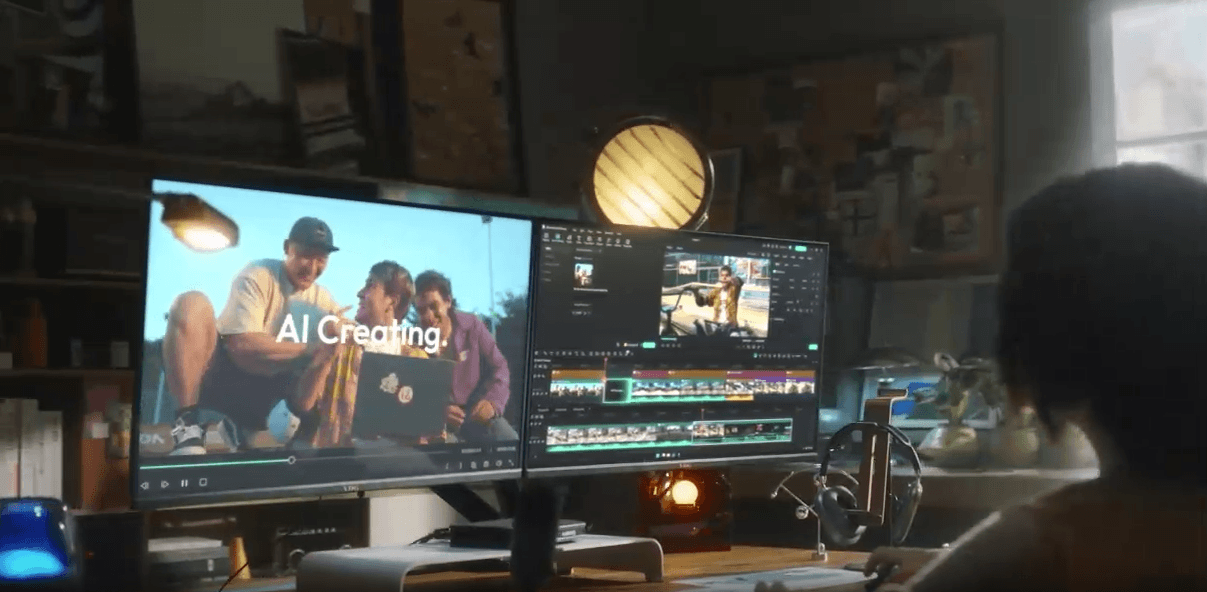
Filmora’s assistant can guide users through editing tasks, suggest improvements, help find features, and automate some routine actions from natural-language instructions.
Filmora supports prompt-based video generation through models such as Seedance 2.0, Sora 2, and Veo 3.1, then lets users continue editing generated material on the timeline.
Long videos can be analyzed for key moments, converted into short clips, reframed for social formats, and paired with captions.
Filmora can transcribe speech, create subtitles, and let users edit spoken content through transcript-style workflows.
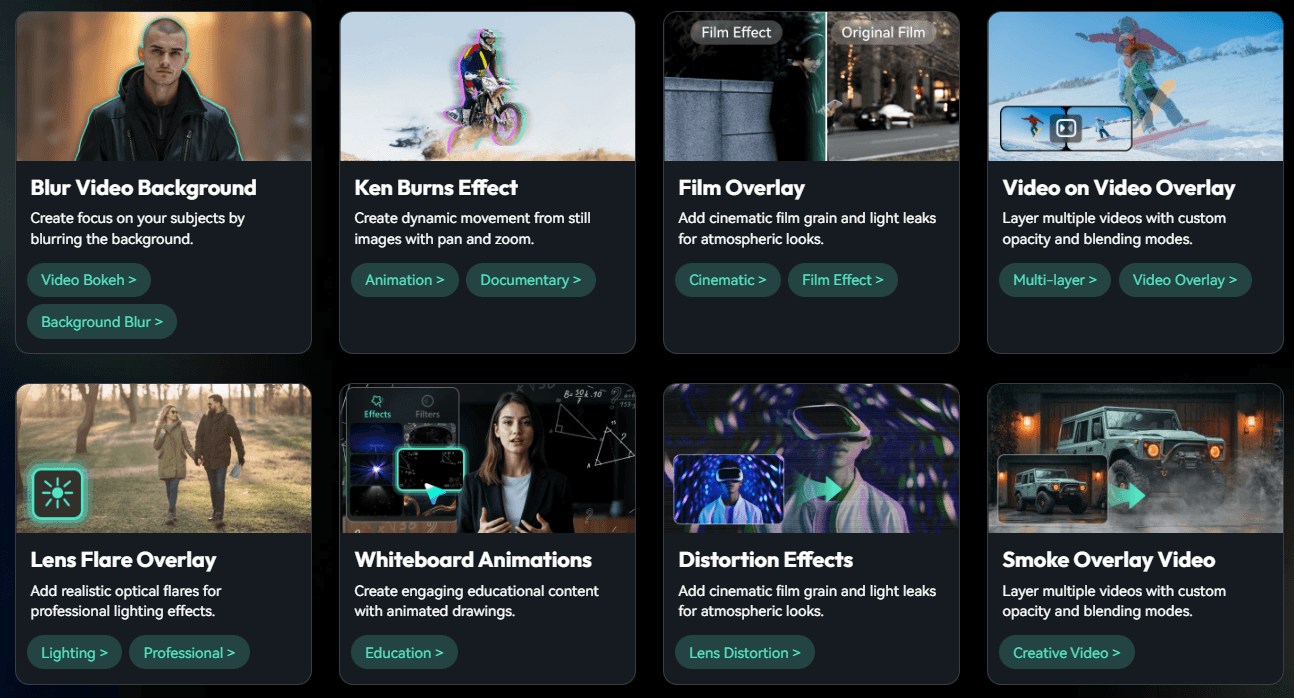
Smart Cutout, Smart Masking, Portrait Cutout, and AI Video Object Remover help isolate subjects, remove backgrounds, and clean unwanted objects from footage.
Filmora includes AI Voice Enhancer, AI Audio Denoise, AI Audio Stretch, AI Vocal Remover, text-to-speech, and AI music generation for faster audio repair and background sound creation.
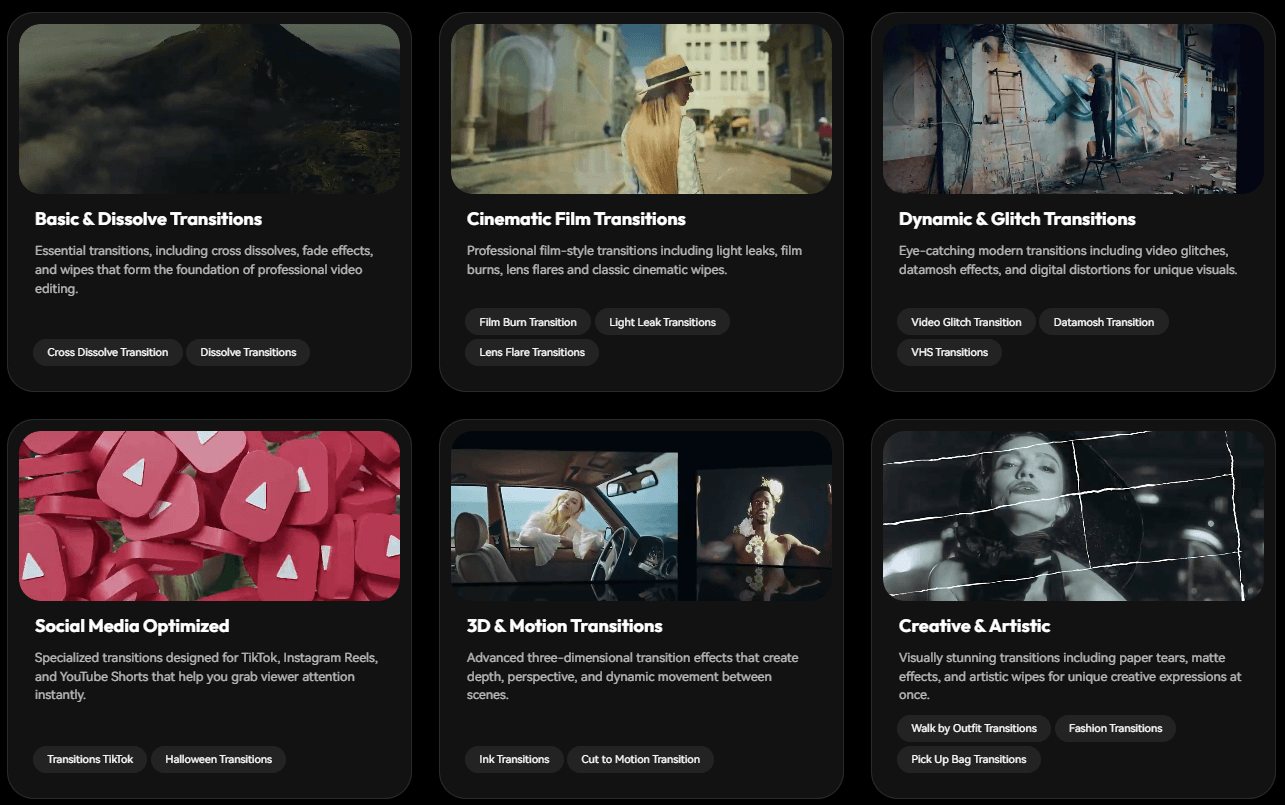
Filmora is a timeline video editor with a large set of built-in effects, templates, text tools, audio tools, stock-style creative assets, and AI features layered into the editing process. The important part is that the AI does not sit completely outside the editor. You can generate clips, clean footage, make captions, remove objects, stretch music, or ask the assistant for help, then keep working in a more familiar edit timeline.
That makes Filmora different from pure AI video generators. A text-to-video tool can give you a short generated clip. Filmora gives you that plus trimming, titles, transitions, captions, music, effects, aspect ratio changes, and export preparation. For many creators, that second half is where the work usually gets stuck.
| Layer | What it does | Why it matters |
|---|---|---|
| Timeline editor | Handles trimming, titles, transitions, media layers, audio, effects, and export | Gives users a normal editing workspace instead of a one-shot generator |
| AI creation tools | Text-to-video, image-to-video, script-to-video, AI images, music, and voice tools | Helps create missing material without leaving the editor |
| AI cleanup tools | Object removal, cutout, masking, video enhancement, denoise, voice enhancement | Saves time on common repair tasks |
| AI text and language tools | Speech-to-text, auto captions, text-based editing, translation, lip sync, TTS | Useful for accessibility, localization, and content repurposing |
| Social workflow tools | Smart Short Clips, auto reframing, templates, captions, and social formats | Helps turn long content into platform-ready clips |
The best way to think about Filmora is not “beginner editor” or “AI generator.” It sits between those ideas. It is a practical editing environment for people who want AI help, but still need control over the final video.
Filmora is strongest when speed matters more than deep technical control. A solo creator editing a weekly YouTube video, a teacher turning lessons into clips, a small business making ads, or a podcaster repurposing interviews will get more value from Filmora than someone building a cinema-grade color pipeline or a complex multi-editor post-production workflow.
The product’s best feature is its convenience. Many AI tools solve one isolated problem: generate a clip, remove a background, clean audio, or make captions. Filmora pulls many of those jobs into one place. That matters because content creators rarely need one AI output in isolation. They need the output inside a finished timeline, with titles, music, cuts, subtitles, and format adjustments.
Smart Short Clips is a good example. Filmora says the feature analyzes longer videos, identifies key moments, extracts them into short clips, keeps the focal point centered during resizing, and supports multiple social aspect ratios. That is not as glamorous as generative video, but it is one of the more useful workflows for people sitting on long webinars, interviews, podcasts, tutorials, or event recordings.
The AI creation tools are also more useful because they end up inside an editor. Filmora’s text-to-video page lists three creation paths: AI Text to Video, AI Idea to Video, and AI Script to Video. Its own comparison table describes model-based clips as short-form generation, Script-to-Video as longer assembly, and Idea-to-Video as a beginner-friendly concept workflow.
Filmora’s core workflow is still simple: import media, arrange clips on the timeline, trim, add titles or effects, clean audio, create captions, then export. The AI layer makes this faster, but it does not remove the need to make editorial choices. You still decide which shots matter, where the story starts, how much to cut, whether the captions are right, and whether the final pacing feels watchable.
AI Mate makes the product feel more approachable. Wondershare says users can access AI Mate from the timeline toolbar or by right-clicking a clip, then type what they want in the chat window and follow the assistant’s suggestions. It can point users toward the correct feature and help them apply edits more quickly.
That said, AI Mate is not a magic remote control for the whole app. Wondershare’s own FAQ says AI Mate is connected to only part of Filmora’s features, and for unsupported actions it may give manual instructions instead of performing the task. The same page also warns that AI Mate can produce convincing but incorrect answers, so users should question it when instructions do not match the interface.
That caveat is important. AI Mate is best used as a navigation and first-pass assistant, not as the final authority. It can help a beginner find the right tool faster, and it can save experienced users time on repetitive work. But a user still needs to review what it does.
Filmora’s generative video layer is now much broader than the old idea of “AI video from text.” The current Text-to-Video page says Filmora supports Seedance 2.0, Sora 2, and Veo 3.1, with workflows for direct prompts, idea-to-video, and script-to-video. It also lists model-based generation, script-based assembly, and idea-based generation as different workflows with different durations and user levels.
This is a strong direction for creators who need quick B-roll, concept visuals, short social clips, or stylized inserts. It is less convincing as a full replacement for planning, shooting, and editing a serious video. The model-generated clips are short by design, and the quality will depend on the prompt, model, motion complexity, and how much cleanup you are willing to do afterward.
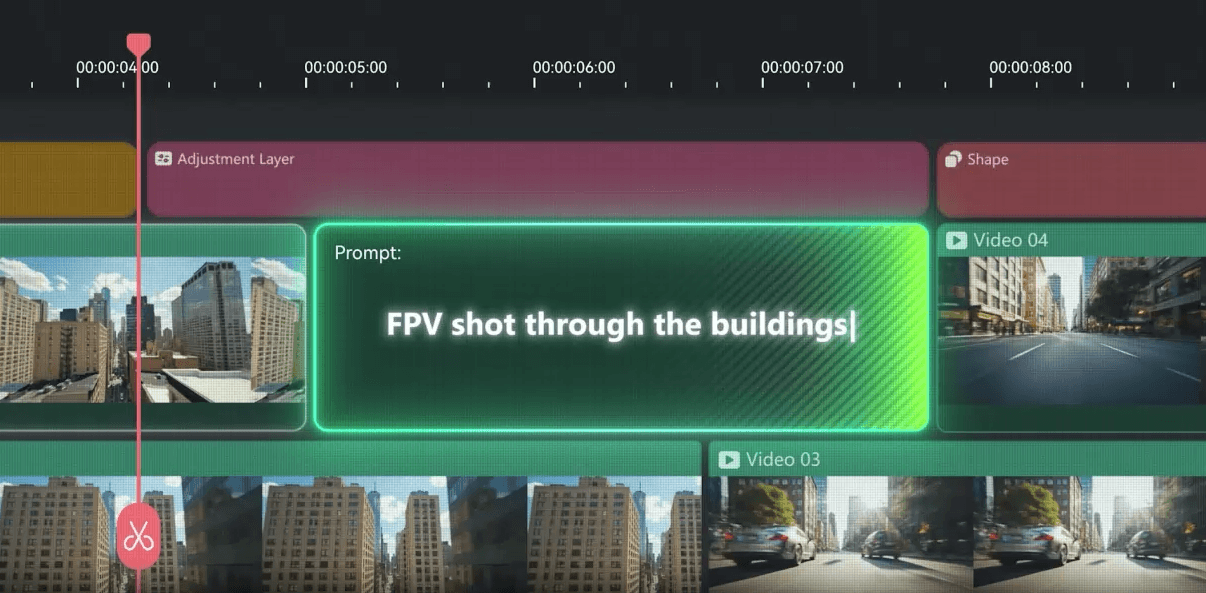
Image-to-Video is similar. Filmora’s official page says the feature integrates Seedance 2.0, Sora 2, and Veo 3.1, supports preset effects, and includes start/end frame and reference-image workflows. It also notes that after generation, users can refine the result on Filmora’s timeline with text, transitions, music, and trimming.
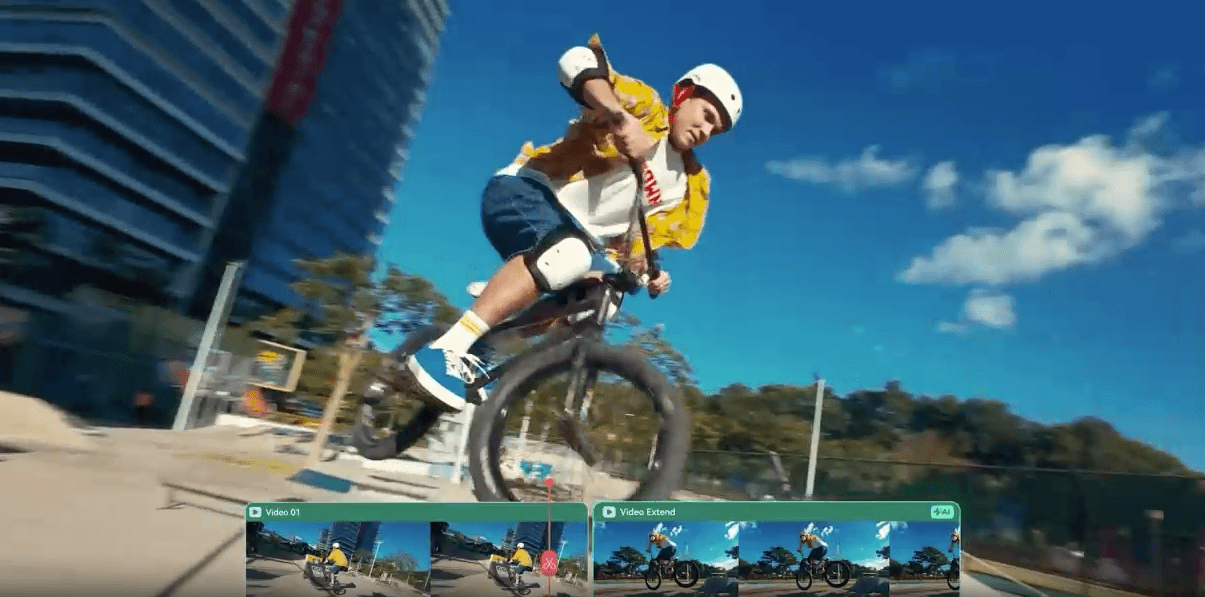
That last part is the real advantage. Generated video often needs editing. Filmora is useful because it gives you the generation layer and the finishing layer in the same place.
Filmora’s caption stack is one of its most practical areas. The support guide for Speech-to-Text shows a workflow where users select a media clip, open Titles ? AI Captions ? Speech-to-Text, choose the source language, and optionally use translation.
Text-Based Editing adds another layer. Wondershare says the feature converts spoken words in video audio into text, lets users edit the text in a built-in editor, and uses the transcript as an easier way to handle subtitles and spoken content.
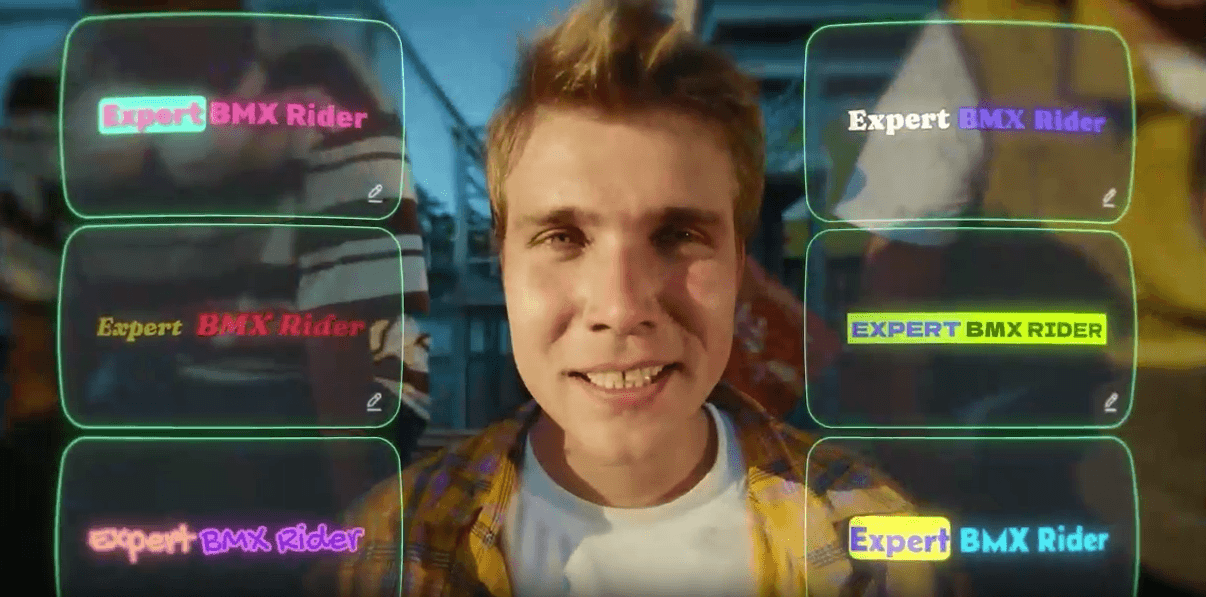
For creators, this matters more than it may sound. Captions are no longer just an accessibility feature. They help viewers follow videos without sound, make shorts easier to watch, and let creators repurpose spoken content into clips, summaries, and posts.
Filmora also includes AI Video Translation with voice cloning and lip sync. Wondershare lists multiple languages, voice cloning, lip sync, subtitle editing, and audio translation as part of the feature, and says the translator supports 23 languages. The same page gives practical limits: results are less accurate when multiple speakers talk at once, good lip sync needs a steady frontal face view, and the lip-sync feature has a maximum processing length. That is the right way to evaluate it. Translation and lip sync can be useful for courses, explainers, marketing videos, and creator localization. But they are not “set and forget” tools. Users should review subtitles, names, technical terms, tone, and timing before publishing.
Filmora’s visual AI tools are built for common creator problems: distracting background objects, unwanted people, hardcoded text, logos, watermarks, messy backgrounds, and subjects that need to be separated from the scene. The AI Video Object Remover page says users can remove people, logos, watermarks, text, and static or moving elements, with brush strokes and intelligent detection. It also supports multi-object removal and tracking across video frames.
This is useful for vlogs, product content, social posts, event videos, and quick business edits. It can save a lot of time compared with frame-by-frame masking. It also comes with an obvious responsibility: removing logos or watermarks from content you do not have rights to use can create legal or ethical problems. Filmora gives you the tool, but it does not decide whether the use is appropriate.
Smart Cutout and Smart Masking are also important because they make subject isolation less technical. Wondershare describes AI Smart Cutout as a way to remove unwanted objects or change backgrounds quickly, while AI Smart Masking helps outline objects for editing.
The limitation is precision. AI cutouts can struggle with hair, motion blur, transparent objects, complex edges, or crowded scenes. Filmora is good for creator-level cleanup, but high-end compositing still needs more specialized tools and more manual control.
Filmora’s audio AI features are easy to overlook, but they may save more time than some of the flashier tools. Bad audio can make even good video feel amateur. Filmora’s AI Voice Enhancer is designed to detect background noise and vocal issues, reduce noise, and improve voice clarity. AI Audio Denoise is aimed at vlogs, podcasts, interviews, online meetings, and event recordings where background noise gets in the way.
AI Audio Stretch is especially practical. Instead of cutting and looping music by hand, it analyzes a music clip and retimes it to fit the video duration. Wondershare says it can remix audio based on patterns and dynamics, and it supports a wide range of imported audio formats.
AI Vocal Remover separates vocals and background music into tracks for editing or export. Wondershare also notes that the result can vary depending on the original audio quality and the complexity of the mix, which is exactly the caveat users should keep in mind.
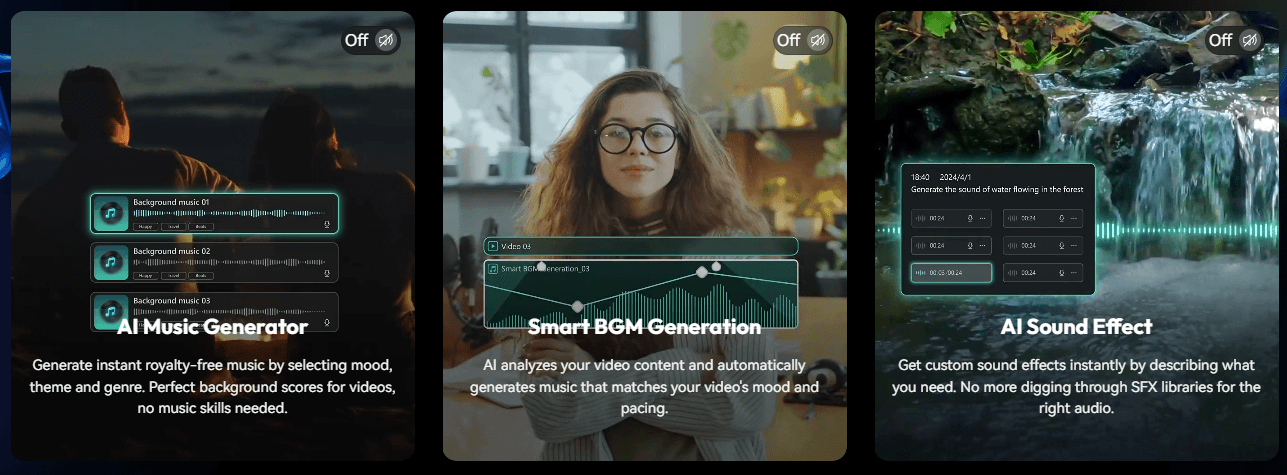
Filmora’s text-to-speech and AI music tools round out the audio stack. Text-to-speech supports multilingual voice generation and automatic sentence segmentation, while AI Music Generator can create background music based on mood, atmosphere, and prompt-library choices. This does not make Filmora a professional audio workstation. It does make it a better all-in-one editor for creators who do not want to move between separate apps for every audio fix.
Filmora sits in a practical middle ground. It is more approachable than many professional editing suites, but more complete than lightweight social-template editors when you need a real timeline.
| Tool | Better fit | Main difference |
|---|---|---|
| Filmora | Creators who want timeline editing plus built-in AI help | Strong balance of AI generation, cleanup, captions, audio tools, and conventional editing |
| CapCut | Fast social posts, templates, short-form content, browser and mobile-first creation | CapCut is heavily oriented around social content, AI tools, templates, subtitles, and quick web/mobile editing. |
| Adobe Premiere Pro | Professional editing teams and deeper post-production workflows | Premiere adds pro workflows such as Generative Extend, media intelligence, multilingual captions, improved color management, and content credentials. |
| DaVinci Resolve | Color grading, finishing, audio post, and advanced production workflows | Resolve’s AI Neural Engine supports features like facial recognition, object detection, smart reframing, speed warp, super scale, auto color, and color matching. |
| Final Cut Pro | Mac editors who prefer Apple’s Magnetic Timeline and fast local workflow | Final Cut’s Magnetic Timeline uses a trackless design that automatically adjusts clips to avoid gaps and collisions. |
The simple version: choose Filmora when you want editing speed, AI convenience, and enough control for creator work. Choose Premiere, Resolve, or Final Cut when your project depends on deeper pro workflows, advanced color, larger team pipelines, or more exact technical finishing.
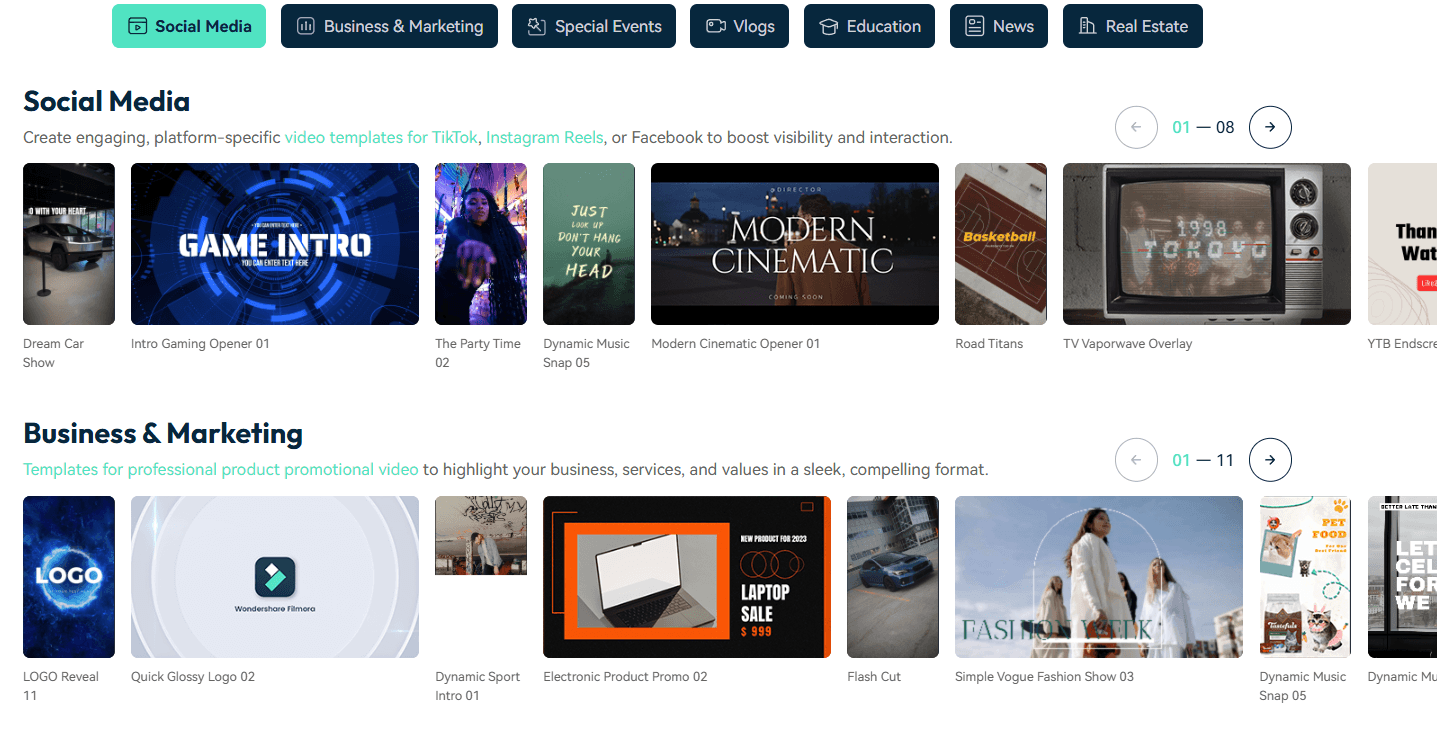
- YouTube and creator editing: Filmora works well for talking-head videos, tutorials, reaction clips, reviews, vlogs, and list-style content where the editor needs trimming, captions, music, effects, and quick cleanup.
- Short-form repurposing: Smart Short Clips is a strong fit for podcasts, webinars, interviews, courses, presentations, and livestreams that need to become TikToks, Reels, and YouTube Shorts.
- Small business marketing: Product promos, local ads, testimonial edits, social posts, event recaps, and simple brand videos are a natural fit because templates, captions, audio tools, and AI cleanup reduce production friction.
- Educational content: Teachers, trainers, and course creators can use captions, text-to-speech, translation, transcript editing, and audio cleanup to make lessons easier to publish and reuse.
- Beginner-friendly AI video creation: Text-to-video, image-to-video, AI script tools, and AI Mate make Filmora useful for users who want help starting a video rather than building every shot manually.
- Light cleanup and repair: Object removal, cutout, masking, video enhancement, audio denoise, and voice enhancement are useful when the footage is close, but needs practical fixes before publishing.
- Start with your edit, then use AI to remove bottlenecks. Filmora works best when AI supports a clear editorial plan. Import your footage, build the rough story, then use AI for captions, cleanup, sound repair, shorts, or missing visuals.
- Use AI Mate for navigation and routine edits, not final judgment. It can suggest tools and help you reach features faster, but Wondershare warns that it may produce inaccurate guidance and that it cannot operate every Filmora feature directly.
- Treat generated video as material, not the final edit. Text-to-video and image-to-video are useful for hooks, B-roll, concept scenes, and social visuals. The final quality depends on trimming, pacing, sound, captions, and how well the generated clip fits the rest of the video.
- Review every caption and translation. Speech-to-text and translation tools are helpful, but names, brand terms, accents, overlapping speech, and technical language still need human review. Wondershare’s own translation notes warn that multiple speakers and unclear audio can reduce accuracy.
- Use object removal carefully. It is great for distractions in your own footage. Be careful with logos, watermarks, or third-party material where you do not have permission.
- Do not rely on AI Mate as permanent project memory. Wondershare says AI Mate keeps recent conversation context, but older conversations may be deleted due to storage limits, so important project notes should live outside the assistant.
- The first limitation is depth. Filmora has many AI tools, but it is still not a substitute for a high-end professional editing, color, compositing, or sound pipeline. If you need advanced color grading, multi-editor project management, complex VFX, or broadcast-level finishing, tools like DaVinci Resolve, Premiere Pro, or Final Cut Pro may fit better.
- The second limitation is AI variability. Text-to-video, image-to-video, cutout, translation, object removal, voice cleanup, and music generation all depend on the input. Clean footage, clear audio, simple motion, and well-framed subjects will usually behave better than noisy clips, crowded scenes, shaky camera movement, or overlapping speech.
- The third limitation is feature sprawl. Filmora now includes timeline editing, AI Mate, text-to-video, image-to-video, captions, translation, audio tools, object removal, templates, stock-style assets, and mobile/online options. That breadth is useful, but it can also make the product feel busy. Beginners may still need time to learn which tool solves which problem.
- AI Mate also has a practical ceiling. It can guide and automate some tasks, but Wondershare says it is connected to only part of Filmora’s features. For unsupported actions, it may switch to step-by-step guidance rather than doing the work itself.
- Hardware is another real consideration. Wondershare’s technical specifications recommend a newer CPU and 16 GB RAM for smoother HD and 4K editing, with higher requirements for 8K work. That means Filmora may be easier to learn than professional editors, but demanding projects still need capable hardware.
Wondershare Filmora is a strong choice for creators who want an approachable editor with AI built into the actual production workflow.
Its best features are the practical ones: Smart Short Clips, captions, text-based editing, AI Mate, object removal, cutout tools, audio cleanup, text-to-speech, music generation, and short AI video creation that can still be edited on a normal timeline.
It is best for YouTubers, educators, marketers, small businesses, social creators, and solo editors who need polished videos without becoming post-production specialists. The main caveat is that Filmora’s AI tools are time-savers, not a replacement for judgment. Captions need checking, translations need review, generated clips need editing, and advanced projects may still outgrow the platform.
TAGS: Video Editing
Related Tools:

Automates video editing by quickly removing silences

Specializes in backlink analysis and insights

Automates editing tasks like silence removal and camera switching

Smplifies video editing and collaboration with AI tools

Transforms videos into concise clips

Helps users create branded social media videos