

Share this tool:
 |
Description:
- Introduction
- Strong Features and Capabilities
- What HitPaw Watermark Remover Actually Does
- Removal Modes That Matter
- Workflow and Ease of Use
- Image Cleanup Quality
- Video Cleanup Quality
- Desktop vs Online Workflow
- Best Use Cases
- Practical Tips for Better Results
- Limitations and Trade-Offs
- How It Compares to Heavier Editing Tools
- Final Takeaway
HitPaw Watermark Remover is a focused cleanup tool for people who want to remove visible marks or distracting objects from videos and images without learning a full editing suite. Its strongest value is speed: upload or import media, select the watermark or object area, choose a removal mode, preview the result, and export when the cleanup looks acceptable. It is not a replacement for advanced manual retouching, but it is practical for fast watermark cleanup, date-stamp removal, object removal, sticker removal, and simple visual repair workflows.
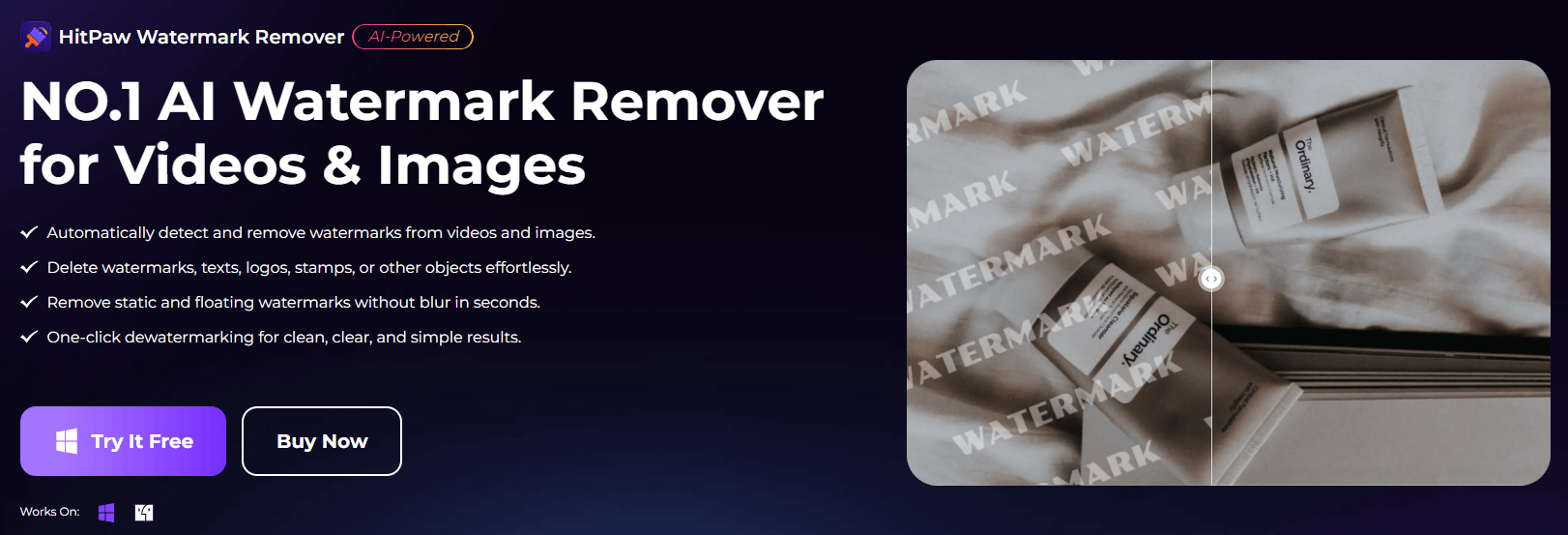
HitPaw works across both photos and videos, which makes it more flexible than single-format watermark removers.
Video cleanup includes AI Mode, Matte Filling, Color Filling, Smooth Filling, and Gaussian Blur, giving users different repair options for different backgrounds.
Image cleanup includes AI Mode, Texture Repair, Edge Filling, and Smooth Filling for handling different watermark and background types.
The tool is not limited to classic logo watermarks; it can also target date stamps, text overlays, stickers, people, and unwanted objects.
The basic process is import, select the watermark, choose a removal mode, preview, and export.
Users can work through the online version for lighter browser-based jobs or use the desktop version on Windows and macOS for a fuller editing workflow.
HitPaw Watermark Remover is built around a simple editing idea: mark the area you want removed, then let the software reconstruct, fill, blur, or blend that area depending on the mode you choose. For images, that usually means selecting a watermark, date stamp, logo, sticker, person, or object and letting the tool rebuild the surrounding region. For videos, the challenge is harder because the tool needs to keep the repaired area visually consistent across frames.
That difference matters. Removing a small logo from a plain wall in a photo is usually a much easier task than removing a moving watermark from footage with shifting light, people, grass, fabric, or camera motion. HitPaw’s practical value depends heavily on the scene. The cleaner and simpler the background, the better the likely result. The more complex the texture, motion, transparency, or overlap, the more likely you are to see smearing, blur, repeated texture, or visible reconstruction marks.
The product is best understood as a fast cleanup tool rather than a high-end compositing system. It is for quick fixes, social content cleanup, product-photo correction, old-camera date-stamp removal, simple object removal, and basic footage repair. It is less ideal when the watermark covers faces, important product details, complex patterns, subtitles over moving scenes, or fine background texture that needs to remain perfect.

HitPaw’s mode selection is one of the main reasons the tool is more useful than a one-click blur app. Different watermarks need different treatment.
| Mode / Workflow | Best For | Practical Notes |
|---|---|---|
| AI Mode | General watermark and object removal | Best first option when you want the software to reconstruct the area automatically. |
| Matte Filling | Video areas where copied nearby pixels can cover the mark | Useful when the background has repeatable patterns or a nearby clean area. |
| Color Filling | Simple backgrounds with consistent color | Best when the watermark sits over a flat wall, sky, backdrop, or plain surface. |
| Smooth Filling | Soft transitions and mild background blending | Better for gentle gradients than sharp detail. |
| Gaussian Blur | Fast hiding when perfect reconstruction is not needed | Useful as a last resort, but it can look visibly blurred. |
| Texture Repair | Photo watermarks over textured surfaces | Best when surrounding color and texture can be sampled cleanly. |
| Edge Filling | Photo cleanup around borders or defined edges | Useful when the tool needs to blend the removed area into nearby structure. |
The important thing is not simply that HitPaw has multiple modes. The important thing is knowing when to switch. AI Mode is the natural first test. If it creates strange texture or smudging, a more manual mode like Color Filling or Matte Filling can sometimes look cleaner. If the background is already soft or out of focus, Smooth Filling may be enough. Gaussian Blur should be treated as the least elegant option, but it can still be useful for low-stakes footage where hiding the mark matters more than preserving perfect detail.
HitPaw is easy to start because the workflow is very direct. On desktop, you import the video or image, select the watermark area, choose the removal mode, preview the result, then export. HitPaw’s own guide describes this as a three-step process: import the media, select the watermark, and remove it after previewing the effect.
The online version follows the same basic logic for video: upload the file, identify the watermark area, then save and download the processed result. It also supports common video formats such as MP4, MOV, and AVI in the browser workflow.

This simplicity is the product’s biggest advantage. You do not need timeline editing experience, masking knowledge, Photoshop-style cloning skills, or frame-by-frame retouching. For a beginner, the tool feels approachable because most of the work is reduced to selecting the damaged area and choosing a repair method.
The trade-off is that simple tools do not always give advanced control. If the first repair is not clean, you are mostly adjusting the selected area, trying another mode, or processing again. That is fine for everyday cleanup, but it is not the same as working in After Effects, Photoshop, DaVinci Resolve, or a professional compositing workflow where you can manually track masks, clone frames, paint details, and control every layer.
HitPaw is most convincing on images when the watermark or object sits over a background the tool can understand. Plain walls, sky, blurred backdrops, table surfaces, product backgrounds, simple clothing, and lightly textured areas are the best candidates.
For photos, the strongest use cases are usually:
- removing date stamps from old images
- cleaning small logos or text overlays
- removing stickers, emojis, and meme marks
- removing small objects from product or social photos
- clearing a passerby from a background when the scene is not too detailed
The tool becomes less reliable when the removed area covers faces, hands, fine text, jewelry, product labels, hair, architectural lines, repeating patterns, or important edges. This is not unique to HitPaw. AI inpainting tools generally struggle when they need to recreate meaningful detail that is not visible in the original image.
The best approach is to think of HitPaw as a repair tool, not a truth recovery tool. It can rebuild a plausible background. It cannot actually know what was behind the watermark. If the hidden area is simple, the illusion works. If the hidden area contains important details, the result may look artificial.
Video watermark removal is harder than image cleanup because every frame has to remain consistent. A watermark may stay fixed in the corner, move across the screen, sit over changing backgrounds, or overlap a person or object. HitPaw’s online page describes AI-powered video cleanup for watermarks, text, stamps, stickers, and unwanted objects, with the user marking the watermark area and the tool applying removal across frames.
In practical use, the best video candidates are:
- static corner logos over simple backgrounds
- old camera date stamps
- text overlays on plain areas
- stickers over low-detail backgrounds
- simple unwanted objects in low-motion footage
The weakest candidates are:
- moving watermarks over faces or people
- subtitles over detailed action scenes
- logos crossing patterned clothing
- watermarks over water, grass, hair, crowds, or fast motion
- transparent marks blended into complex footage
The main artifacts to watch for are blur patches, flickering, smeared backgrounds, repeated texture, and edge distortion. A result can look fine when paused but distracting during playback, so video cleanup should always be judged in motion.
HitPaw’s online tool is best for quick jobs. It is useful when you want browser-based access, do not want to install software, or only need to clean a simple file. The online video remover is positioned as no-installation editing where users upload, highlight the watermark, and let AI process the result in the browser.
The desktop version is the better fit when you expect to do repeated cleanup work or want access to the fuller set of removal modes. HitPaw’s product page points users toward Windows and Mac downloads, and its getting-started guide lists support for Windows 11, Windows 10, Windows 8, Windows 7 64-bit, and macOS 10.13 or later.
| Use the Online Version When | Use the Desktop Version When |
|---|---|
| You have a quick one-off cleanup job | You clean images or videos regularly |
| You do not want to install software | You want more complete mode control |
| The file is simple and low-stakes | The file needs careful previewing and adjustment |
| You are working from different devices | You prefer a local app-style workflow |
For casual users, the online version may be enough. For creators, marketers, editors, and people handling multiple files, the desktop version is likely the more useful workflow.
- Old video and photo cleanup: HitPaw is useful for removing date stamps, camera timestamps, and small text overlays from older media. This is one of the cleaner use cases because the mark is often in a predictable corner.
- Social media repurposing: For content you own or have permission to modify, HitPaw can help clean stickers, captions, emojis, or unwanted overlay marks before reposting in a new format.
- Product and ecommerce image correction: Small distracting objects, labels, dust marks, or watermarks on product backgrounds can often be cleaned quickly when the surrounding area is simple.
- Travel and event photos: The person-removal workflow is useful for removing strangers or background distractions from casual photos, especially when the area behind them is not too complex.
- Marketing and presentation cleanup: HitPaw can help remove unwanted text, stamps, or visual clutter from approved assets before using them in presentations, thumbnails, banners, or internal creative drafts.
- Beginner editing workflows: The tool is best for people who want cleanup results without learning a professional editor. It gives non-editors a simple path to remove distractions from media.
- Start with AI Mode first. It is the most natural first test because it attempts the most automatic repair. If it looks clean, there is no need to overwork the file.
- Select slightly more than the watermark area. If your selection is too tight, edge residue can remain. Give the tool enough room to blend, but do not select so much that it damages nearby detail.
- Use Color Filling for simple backgrounds. If the watermark sits on a flat wall, clean sky, plain backdrop, or solid color area, color-based filling may look better than a heavy AI repair.
- Avoid using blur unless the content is low-stakes. Gaussian Blur can hide a mark quickly, but it often leaves an obvious patch. Use it when speed matters more than realism.
- Preview video in motion. Do not judge only from a still frame. Watch the repaired area through the full clip because flicker and smearing are easier to spot during playback.
- Do difficult removals in smaller passes. If one large selection creates artifacts, try removing the watermark in smaller sections or processing the least complex parts first.
- Use it only on media you own or have permission to modify. HitPaw’s own FAQ notes that watermark removal can be legal or illegal depending on use, and that removing watermarks from copyrighted material without authorization can violate intellectual property laws.
- HitPaw Watermark Remover is fast, but it is not perfect. The biggest limitation is that AI cleanup is only as good as the surrounding visual information. If the area behind the watermark is simple, the tool has a good chance of creating a believable repair. If the watermark covers detail that matters, the result can look fake.
- Video cleanup has extra risk because the repaired region has to stay consistent across many frames. Even if HitPaw removes the mark, the filled area may shimmer, smear, or pulse slightly as the background changes. This is especially noticeable in footage with camera movement, moving people, textured surfaces, or changing light.
- Transparent watermarks are also harder than solid marks. Because they blend with the original pixels, the tool has to separate the watermark from the underlying image. HitPaw says AI-powered tools can detect low-opacity marks and reconstruct the background, but in practice, transparent marks over complex scenes are still one of the harder cleanup jobs.
- Another trade-off is control. HitPaw is easier than professional software, but it does not give the same depth of manual retouching control. If a result needs perfect commercial polish, you may still need a professional editor, especially for high-resolution product campaigns, client deliverables, film work, or legal-sensitive brand assets.
- Finally, the tool should not be used as a shortcut to strip ownership marks from copyrighted content. It is best used for your own media, licensed content, authorized edits, old personal footage, and assets where you have clear permission.
HitPaw is not trying to be Photoshop, Premiere Pro, DaVinci Resolve, or After Effects. Those tools offer deeper control, but they also require more skill and time. HitPaw’s advantage is convenience. It compresses a common cleanup task into a much simpler workflow.
Choose HitPaw when you want speed, simplicity, and a focused watermark/object removal workflow.
Choose a professional editor when you need frame-level precision, advanced masking, manual clone control, detailed compositing, or guaranteed quality for client-facing work.
That makes HitPaw a good middle-ground tool. It is more specialized than a basic blur tool, easier than a professional editor, and practical enough for everyday creators who need clean media quickly.
HitPaw Watermark Remover is a practical AI cleanup tool for removing watermarks, text, date stamps, stickers, people, and unwanted objects from images and videos. Its biggest strength is not that it can magically fix every file. Its strength is that it makes common cleanup tasks simple enough for non-editors while still offering multiple removal modes for different situations.
It works best on simple backgrounds, small marks, static logos, date stamps, and light object removal. It becomes less reliable when the watermark covers faces, fine detail, complex textures, or fast-moving video. For casual creators, social media users, ecommerce sellers, and marketers cleaning approved assets, it can save a lot of time. For professional-grade restoration or complex video compositing, it should be treated as a first-pass cleanup tool rather than the final answer.
The best way to use HitPaw is with realistic expectations: start with AI Mode, switch modes when artifacts appear, preview carefully, and only use it on content you have the right to edit.
TAGS: Photo Editing Video Editing
Related Tools:
Removes backgrounds from images

Simplifies editing profeessional-quality videos

Personal finance app that integrates all financial accounts

Creates short clips from longer videos

Enhances image resolution and detail

Provides keyword research and analysis