

Share this tool:
 |
Description:
- Introduction
- What Sheet AI Actually Is
- Sample Prompts and Formulas You Can Try First
- Strong Features and Capabilities
- Which Sheet AI Function To Use
- Model Support and Control
- Workflow and Ease of Use
- Where Sheet AI Is Strongest
- How It Compares to Native AI in Google Sheets
- Practical Tips
- Limitations Worth Knowing
- Final Takeaway
Sheet AI is a Google Sheets add-on that brings AI directly into spreadsheet cells through custom formulas. Instead of copying rows into ChatGPT or another assistant, you can ask AI to write, classify, summarize, extract, translate, tag, fill, or structure data where the work already lives. The main appeal is not flashy AI chat. It is row-by-row spreadsheet automation with plain-language prompts and repeatable formulas. SheetAI’s official docs describe this core use clearly: generate content, classify data, extract information, and automate tasks inside Google Sheets through spreadsheet formulas.
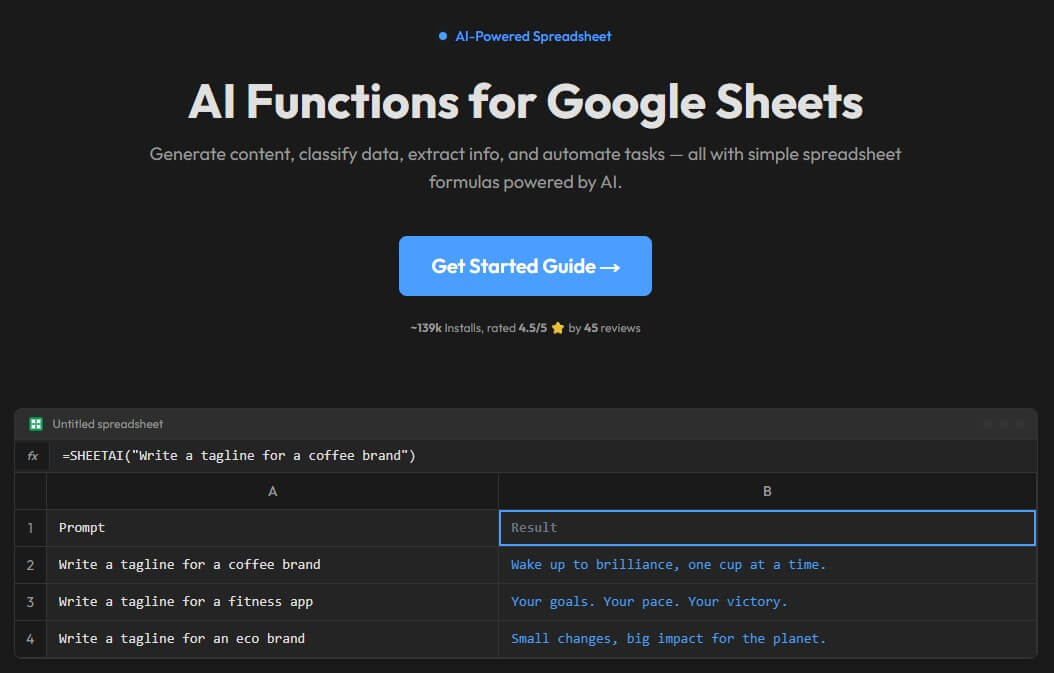
Sheet AI is best understood as an AI formula layer for Google Sheets.
You install the add-on, set it up inside Google Sheets, then use functions such as =SHEETAI(), =SHEETAI_LIST(), =SHEETAI_TABLE(), =SHEETAI_CLASSIFY(), =SHEETAI_EXTRACT(), =SHEETAI_TRANSLATE(), =SHEETAI_SUMMARIZE(), =SHEETAI_IMAGE(), =SHEETAI_API(), and more. The official function reference lists these as available SheetAI functions and shows how they work through normal spreadsheet syntax.
That matters because Sheet AI is not only a writing tool. It is more useful when your data is already arranged in rows and columns: reviews, leads, product descriptions, support tickets, content calendars, survey responses, addresses, tags, names, emails, or multilingual copy.
The product has three main layers:
| Layer | What it does | Why it matters |
|---|---|---|
| AI formulas | Runs prompts inside spreadsheet cells | Best for repeatable row-by-row work |
| Structured functions | Lists, tables, tags, classification, extraction, translation, summaries | Better than using one generic prompt for every task |
| Model and API options | Supports multiple AI providers and API-style workflows | Useful for users who want more control inside Sheets |
The setup is still a little technical. SheetAI’s own getting-started page says the workflow includes installing the add-on, setting up an API key, and then using a first formula. After setup, the everyday experience is closer to writing formulas than using a chatbot.
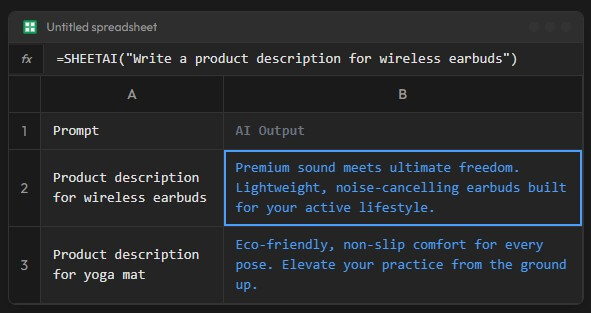
Single-cell content generation
Prompt / formula:
=SHEETAI("Write a short product description for a stainless steel insulated water bottle. Keep it under 35 words and make it suitable for an ecommerce listing.")
Why this is a good first test: This checks the basic promise of Sheet AI: write a prompt, get a usable AI response in the cell. The main SHEETAI function is designed for single-cell output and general tasks like content generation, analysis, summarization, and other prompt-based work.
Generate multiple variations
Prompt / formula:
=SHEETAI_LIST("Give me 8 short headline ideas for a productivity app for freelancers. Keep each headline under 8 words.")
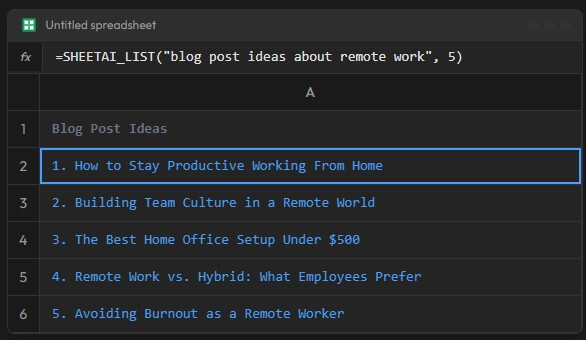
Why this matters: Lists are one of the places where Sheet AI makes more sense than a normal chatbot. Instead of asking for ideas in a separate tab and pasting them back, you can generate options directly into the sheet. SHEETAI_LIST outputs results in a column, which makes it practical for ideas, variations, and bulk copy options.
Create structured research or planning data
Prompt / formula:
=SHEETAI_TABLE("Create a content calendar for a small fitness brand with columns: Topic, Platform, Hook, Format, CTA. Give me 10 rows.")
Why this is useful: SHEETAI_TABLE is built for rows and columns, so it is better than forcing a general AI answer into a spreadsheet after the fact. The function is designed for structured data, comparison tables, datasets, content calendars, feature matrices, and similar outputs.
Classify customer feedback
Before using this prompt: Put customer feedback text in column A.
Prompt / formula:
=SHEETAI_CLASSIFY(A2, "Bug, Feature Request, Pricing Question, Complaint, Praise, Other")
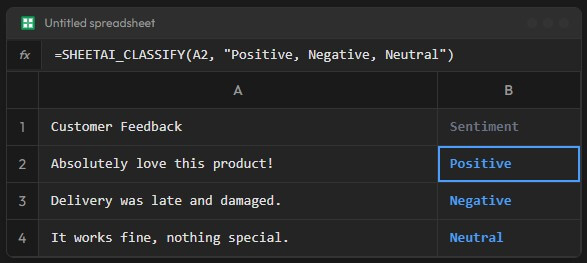
Why this matters: This is one of Sheet AI’s most practical business uses. If you have hundreds of survey comments, reviews, or support messages, classification can turn messy text into usable categories. The function is designed to return the most relevant category from a list you provide.
Pull structured data out of messy text
Before using this prompt: Put emails, notes, scraped text, or lead descriptions in column A.
Prompt / formula:
=SHEETAI_EXTRACT(A2, "email addresses, company names, phone numbers")
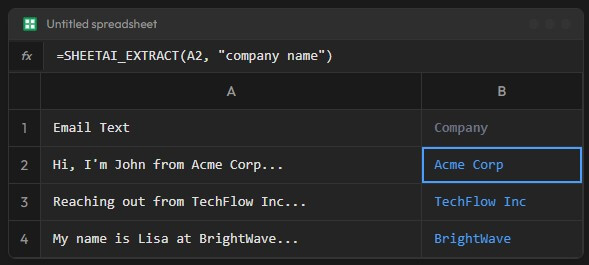
Why this is useful: Many spreadsheets contain semi-structured information: copied emails, CRM notes, customer messages, resumes, or event signups. SHEETAI_EXTRACT is designed to extract details such as emails, company names, dates, and phone numbers from text.
Clean or complete data from examples
Before using this prompt: Create a small example range showing the pattern you want, then provide incomplete rows beside it.
Prompt / formula:
=SHEETAI_FILL(A2:C5, A6:C20)
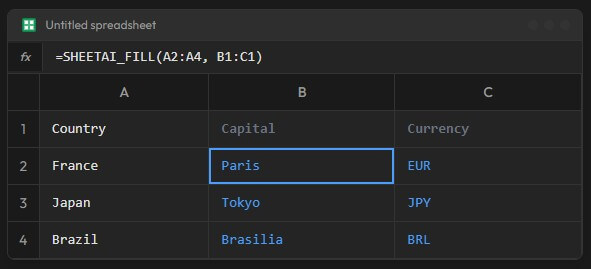
Why this is a strong spreadsheet workflow: This is useful when you want AI to learn from a few examples and complete the rest. SheetAI’s reference describes SHEETAI_FILL as a way to fill or clean a range from examples, where complete examples teach the function the pattern to apply to incomplete data.
Summarize long entries into short notes
Before using this prompt: Put long feedback, article excerpts, call notes, or support messages in column A.
Prompt / formula:
=SHEETAI_SUMMARIZE(A2)
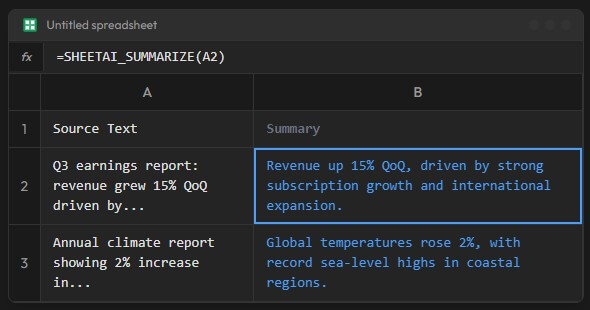
Why this belongs in the first set: Summarization is a high-frequency spreadsheet task. Product teams, support teams, researchers, and marketers often need to reduce long comments into short notes. SheetAI’s summarize function is built to distill longer text into concise summaries and key points.
Translate spreadsheet content
Before using this prompt: Put the source text in column A.
Prompt / formula:
=SHEETAI_TRANSLATE(A2, "Spanish")
Why this is useful: This works well for product descriptions, support snippets, ad copy, social posts, and customer responses. SheetAI also supports broader multilingual workflows, with its language page stating that it works with 90+ languages through the underlying AI models.
Apply multiple labels to a row
Before using this prompt: Put the text you want to tag in column A and define allowed tags.
Prompt / formula:
=SHEETAI_TAG(A2, "urgent, refund, shipping, technical issue, positive feedback, cancellation risk")
Why this matters: Tagging is slightly different from classification. Classification usually returns one category. Tagging can return several relevant labels. That makes it useful for support triage, lead scoring, review analysis, and content organization.
Bring API responses into a sheet
Prompt / formula:
=SHEETAI_API("https://api.example.com/users/1", "GET", "", "", "data.email")
Why this is more advanced: This is not the first function most users should try, but it expands what Sheet AI can do. SHEETAI_API can make HTTP calls from Google Sheets and extract values from JSON responses using paths. That makes it useful for lightweight internal tools, live dashboards, and spreadsheet workflows connected to external systems.
Sheet AI lets users run AI prompts directly in cells instead of switching between a spreadsheet and a separate chatbot.
Dedicated functions for lists, tables, classification, extraction, translation, summaries, tagging, images, and API calls make results easier to control than one generic AI formula.
SheetAI supports models from OpenAI, Anthropic, Google, xAI, and DeepSeek, with shorthand model codes available inside formulas.
The tool is strongest when you apply one prompt pattern across many rows, such as categorizing feedback or generating product copy at scale.
SHEETAI_BRAIN is designed to store and retrieve information across spreadsheets, which gives users a memory-style layer for repeated work.
SHEETAI_API and SHEETAI_PJSON make the product more useful for users who want to pull, parse, and structure external data inside Sheets.
| Need | Best function | Practical example |
|---|---|---|
| One AI answer in one cell | SHEETAI | Write a tagline, summarize a row, draft a short description |
| Multiple ideas in a column | SHEETAI_LIST | Generate headlines, benefits, keywords, questions |
| Structured rows and columns | SHEETAI_TABLE | Build comparison tables, content calendars, matrices |
| One category per row | SHEETAI_CLASSIFY | Sort feedback into issue types |
| Pull specific details from text | SHEETAI_EXTRACT | Extract emails, dates, company names |
| Translate text | SHEETAI_TRANSLATE | Localize product copy or support replies |
| Summarize long entries | SHEETAI_SUMMARIZE | Condense survey responses or notes |
| Learn from examples | SHEETAI_FILL | Clean names, normalize formats, complete missing values |
| Store reusable context | SHEETAI_BRAIN | Save project details or brand rules |
| Call external APIs | SHEETAI_API | Pull external data into a sheet |
This function separation is one of Sheet AI’s best design choices. A lot of AI spreadsheet tools treat every task as a single generic prompt. Sheet AI gives users more specific formula types, which makes the workflow easier to reason about.
Sheet AI is not locked to one model family. Its official AI model page says it supports models from OpenAI, Anthropic, Google, xAI, and DeepSeek. It also supports shorthand codes, such as "4o" for GPT-4o, "c3s" for Claude 3 Sonnet, and "g" for Gemini 2.0 Flash.
That matters for users who care about output style and task fit.
| Model layer | Better for |
|---|---|
| GPT-style models | General writing, classification, extraction, flexible row tasks |
| Claude-style models | Summaries, long text interpretation, cleaner prose |
| Gemini-style models | Google-adjacent workflows and fast spreadsheet tasks |
| Grok / DeepSeek options | Alternative model testing and comparison workflows |
The important point is not that most users need to switch models all the time. Many will not. The value is that model choice exists inside the formula, so more advanced users can tune different columns or workflows without changing tools.
Sheet AI also exposes parameters such as temperature, model, cache, token limits, and API key override in its function reference. Temperature matters because lower values are better for strict extraction or classification, while higher values can help with brainstorming or creative copy.
The everyday Sheet AI workflow is straightforward once setup is done:
- Install the add-on.
- Configure the required provider setup.
- Open Google Sheets.
- Type a SheetAI formula.
- Fill the formula down a column.
- Review and clean the output.
That sounds simple, but the first-time experience may feel more technical than a web-based AI writing tool. Users who are comfortable with spreadsheet formulas will adapt quickly. Users who mostly expect a chat window may need more time.
The real benefit appears when you stop treating Sheet AI as a one-off answer generator and start using it as a repeatable spreadsheet system. For example, a support team could paste 500 customer comments into column A, classify each comment in column B, summarize each one in column C, extract product names in column D, and tag urgency in column E. That is where Sheet AI feels useful.
The Google Workspace Marketplace listing also describes a sidebar formula generator that can convert plain-language spreadsheet requests into formulas, such as asking for an average or a conditional sum. That makes the product broader than AI text generation alone, though the AI custom functions are still the main reason to use it.
Sheet AI is strongest when the task is repetitive, text-heavy, and already organized in a spreadsheet.
It works especially well for:
- Marketing teams: Generate product descriptions, SEO snippets, social captions, ad variations, and content calendars.
- Support teams: Classify tickets, summarize complaints, tag urgency, extract emails, and group feedback themes.
- Sales teams: Clean lead lists, draft outreach snippets, score lead notes, and extract company details from messy fields.
- Researchers: Summarize survey responses, tag open-ended answers, translate entries, and organize qualitative data.
- Operations teams: Normalize data, complete missing fields from examples, generate tables, and connect lightweight API workflows.
- Small businesses: Build practical spreadsheet workflows without hiring a developer or moving data into a separate platform.
The tool is less compelling if your work is not spreadsheet-based. If you only need long-form writing, a dedicated writing assistant may feel cleaner. If you need advanced analytics, a BI tool may be better. Sheet AI’s sweet spot is the middle: practical AI work on structured rows.
Google also has AI functions in Sheets through Gemini-related Workspace features. Google’s support page says the Sheets AI function can generate text, summarize information, categorize information, analyze sentiment, and access real-time information from Google Search.
The difference is positioning.
| Tool | Stronger fit |
|---|---|
| Sheet AI | Custom AI formulas, multiple function types, multi-model use, API and JSON-style spreadsheet workflows |
| Native Google Sheets AI functions | Built-in Sheets experience, Gemini-backed table help, Google-native AI actions |
| General chatbots | Deep reasoning, long drafting, research, discussion, and flexible back-and-forth |
Sheet AI is not trying to replace every AI assistant. It is trying to make spreadsheets smarter. That narrower focus is the reason it works.
- Use the most specific function for the job. SHEETAI_CLASSIFY is better for category output than a loose SHEETAI prompt. SHEETAI_TABLE is better when the output needs rows and columns.
- Put instructions in helper cells. Instead of hardcoding every prompt, place a reusable instruction in one cell and reference it. This makes workflows easier to edit later.
- Keep classification categories tight. If your category list is messy, the results will be messy too. Use clear labels and avoid overlapping categories.
- Use lower temperature for operational tasks. Classification, extraction, tagging, and cleanup usually need consistency more than creativity.
- Leave enough empty space for list and table outputs. List and table formulas can spill into nearby cells, so crowded sheets can create friction.
- Replace finished formulas with values when you are done. SheetAI’s recalculation guide says Google Sheets can rerun custom functions when sheets reopen, cells change, rows are added, sorting happens, or the spreadsheet refreshes. SheetAI recommends replacing formulas with values once the output is final.
The setup can feel technical. Sheet AI is easy after setup, but installing an add-on and configuring provider access is still more involved than opening a normal chat app.
Outputs still need review. This is true for any AI tool, but it matters more in spreadsheets because one formula can be copied across many rows. A bad prompt can create many bad outputs quickly.
Formula recalculation can cause workflow friction. If live AI formulas remain in a sheet, changes can trigger fresh outputs. That is useful during drafting, but risky after results have been approved. SheetAI’s own docs recommend replacing completed formulas with values to lock them in.
It is not a full data platform. Sheet AI can classify, extract, summarize, and call APIs, but it does not replace a database, CRM, BI dashboard, or proper data pipeline.
Prompt quality matters. Vague prompts produce vague results. This is especially noticeable in classification, product copy, and table generation.
Some advanced functions are better for technical users. SHEETAI_API and JSON parsing are useful, but they require comfort with endpoints, headers, request bodies, and dot notation.
Sheet AI is best for people who already live in Google Sheets and want AI to work row by row, not in a separate chat window. Its strongest use cases are content generation, feedback classification, data extraction, translation, summaries, tagging, structured table creation, and lightweight spreadsheet automation.
The main caveat is that it behaves like a formula-based tool, so users need to think carefully about prompts, setup, recalculation, and review. For spreadsheet-heavy teams, that trade-off is worth it.
TAGS: Productivity
Related Tools:

Transforms screen recordings into high-quality product videos

Simplifies presentation and document creation

Automates task prioritization and management
Interact with PDF documents conversationally

Matches candidates with relevant opportunities

Offers features like advanced content generation