
Share this tool:
 |
Description:
- Introduction
- Strong Features and Capabilities
- What Screentell actually is
- Where Screentell is strongest
- Workflow and ease of use
- What the editing quality feels like in real use
- Privacy, ownership, and the local-first angle
- Where it fits against Loom and Screen Studio
- Best use cases
- Practical tips
- Limitations and trade-offs
- Final Takeaway
Screentell is not trying to be the next all-purpose async video platform. It is a browser-based screen recorder and editor aimed at one specific result: making ordinary product demos and tutorials look far more intentional, polished, and camera-directed than a raw screen capture usually does. Its core pitch is simple but distinctive: record in the browser, edit in the browser, export locally, and use cinematic motion, 3D transforms, stickers, layouts, and face-cam controls to make the final video look closer to a designed presentation than a quick internal recording.
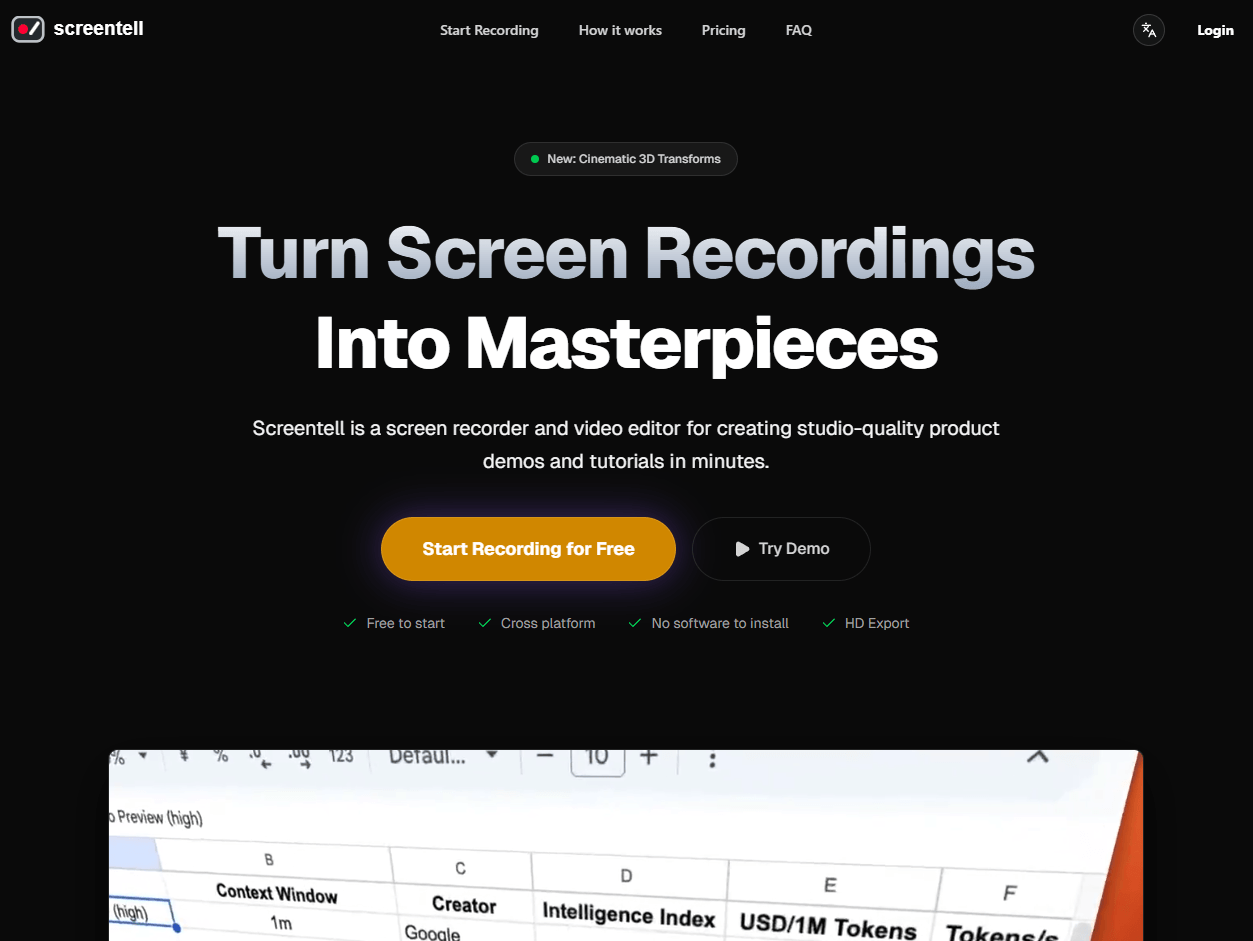
Screentell records screen and camera together, with system audio and microphone audio supported in the same workflow.
You get smooth 2D zooms plus 3D transforms for perspective, rotation, and keyframed motion.
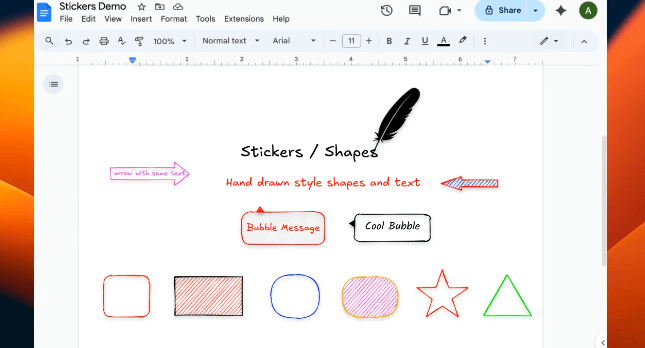
Stickers include arrows, bubbles, lines, shapes, text, and uploaded images, with control over color, borders, shadows, and roundness.
Webcam footage is treated as its own layer, so you can move, resize, reshape, or hide it after recording.
Screentell is not limited to recordings captured inside its recorder; you can upload other videos and use the same editing stack.
Recording and processing stay on-device, and the company says recordings are never uploaded to its servers.

The easiest way to understand Screentell is as a local-first recording and post-production layer for screen videos. The product records screen, camera, system audio, and microphone audio, then lets you edit with zooms, 3D transforms, annotations, cropping, clip cuts, speed changes, backgrounds, layouts, and a movable face-cam layer. It also supports importing existing videos, not just clips recorded inside the app, and exports to MP4, WebM, or GIF with control over resolution, quality, and codecs.
That matters because Screentell is less about communication speed and more about presentation quality. The public site keeps repeating the same idea in different ways: product demos, tutorials, and studio-quality results. Even the docs describe it as a “professional, web-based screen recording and editing studio,” which is a more accurate description than “simple recorder.”
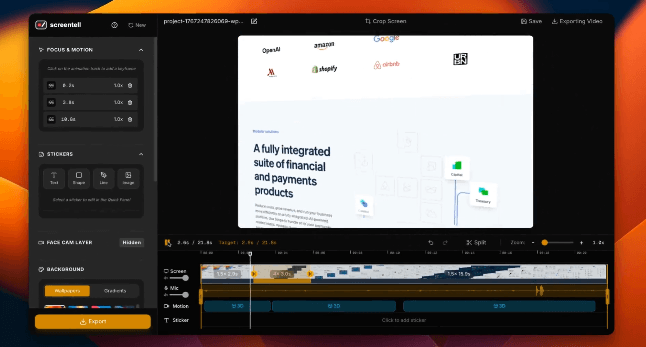
Screentell is strongest when you need to guide the viewer’s eye. Its standout feature is motion control: standard 2D focus zooms plus cinematic 3D transforms that let you add perspective, rotation, scale, and movement so the screen feels less flat. Pair that with hand-drawn-style stickers, background layouts, padding, shadows, and a face cam you can resize or move after recording, and you get something that feels noticeably more designed than the average browser recorder.
That makes it especially good for product walkthroughs, feature announcements, tutorials, onboarding clips, devrel demos, and sales-style recordings where polish affects perceived clarity. The official pages repeatedly center demos, tutorials, and social content, and that focus shows in the feature mix: visual emphasis tools are much deeper than collaboration or distribution features.
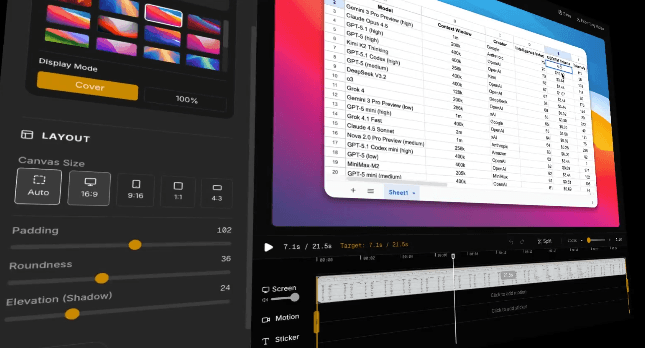
The core workflow is clean: record, edit, export. In practice, that matters more than it sounds. You select a screen, window, or tab, optionally enable camera and mic, make sure browser audio sharing is checked if you need system sound, and then record. When you stop, Screentell takes you directly into the editor, where the timeline is organized around the kinds of adjustments most people actually make on demo videos: trim the awkward start and finish, add motion where attention should shift, drop in stickers where explanation needs help, and export.
The editor looks stronger than the onboarding burden would suggest. Screentell added a guided Quick Tour in March 2026 specifically to help people discover Motion and Sticker tracks faster, and that is a clue about the product: the basics are easy, but the real value appears once you start treating it like a light editing studio rather than just a recorder. Reusable templates were also added in February 2026, which is a smart feature for teams or creators who want a repeatable visual style.
Recent updates also make the workflow more believable for longer or more serious use. The April 2026 changelog notes progressive saving during capture, recovery after browser crashes, improved timeline behavior for longer recordings, and faster preview generation. That is encouraging, and it also tells you something important: Screentell is improving quickly, but it is still actively hardening the kinds of browser-based editing problems that desktop apps have had years to solve.
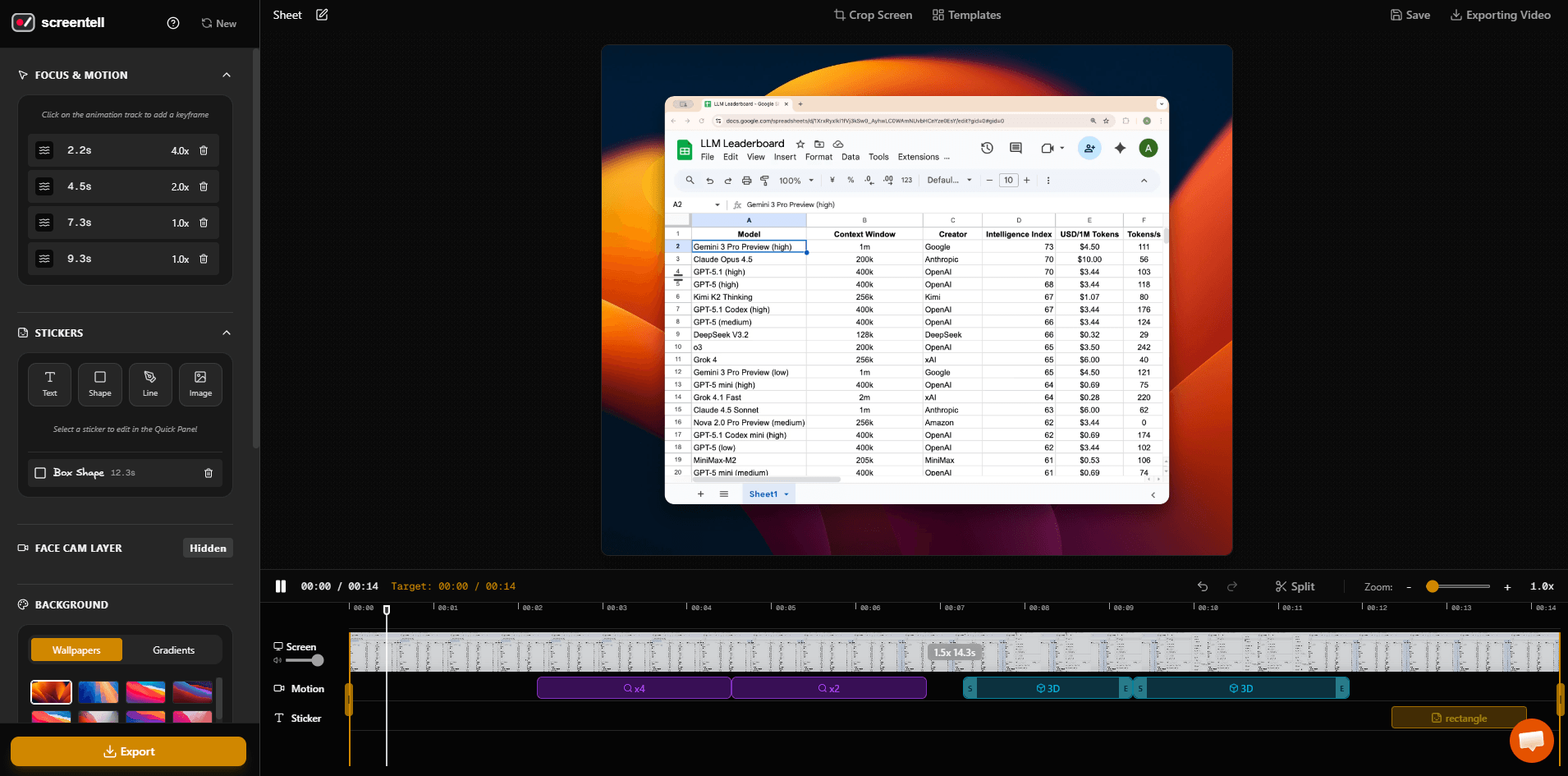
Screentell’s editing quality is less about deep filmmaking control and more about presentation leverage. It does not appear to be trying to beat a full editor on transitions, audio cleanup, or collaboration. What it does instead is give you a focused set of controls that make screen content easier to watch: zoom closer, tilt the canvas, isolate a UI region, soften the frame with padding and background, and add visual markers that feel friendlier than standard corporate callouts. That is a smart product choice, because those are exactly the changes that make product demos feel less static.
The face-cam treatment is another strong point. Many screen recorders treat webcam footage as something you decide during capture and then live with. Screentell treats it more like an editable layer. That is materially better for demos because you can reposition or hide the camera bubble later, which reduces the risk of covering important UI during recording.
The trade-off is that Screentell appears more manual than automation-heavy tools. Screen Studio, for example, leans hard on automatic zoom and automatic vertical export adjustment on macOS, while Screentell’s docs emphasize choosing motions, adjusting zoom level, and fine-tuning transforms yourself. That is not a flaw. It just means Screentell feels more like a controllable browser editor, while Screen Studio feels more like a desktop app that bakes in more automatic polish.
This is one of Screentell’s clearest differentiators. The company’s homepage, about page, privacy policy, and terms all say essentially the same thing: recordings are processed client-side in the browser and never uploaded to Screentell’s servers. The terms also say users retain 100% ownership of their recordings. For privacy-sensitive demos, internal walkthroughs, pre-release product footage, or client materials, that is a real advantage over cloud-native tools that center hosted libraries and instant sharing.
There is a nuance, though. “Privacy-first” here applies to your video content, not to the entire website being data-free. The privacy policy says the company still uses anonymous analytics and Google AdSense-related cookies for advertising. So the strong claim is specifically about your recordings staying local, not about zero tracking of any kind on the site.
The cleanest way to position Screentell is between Loom and Screen Studio, but aimed at a slightly different job than either.
Against Loom, Screentell looks better suited to polished product demos and tutorial presentation. Loom’s official product pages emphasize instant sharing, cloud video storage, comments, emoji reactions, AI-generated titles and summaries, and broader team communication workflows. Screentell’s official pages emphasize local editing, motion, annotation, and export. So if your priority is fast async communication across a team, Loom still looks stronger. If your priority is making the video itself look more designed, Screentell is the more interesting tool.
Against Screen Studio, Screentell’s advantage is accessibility and platform reach. Screen Studio is a macOS app with automatic zooming and strong native polish. Screentell runs in the browser, requires no install, supports Chrome/Edge/Brave/Arc on desktop, and keeps recordings local. So Screen Studio remains the cleaner choice for Mac users who want desktop-native automation, while Screentell is the better fit when you need cross-platform access, a no-install workflow, or stronger local-first privacy.
Screentell is a strong fit for product marketers making feature demos, founders recording walkthroughs, developer advocates creating onboarding videos, support teams building tutorial clips, and consultants or agencies who want client-facing screen videos to look more premium without opening a full editor. It is also a good fit for privacy-sensitive work, because the local-processing model reduces the usual concern of uploading internal product footage to a hosted service. And because it can import existing video, it also has value as a polish layer for footage captured elsewhere.
It is a weaker fit for teams that mainly need rapid communication, hosted libraries, comments, reactions, analytics, or link-based sharing as the center of the workflow. Public Screentell pages focus on export-to-file and local history rather than team collaboration surfaces, while Loom’s official pages make those collaboration features central. That difference is big enough that the two products should usually be thought of as adjacent, not interchangeable.
- Use the recording mode deliberately. Screentell added separate Screen only, Camera only, and Screen + camera modes in April 2026, so start with the mode that matches the final video instead of recording everything and cleaning it up later.
- Use templates early if you plan to publish recurring videos. Reusable templates are one of the easiest ways to make a demo series or changelog series look consistent without rebuilding layout and motion choices every time.
- Treat projects as local assets, not cloud documents. The docs say recordings are saved to browser local storage and automatically deleted after 30 days, so export and archive your important work instead of assuming it will behave like a permanent cloud library.
- Prefer a Chromium-based browser and decent hardware. The official docs recommend Chromium-based browsers for the best experience, and the about page highlights GPU acceleration and local transcoding, which implies performance will depend more on your machine than with a cloud-rendered tool.
- The first limitation is category fit. Screentell is great at making a screen recording look better, but it does not publicly present itself as a full collaboration platform, AI video assistant, or hosted async communication system. If that is what you need, Loom is better aligned.
- The second limitation is browser dependence. Screentell’s biggest strength is that it runs locally in the browser, but that also means the app has to work around browser APIs, local storage constraints, and machine-specific performance. The recent changelog improvements around crash recovery, long recordings, and timeline responsiveness are good signs, but they also reveal the product is still maturing in exactly those areas.
- The third limitation is project persistence and portability. Local processing is excellent for privacy, but the docs also say project history lives in browser local storage and auto-cleans after 30 days. That is a sensible design for privacy, but not ideal for teams that want a durable shared workspace or cloud asset management.
- And finally, the product still looks somewhat narrow. That focus is a strength, but it also means you should not expect broader AI features, deep collaboration tooling, or the kind of extensive media ecosystem you get from larger platforms. Screentell is best when you know you need screen-video polish specifically.
Screentell is one of the more interesting newer screen-recording tools because it solves a real gap between “quick recorder” and “full editor.” Its best features are the ones that make software demos easier to watch: smooth focus motion, cinematic 3D transforms, expressive stickers, editable face cam, and a local-first workflow that keeps recordings on your device. It is best for creators and teams making product demos, tutorials, and polished walkthroughs. The main caveat is that it is not a Loom-style collaboration platform, and its browser-based editing stack is still being actively hardened as the product matures.
TAGS: Video Editing
Related Tools:
Automates video scriptwriting, shot selection and editing

Automates captioning and video translations

Simplifies video editing and creative content production
Analyzes webpage performance

Creates cinematic AI videos and polished images

Creates short clips from longer videos