

Share this tool:
 |
Description:
- Introduction
- Strong Features and Capabilities
- What Kapwing Actually Is
- What Kapwing Does Best
- The Workflow: From Rough Content to Finished Video
- AI Generation Is Useful, But Editing Is the Bigger Advantage
- Text-Based Editing and Subtitles
- B-Roll, Audio Cleanup, and Repurposing
- Collaboration, Brand Consistency, and Team Use
- Best Use Cases for Kapwing
- Where Kapwing Falls Short
- Practical Tips for Better Results
- Comparison to Other AI Video Tools
- Final Takeaway
Kapwing is an online video creation platform that has grown from a lightweight browser editor into a broader AI-powered content workspace. Its current value is not just that it can generate videos or add subtitles. The stronger reason to use Kapwing is that it brings many repetitive video tasks into one place: scripting, AI video generation, transcript editing, subtitle creation, B-roll, audio cleanup, resizing, translation, dubbing, brand assets, and team review.
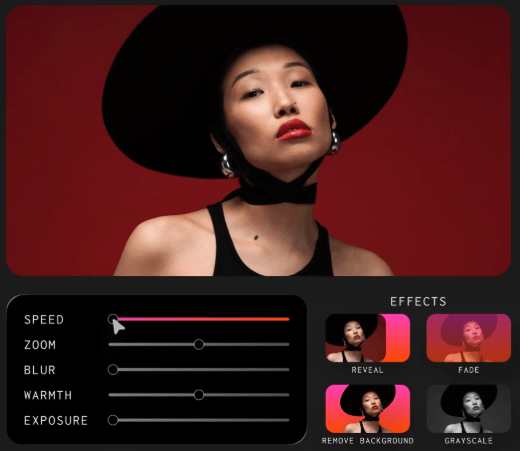
Builds and edits videos from prompts, scripts, articles, or existing footage, then lets users refine the result in a storyboard and editor.
Supports text-to-video and image-to-video workflows, with storyboard previews and access to models such as Veo, Kling, Seedance, and Sora.
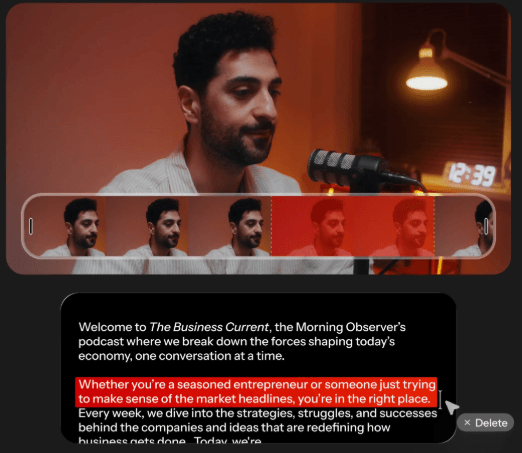
Lets users cut video by deleting words from the transcript, which is especially useful for talking-head videos, podcasts, interviews, and webinars.
Generates word-by-word subtitles with an editable transcript and export options such as hardcoded captions, SRT, VTT, and TXT.
Analyzes a transcript, identifies key moments, and automatically places relevant B-roll in the timeline.
Removes background noise, filler words, awkward pauses, and silences from audio or video recordings.
Kapwing is best understood as a browser-based video studio with AI layered into the editing process.
That distinction matters. Some AI video tools are mainly generators. You type a prompt, get a clip, and then have to move somewhere else to edit it. Kapwing is more useful when the work does not end at generation. It gives you a place to assemble, clean up, caption, resize, translate, brand, and export the finished asset.
Kapwing describes Kapwing AI as a suite of AI tools built into its online video editor, including an AI video generator, AI editor, dubbing, auto-subtitles, voiceover, lip sync, AI image generation, and more than 30 other tools running in the browser.
That makes Kapwing especially practical for creators and teams that publish often. A YouTuber can clean up a talking-head video. A social media manager can turn one long recording into shorter clips. A marketing team can add subtitles, B-roll, brand assets, and platform-specific exports. A training team can turn a webinar into a more polished internal video.
The product is not trying to be a Hollywood-level editing suite. It is trying to reduce the amount of manual, repetitive editing required to make modern web video.
Kapwing is strongest when you already have content and need to turn it into something publishable faster.
That is the product’s real lane.
A lot of creators do not struggle with having ideas. They struggle with the editing drag: cutting pauses, adding captions, finding B-roll, resizing for TikTok or YouTube Shorts, creating multiple formats, cleaning up messy audio, and making sure the final video looks consistent with the brand.
Kapwing’s AI tools aim directly at that middle part of the workflow. The platform can trim with transcript, remove filler words, generate clips, add subtitles, translate audio, create B-roll, and adapt videos for different formats without leaving the editor.
That makes it particularly good for “content multiplication.” One recording can become a full video, short clips, captioned social posts, translated versions, and branded exports. This is where Kapwing feels more useful than a single-purpose AI generator.
It also works well for teams because the editing environment is online. Kapwing positions its team product as a collaborative platform for creating, reviewing, and working together on video. Brand Kit support adds another practical layer because teams can store logos, colors, fonts, and reusable brand assets in the workspace rather than rebuilding them in every project.
Kapwing’s workflow is easiest to understand in four stages.
| Stage | What Kapwing helps with | Why it matters |
|---|---|---|
| Start | Prompt, script, article, uploaded video, or image | Flexible enough for new ideas or existing footage |
| Build | AI draft, storyboard, B-roll, voiceover, subtitles | Reduces blank-page and first-cut work |
| Edit | Timeline, transcript editing, cleanup, resizing, branding | Keeps AI output editable instead of locked |
| Publish | Export, share links, platform-specific formats | Useful for creators and teams producing often |
The best part is that Kapwing does not force every user into the same starting point.
You can begin with a prompt and generate a video. You can upload a webinar and cut it down. You can paste a script and ask Kapwing to build a draft with B-roll, voiceover, subtitles, and music. You can use the editor as a more traditional timeline tool and only bring in AI for specific tasks.
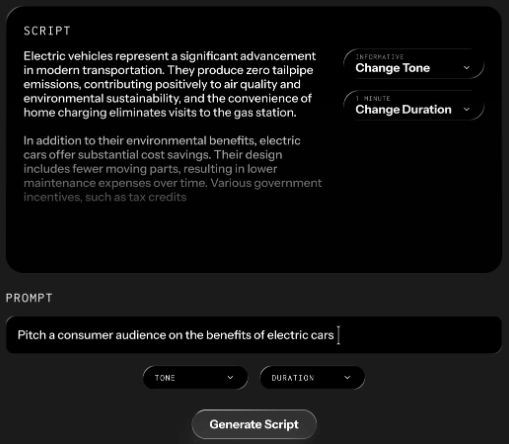
The AI Video Editor page explains that users can start with a prompt, script, article, or existing footage, then preview the result as a storyboard and iterate with the chatbot to refine scenes, visuals, and edits before export.
That storyboard-first approach is important. One of the biggest problems with AI video generation is wasted output. You prompt, generate, wait, and only then realize the scene is wrong. Kapwing’s storyboard preview gives users a chance to review the structure before committing to a more finished result.
Kapwing does offer prompt-based generation, but it should not be judged only as a text-to-video tool.
Its AI Video Generator supports text-to-video and image-to-video, and Kapwing says users can start from a text prompt, script, article, or image. The generator also includes storyboard previews and supports model choices such as Veo, Kling, Seedance, and Sora.
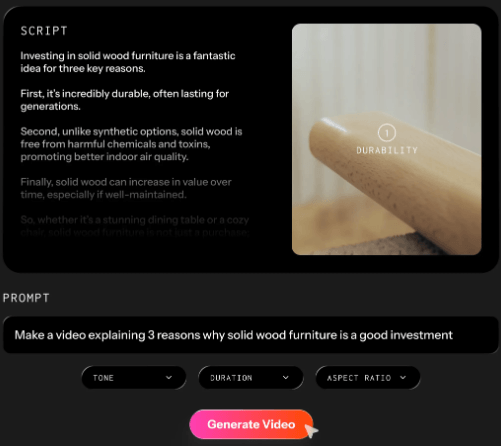
That is useful, especially for short social clips, ads, explainers, and experimental creative ideas. But Kapwing’s advantage is what happens after the video is generated.
The generated video can go directly into the timeline. From there, users can add subtitles, voiceovers, watermarks, brand assets, resized formats, B-roll, and other edits in the same platform. Kapwing states that generated videos are customizable after creation, including edits with branded backgrounds, colors, images, and logos.
This makes Kapwing better suited to practical publishing work than pure experimentation. If your only goal is cinematic AI video generation, a specialized model interface may give more direct control over generation parameters. But if your goal is to create a usable video asset and finish it quickly, Kapwing’s editing layer is the more important feature.
Text-based editing is one of Kapwing’s most practical features.
Instead of scrubbing through a timeline to find every awkward pause or unnecessary section, you can work from the transcript. Kapwing’s text-based editor lets users remove parts of a video by deleting text from the transcript, and the corresponding video section is trimmed automatically.
This is especially useful for:
- podcasts
- interviews
- webinars
- online courses
- tutorials
- talking-head YouTube videos
- internal training videos
- product demos
For these formats, the content is usually speech-first. The timeline is not the fastest way to edit. The transcript is.
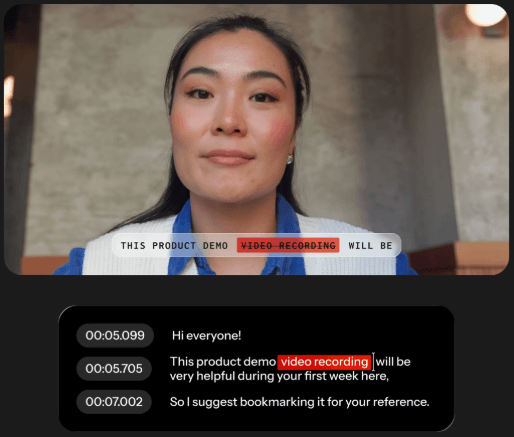
Kapwing’s subtitle tool also fits naturally into that workflow. Users can upload video or audio files, generate word-by-word subtitles, review the transcript, correct terms, adjust timing, and export captions as hardcoded subtitles or files such as SRT, VTT, or TXT. That makes Kapwing strong for accessibility and social performance. Captions are no longer optional for many platforms. People watch muted videos, scroll quickly, and expect text to carry the message. Kapwing’s subtitle workflow helps creators turn spoken content into something easier to watch in noisy, silent, or mobile-first settings.
Kapwing’s AI B-roll tool is one of the more valuable features for creators who make educational, commentary, or product content.
The tool analyzes a video transcript, identifies themes and visual moments, then matches and places B-roll automatically. Kapwing says the AI can pull from stock footage sources and can also support custom generated visuals when users need something more specific.
This is useful because B-roll is one of the most time-consuming parts of video editing. Finding the right clip, placing it at the right moment, trimming it, and syncing it with narration can take longer than the main cut. Kapwing reduces that work, especially for explainers, product videos, tutorials, reviews, and podcast clips.
The limitation is that automatic B-roll still needs review. For general topics, it can save a lot of time. For niche technical subjects, brand-specific visuals, or anything requiring exact accuracy, users should expect to swap clips, adjust placement, or add their own footage.
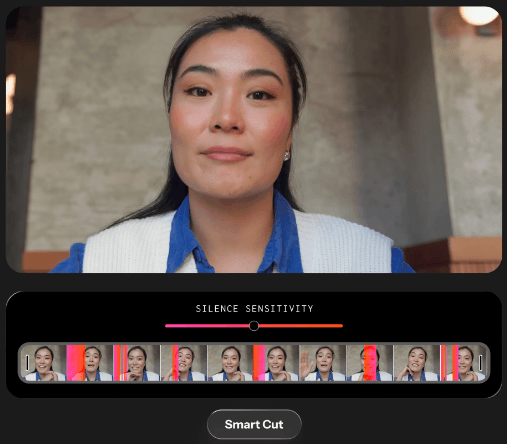
Audio cleanup is similarly practical. Kapwing’s audio editor can remove background noise, trim silences, layer music, and work directly from audio or video uploads in the browser. The Remove Filler Words tool can also remove filler words, pauses, and silences through AI commands, with further editing available in the timeline afterward.
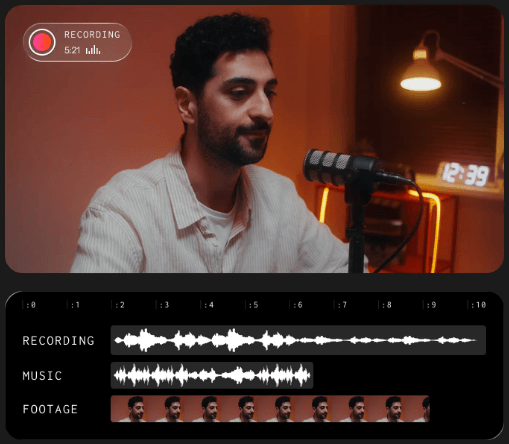
Together, these tools make Kapwing useful for creators who record often but do not want to spend hours polishing every file.
Kapwing is stronger for teams than many lightweight AI video tools because it includes workspace-based collaboration.
That matters in real production. A social video is rarely just one person generating a clip. A marketer may write the brief. A creator may record the video. A designer may care about the look. A manager may need to approve it. A localization person may need captions or translated versions.
Kapwing’s team pages position the platform around creating, reviewing, and working together on video. Its Brand Kit lets teams collect visual identity assets such as logos, colors, and fonts, with collaborators able to access the same assets inside a workspace.
This is one of the reasons Kapwing is useful for social media teams, agencies, educators, and small marketing departments. The platform reduces the number of handoffs. Instead of exporting drafts, uploading to a review tool, downloading again, and rebuilding brand elements, teams can keep more of the workflow in one browser-based workspace.
Kapwing has also added Brand Character setup through the Brand Kit, where users can define a character name and voice, including stock or custom brand voice options. That points toward a more structured brand-content workflow, especially for teams using repeatable AI presenters, mascots, or character-led formats.
- Social media repurposing: Kapwing is a strong fit for turning long videos into short, captioned, platform-ready clips. The combination of transcript editing, resizing, subtitles, B-roll, and quick exports works well for TikTok, Reels, Shorts, LinkedIn, and YouTube.
- Talking-head videos: Creators who record themselves explaining, reviewing, teaching, or reacting can use Kapwing to remove pauses, clean audio, add captions, insert B-roll, and tighten pacing.
- Podcast and interview clips: Kapwing works well for cutting long conversations into highlight clips, adding visual support, creating audiograms or video clips, and making spoken content more watchable.
- Marketing and product videos: Teams can turn scripts, product explanations, webinars, demos, or campaign ideas into edited videos with brand assets and subtitles.
- Training and education: Instructors, coaches, and internal training teams can clean up lessons, add captions, translate material, and turn dense recordings into clearer learning assets.
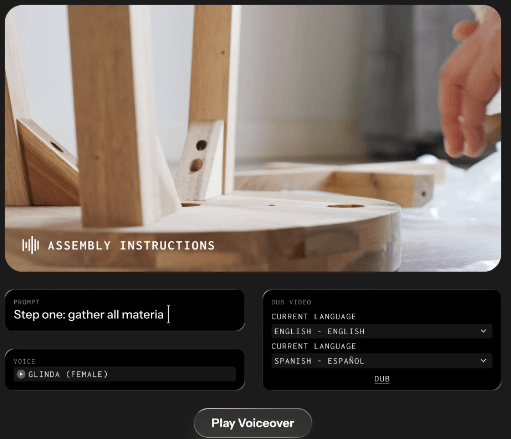
- Localization and accessibility: Kapwing’s translation and dubbing tools help make content available across languages. Its video translator supports more than 100 languages for subtitles, dubbing, and transcription workflows.
- Kapwing’s biggest limitation is that it is not a deep professional editing environment. For most web content, that is fine. For heavy cinematic editing, advanced color grading, complex motion graphics, layered sound design, or large post-production pipelines, tools like Premiere Pro, DaVinci Resolve, After Effects, or Final Cut Pro still offer more depth.
- The second limitation is that AI automation needs supervision. Auto B-roll can choose the wrong visual. Transcript edits can remove speech too aggressively if the transcript has errors. Auto-subtitles may need correction for names, technical terms, accents, or brand-specific language. AI-generated videos can still feel generic if the prompt, storyboard, or source material is vague.
- The third limitation is creative control. Kapwing gives enough control for social, marketing, education, and team content, but it is not always the best fit when every frame needs custom direction.
- The fourth limitation is browser dependence. Browser editing is convenient, but very large projects, heavy media libraries, unstable internet, or complex multi-track work may still feel better in desktop editing software.
- Start with clear source material. Good lighting, clean audio, and focused speech will improve almost every Kapwing workflow, from transcript editing to subtitle accuracy to B-roll matching.
- Use transcript editing for structure, then timeline editing for polish. The transcript is great for removing sections quickly, but the timeline is still better for timing, overlays, music, transitions, and visual refinements.
- Review all AI-generated B-roll. Treat it as a first pass, not a final editorial decision. Replace clips that are too generic, inaccurate, or off-brand.
- Build a Brand Kit before scaling content. Upload logos, fonts, colors, and commonly used assets so your team does not rebuild the same visual system every time.
- Use Kapwing for repeatable content systems. It is strongest when you have ongoing workflows: weekly podcasts, daily social clips, training modules, product updates, campaign videos, or recurring creator formats.
Kapwing sits in a useful middle ground.
Compared with pure AI video generators, Kapwing is more practical after the first output. You can generate, edit, caption, resize, brand, and export without moving between several tools.
Compared with professional desktop editors, Kapwing is easier and faster for web-first content, but less powerful for advanced post-production.
Compared with social editing apps, Kapwing feels more team-friendly because of collaboration, workspaces, Brand Kit assets, transcript tools, and browser access.
Compared with subtitle-only tools, Kapwing is broader. Captions are one piece of the workflow, not the whole product.
That positioning makes Kapwing less exciting as a single magic feature, but more useful as a daily production workspace.
Kapwing is best for creators, marketers, educators, podcasters, and teams that need to produce more video without turning every project into a full editing job.
Its strongest value is the all-in-one workflow: AI video generation, transcript editing, subtitles, B-roll, audio cleanup, resizing, branding, translation, dubbing, collaboration, and export in one browser-based editor. The AI tools are useful, but the bigger advantage is how they connect to the rest of the editing process.
The main caveat is depth. Kapwing is not a replacement for high-end professional post-production software. It is better understood as a fast, accessible, AI-assisted content studio for people who publish often and need polished web video without a heavy editing pipeline.
TAGS: Video Editing Generative Video
Related Tools:

Creates personalized video messages using voice and face cloning

Enhances video quality and converts text to video

AI tool for video creation and script generation

Offers email and SMS marketing tools

Offers advanced keyword analysis
Creates short-form videos from texts