

Share this tool:
 |
Description:
AirCaption is a desktop AI transcription and captioning app for creators, editors, podcasters, researchers, course creators, and professionals who want to generate captions without uploading media to a cloud service. Its main value is simple but important: it transcribes audio and video locally, lets you edit caption text and timing, then exports SRT, VTT, TXT, or video files from your own machine.
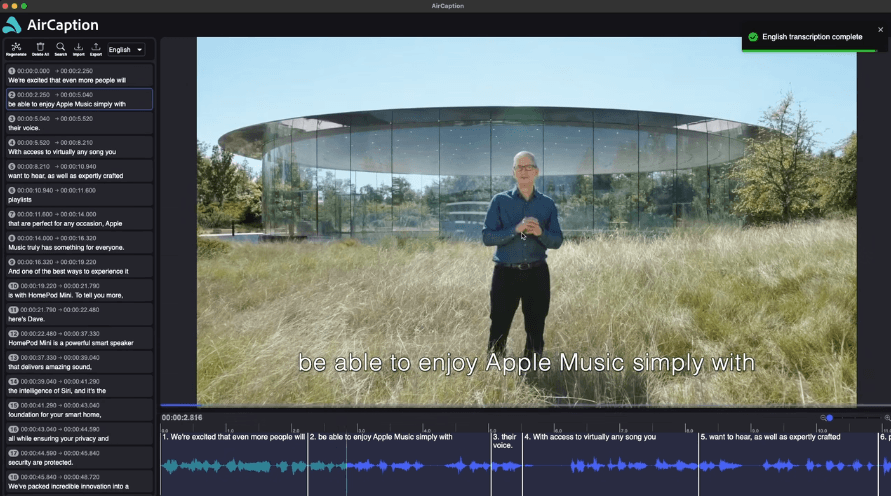
AirCaption runs locally on Mac and Windows, with no internet required for transcription.
Users can review and edit caption text and timing inside the app before export.
AirCaption exports captions as SRT, VTT, text, or video files.
Users can import and edit existing SRT and VTT files instead of starting every project from raw audio or video.
The Essentials plan includes finding keywords within audio and video, which is useful for editors and researchers searching through longer files.
The Pro plan adds multiple-file transcription queue support for users processing larger media libraries.
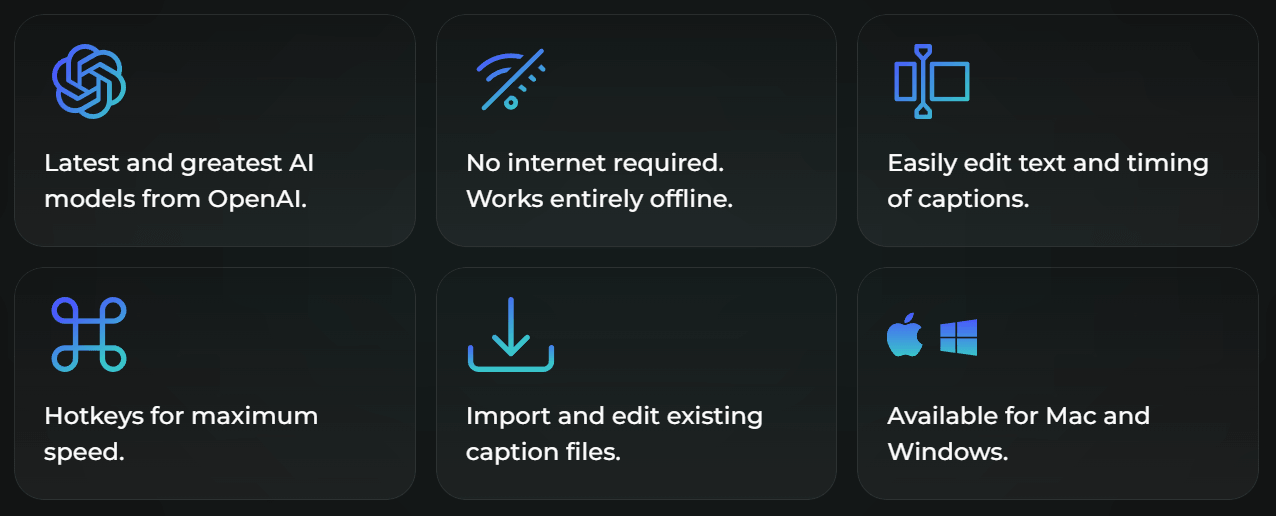
AirCaption is a Mac and Windows application for turning audio and video into captions, subtitles, and transcripts. The core workflow is built around three steps: generate AI captions, review and edit the result, then export a caption file. That makes it much more focused than broad video editors or full localization platforms. It is not trying to be a dubbing suite, a social-video generator, or a meeting bot. It is trying to be a fast local captioning tool.
The biggest distinction is that AirCaption runs offline. The official site says no internet is required, the app works entirely offline, and your media and captions never leave your computer. That gives it a very different profile from browser-based subtitle tools, where files are usually uploaded to a server before transcription begins.
That local-first approach makes AirCaption especially useful for users who handle sensitive recordings, large media files, or recurring captioning work. You do not have to wait on upload speed, worry about cloud transcription limits, or send raw client footage to another platform just to get a subtitle file.
AirCaption is strongest when you already have audio or video files and need reliable captions quickly. The homepage positions it around transcribing audio and video, editing text and timing, importing existing caption files, and exporting in common formats. That makes it a practical tool for people who care less about flashy AI features and more about getting usable caption files out of local media.
Its second strength is privacy. Since AirCaption processes files locally, it is a better fit for interviews, legal recordings, client footage, internal training videos, research audio, and unpublished podcast/video material than many cloud-only caption tools. The software license does say the app may collect usage information and send that to AirCaption, but the product page’s media-processing claim is still clear: media and captions stay on the user’s computer.
Its third strength is editing speed. AirCaption supports text and timing edits, hotkeys, keyword search inside audio/video, and import/edit workflows for existing caption files. Those features matter because AI captioning is rarely a final output on the first pass. The difference between a useful subtitle tool and a frustrating one is often how quickly you can fix names, timing, punctuation, line breaks, and awkward caption chunks.
AirCaption’s workflow is simple in the right way. You open the desktop app, load an audio or video file, generate AI captions, review the transcript, adjust text and timing, then export the final file. That makes it approachable for non-technical users while still being practical for editors who need repeatable caption output.
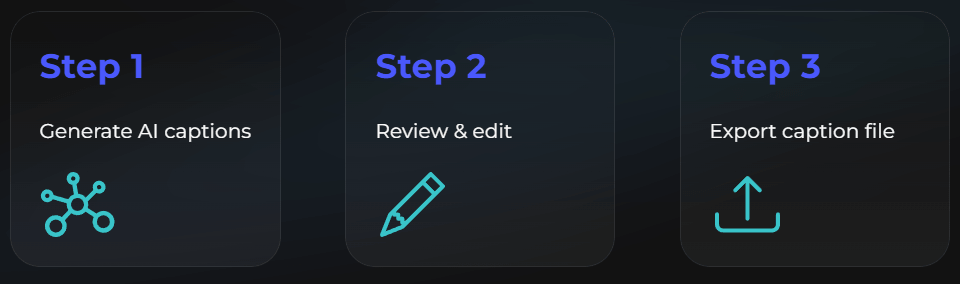
The editing layer is important. AirCaption is not only a “generate transcript” tool. It is built around correction. You can edit text, adjust timing, use hotkeys, import caption files, and export final subtitle formats. That gives it a more complete caption workflow than a raw speech-to-text converter that only gives you a block of text.
The offline design also changes the workflow. With cloud subtitle tools, large videos can be annoying because upload time becomes part of the job. AirCaption’s homepage directly says to “say goodbye to slow uploads and transcription limits,” which is exactly the kind of friction local processing removes.
The main setup consideration is device compatibility. The latest release listed on the official download page is 2.0.17, with separate downloads for Mac Apple Silicon, Mac Intel, and Windows. Mac Apple Silicon requires macOS 11.00+, Mac Intel requires macOS 10.15+, and Windows support is listed as Windows 7+.
AirCaption’s quality depends on the model tier and your computer. The homepage says it uses the latest AI models from OpenAI, while the pricing page splits model access between Essentials and Pro. Essentials includes unlimited AI transcription and caption generation, while Pro adds medium and large AI models for users who need higher accuracy.
That plan split matters. The free Essentials plan is unusually useful because it includes unlimited AI transcription, editing, exports, offline use, keyword search, and caption generation in up to 60 languages. Pro is not about removing basic limits; it is mainly about better model access and queueing multiple files.
The practical trade-off is speed versus accuracy. Larger speech models generally produce better transcripts, especially with accents, noisy audio, specialized vocabulary, and more complex speech. But on a local machine, larger models also demand more compute and may take longer. AirCaption does not publish detailed benchmark speeds on the pages reviewed, so users should test it on their own hardware before assuming large-model transcription will be fast enough for high-volume work.
There is also a small language-count inconsistency to note. The homepage says AirCaption can subtitle video in up to 67 languages, while the pricing page says Essentials can generate captions in up to 60 languages. The safest reading is that AirCaption supports broad multilingual captioning, but buyers should verify the exact language they need inside the current app before committing to a workflow.
- Video editors: AirCaption is a strong fit for editors who need to transcribe raw footage, search through media, subtitle final cuts, and export standard subtitle formats. The official site specifically calls out video editors for transcribing raw footage and accurately subtitling finished videos.
- Podcasters: Podcasters can use AirCaption to turn episodes into transcripts, blog-post source material, or audience captions. The product page directly lists podcast transcription as a use case.
- Course creators and educators: AirCaption is useful for adding captions to lessons, recorded lectures, training content, and course videos, especially when users want local processing instead of uploading educational material to a cloud tool.
- Researchers and journalists: Interviews, press briefings, research recordings, and field audio benefit from local transcription plus keyword search. AirCaption’s homepage explicitly lists researchers and journalists as target users.
- Legal and sensitive workflows: The product page lists legal professionals as a use case for depositions, court hearings, and legal proceedings. Because media processing is local, AirCaption is more attractive than cloud-only tools for sensitive recordings, though legal users should still review the license and data-collection language carefully.
- Start with Essentials before paying. The free plan includes unlimited transcription, editing, offline use, exports, and keyword search, so it is enough to test whether AirCaption fits your normal files and hardware.
- Upgrade to Pro for difficult audio. If your files include background noise, accents, poor microphones, multiple speakers, or specialized vocabulary, the medium and large AI models may be worth the subscription.
- Use AirCaption for privacy-sensitive transcription. If you are working with unpublished client footage, interviews, internal company recordings, or legal/media material, local processing is the main reason to choose AirCaption over cloud captioning tools.
- Import existing SRT or VTT files when you only need cleanup. AirCaption is not just for generating new captions; it can also edit existing caption files, which is useful when you receive imperfect subtitles from another source.
- Use the queue for folder-style work. Pro’s multiple-file queue is the better fit when you have a batch of lectures, podcast episodes, interviews, or event recordings to transcribe.
- The biggest limitation is that AirCaption is not a full video localization platform. It handles transcription, captions, editing, and exports, but it does not appear to offer dubbing, voice cloning, lip-sync, human review, glossary enforcement, collaborative translation review, or advanced team workflows on the official pages reviewed. For subtitle-first work, that is fine. For full multilingual video localization, a broader tool may be better.
- The second trade-off is local hardware dependence. Offline processing is great for privacy and upload-free workflow, but performance will depend on your machine. Users with older laptops or large files may need to test transcription speed before relying on AirCaption for urgent production work. The official download page supports older systems, including Windows 7+ and Intel Macs on macOS 10.15+, but support does not necessarily mean every model will run equally fast.
- The third limitation is Windows trust friction. The official download page says Windows users may need to click “run anyway” on a security error and that code signing for Windows is coming soon. That is not unusual for smaller desktop apps, but it can matter for teams with IT policies or users who are cautious about unsigned installers.
- The fourth limitation is language clarity. AirCaption’s homepage says up to 67 languages, while the pricing page says up to 60 languages in Essentials. This is not a major problem, but users with specific language needs should verify support directly in the app.
- The fifth trade-off is that “privacy first” does not mean zero data collection. The license says the software may collect information about the user and software usage and send it to AirCaption. That appears separate from media processing, but privacy-sensitive organizations should still read the license carefully.
AirCaption is one of the more practical subtitle tools for users who want local AI transcription instead of another cloud upload workflow. Its best strengths are offline processing, unlimited free transcription in Essentials, editable caption timing, SRT/VTT/TXT/video exports, existing subtitle import, keyword search, and Pro access to larger AI models.
It is best for video editors, podcasters, course creators, researchers, journalists, and professionals who need private, repeatable captioning on Mac or Windows. The main caveat is that AirCaption is focused on transcription and subtitles, not full localization production, and its performance will depend on your local machine.
TAGS: Speech to Text
Related Tools:

Capture, organize, and retrieve thoughts and discoveries
Converts speech into text and organizes ideas

Transforms voice recordings into organized notes
Enables real-time video dubbing

Transcribes and summarizes voice notes

Accurately converts spoken language into written text