
Share this tool:
 |
Description:
Perplexity Comet is an AI browser built around one idea: your browser should not only show web pages, it should help you understand and act on them. It combines normal browsing with Perplexity’s answer engine, page-aware assistance, tab summarization, and task delegation. It is not just a search box with AI added on top. The main value is that Comet can work across what you are viewing, compare sources, summarize pages, help draft replies, and handle some browser tasks with you still in control.
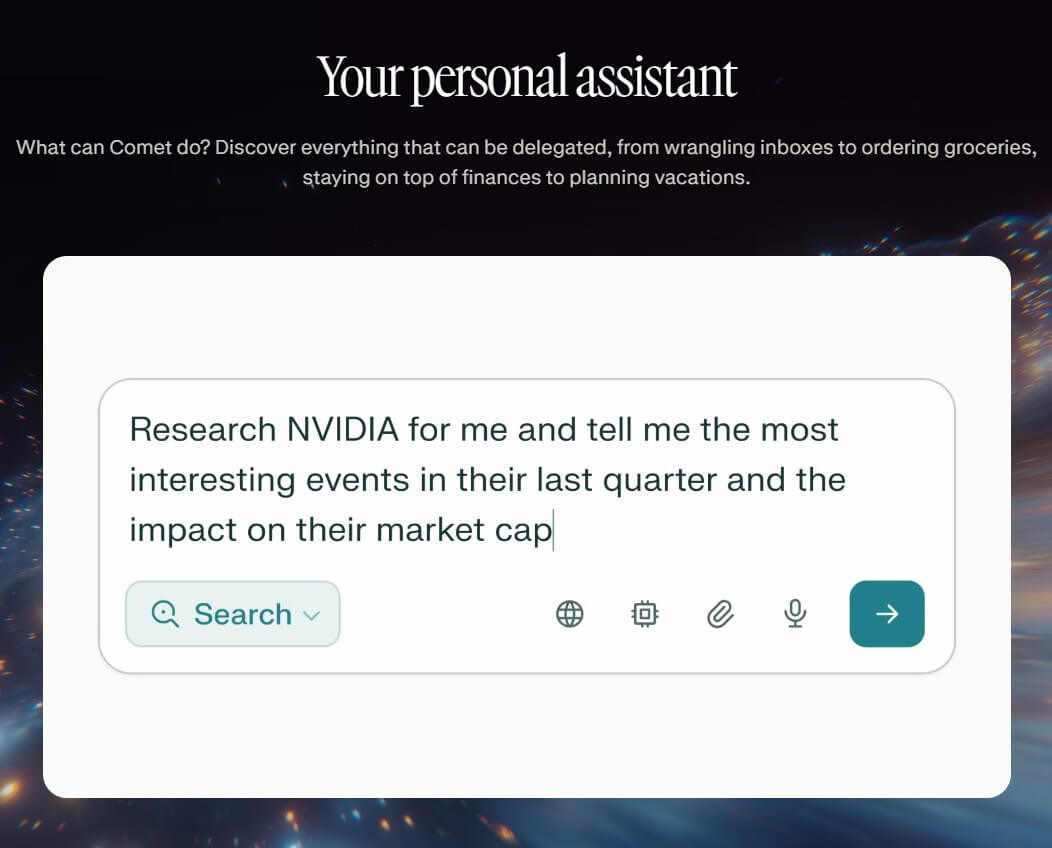
These prompts work best when Comet has real browser context: open tabs, product pages, emails, articles, PDFs, or search results. For each demo, set up the browser first, then run the prompt in Comet Assistant.
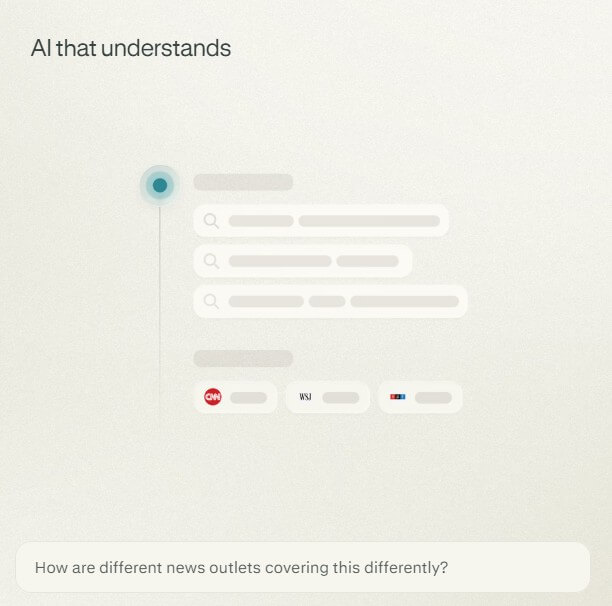
What to do before the demo: Open three news articles about the same current story in separate Comet tabs. Choose sources with different editorial angles if possible, such as a major newspaper, a business outlet, and a local or international source.
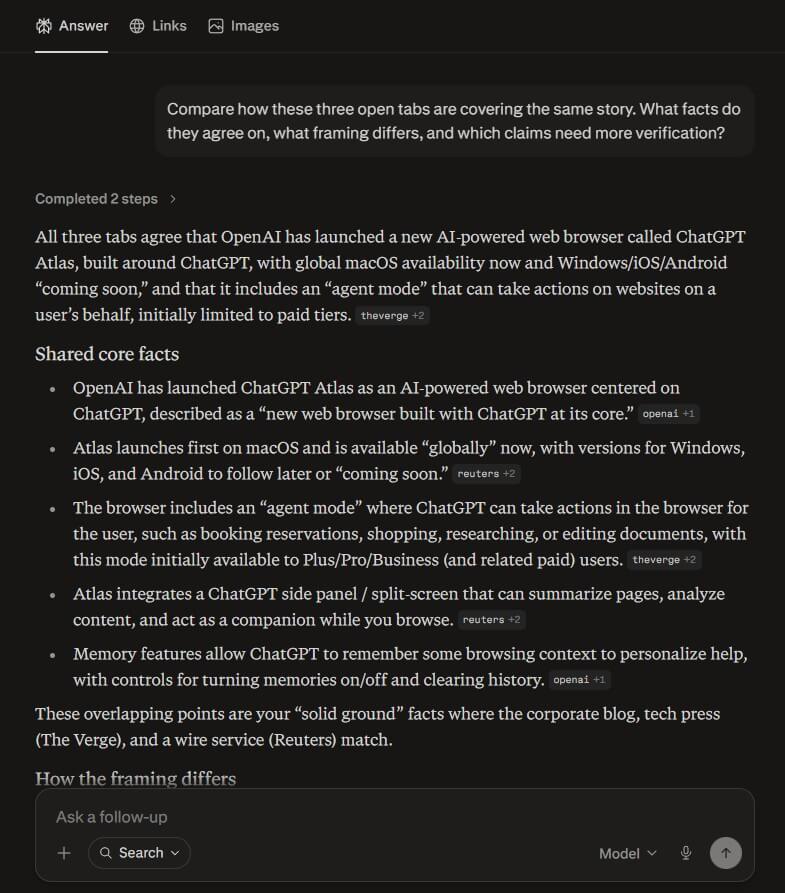
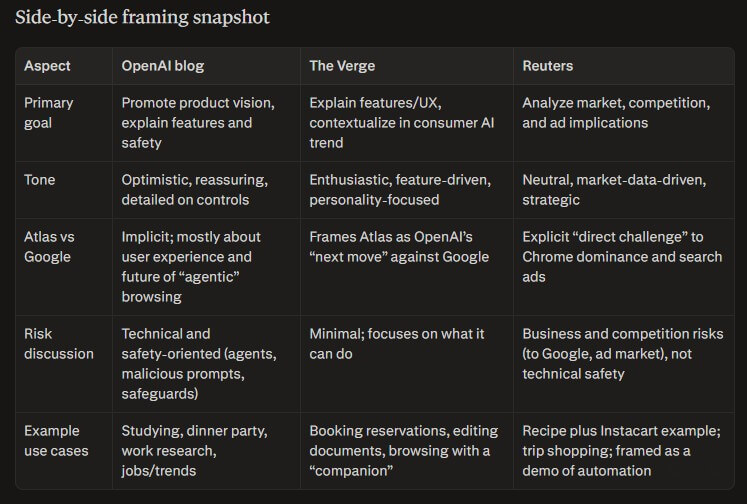
“Compare how these three open tabs are covering the same story. What facts do they agree on, what framing differs, and which claims need more verification?”
This demo shows how Comet can work across open tabs instead of treating each page as an isolated source. It should help the reader see shared facts, differences in emphasis, and areas where more checking is needed.
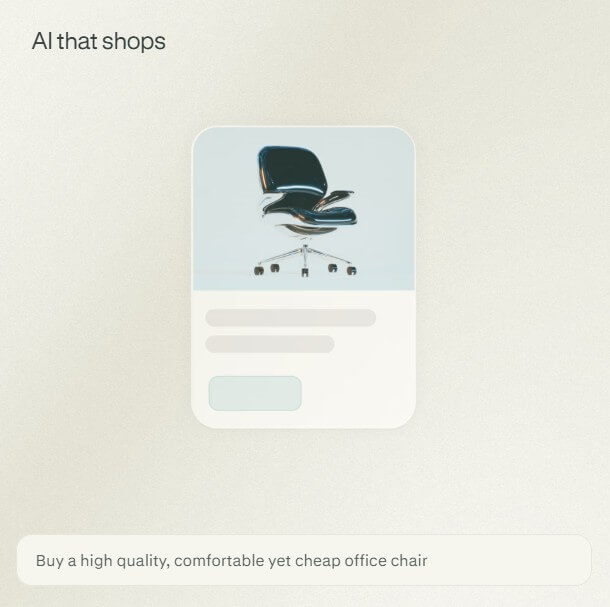
What to do before the demo: Open several product pages, review pages, or comparison articles in different tabs. For example, open three laptop product pages and two review articles.
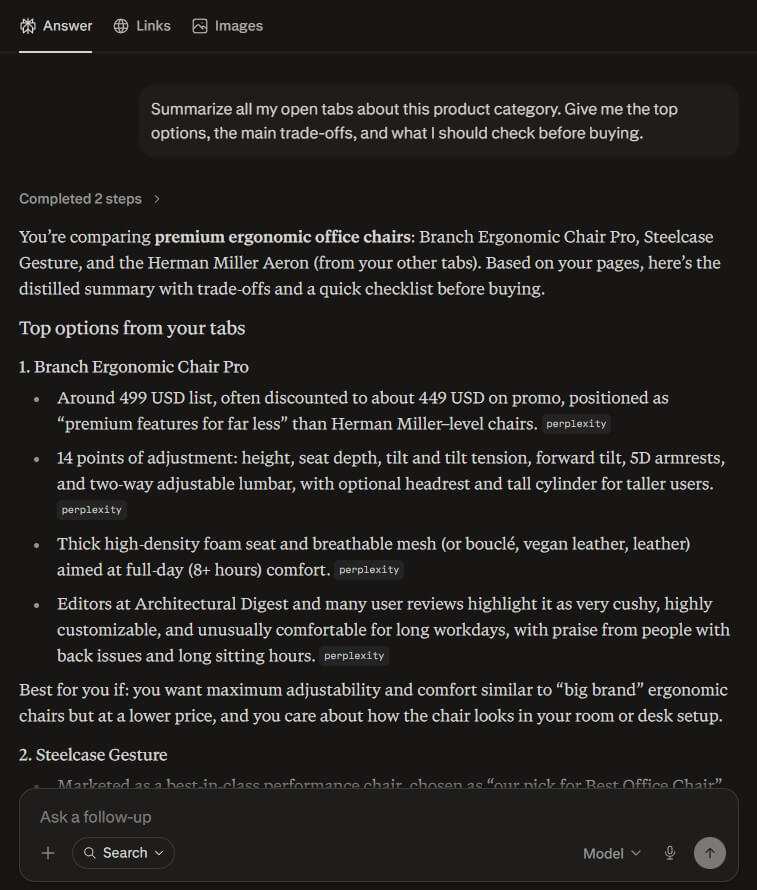
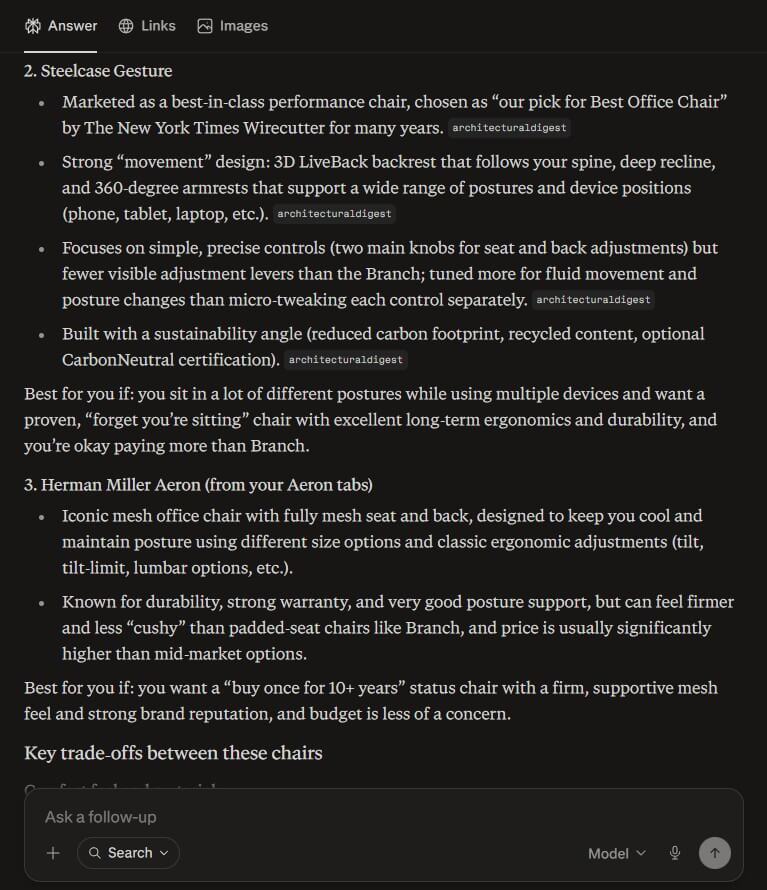
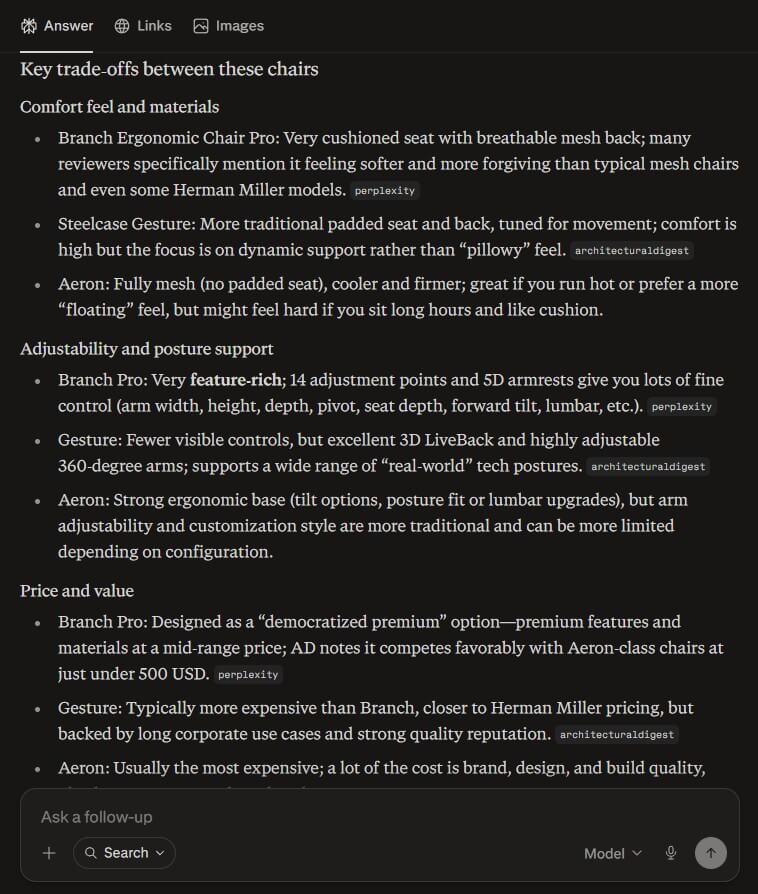
“Summarize all my open tabs about this product category. Give me the top options, the main trade-offs, and what I should check before buying.”
This is a practical shopping or research workflow. It shows how Comet can reduce tab overload by turning scattered pages into a usable buying summary.
What to do before the demo: Start from a blank Comet tab or from Perplexity search inside Comet. You do not need to open sources first, but it helps to specify the kind of sources you want.
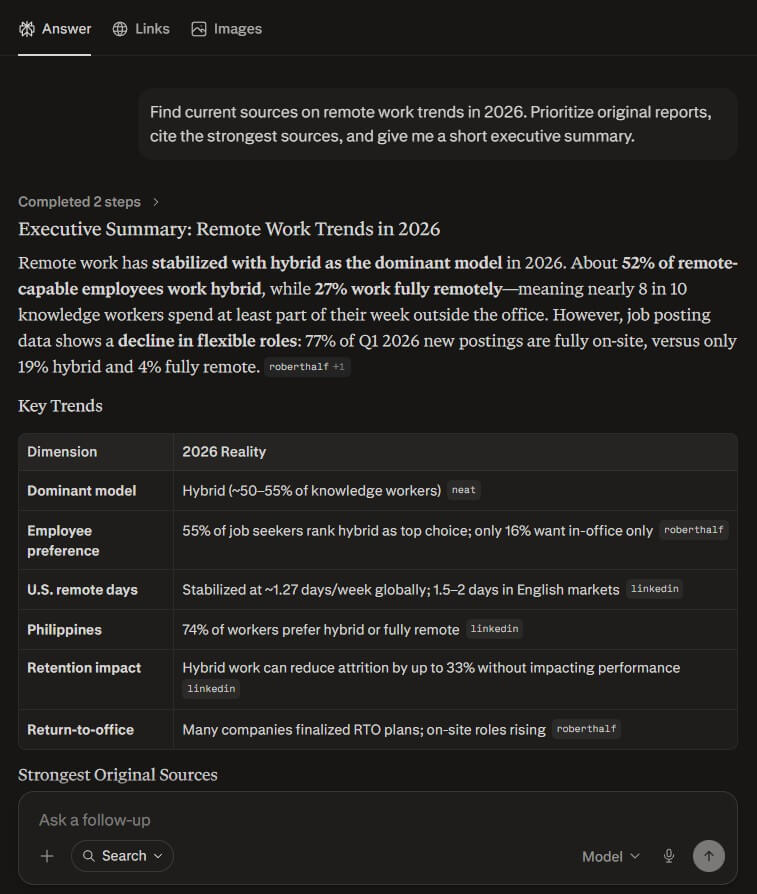
“Find current sources on remote work trends in 2026. Prioritize original reports, cite the strongest sources, and give me a short executive summary.”
This demonstrates Comet as a research assistant, not just a page summarizer. It should search the web, prioritize stronger sources, and return a sourced summary that can be used as a starting point for a brief or article.
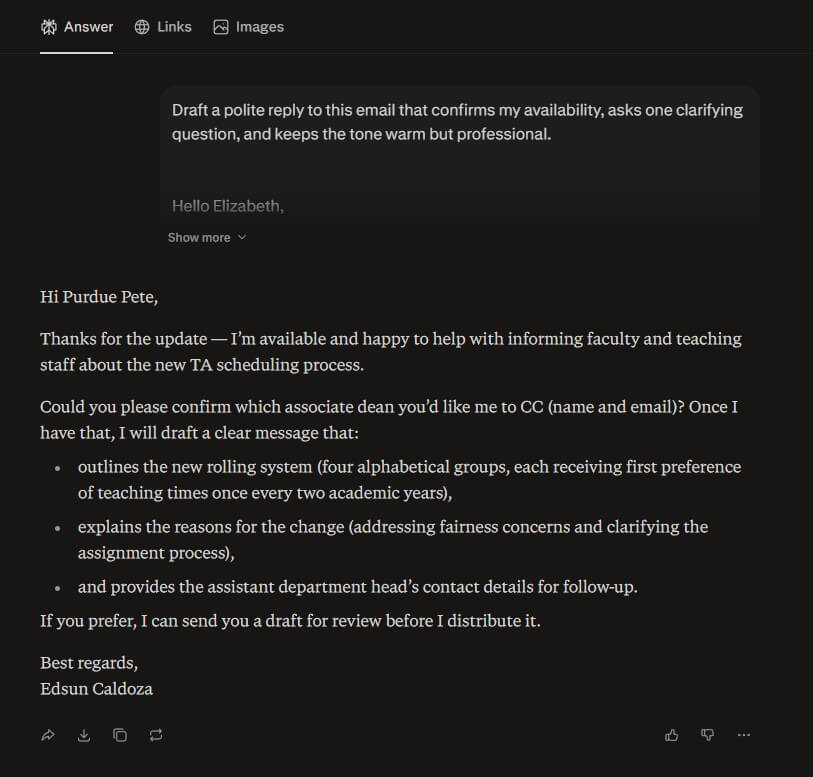
What to do before the demo: Open an email thread in your webmail client, such as Gmail or Outlook in the browser. Choose a message that needs a reply. Do not use private or sensitive email for a public demo unless you redact it.
“Draft a polite reply to this email that confirms my availability, asks one clarifying question, and keeps the tone warm but professional.”
This shows how Comet can use the page you are viewing to help with writing. The best demo is a realistic email where the assistant has enough context to draft a useful response.
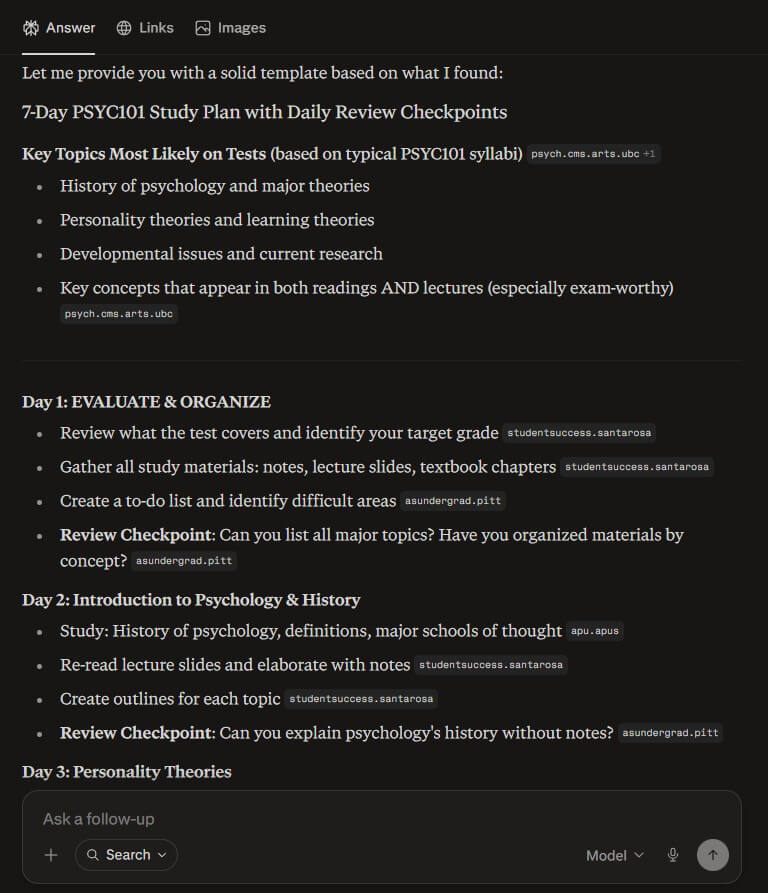
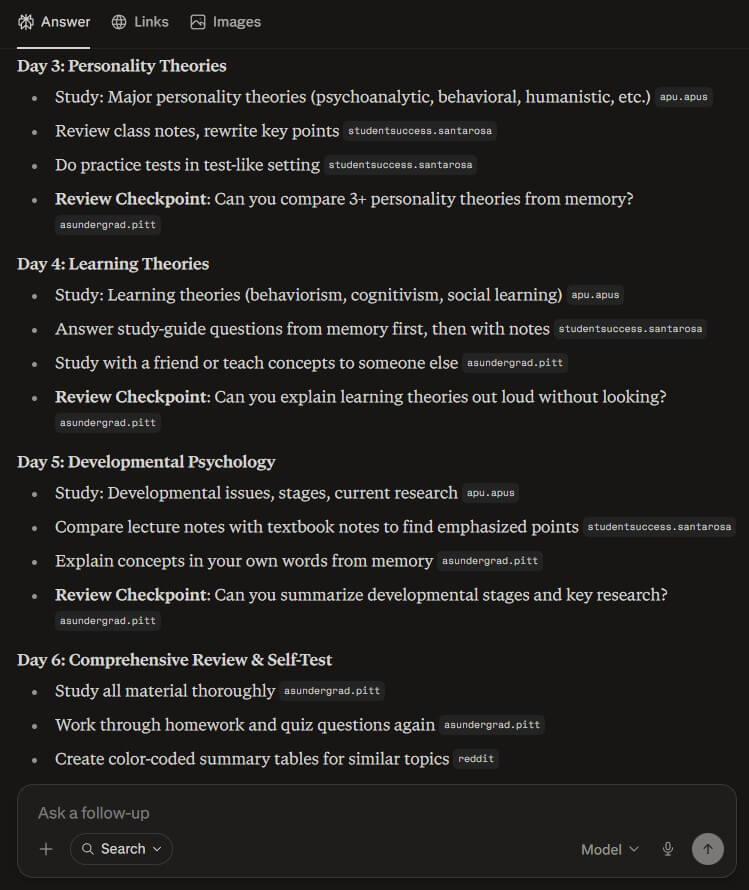
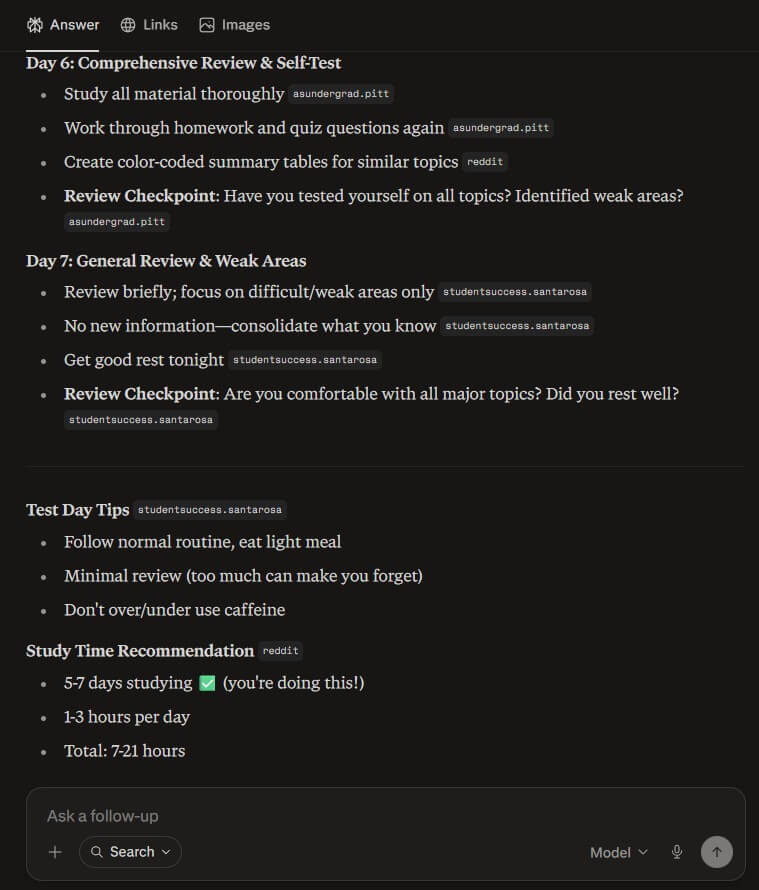
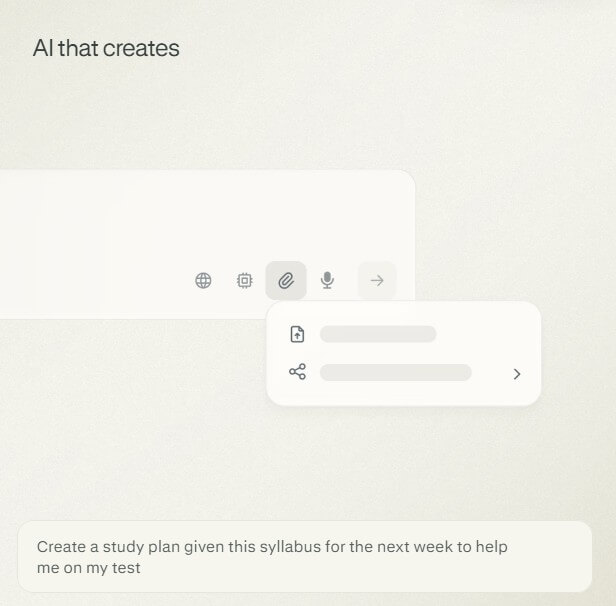
What to do before the demo: Open a syllabus, course page, reading list, or PDF in Comet. The page should include topics, dates, chapters, assignments, or exam information.
“Create a 7-day study plan from this syllabus. Focus on the topics most likely to appear on the test, and include daily review checkpoints.”
This is a strong education demo because Comet can turn static course material into an action plan. It shows summarization, organization, and planning in one workflow.
Comet is Perplexity’s AI-native browser. It keeps the familiar browser frame, but adds an assistant that can answer questions, understand pages, work across tabs, summarize content, and take actions you assign. Perplexity describes it as a personal assistant for tasks such as research, organizing email, ordering groceries, staying on top of finances, and planning vacations.
That makes Comet different from using Perplexity in a normal browser tab. With regular AI search, you ask a question and get an answer. With Comet, the question can be tied to your current browsing session. It can look at what you are reading, compare what is open, help with the page in front of you, and reduce the copy-paste loop that normally happens between search, tabs, notes, and email.
| Feature | What it means in use |
|---|---|
| AI browser assistant | Ask questions while browsing instead of opening a separate AI tab. |
| Cross-tab understanding | Summarize and compare information across multiple open tabs. |
| Page summarization | Get quick summaries of long articles, documents, listings, or search results. |
| Action support | Assign tasks such as drafting replies, comparing options, or finding sources. |
| Shortcuts | Use quick actions such as /tldr for page summaries and /cite for citations. |
| Mobile support | Comet is available across desktop and mobile platforms, with Android listing voice mode, tab chat, smart summaries, and ad blocking. |
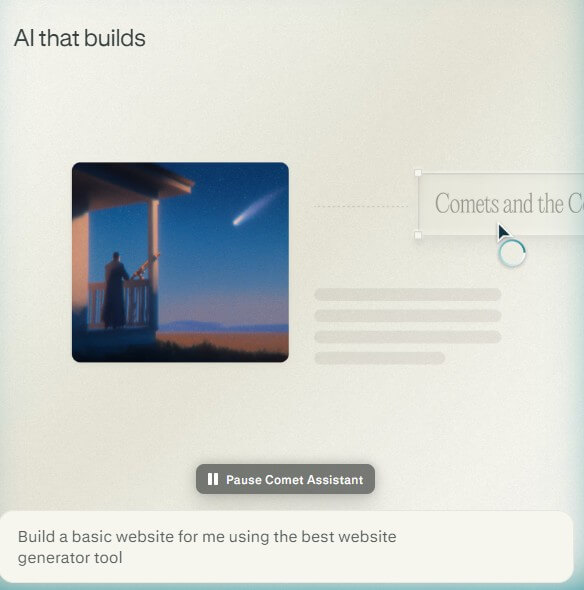
Comet is most useful for messy, multi-tab work. That includes research, comparison shopping, trip planning, job searching, studying, and inbox triage. A normal browser lets you open ten pages. Comet helps explain what those ten pages mean together.
The browser is also a natural fit for Perplexity’s citation-driven search style. The regular Perplexity app is positioned around accurate, current answers backed by sources, with follow-up questions and library-style organization. Comet brings that habit into the browsing layer rather than keeping it in a separate search product.
The best use case is not “ask Comet anything.” It is more specific: ask Comet about what you are already doing online. That is where it feels less like a chatbot and more like a working assistant.
The workflow is simple enough: browse normally, then ask Comet to help when the page, tabs, or task become too much to manage by hand. For quick reading, ask for a summary. For research, ask it to compare tabs. For writing, ask it to draft or rewrite based on the visible context. For search, ask a direct question and follow up until the answer is useful.
The shortcuts are a practical touch. /tldr is useful for long pages. /cite is useful for students, researchers, and writers who need citation formats quickly. Perplexity also lists shortcuts for adding class times, ordering textbooks, and analyzing job descriptions against a LinkedIn profile, which shows how Comet is trying to move beyond search into task workflows.
Research and source comparison: Ask Comet to compare open tabs, separate fact from opinion, and identify stronger sources.
Shopping decisions: Use it to compare reviews, specs, warranty terms, and red flags across product pages.
Email and calendar-adjacent work: Ask it to draft replies, summarize message threads, or pull practical next steps from a page.
Studying: Turn syllabi, articles, and course pages into study plans, flashcard outlines, or weekly review schedules.
Work browsing: Summarize competitor pages, analyze product launches, collect market notes, and turn scattered tabs into a brief.
Comet still needs user judgment. AI browsers can act on web content, and Perplexity’s own safety guidance says users should use common sense, review Comet actions, stop the agent if behavior seems wrong, and avoid suspicious content that may try to manipulate requests.
The second limitation is trust. Comet can summarize and compare, but it can still miss context, overvalue weak sources, or produce a neat answer from messy information. Users should check citations and original pages before relying on it for work, finance, legal, health, or academic claims.
The third trade-off is that task delegation is only useful when the task is well-scoped. “Research competitors and tell me what matters” is too broad. “Compare these five competitor pricing pages and list differences in positioning, features, and onboarding” is much better.
- Use Comet with open tabs. It becomes more useful when it has a concrete browsing context.
- Ask for comparisons, not just summaries. “What changed?” and “What do these sources disagree on?” often produce better insight.
- Tell it your decision criteria. For shopping, say what matters: durability, warranty, price range, portability, privacy, or ease of use.
- Use shortcuts for repeat tasks. /tldr and /cite are small features, but they reduce friction when used often.
- Review actions before confirming them. This matters most for email, purchases, forms, accounts, and anything involving personal data.
Perplexity Comet is best for people who already use AI search while browsing and want that help built into the browser itself. Its strongest value is not replacing normal browsing; it is reducing the friction around reading, comparing, summarizing, researching, and acting across tabs. Researchers, students, shoppers, writers, analysts, and busy knowledge workers will get the most from it. The main caveat is that Comet’s assistant features are only as safe and useful as the task, sources, and user review process around them.
TAGS: Productivity Search Engines
Related Tools:

AI search engine for research

Transforms screen recordings into high-quality product videos

Streamlines project coordination and automates invoicing
AI tool that automates scheduling
Automatically tracks tasks and facilitates goal setting
Automates chat interactions with customizable chatbots