

Share this tool:
 |
Description:
Acoust is not just a text-to-speech site anymore. The current product spans voice generation, voice cloning, translation, transcription, subtitles, a browser editor, and an AI clips workflow for turning longer videos into short social content. The reason that matters is simple: Acoust is most useful when you want to move from script to finished audio, or from long video to short clip, without hopping across three or four separate tools.
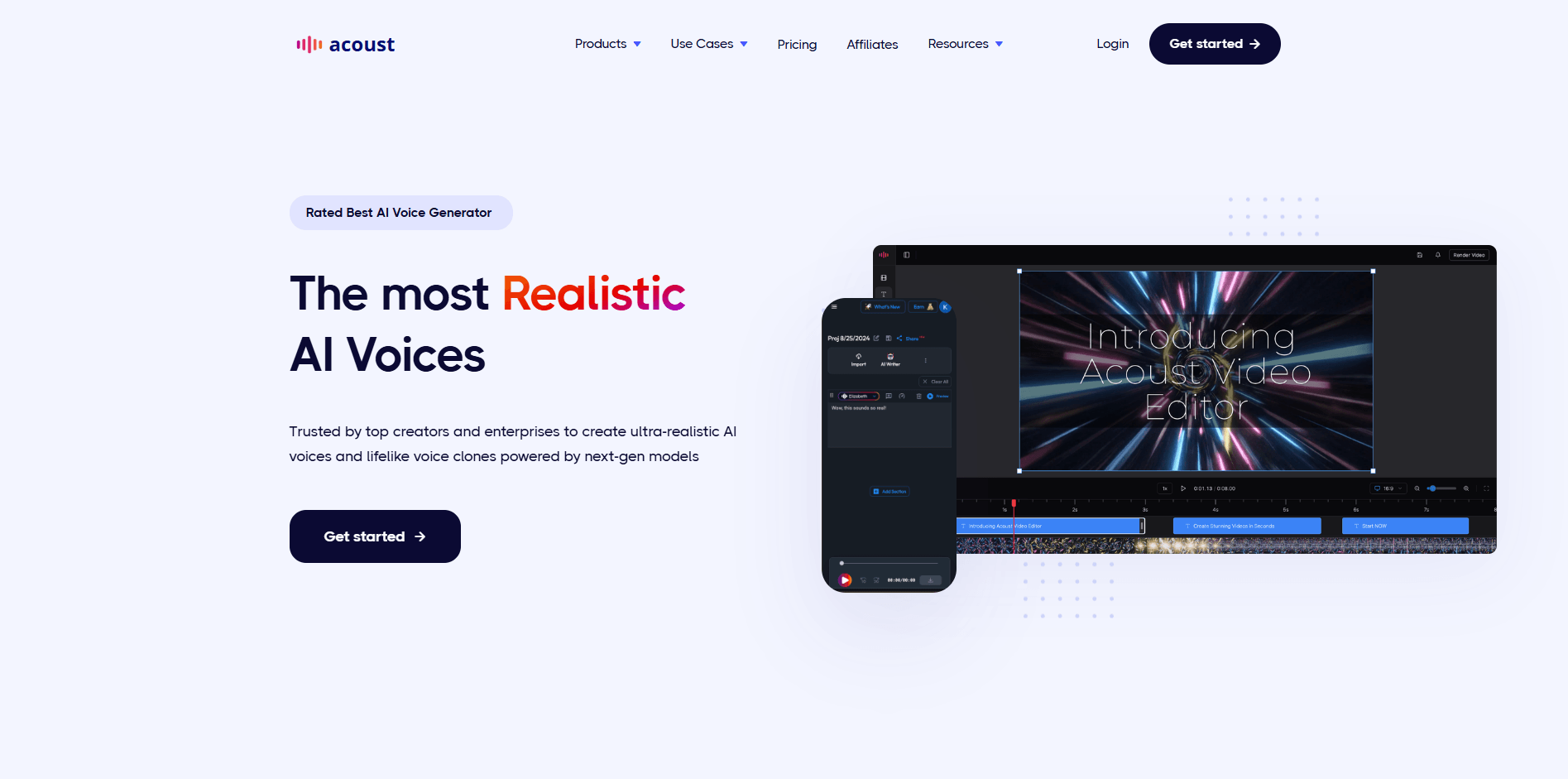
The easiest way to understand Acoust is as a creator-first voice workspace with a few adjacent tools wrapped around it.
The core product is still AI voice generation. Acoust’s official pages position it around lifelike TTS, multilingual voices, voice cloning, and script-based narration. But the help docs show that the real day-to-day workflow sits inside one editor where you can write or import a script, assign voices per section, add pronunciation rules, preview sections, add background music, translate text, and export audio or subtitles. On top of that, Acoust now has a separate Clips workspace for turning longer videos into short social-ready highlights.
That makes Acoust feel less like a pure “paste text, get mp3” tool and more like a lightweight production layer for creators, marketers, training teams, and small businesses that need voiceover content at speed.
Writing, voice selection, AI helpers, translation, and export all sit inside one editor instead of being split across separate tools.
Acoust supports emphasis, pitch, pauses, pronunciation control, speed changes, and emotion-style controls for shaping narration.
You can upload your own recordings, create reusable cloned voices, and use them across projects; the help docs say free plans include one active clone.
Translate text inside the workflow, then generate multilingual narration from the translated script.
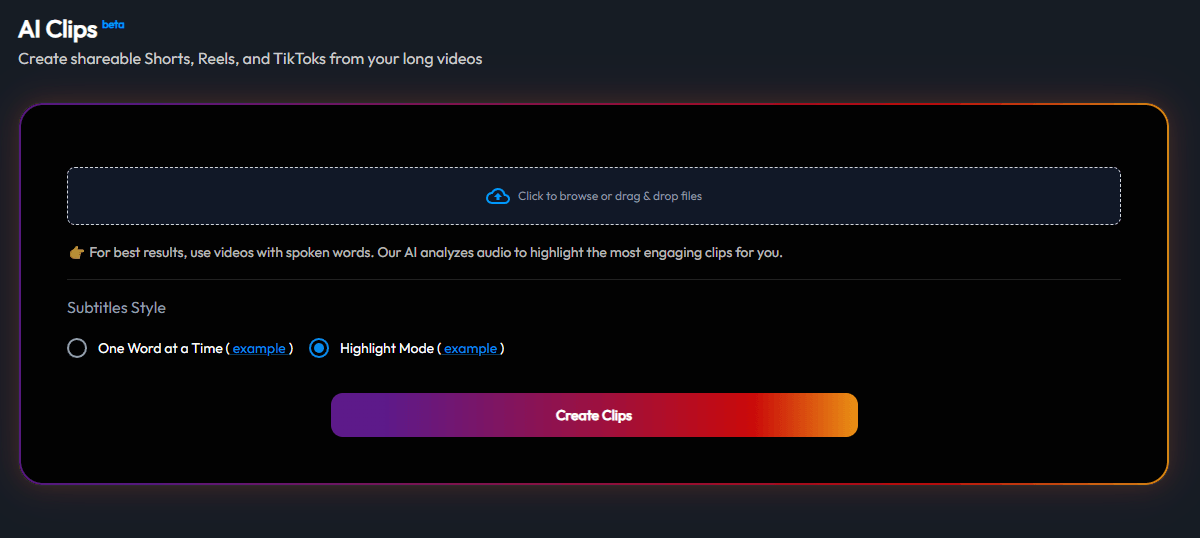
The Clips workflow can upload an MP4, identify highlights, add captions, and reframe around the speaker for Shorts, Reels, or TikTok.
Acoust’s help center and pricing docs reference team accounts, SSO, shared usage tracking, and enterprise support.
Acoust’s strongest practical advantage is that the workflow is straightforward.
You start from the dashboard with two main paths: Create Audio for narration work and Create Reels for short-form video repurposing. In audio projects, the editor turns each paragraph into its own section, which is a smart choice because it makes voice changes, pacing tweaks, and previews much easier to manage than one giant block of script. You can type directly, import text from .txt or .docx, pull copy from a web page, or upload audio and let a transcript fill the editor.
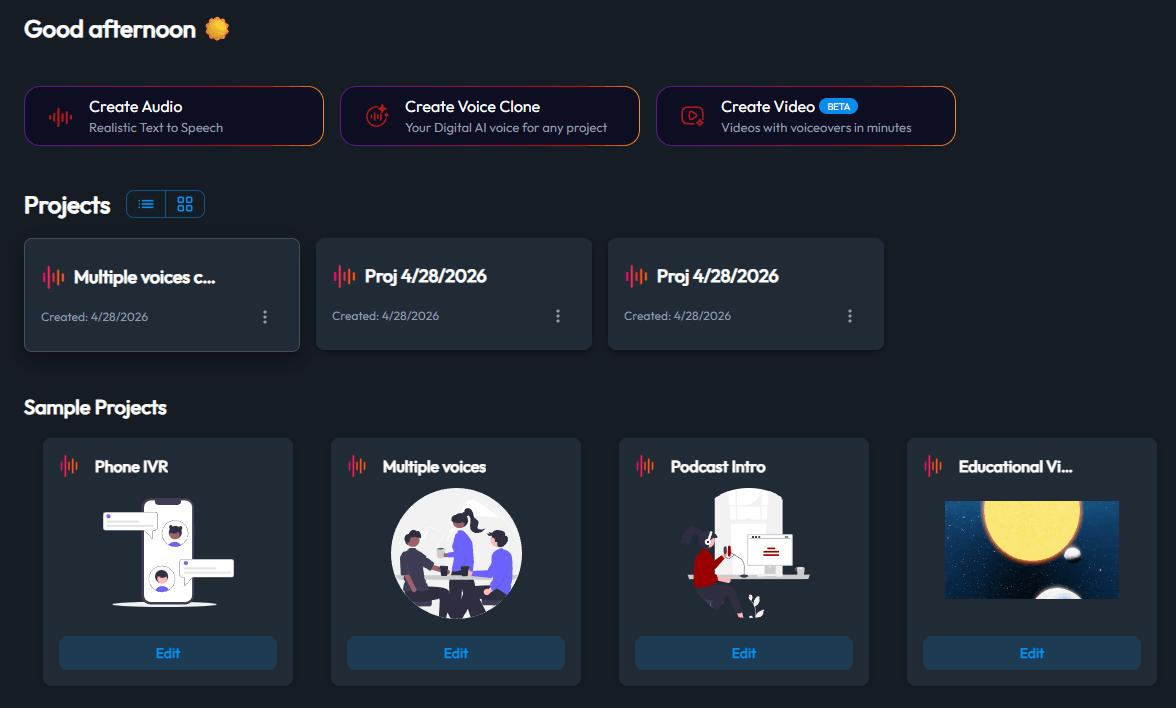
That section-based layout is one of the better parts of the product. Each section gets its own voice chip, so you can preview stock or cloned voices, apply a voice locally or globally, and regenerate selectively. Acoust also exposes voice instructions, which let you describe the delivery you want in plain language, and it includes a built-in AI Writer for rephrasing or idea generation.
Export is practical too. The help docs say you can generate a share link for teammates, download a single MP3, grab a ZIP with every section, and include SRT subtitles on supported plans. That is a solid set of outputs for social content, internal training, and lightweight client delivery.
The video side looks more limited but still useful. Acoust’s video editor is explicitly labeled beta, and the copy emphasizes timeline control for aligning audio, video, and images. The Clips workflow is even more specific: it is built to cut long videos into shareable short clips, add captions, and reframe around the speaker. That makes it more of a repurposing tool than a full creative video suite.
Voice quality is clearly the main reason to use Acoust.
The company markets Acoust around natural, human-like speech, multilingual voices, and emotional delivery. The TTS pages also show a stronger-than-average set of narration controls for a creator-oriented product: emphasis, pitch, pauses, pronunciation tweaks, speed control, and emotion settings. Acoust also says you can use plain text without SSML, though SSML is supported for extra control.
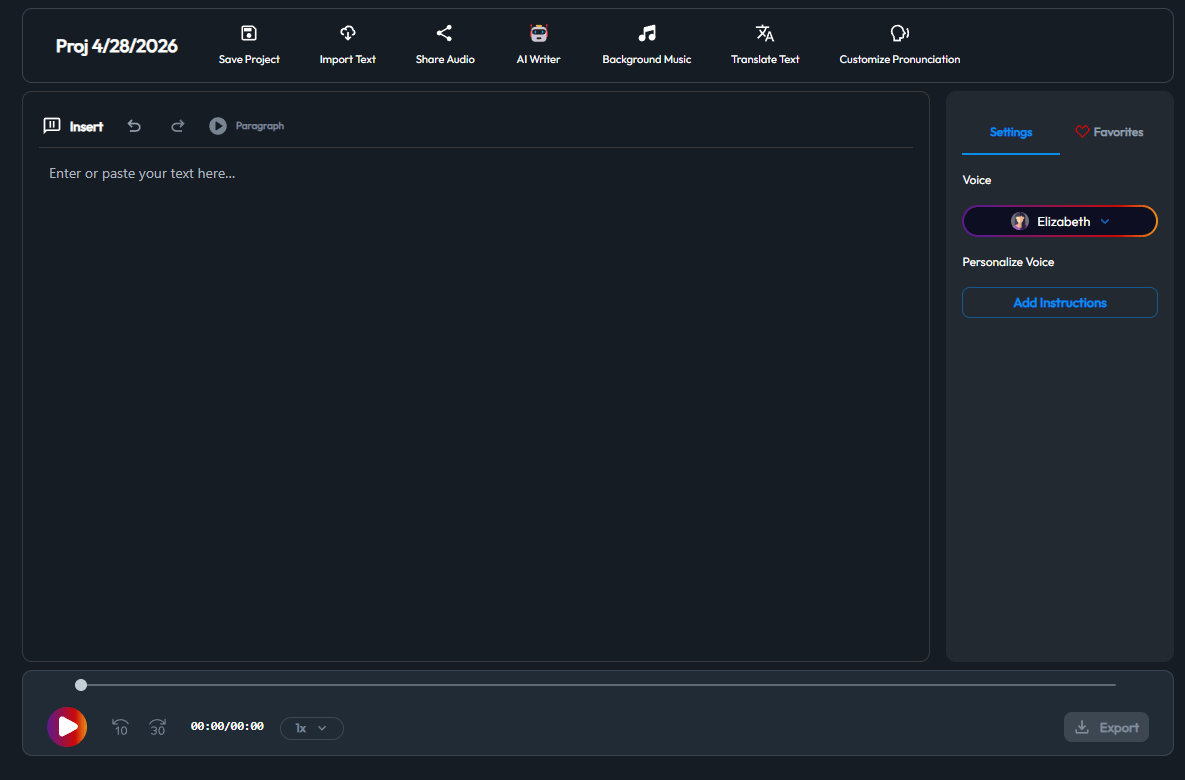
That combination matters because it covers both kinds of users. Beginners can write fairly naturally and let the model interpret tone automatically. More deliberate users can step in and shape delivery more precisely with instructions, pronunciation overrides, and section-level edits. That is a good middle ground. It is not as stripped-down as the simplest voice generators, but it also does not look as intimidating as a heavier studio-style audio platform.
Voice cloning is part of that same control story. Acoust’s help docs say cloning starts with clean audio and that free accounts get one active clone, while a separate official page says instant cloning can be available immediately and more advanced cloning may take longer. In practice, that suggests cloning is available and useful, but serious identity-quality work still depends on input quality and possibly higher-tier workflow.
The plan split is one of the most important buying decisions here.
Acoust’s pricing page lists a Free plan with 10K credits, AI Voices for 10 minutes, AI Writer, cloud storage, and premium GenAI voices, but no commercial usage. It lists Pro at $9/month or $7/month billed annually with 180K credits, up to 180 voice minutes, up to 90 cloning minutes, subtitles, and commercial usage. Premium is listed at $29/month or $22/month billed annually with 600K credits, up to 600 voice minutes, up to 300 cloning minutes, AI Clips, 60 minutes of transcription, and AI Translation. Enterprise is custom and adds team accounts, pooled credits, SSO, custom quotas, and dedicated support.
The practical version is this: Free is enough to test voice quality and basic workflow. Pro is where Acoust starts becoming usable for real recurring creator work because commercial rights and subtitles matter. Premium is the tier where Acoust becomes a broader content tool rather than just a narrator, because that is where clips, transcription, and translation show up. Enterprise is for organizations that actually need account management and shared controls, not solo creators.
Acoust is strongest for a fairly specific kind of user.
It makes a lot of sense for YouTube creators, course builders, social media teams, training departments, and small businesses that want fast voiceover production with just enough editing control to stay usable. Its own pages repeatedly position it around training, marketing, YouTube, and multilingual content. The clip workflow also makes it relevant for creators sitting on longer talking-head videos who want faster Shorts and Reels production.
It is also a sensible fit for teams that care about consistency more than extreme audio craftsmanship. Voice favorites, pronunciation storage, cloned voices, share links, usage meters, and team/SSO support all point in that direction.
It is less compelling for users who need deep audio post-production, highly advanced dubbing and localization controls, or a heavyweight collaborative media suite. Acoust is broad, but most of its strength looks concentrated in “fast creation and repurposing” rather than “maximum specialist depth.”
- Use the section-based editor properly. Breaking a script into cleaner paragraphs makes previewing, regenerating, and voice-swapping much easier than treating the whole narration as one block.
- Set pronunciation rules early if names, brands, or technical terms matter. Acoust exposes pronunciation storage for exactly that reason, and it is easier than fixing repeated mistakes later.
- Treat cloning like an input-quality problem, not a magic button. The official guidance emphasizes clean recordings, and the cloning pages suggest better results come from more deliberate source audio.
- Watch the usage meters if you lean on script helpers and translation. Acoust explicitly tracks characters converted, cloning usage, and AI prompts such as Translate or script helpers.
- Move to Premium only if you will actually use clips, transcription, or translation regularly. Otherwise, Pro looks like the better value tier for straightforward voiceover work.
- The biggest limitation is that Acoust is broad, but not equally deep in every direction. Its strongest surface is still voice generation. The video editor is explicitly marked beta, and the clip workflow sounds effective for repurposing but narrow in scope. So while Acoust can reduce tool-switching, it still does not read like a full replacement for a dedicated video editor or a more specialized enterprise audio platform.
- The second limitation is plan gating. Commercial usage, subtitles, clips, transcription, translation, and team features sit higher up the pricing ladder. That means the most attractive “all-in-one” version of Acoust is not really the free experience.
- The third limitation is version and messaging clarity. Acoust’s own official pages are a little inconsistent: some pages say 100+ natural-sounding voices, while others say 250 voices across 30+ languages. That does not make the product unusable, but it does make the marketing picture less clean than it should be.
- Finally, long-form users should pay attention to workflow limits. The editor guide says standard plans support up to 50 sections and 4,000 characters per section, while premium plans go to 200 sections. That is workable for many narration jobs, but it is still a real boundary if you are thinking in very large audiobook-style projects.
Acoust is a good fit for people who want a creator-friendly AI voice platform that does more than basic TTS. Its best quality is not just the voices themselves, but the way voice generation, cloning, translation, subtitles, exports, and short-form clip repurposing are pulled into one reasonably simple workflow.
It is best for creators, marketers, course builders, and small teams that want to move from script to publishable audio fast, with enough control to keep the result usable. The main caveat is that Acoust looks strongest as a practical production tool, not as the deepest specialist option in every category it now touches.
TAGS: Text to Speech
Related Tools:
Comprehensive document preparation system

High-quality multilingual voice generator

Integrates document creation and project management
Generates realistic synthetic voices

Provides natural-sounding dubbing and translation

Offers variety of tools for document creation