
Share this tool:
 |
Description:
- Introduction
- Strong Features and Capabilities
- What Magnific Actually Is
- Where Magnific Is Strongest
- The Core Workflow: Enhance With Control
- The Controls That Matter Most
- Creative Upscaling Quality
- Precision and Fidelity
- Relight: Changing Mood Without Rebuilding Everything
- Style Transfer: More Than a Filter
- Best Use Cases
- Practical Tips
- Limitations and Trade-Offs
- Final Takeaway
Magnific is an AI creative platform best known for image upscaling that does more than enlarge a file. Its core value is controlled enhancement: users can improve resolution, add detail, preserve resemblance, adjust sharpness, relight an image, transfer style, and use API workflows for larger production systems. That makes it especially useful for AI artists, designers, photographers, game asset creators, concept artists, ecommerce teams, and anyone working with images that need more polish than a standard resize can provide.
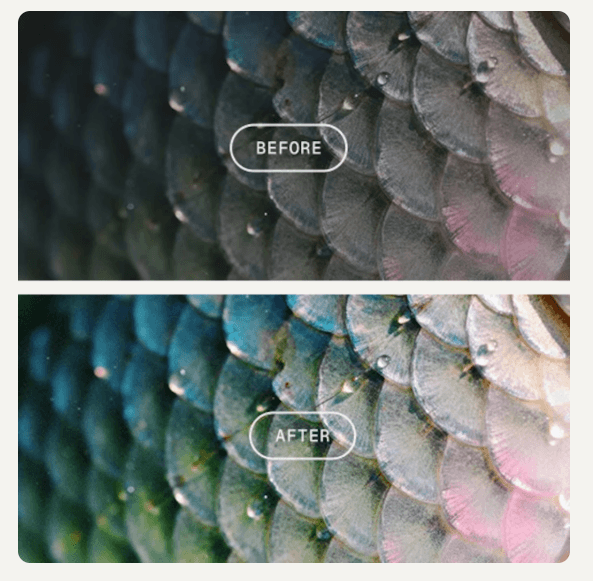
Magnific can upscale images while adding AI-generated detail, texture, and quality improvements guided by settings and prompts.
Magnific uses controls such as Creativity, HDR, Resemblance, and Fractality to shape how faithful or imaginative the result becomes.
Magnific can change image lighting through text direction, a reference image, or a light map, with controls for transfer strength and similarity to the original.
Magnific can apply the style of a reference image while preserving structure more intentionally than a basic visual filter.
Magnific’s API includes image expansion for extending images beyond their boundaries and adapting visuals to new aspect ratios.
The API supports asynchronous task handling, task IDs, polling, and optional webhooks, which makes it more useful for production systems than a simple manual editor.
Magnific is an AI image enhancement and creative finishing tool. It started with a strong reputation around upscaling, but the current platform is broader. Its public site describes it as a creative AI platform for image, video, and audio generation, while its API pages cover tools such as upscaling, relighting, style transfer, image expansion, skin enhancement, inpainting, and other image-editing workflows.
The easiest way to understand Magnific is to separate it from a normal upscaler.
A normal upscaler tries to make an image larger while keeping the image mostly the same. Magnific can upscale, but its more distinctive feature is AI-guided detail creation. It can infer new texture, surface detail, lighting, atmosphere, and clarity based on the source image and settings. The official Creative Upscaler docs say the tool does more than increase image size: it can improve quality and add detail with custom prompts and fine-tuned parameters.
That is why Magnific is useful, and also why it needs care. It can make an image look richer, sharper, and more finished. It can also invent things that were not in the original image.
Magnific is strongest when the image already has a good composition but lacks resolution, detail, lighting quality, or finish.
That includes:
- AI-generated images that look promising but soft
- concept art that needs more texture and refinement
- fantasy, sci-fi, and game assets that benefit from added detail
- low-resolution product images that need cleaner presentation
- portrait images that need careful enhancement
- interior and architecture renders that need better lighting or material depth
- creative campaign visuals that need a more polished final look
The platform is less ideal when exact fidelity is the only priority. Product labels, UI screenshots, logos, legal images, archival photos, and brand-sensitive materials need conservative settings and careful review. Magnific can preserve structure, but the more creative the enhancement, the greater the chance of visual drift.
Magnific works best when users treat upscaling as a creative decision, not a one-click fix.
The first choice is whether the image needs faithful improvement or creative enhancement. A portrait, product shot, or branded image usually needs a restrained approach. A fantasy landscape, game texture, or AI artwork can tolerate more invention. This distinction matters because Magnific can add detail, and added detail is not always correct detail.
A practical workflow looks like this:
| Step | What To Do | Why It Matters |
|---|---|---|
| Choose the right source image | Start with the best available version | Upscaling cannot fully rescue a bad source |
| Decide fidelity vs creativity | Choose whether the image should stay accurate or become richer | This guides all settings |
| Set controls carefully | Adjust Creativity, HDR, Resemblance, and Fractality | These shape how much the image changes |
| Review at full size | Inspect faces, text, logos, hands, product details, and textures | Small hallucinations can hide at preview size |
| Finish manually if needed | Clean up artifacts in a dedicated editor | Magnific enhances, but does not replace all finishing work |
This is where Magnific feels more advanced than a basic image enhancer. The controls give users a way to decide how far the AI should go.
Magnific’s main controls are worth understanding before using it on important work.
| Control | What It Affects | Best Use |
|---|---|---|
| Creativity | How much the AI can add or reinterpret | Use higher for concept art and textures, lower for realism |
| HDR | Detail intensity, contrast, and sharpness feel | Useful for clarity, risky when overused |
| Resemblance | How close the output stays to the original | Keep higher for faces, products, UI, and brand assets |
| Fractality | Detail density and prompt influence | Useful for rich surfaces, risky for clean designs |
Magnific’s own documentation for its image tools describes these sliders as giving users precise control over the upscaling result. The most common mistake is pushing the tool too hard. More detail can look impressive at first, but too much can make skin look artificial, fabric look noisy, foliage look overcooked, and product packaging look inaccurate. Magnific is most useful when the settings match the image type.
Creative upscaling is the reason many people use Magnific.
For AI art, fantasy scenes, sci-fi environments, architecture concepts, landscapes, game materials, and illustrations, Magnific can add the kind of surface detail that makes an image feel more finished. Wood can gain grain. Armor can gain scratches. Stone can gain texture. Fabric can gain weave. A soft AI image can become sharper and more visually dense.
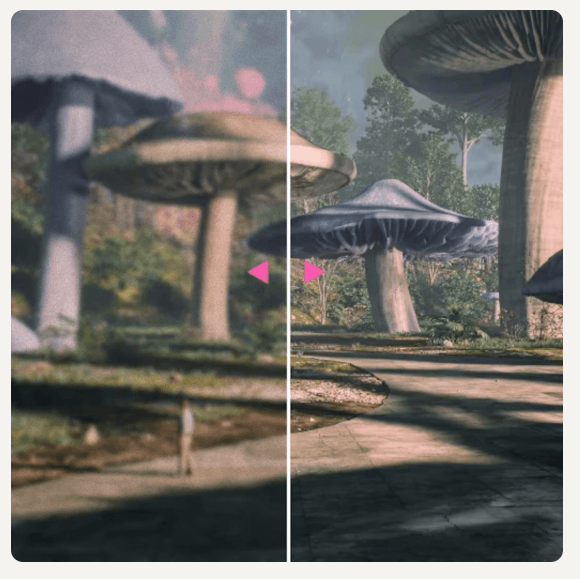
That is a real strength. Many AI images look good at thumbnail size but fall apart when enlarged. Magnific helps bridge that gap by adding plausible high-resolution detail.
The caveat is that “plausible” does not always mean accurate. If the original image has vague jewelry, unclear text, soft eyes, broken fingers, or distorted symbols, Magnific may sharpen the mistake rather than fix it. In some cases, it may invent new details that look polished but are wrong. That makes Magnific especially strong for expressive and creative work, but more delicate for factual work.
Magnific is not only for wild creative enhancement. Its platform and docs also point toward more faithful workflows where preserving the original matters. The official API materials distinguish creative upscaling from workflows meant to keep the image closer to the source.
This matters for commercial work.
A product photo cannot casually gain a new label detail. A logo cannot deform. A UI screenshot cannot invent text. A professional headshot cannot drift into a slightly different person. In those cases, the right approach is to keep settings conservative and review the result carefully.
Magnific can still be useful for these images, but the goal changes. You are not asking it to beautify the image freely. You are asking it to improve resolution, edge quality, clarity, and material definition while preserving the original.
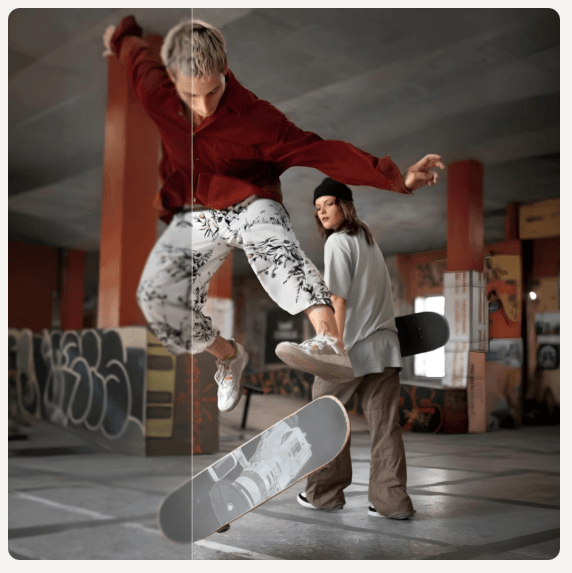
Relight is one of Magnific’s most useful non-upscaling features. It lets users change lighting through a written direction, reference image, or light map. The docs describe three transfer methods: prompt, reference image, and lightmap. They also explain light transfer strength, where lower values keep the image closer to the original and higher values apply stronger lighting changes.
This is useful for:
- product photos with flat lighting
- portraits that need softer studio light
- interiors that need golden-hour mood
- architecture renders that need stronger shadows
- campaign images that need a more cinematic feel
Relight is valuable because lighting can change the emotional read of an image without changing the subject. A flat product image can feel more premium. A room can feel warmer. A portrait can feel softer or more dramatic. The risk is scene drift. If lighting changes too aggressively, the image can feel rebuilt rather than relit. Users should check shadows, reflections, background behavior, and material consistency.

Magnific’s Style Transfer is built for applying a reference style to an existing image. The documentation describes it as going beyond simple filters, with the ability to control how much style is transferred while maintaining structural integrity.
That makes it useful for:
- turning sketches into more polished visual concepts
- making campaign images follow a shared visual direction
- testing art styles on product or character concepts
- giving 3D renders a more editorial or painterly finish
- aligning creative assets with a reference moodboard
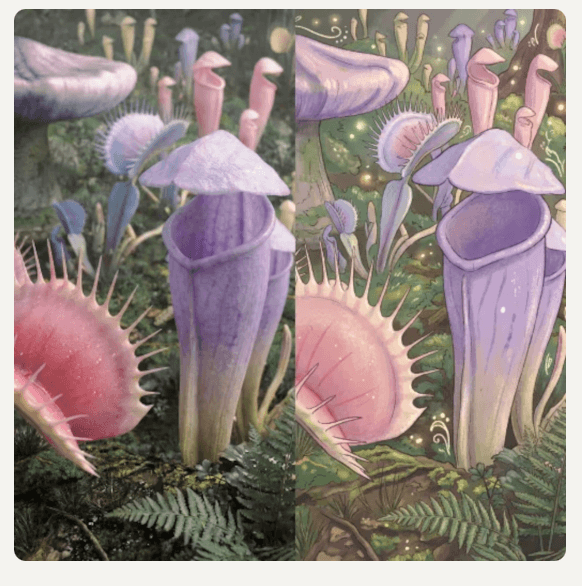
The important phrase is “structural integrity.” A basic filter changes color and texture. A stronger style transfer system tries to preserve the main composition while changing the visual language. The trade-off is that style transfer can become too dominant. If the reference style is strong, it may overpower the original image. For brand work, product visuals, or architecture, users should keep an eye on shape, layout, and identity.
- AI art finishing: Magnific is a strong final step for AI-generated images that need sharper texture, richer atmosphere, and higher-resolution detail.
- Concept art: Fantasy, sci-fi, architecture, and game concepts benefit from controlled detail enhancement.
- Game assets and textures: The tool is useful for improving surfaces such as stone, metal, wood, leather, fabric, foliage, and stylized materials.
- Product visuals: Magnific can improve clarity and lighting, but packaging, labels, logos, and proportions need careful review.
- Portrait enhancement: It can improve detail and polish, but users should avoid over-processing skin or changing identity.
- Architecture and interiors: Relight and enhancement workflows can improve mood, material depth, and presentation quality.
- Creative production systems: API access makes Magnific useful for larger workflows where enhancement needs to happen at scale.
- Use the best source file available. Magnific’s own Creative Upscaler docs recommend using the original image file when possible, because resized or compressed versions can reduce quality before processing begins.
- Decide before processing whether the image should stay faithful or become more imaginative. That one decision should guide the settings.
- Keep Resemblance higher for faces, products, logos, UI, packaging, and anything brand-sensitive.
- Use Creativity more freely for fantasy art, game assets, textures, and concept images where new detail is welcome.
- Be careful with HDR on portraits. Too much sharpness can make skin look rough or artificial.
- Use Relight when the composition is good but the mood is flat. It is often better than regenerating the whole image.
- Review outputs at full resolution. Magnific can hide small errors in text, jewelry, eyes, logos, hands, and repeated patterns.
- Magnific’s biggest limitation is that it can invent detail. That is also the feature people like most. The tool is excellent when added detail improves the image, but risky when accuracy matters.
- The second limitation is that the controls require judgment. Creativity, HDR, Resemblance, Fractality, relight strength, and style-transfer strength all affect the result. Beginners may need several tries before they understand how far to push each setting.
- The third limitation is identity drift. Portraits can become slightly different people if the enhancement is too aggressive. This is especially important for professional headshots, team pages, and personal branding.
- The fourth limitation is brand accuracy. Product labels, typography, logos, interface screenshots, and packaging can distort if the tool is allowed to add too much detail.
- The fifth limitation is that Magnific is not a full manual editor. It can enhance, upscale, relight, transfer style, expand, and process images, but final campaign work may still need Photoshop, Lightroom, Affinity Photo, Blender, or another production tool.
Magnific is best for creators and teams that want more than basic upscaling. Its strongest value is controlled AI enhancement: improving resolution, adding detail, changing lighting, transferring style, and preparing images for more polished creative use.
It is especially useful for AI artists, designers, photographers, concept artists, game asset creators, ecommerce teams, architecture visualizers, and developers building image workflows. The main caveat is fidelity. Magnific can make images look richer, but it can also invent details. Use it boldly for creative work, use it conservatively for accurate work, and always review the final image before publishing.
TAGS: Photo Editing
Related Tools:

Budgeting app that employs zero-based budgeting
Removes background from images

Relight and enhance photos or videos

Expands images using advanced algorithms

Generative tool that creates images, animations, and artworks

Allows users to create portfolios and manage retirement savings