

Share this tool:
 |
Description:
Krea is best thought of as a creative AI workspace rather than a single image model. Its current official positioning is centered on generating, editing, and enhancing images, videos, and even 3D assets in one place, while also giving access to multiple outside models like Flux, Imagen, ChatGPT Image, Veo, Sora, Wan, Kling, and Runway inside the same interface. That makes Krea more useful for fast creative workflows than for reviewing one isolated model, because the main value is the toolchain: realtime generation, editing, enhancement, upscaling, and model switching in one system.
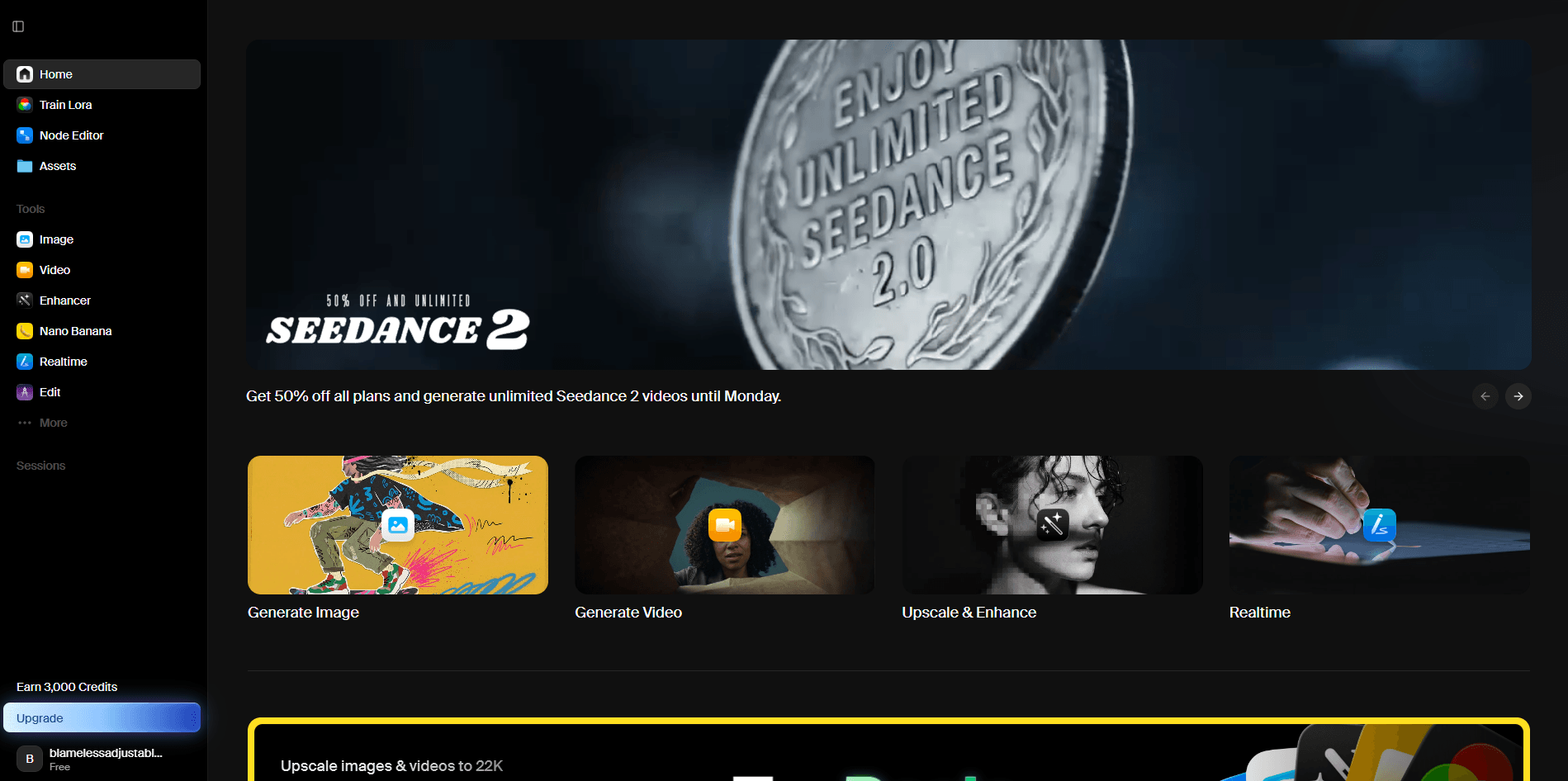
Krea works more like a creative workspace than a single-model tool, which is why the broader interface matters here.
Generates images live as you type or draw, which makes it strong for fast iteration and visual exploration.
Lets you use multiple image and video models in one platform instead of locking you into one generator.
Includes a dedicated enhancer for sharpening, upscaling, and restoring images and videos.
Krea is positioned as a suite for generating, editing, and enhancing media rather than just prompting from scratch.
Includes a node-based workflow builder for chaining models and steps together into reusable creative pipelines.
The most relevant “versions” in Krea are usually the model choices inside the workspace, such as Krea-1, Flux, Imagen, ChatGPT Image for images, and Veo, Sora, Wan, Kling, Runway, and others for video.
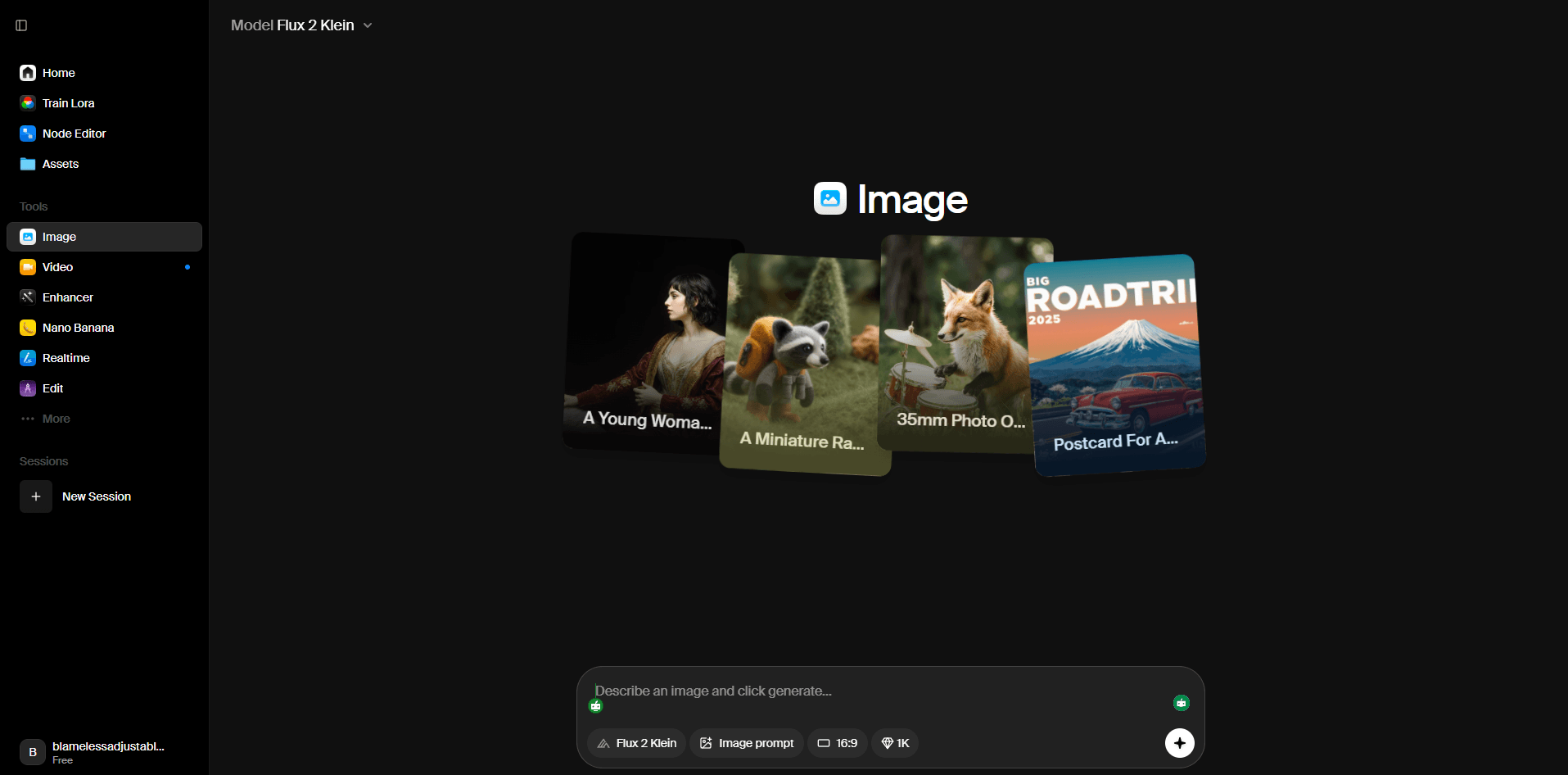
The image generator view shows why Krea is more about workflow and model choice than a single fixed generator.
Prompt used: Cinematic portrait of a person in a linen jacket, soft directional light, moody tonal contrast, subdued color grading, tactile fabric detail, editorial photography.
This is a good starting prompt because Realtime is one of Krea’s clearest differentiators. The point here is not just the final image. It is how quickly you can steer the result while typing, drawing, and iterating live. That is much more useful for concept exploration than waiting on slower one-shot generation.
Prompt used: A premium skincare bottle on a cream stone pedestal, soft leaf shadows, beige editorial background, luxury beauty campaign, elegant reflections on glass, polished commercial product photography.
Krea’s own image generator page positions Krea-1 as the best option on the platform for photorealistic images and speed, so this is a sensible choice for a clean commercial product shot. It is a good prompt for checking whether the output feels campaign-ready rather than just visually attractive.
Prompt used: A streetwear campaign image of a model leaning against a concrete wall at dusk, subtle urban haze, premium fashion photography, strong silhouette, muted palette, realistic texture, polished editorial style.
This is useful because Krea specifically frames Flux on the platform as one of the main image options, and notes that Flux is a strong choice when custom styles matter. That makes it a practical fit for fashion and art-direction-heavy work.
Prompt used: A clean infographic explaining the 50/30/20 budgeting rule, labeled sections for needs, wants, and savings, simple icons, clear visual hierarchy, minimal educational design, highly legible layout.
Krea’s own image generator page says ChatGPT Image is best for prompt adherence, so a structured prompt like this is a more meaningful test than a loose cinematic scene. It checks whether the platform helps you pick the right model for the right kind of output.
Prompt used: A modern living room with warm oak floors, linen sofa, soft natural window light, minimalist premium interior design, calm editorial composition.
This is a good Krea-specific workflow prompt because the point is not only generating the room. It is generating quickly in Realtime, then running the result through Enhance for more polished output. That combination is a big part of what makes Krea practical.
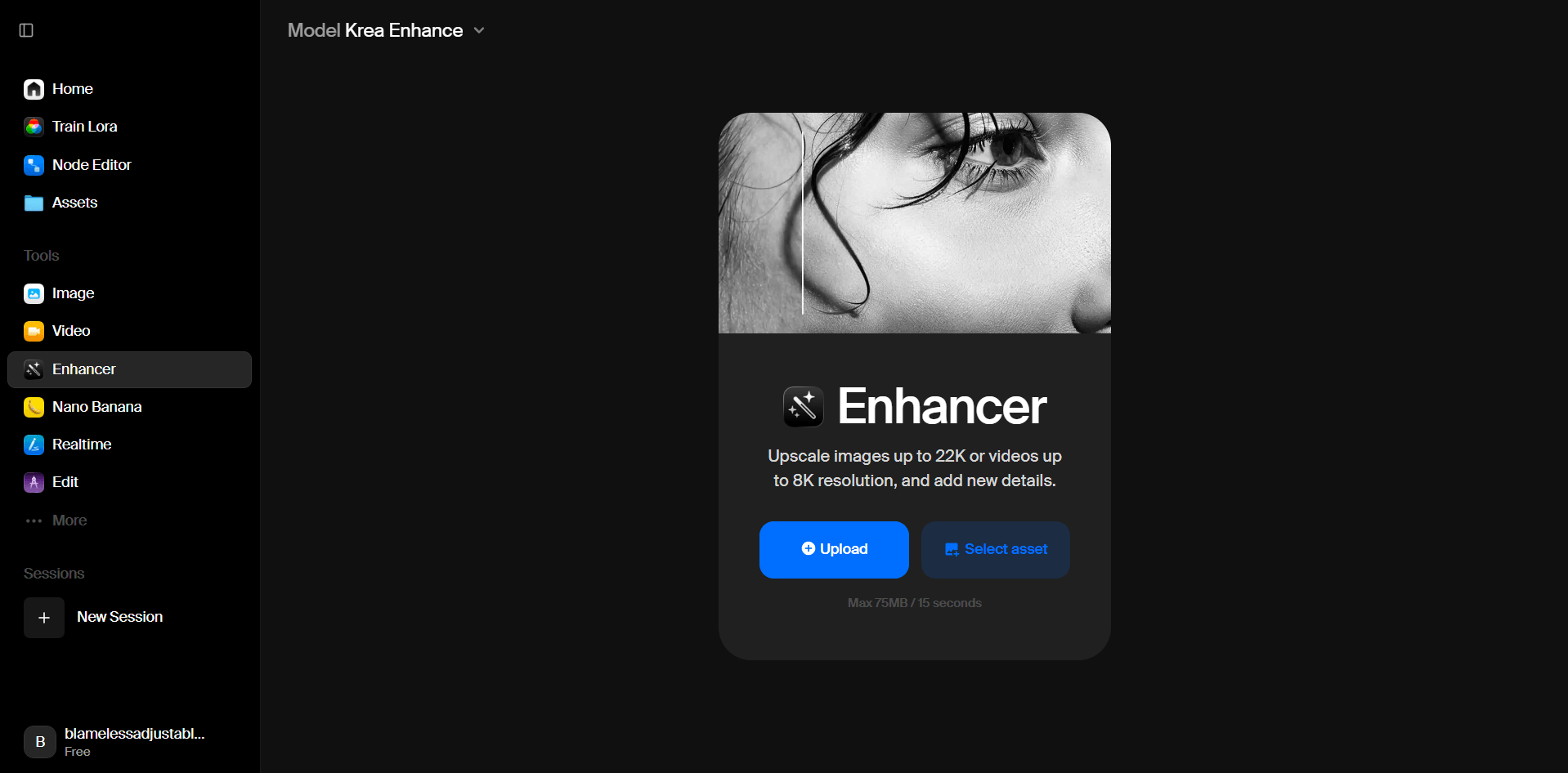
Enhance is one of Krea’s most practical strengths because it turns a good first pass into something more polished without leaving the platform.
Before using this prompt: Upload the low-resolution portrait you want enhanced first.
Prompt used: Enhance this low-resolution portrait while preserving natural skin texture, sharpening hair detail, improving clarity in the eyes, and keeping the overall color realistic.
This is one of the more useful Krea tests because enhancement is a core product, not a side feature. The official enhancer supports image upscaling up to 22K and is specifically framed around adding detail, clarity, and resolution.
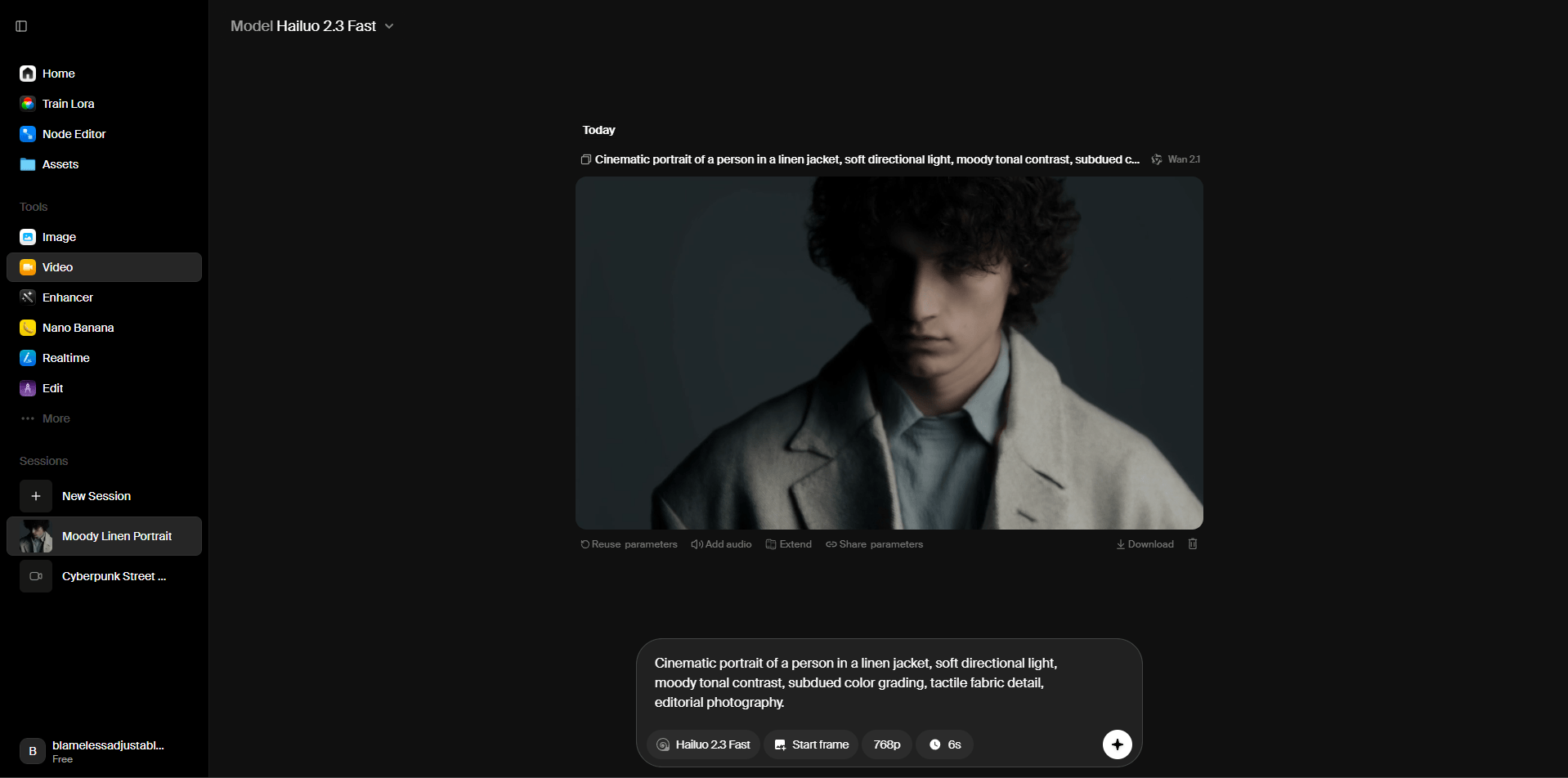
The video tool matters because Krea’s value is not one video engine, but access to several major video models inside one workflow.
Prompt used: A ceramic artist shapes a vase on a spinning wheel, soft earthy studio lighting, camera moves from side close-up to overhead angle, wet clay texture, calm documentary pacing.
This is a useful video test because Krea’s video tool is really about access to multiple frontier models in one place. The prompt itself is grounded and practical, while the real value is being able to compare how different video models handle the same scene inside the same interface.
Before using this prompt: Upload the still image of the luxury perfume bottle first.
Prompt used: Animate a still image of a luxury perfume bottle on a black reflective surface. Add drifting smoke, a slow camera push-in, and subtle moving highlights across the glass. Premium beauty ad style.
This is a strong Krea use case because the platform explicitly supports turning images into video and extending videos, not just generating from text alone. That makes it good for commercial content where the base composition already matters.
Prompt used: Create a workflow that generates a product image, enhances it, then converts the final still into a short ad video.
This is one of the best examples for Krea because Nodes are part of the platform’s real value. Instead of treating each generation as separate manual work, Krea lets you chain image, editing, enhancement, and video models into one reusable process.
Before using this prompt: Upload the low-resolution product demo video first.
Prompt used: Upscale this low-resolution product demo video to 4K, reduce noise, preserve motion clarity, and recover fine details in the packaging and labels.
This is worth including because Krea’s upscaler is not just for images. The official upscaler pages explicitly cover video enhancement, including 4K video upscaling, reduced noise, higher FPS, and improved detail.
- Fast visual ideation: Realtime generation makes Krea especially useful for exploring directions quickly.
- Model comparison in one place: Strong when you want to try different image or video models without jumping between tools.
- Image and video enhancement: One of Krea’s clearest practical strengths because enhancement is a dedicated core tool.
- Workflow building: Nodes make Krea more useful for repeatable creative pipelines instead of only one-off prompts.
- Commercial creative production: Useful for product visuals, concept art, social content, upscaling, and converting stills into motion.
- Use Realtime when the main goal is exploration and direction-finding. Use Krea-1 when you want photorealistic images quickly. Use Flux when style control matters more. Use ChatGPT Image when the prompt needs tighter adherence. Krea’s own guidance makes these distinctions explicit, so it is worth matching the model to the job.
- Use Enhance after generation when the base image is good but not polished enough yet. That is one of the most practical Krea workflows because the platform is built around generate-plus-improve, not just first-pass output.
- Use Nodes when you find yourself repeating the same multi-step process. Krea specifically positions Nodes as a way to automate manual creative steps and build reusable workflows.
- For video, think of Krea less as one video model and more as a hub for multiple video engines. That makes it especially good for testing the same idea across different models in one subscription.
Krea is powerful, but the trade-off is that it is a platform layer with many models rather than one single model with one clear behavior. That means results can vary depending on which engine you choose for the job. It also means the review is most useful when it focuses on workflows and model selection, not just on one prompt and one output. The platform itself makes that clear by exposing many separate model choices for both image and video work.
Krea is most useful when you treat it as a creative control center instead of a single generator. The biggest strengths are Realtime generation, enhancement, upscaling, editing, workflow building, and access to multiple top image and video models inside one interface. For a shorter prompt-first review, the best angle is to show different kinds of workflows and clearly label which Krea mode or model choice makes sense for each one.
TAGS: Generative Video Generative Art
Related Tools:

Generates AI avatar videos with voiceovers
Transforms product details into engaging marketing videos

Enhances the process of keyfrrame animation

Generates previews of hairstyles
Generate and transform pixel art from text prompts

Enhances email campaign efficiency with robust automation
Related Videos:

KREA Tutorial - How To Create Unique Videos in KREA
I will show you how to create some incredibly unique video using KREA. Plus some tips & tricks.