
Share this tool:
 |
Description:
Wispr Flow is an AI voice dictation tool built for people who want to speak instead of type across their computer and phone. Its strongest value is not just transcription. It listens to natural speech, removes the messy parts, formats the output, adapts to your vocabulary, and inserts polished text into the app where you are already working.
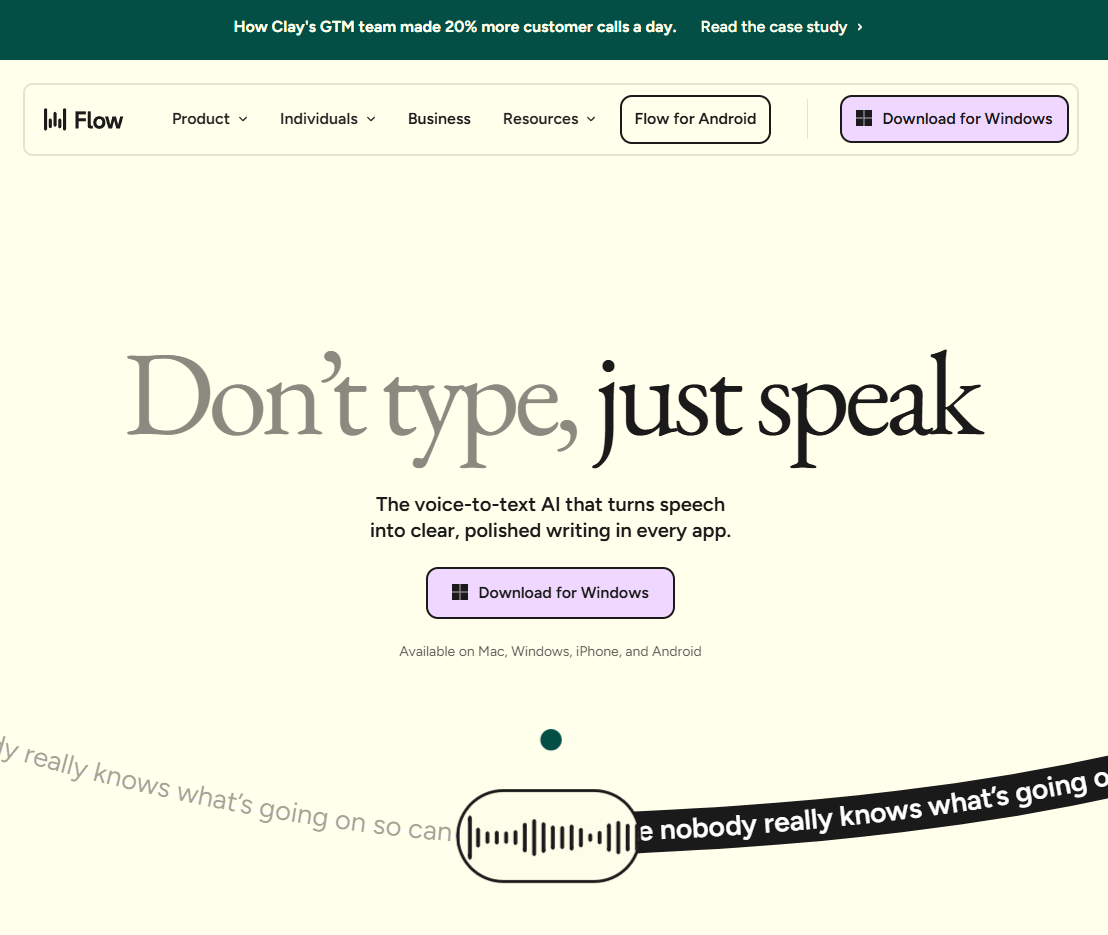
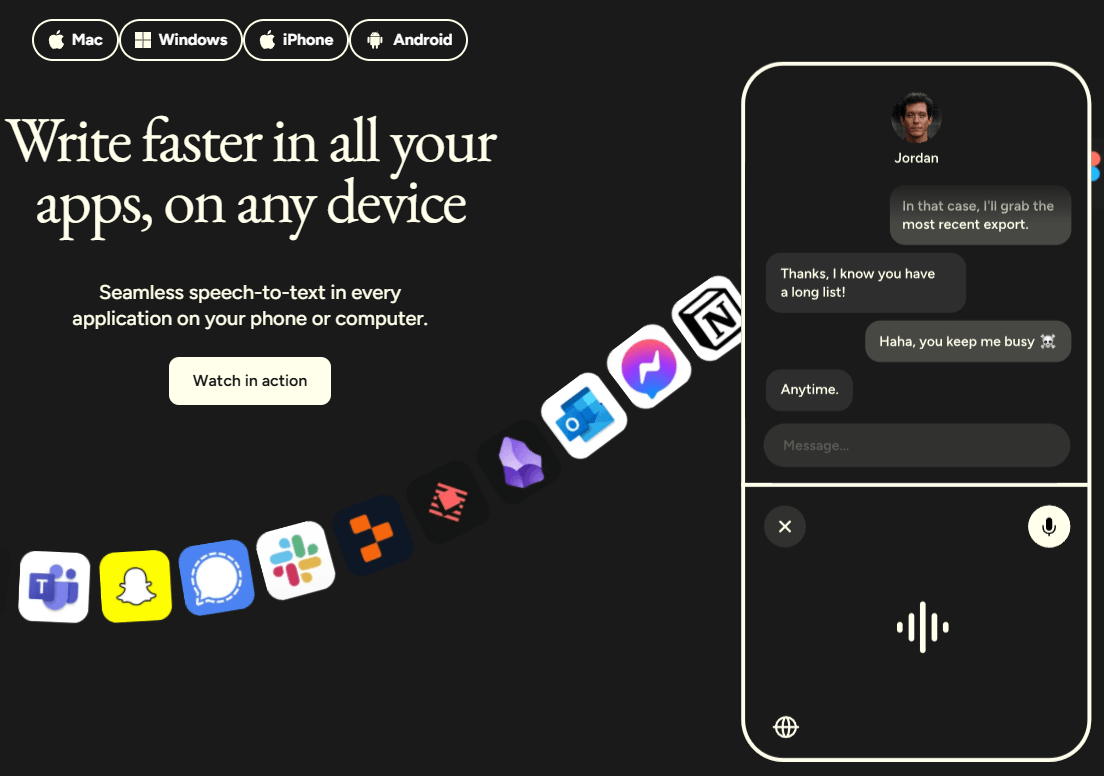
Flow works in text fields across apps on Mac, Windows, iOS, and Android, instead of requiring users to write inside one dedicated editor.
Spoken thoughts are transcribed and cleaned up with formatting, filler-word removal, and clearer structure.
Paid users can highlight text and speak commands to rewrite, translate, summarize, or search by voice.
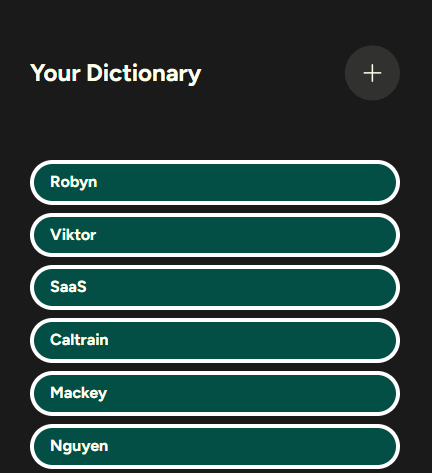
Users can add names, technical terms, acronyms, and correction rules, with dictionary entries syncing across devices.
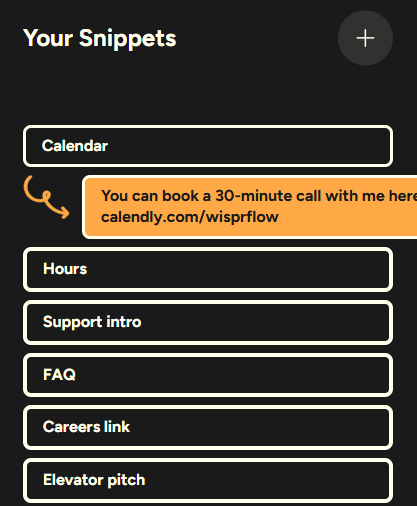
Saved text blocks can be inserted by saying a trigger phrase, which is useful for addresses, signatures, canned replies, and repeated text.
Users can turn on zero data retention so Flow keeps no audio, transcripts, or edits from dictation data.
Wispr Flow is a cross-platform voice-to-text app for Mac, Windows, iPhone, and Android. It runs in the background, activates from a shortcut or floating control, and inserts dictated text into active text fields across your apps. That makes it different from tools where you record a voice note, wait for a transcript, copy it, and paste it somewhere else. Flow is designed to sit closer to the keyboard itself.
The product’s core idea is simple: press a shortcut, speak naturally, and Flow turns the speech into written text. But the important part is what happens after transcription. Flow can remove filler, format the text, adapt to your vocabulary, and respond to spoken AI commands like “make this more professional” or “summarize this.”
That makes Wispr Flow closer to an AI writing interface than a normal dictation feature. Apple Dictation, Google voice typing, and operating-system speech tools can turn speech into words. Wispr Flow is trying to turn speech into usable writing.
Wispr Flow is strongest when you need to create a lot of text throughout the day but do not want to slow down for typing. Emails, Slack replies, LinkedIn comments, support responses, notes, prompts, documents, CRM updates, student work, and developer instructions all fit naturally. The homepage positions Flow around writing faster everywhere, with native apps across desktop and mobile and synced dictionary, style, and settings.
The second strength is cleanup. Wispr Flow’s “Auto Edits” feature is built around the idea that spoken thoughts are usually messy. You can ramble, pause, repeat yourself, and still get clearer formatted text instead of a literal word-for-word dump.
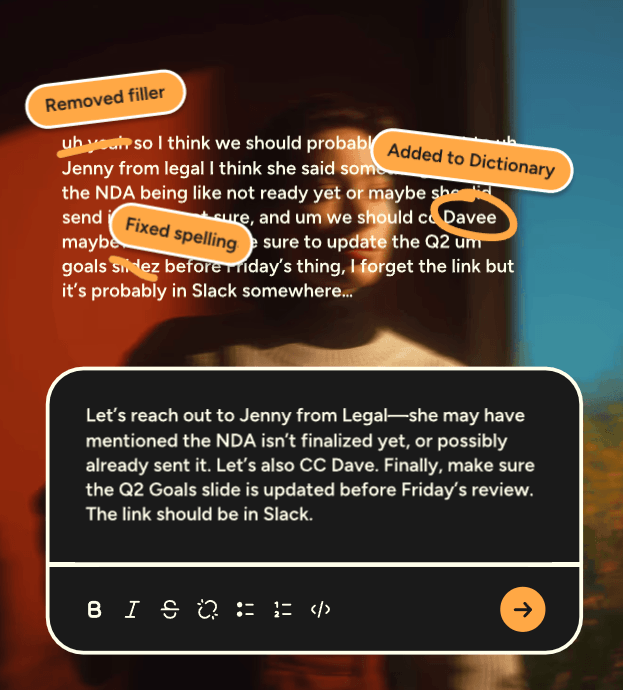
The third strength is vocabulary learning. Flow’s dictionary lets users teach it names, companies, products, acronyms, technical terms, and correction rules. That matters because the biggest failure point in everyday dictation is often not grammar. It is names, product terms, niche language, and personal vocabulary.
Flow’s desktop workflow is built around a hotkey. You press the shortcut, speak, release, and the text appears where your cursor already is. Flow’s docs describe the app as running in the background and inserting speech as text into any app, browser, or text field.
On Android, the workflow is more visual. Flow uses a floating bubble that appears over text fields. You tap or hold the bubble, speak, and Flow inserts formatted text into the active field. It also falls back to copying text to the clipboard when direct insertion fails.
That cross-app design is the main reason to use Wispr Flow. You are not constantly switching into a separate transcription workspace. You are replying where the reply needs to go.
The learning curve is mostly about habits. At first, you need to remember the trigger shortcut, speak in complete enough thoughts, and trust the cleanup layer. Once the habit forms, Flow can replace a surprising amount of typing. The product is especially useful for people who already draft verbally in their head before writing.
Command Mode is one of the features that pushes Flow beyond dictation. Instead of only creating new text, it can transform existing text. You highlight a paragraph, activate Command Mode, say something like “make this more concise,” and Flow replaces the selected text with the edited version. It can also translate content or search the web by voice through Perplexity.
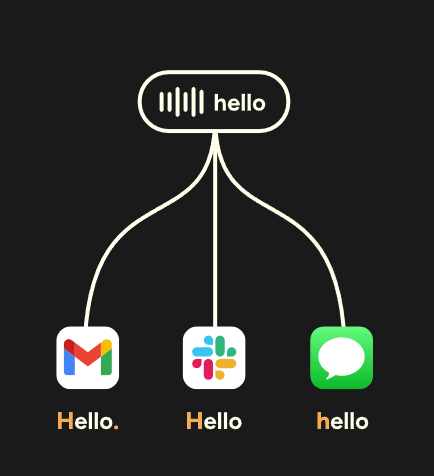
This is useful in real workflows because writing is not only creation. It is also editing, shortening, softening, translating, clarifying, and adapting the same idea for different contexts. Flow’s advantage is that those changes can happen by voice inside the app where the text already lives.
The personal dictionary is one of Flow’s most practical features. It helps with names, uncommon spelling, company names, acronyms, technical language, and repeated corrections. For lawyers, developers, sales teams, students, medical-adjacent users, creators, and support teams, this can make dictation much less frustrating.
Snippets are another useful layer. If you repeatedly type the same address, sign-off, support response, disclaimer, intro, meeting note, or template, Flow can insert that text when you say a trigger phrase. That makes it helpful not only for writing faster, but for reducing repeated manual typing.
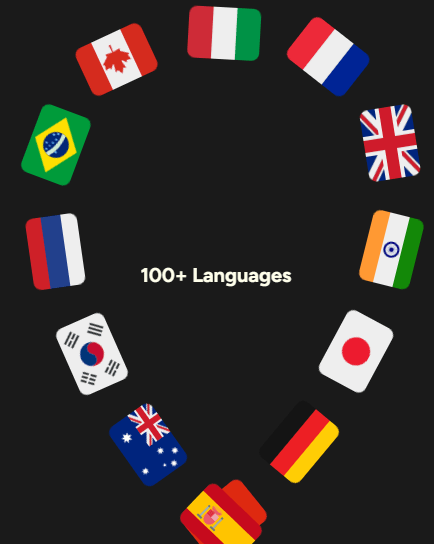
Flow also positions itself as multilingual, with support across many languages and cross-device syncing for dictionary, style, and settings. That makes it more useful for people who work across languages, switch between contexts, or need dictation on both desktop and mobile.
The key point is that Flow becomes more useful the more it knows your vocabulary and repeated writing patterns. Generic dictation helps you type less. Personalized dictation helps you correct less.
- Busy professionals: Wispr Flow is useful for people who write emails, messages, notes, updates, and documents all day and want to move faster without switching tools.
- Customer support and sales: Repeated replies, CRM notes, follow-ups, ticket responses, and short customer messages are a strong fit for dictation, snippets, and tone adjustment.
- Developers and technical users: Flow is useful for explaining context, writing prompts, drafting documentation, leaving comments, and speaking through complex requirements.
- Students and writers: Notes, essays, outlines, brainstorming, research summaries, and first drafts are easier when users can speak naturally and clean up afterward.
- Accessibility workflows: Flow is especially useful for users who are slowed down by typing, keyboard strain, dyslexia, ADHD, mobility limitations, or other accessibility needs.
- Use Flow where you already write. The biggest benefit comes from dictating directly inside email, Slack, docs, notes, browsers, and mobile apps instead of switching into a separate transcript tool.
- Build your personal dictionary early. Add names, acronyms, product terms, client names, code terms, and recurring corrections before frustration builds up.
- Use snippets for repeated text. Addresses, sign-offs, canned support replies, intros, disclaimers, and standard follow-ups are ideal snippet candidates.
- Dictate in complete thoughts when possible. Flow can clean up rambles, but better input still produces better output.
- Use Command Mode for editing, not only writing. Highlight existing text and speak the change you want when you need something shorter, clearer, softer, more formal, or translated.
- The biggest limitation is habit change. Wispr Flow is powerful only if users actually switch from typing to speaking. Some people need time to get comfortable dictating in public, around coworkers, or in shared spaces.
- The second limitation is that dictation still depends on environment. Background noise, poor microphones, interruptions, accents, unclear speech, and privacy-sensitive spaces can make voice input harder.
- The third limitation is that cleanup can change wording. Auto-edits are useful, but users should review important messages before sending, especially when tone, legal meaning, technical detail, or client context matters.
- The fourth limitation is app behavior. Cross-app insertion is the main advantage, but some apps and text fields may behave differently, especially on mobile or in restricted environments. Clipboard fallback helps, but it is not always as seamless as direct insertion.
- The fifth limitation is privacy sensitivity. Flow includes privacy controls, including zero data retention options, but voice dictation still involves sensitive spoken input. Users should be thoughtful before dictating confidential client, medical, legal, or internal company material.
Wispr Flow is best understood as an AI voice keyboard for serious everyday writing. Its strongest qualities are cross-app dictation, AI auto-edits, Command Mode, personal dictionary, snippets, multilingual support, synced settings, and privacy controls.
It is best for people who write constantly across apps and want to turn natural speech into polished text without copying transcripts between tools. The main caveat is that Flow requires a behavior shift: you get the biggest benefit only when speaking becomes part of your normal writing workflow.
The attached article contained unrelated older content after the coherent Wispr Flow section, so this HTML uses the Wispr Flow material and the provided Wispr Flow images only.
TAGS: Speech to Text
Related Tools:

Specializes in dubbing videos into multiple languages

Cconverts audio and video into precise transcriptions

Generates and translates subtitles for videos
AI-driven translation across multiple languages

Translates videos into multiple languages

Generates subtitles and dubbing in multiple languages