

Share this tool:
 |
Description:
Clipdrop Uncrop is an AI outpainting tool for extending images beyond their original frame. You upload a photo, artwork, texture, or landscape, choose a new aspect ratio, and the tool generates missing visual content around the original image. Its value is not complex prompting. It is fast composition repair: turning a tight crop into a wider banner, a portrait into a full-body image, a landscape into a panorama, or an artwork into a larger canvas.
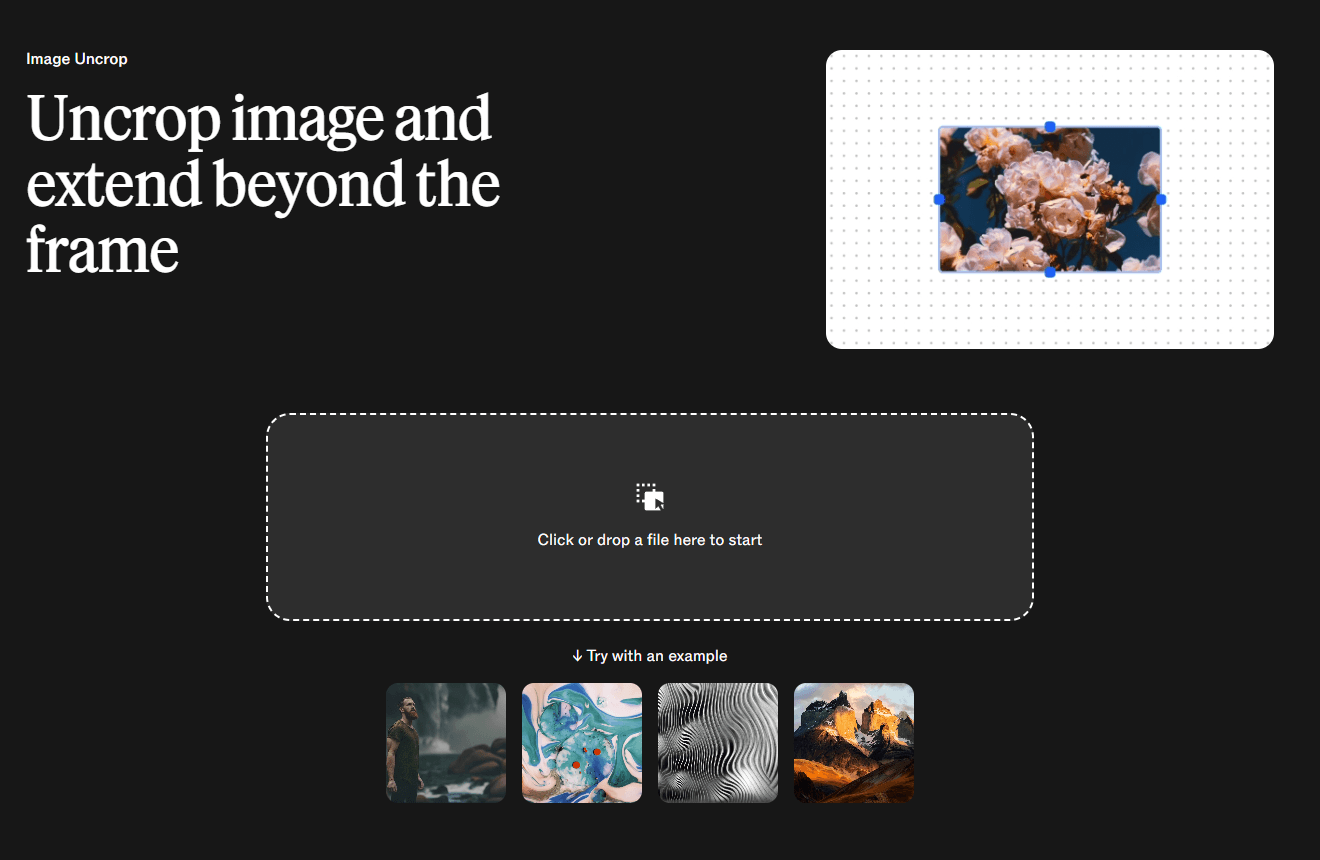
Clipdrop Uncrop is an image expansion tool. It takes an existing image and builds believable new content outside the original borders so the image fits a new format. Clipdrop describes Uncrop as a tool optimized for editing image aspect ratio, with a three-step process: upload an image, select a new aspect ratio, then let Uncrop generate an image that matches that ratio.
That makes it different from a normal text-to-image generator. You are not starting from a blank canvas. You are giving the model an existing visual and asking it to continue the scene outward.
The strongest use cases are practical:
- A portrait is cropped too tightly and needs more body or background.
- A product shot needs room for ad copy.
- A landscape needs a wider panoramic feel.
- A square image needs to become a vertical social story.
- A texture needs to extend cleanly for design work.
- Artwork needs more breathing room around the subject.
Clipdrop’s own Uncrop page highlights portraits, art, textures, and landscapes as use cases. It also says the tool can extend bodies or backgrounds in portraits, expand artwork, rescale and extend textures, and give landscapes a panoramic effect.
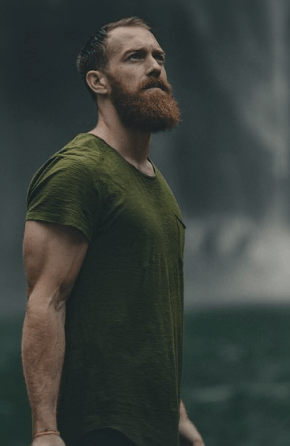
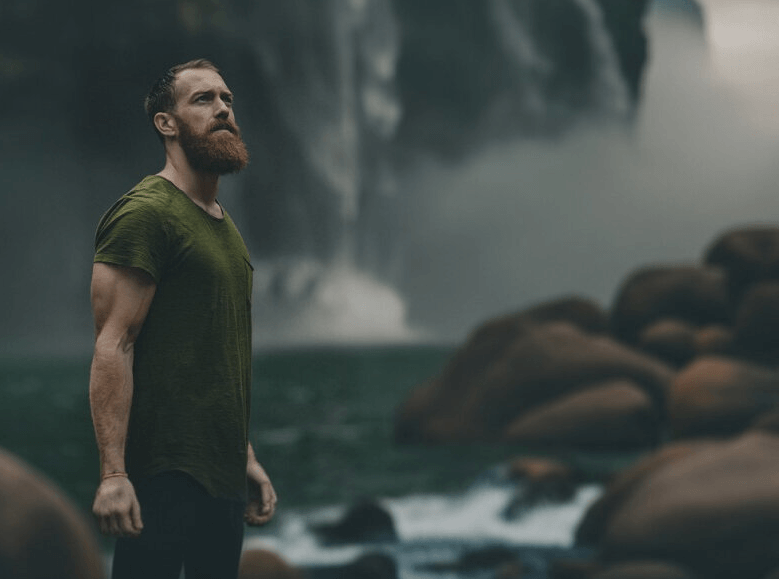
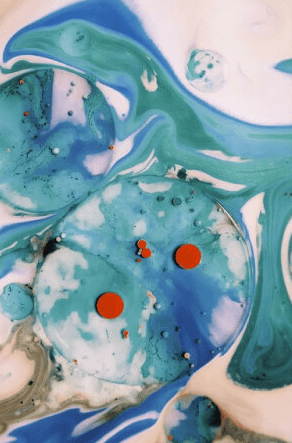
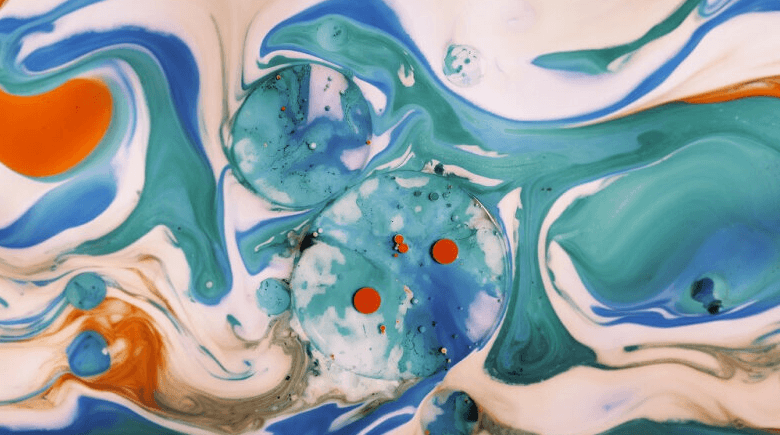

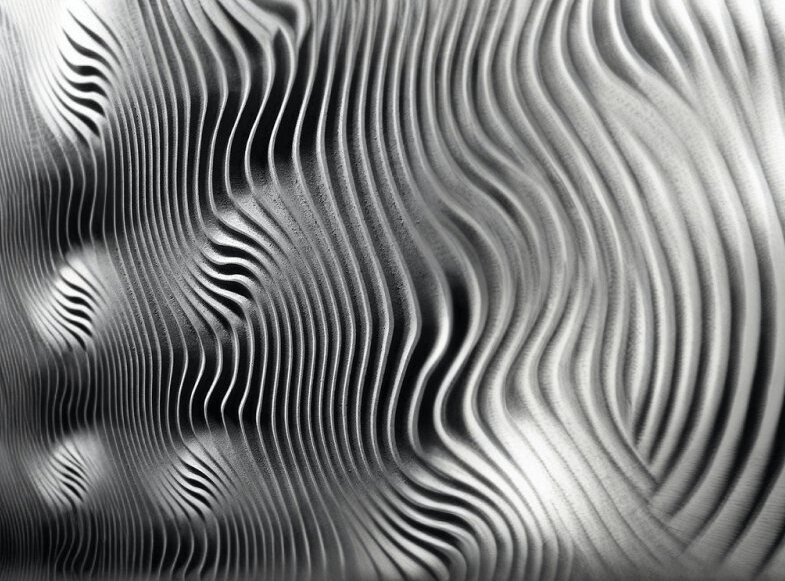
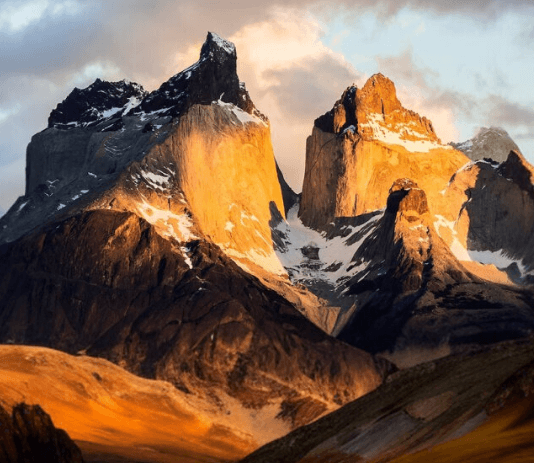
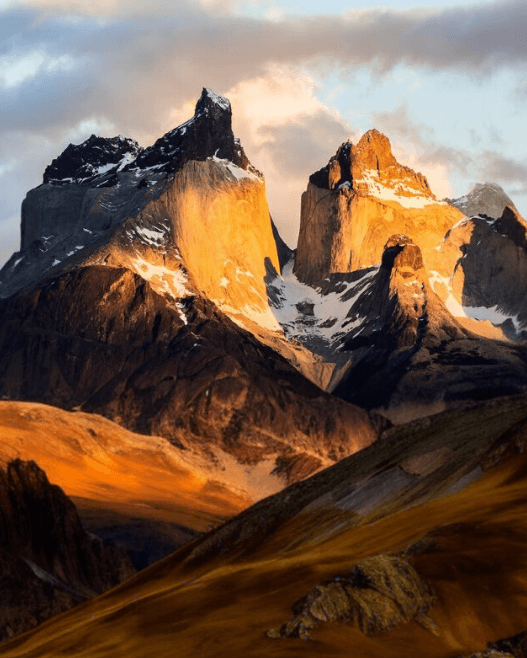
Clipdrop Uncrop lets users upload an image, choose a new aspect ratio, and generate an expanded version that fits the new frame.
The tool can extend bodies or backgrounds in portraits, which is useful when a photo is cropped too tightly.
Artists can use it to continue an existing image beyond the original edges without starting over.
Clipdrop specifically mentions extending textures such as wood, fabric, and metal, which is useful for design backgrounds and material studies.
The tool can expand landscape photos to create a more panoramic, immersive result.
Uncrop sits beside other Clipdrop tools such as Cleanup, Remove Background, Replace Background, Image Upscaler, Relight, Text Remover, Text to Image, and Universal Resizer.
Clipdrop Uncrop is simple by design. The main workflow is upload, choose aspect ratio, generate. There is not much setup, and that is part of the appeal. It is closer to a utility than a full creative suite.
The best workflow looks like this:
| Step | What To Do | Why It Matters |
|---|---|---|
| 1. Choose the right source image | Start with a clean subject, clear lighting, and simple edges | Uncrop has more context to extend naturally |
| 2. Pick the final layout first | Decide whether you need 16:9, 9:16, square, or another format | The expansion should serve the final use |
| 3. Generate the expansion | Let the model create missing areas around the original image | This is where outpainting does the main work |
| 4. Inspect edges and logic | Check hands, bodies, walls, horizons, patterns, and shadows | Outpainting can drift in complex areas |
| 5. Finish in another tool if needed | Add text, brand elements, cropping, or cleanup | Uncrop fixes composition, not full design production |
The main thing to know is that Uncrop is best when the missing area is predictable. A simple studio background, open sky, wall, floor, water, forest, or soft gradient is easier to extend than a crowd, detailed text, a complex product label, or a busy street scene.
Clipdrop Uncrop is strongest at saving images that are close but not usable in the needed format.
That happens often. A portrait works for a profile photo but not for a website banner. A product image is good but too centered for ad copy. A landscape looks strong but needs a wider crop. A design texture is useful but not large enough. Uncrop helps solve that layout problem without a reshoot or full manual reconstruction.
Its best use is not “make a new image.” Its best use is “make this existing image fit the format I need.”
That makes it practical for creators, ecommerce teams, designers, social media managers, bloggers, real estate marketers, teachers, artists, and small businesses. It is also useful for people working with older or inherited assets where the original crop is not ideal.
Uncrop is one tool in a larger Clipdrop editing suite. That matters because image expansion is often only one step.
A practical Clipdrop workflow might look like this:
| Goal | Tool Combination |
|---|---|
| Create a banner from a tight portrait | Uncrop, then Cleanup if artifacts appear |
| Turn a product shot into an ad asset | Remove Background, Replace Background, Uncrop |
| Fix a cropped landscape | Uncrop, then Upscaler |
| Prepare a social graphic | Uncrop, Universal Resizer, Text Remover if needed |
| Improve an object photo | Cleanup, Relight, Image Upscaler |
Clipdrop’s tool list includes Universal Resizer, Text to Image, Replace Background, Remove Background, Cleanup, Uncrop, Image Upscaler, Relight, and Text Remover. That broader context is important. Uncrop is not meant to do everything. It is strongest when paired with cleanup, resizing, and finishing tools.
Clipdrop Uncrop is best for extending an existing image so it fits a new layout, aspect ratio, or composition without reshooting or rebuilding the image manually.
Its strongest use cases are tight portraits, product-ad layouts, wider landscapes, expanded artwork, social resizing, and extended textures.
The main caveat is that outpainting works best when the missing area is visually predictable. Simple backgrounds, landscapes, soft gradients, and repeating textures are easier to extend than faces, hands, text, logos, crowds, or detailed product areas.
TAGS: Photo Editing
Related Tools:

Allows users to create portfolios and manage retirement savings

Automates budgeting, provides debt payoff strategies

Enhances image resolution and detail

Automates background removal and object erasure

Cloud-based accounting software
Removes unwanted elements from images